
Jump Client guide | PRA
With BeyondTrust Jump Technology, a user can access and control remote, unattended computers in any network. Jump Technology is integral to the BeyondTrust software offerings.
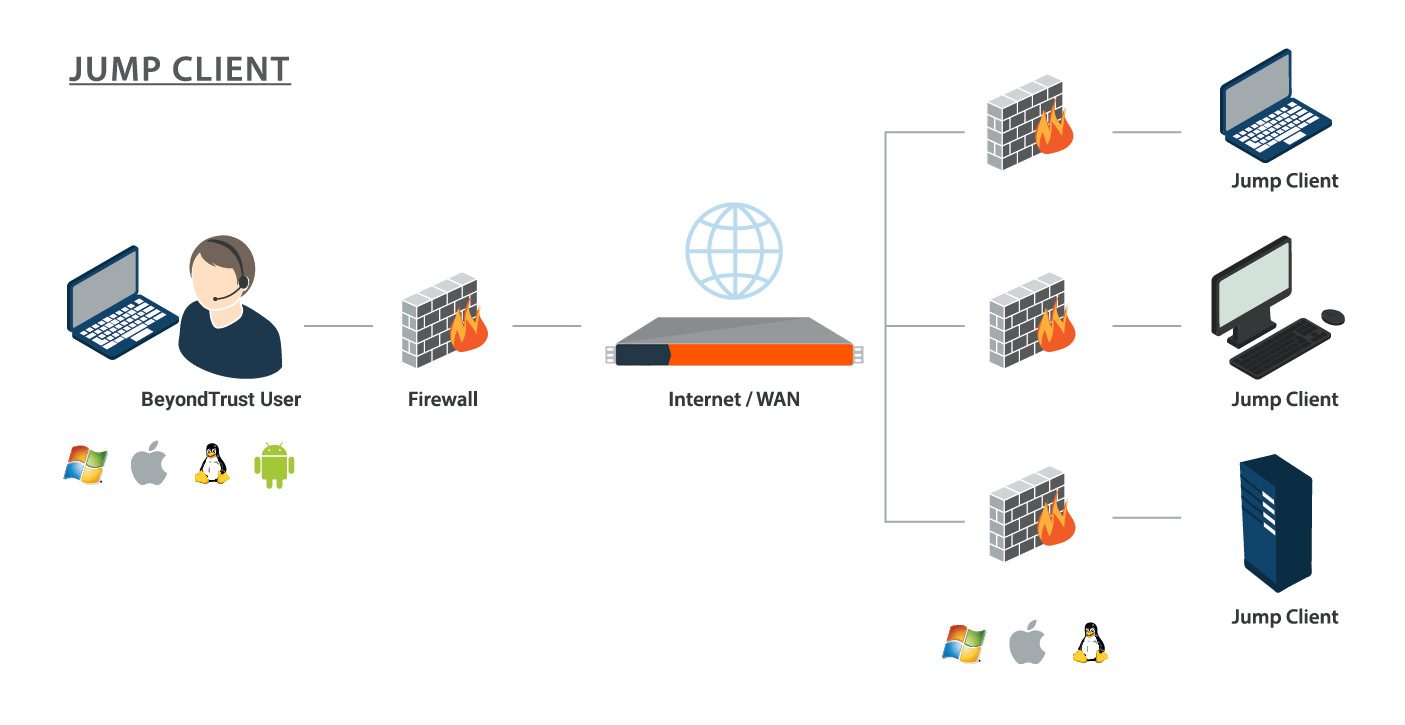
A Jump Client is an installable application that enables a user to access a remote computer, regardless of its location. The remote computer does not need to reside on a known network. Jump Clients are persistently connected to the B Series Appliance, thus helping you reach systems on remote networks anywhere in the world. By pre-installing Jump Clients on remote systems, a user can establish sessions with unattended Windows, Mac, and Linux computers.
With endpoint automation, you can use remotely execute scripts across any number of endpoints at the same time, without starting any sessions. The endpoint automation feature is only available to service mode Jump Clients with an active connection on Mac, Windows, or Desktop Linux.
Although BeyondTrust Jump Clients are not limited by system, they are limited by hardware, as described below:
| Sizing Guidelines | Users | Endpoints | CPU | Memory | Disk 1 | Disk 2 |
|---|---|---|---|---|---|---|
| Small | 1 - 20 | 1 - 1,000 | 2 - 4 | 4 - 8 GB | 8 - 128 GB | 64+ GB |
| Medium | 20 - 75 | 1,000 - 10,000 | 4 - 8 | 16 - 32 GB | 32 - 256 GB | 132+ GB |
| Large | 75 - 150 | 10,000 - 35,000 | 8 - 16 | 64 - 128 GB | 128 - 1024 GB | 1024+ GB |
| Enterprise | 150 - 300 | 35,000 - 50,000 | 16 - 32 | 128 - 512 GB | 512 - 4096 GB | 1024+ GB |
| Atlas | 300 - 3,000 | 50,000 - 250,000 | Enterprise | Enterprise | Enterprise | Enterprise |
If more Jump Clients are needed, contact BeyondTrust Technical Support.
Implementation
When working with Jump Technology, there are a lot of moving parts. Here is a recommended order of implementation to make full use of your software.
- Add Asset Roles. Asset Roles determine how users are allowed to interact with Assets. These roles are applied to users by means of individual account settings, group policies, or when added to Asset Groups.
- Add Asset Policies. Asset Policies are used to control when certain Assets can be accessed by implementing schedules, sending email notifications when an Asset is accessed, or requiring approval or user entry of a ticket system ID before an Asset may be accessed. Asset Policies are applied to Assets upon creation and can be modified from the access console. Additionally, Asset Policies can be applied to users when associating a user or group policy with an Asset Group.
- Add Asset Groups. An Asset Group is a way to organize Assets, granting members varying levels of access to those items. Users are assigned to Asset Groups either individually or by means of group policy.
- Deploy Jump Clients. Jump Clients can be deployed to Windows, Mac, and Linux systems and do not require those systems to be on a network. Jump Clients are deployed from /login > Asset Management > Jump Clients. When creating the installer in the mass deployment wizard, be sure to set the Asset Group and Asset Policy to determine who can access the Jump Client and with what restrictions.
Asset Roles
An Asset Role is a predefined set of permissions regarding Asset management and usage. Asset Roles are applied to users either from the Asset Management > Asset Groups page or from the Users & Security > Group Policies page.
If more than one role is assigned to a user, then the most specific role for a user is always used. The order of specificity for Asset Roles, from most specific to least specific, is:
- The role assigned to the relationship between a user and an Asset Group on the Asset Management > Asset Groups page.
- The role assigned to the relationship between a user and an Asset Group on the Users & Security > Group Policies page.
- The Asset Roles configured for a user on the Users & Security > Users page or the Users & Security > Group Policies page.
Create or edit an Asset Role, assigning it a name and description. Then set the permissions a user with this role should have.
Under Asset Group or Personal Assets, determine if users can create and deploy Assets, move Assets from one Asset Group to another, and/or delete Assets.
Check Start Sessions to enable users to connect to any Assets they have access to.
To allow users to edit Asset details, check any of Edit Tag, Edit Comments, Edit Asset Policy, Edit Session Policy, Edit Connectivity and Authentication, and Edit Behavior and Experience.
Asset Policies
To control access to particular Assets, create Asset Policies. Asset Policies are used to control when certain Assets can be accessed by implementing schedules, sending email notifications when an Asset is accessed, or requiring approval or user entry of a ticket system ID before an Asset may be accessed. An Asset Policy can be applied to Jump Clients as well as to Assets.
Create an Asset Policy
- From the /login administrative interface, go to Asset Management > Asset Policies.
- Click Add.
An Asset Policy does not take effect until you have applied it to at least one Asset.
- Create a unique name to help identify this policy. This name should help users identify this policy when assigning it to Assets.
- Set a code name for integration purposes. If you do not set a code name, PRA creates one automatically.
- Add a brief description to summarize the purpose of this policy.
- If you want to enforce an access schedule, check Enable. If it is disabled, then any Assets that use this policy can be accessed without time restrictions.
- Set a schedule to define when Assets under this policy can be accessed. Set the time zone you want to use for this schedule, and then add one or more schedule entries. For each entry, set the start day and time and the end day and time.
- If, for instance, the time is set to start at 8 am and end at 5 pm, a user can start a session using this Asset at any time during this window but may continue to work past the set end time. Attempting to re-access this Asset after 5 pm, however, results in a notification indicating that the schedule does not permit a session to start. If necessary, the user may choose to override the schedule restriction and start the session anyway.
- If stricter access control is required, check Force session to end. This forces the session to disconnect at the scheduled end time. In this case, the user receives recurring notifications beginning 15 minutes prior to being disconnected.
Jump schedule and Context Requirement cannot both be enabled on the same policy.
-
You may choose to trigger an email notification whenever a session starts or ends with an Asset that uses this policy.
- Check Notify recipients when a session starts to send an email at the beginning of a session. When a user attempts to start a session with an Asset that uses this policy, a prompt states that a notification email will be sent and asks if the user would like to start the session anyway.
- Check Notify recipients when a session ends to send an email at the end of a session. When a user attempts to start a session with an Asset that uses this policy, a prompt states that a notification email will be sent at the end of the session and asks if the user would like to start the session anyway.
- Enter one or more email addresses to which emails should be sent. Separate addresses with a space. This feature requires a valid SMTP configuration for your B Series Appliance, set up on the /login > Management > Email Configuration page.
- Enter a name for the approver. This name appears on the prompt the user receives prior to a session with an Asset that uses this policy.
- If more than one language is enabled on this site, set the language in which to send emails.
-
Context Requirement:
- If you check Require a ticket ID before a session starts, a valid ticket ID from your external ticket ID approval process must be entered by the user whenever a session is attempted with any Asset that uses this Asset Policy. When a user attempts to start a session with an Asset that uses this policy, a configurable dialog prompts the user to enter the approved ticket ID from your external ITSM or ticket ID system.
- If a written justification is required before connecting to a Jump Item, select Require a user justification before a session starts. When this option is enabled, a text dialog appears at session start. The session cannot proceed until a valid justification is submitted.
- The No context required option is selected by default.
-
If you check Require approval before a session starts, an approval email is sent to the designated recipients whenever a session is attempted with any Asset that uses this Asset Policy. When a user attempts to start a session with an Asset that uses this policy, a dialog prompts the user to enter a request reason and the time and duration for the request.
- Set the maximum length of time for which a user can request access to an Asset that uses this policy. The user can request a shorter length of access but no longer than that set here.
- When approval has been granted to an Asset, that Asset becomes available either to any user who can see and request access to that Asset or only to the user who requested access.
- Enter an email address or user name, or a team name so that anyone on that team can approve the jump. Separate multiple entries with a space. This feature requires a valid SMTP configuration for your B Series Appliance, set up on the /login > Management > Email Configuration page.
- Enter a name for the approver. This name appears on the prompt the user receives prior to a session with an Asset that uses this policy.
- If more than one language is enabled on this site, set the language in which to send emails.
Jump schedule and Context Requirement cannot both be enabled on the same policy.
- If you check Disable Session Recordings, sessions started with this Asset Policy are not recorded, even if recordings are enabled on the Configuration > Options page. This affects screen sharing recordings, Database Connection recordings, and command shell recordings.
- When you are finished configuring this Asset Policy, click Save.
If you have more than one language enabled on your site, you can select the language you want to use on the screens below from the dropdown menu. Fields that display the language globe icon can display content in the language you select.
-
You can modify the notification email template. Click the link below the Body field to view the macros that can used to customize the text in your emails for your purposes.
-
You also can modify the approval email template. Click the link below the Body field to view the macros that can used to customize the text in your emails for your purposes.
-
If you enabled the requirement of a ticket ID in the Context Requirement section, configure access to your external ticket ID system.
In Ticket System URL, enter the URL for your external ticket system. If an HTTPS URL is entered, upload the certificate for the HTTPS ticket system connection to the B Series Appliance.
In User Prompt, enter the dialog text you want access console users to see when they are requested to enter the ticket ID required for access.
If your company's security policies consider ticket ID information as sensitive material, check Treat the Ticket ID as sensitive information.
-
For additional security, the Asset Policy can require an end-user to confirm their identity using a multi-factor authentication challenge before starting or elevating a session. If desired, check Must complete a two factor authentication challenge before starting or elevating a session.
After the Asset Policy has been created, you can apply it to Assets either from the /login interface or from the access console.
Asset Group
An Asset Group is a way to organize Assets, granting members varying levels of access to those items. Users are assigned to Asset Groups either from the Asset Management > Asset Groups page or from the Users & Security > Group Policies page.
To quickly find an existing group in the list of Asset Groups, enter the name, part of the name, or a term from the comments. The list filters all groups with a name or comment containing the entered search term. The list remains filtered until the search term is removed, even if the user goes to other pages or logs out. To remove the search term, click the X to the right of the search box.
You can create or edit an Asset Group, assigning it a name, code name, and comments. The Group Policies section lists any group policies that assign users to this Asset Group.
In the Allowed Users section, you can add individual users if you prefer. Search for users to add to this Asset Group. You can set each user's Asset Role to set their permissions specific to Assets in this Asset Group, or you can use the user's default Asset Roles as set on the Users & Security > Group Policies or Users & Security > Users page. An Asset Role is a predefined set of permissions regarding Asset management and usage.
You can also apply a Asset Policy to each user to manage their access to the Assets in this Asset Group. Selecting Set on Assets instead uses the Asset Policy applied to the Asset itself. Asset Policies are configured on the Asset Management > Asset Policies page and determine the times during which a user can access this Asset. An Asset Policy can also send a notification when it is accessed or can require approval to be accessed. If neither the user nor the Asset has an Asset Policy applied, this Asset can be accessed without restriction.
Existing Asset Group users are shown in a table. You can filter the list of users by entering a username in the Filter box. You can also edit a user's settings or delete the user from the Asset Group.
To add groups of users to an Asset Group, go to Users & Security > Group Policies and assign that group to one or more Asset Groups.
Edit and delete functionality may be disabled for some users. This occurs either when a user is added via group policy or when a user's system Asset Role is set to anything other than No Access.
You can click the group policy link to modify the policy as a whole. Any changes made to the group policy apply to all members of that group policy.
You can click the user link to modify the user's system Asset role. Any changes to the user's system Asset role apply to all other Asset Groups in which the user is an unassigned member.
You also can add the individual to the group, overriding their settings as defined elsewhere.
Jump Client settings
From the /login administrative interface, go to Asset Management > Jump Clients.
Manage installers with the Jump Client installers list
This list shows all previously created Jump Client installers. Click the trash can icon to delete the installer. Click the clock icon to change how long the installer will be valid. Click the download icon to either download the installer or to copy the key needed for the generic installer.
A warning appears at the top of the list: Installing more than one Jump Client as the same user or more than one Jump Client as a service on the same system is being phased out in a future release. In the Representative Console you may use the copy action on a Jump Client to apply different policies to the same endpoint. Click Dismiss to hide the message.
Choose statistics
An administrator can choose which statistics to view for all Jump Clients on a site-wide basis. These statistics are displayed in the access console and include CPU, console user, disk usage, a thumbnail of the remote screen, and uptime.
The Active Jump Client Statistics Update Interval determines how often these statistics are updated. Managing which statistics are viewed and how often can help to regulate the amount of bandwidth used. The more active Jump Clients you have deployed, the fewer the statistics and the longer the interval may need to be.
Manage upgrades
Regulating bandwidth applies to on-premises installations only.
You can regulate the bandwidth used during upgrades by setting Maximum bandwidth of concurrent Jump Client upgrades.
Also set the maximum number of Jump Clients to upgrade at the same time. Note that if you have a large number of Jump Clients deployed, you may need to limit this number to regulate the amount of bandwidth consumed.
In order to manually update Jump Clients in the privileged web access console, you must first disable automatic Jump Client upgrades.
Use the radio buttons below to control automatic Jump Client upgrades. You can:
- Permanently disable Jump Client upgrades.
- Temporarily enable Jump Client upgrades for the current upgrade cycle.
- Permanently enable Jump Client upgrades.
Important informationWhen upgrading to a newly built site software package, verify that all certificate stores are managed appropriately and are up-to-date prior to upgrading to a new BeyondTrust version. Failure to do so may cause a majority of your existing Jump Clients to appear offline.
Choose maintenance options
Set the global connection rate for disconnected Jump Clients to try to reconnect.
If a Jump Client goes offline and does not reconnect to the B Series Appliance for the number of days specified by the Number of days before Jump Clients that have not connected are automatically deleted setting, it is automatically uninstalled from the target computer and is removed from the Asset Management Interface of the access console.
This setting is shared with the Jump Client during normal operation so that even if it cannot communicate with the site, it uninstalls itself at the configured time. If this setting is changed after the Jump Client loses connection with the B Series Appliance, it uninstalls itself at the previously configured time.
If a Jump Client goes offline and does not reconnect to the B Series Appliance for the number of days specified by the Number of days before Jump Clients that have not connected are automatically deleted setting, it is labeled as lost in the access console. No specific action is taken on the Jump Client at this time. It is labeled as lost only for identification purposes, so that an administrator can diagnose the reason for the lost connection and take action to correct the situation.
To allow you to identify lost Jump Clients before they are automatically deleted, this field should be set to a smaller number than the deletion field above.
Uninstalled Jump Client Behavior determines how a Jump Client deleted by an end user is handled by the access console. Depending on dropdown option selected, the deleted item can either be marked as uninstalled and kept in the list or actually be removed from the Assets list in the access console. If the Jump Client cannot contact the B Series Appliance at the time it is uninstalled, the affected item remains in its offline state.
You can set Jump Clients to allow or disallow simultanous connections either through an Asset Policy on Asset Management > Asset Policies or by the global setting configured under Asset Management > Assets > Asset Settings. If allowed, multiple users can gain access to the same Jump Client without an invitation to join an active session by another user. If disallowed, only one user can connect to a Jump Client at a time. Only an invitation by the user who originated the session can allow for a second user to access the session.
Manage other options
Allow users to attempt to wake up Jump Clients provides a way to wake up a selected Jump Client by broadcasting Wake-on-LAN (WOL) packets through another Jump Client on the same network. Once a WOL is attempted, the option becomes unavailable for 30 seconds before a subsequent attempt can be made. WOL must be enabled on the target computer and its network for this function to work. The default gateway information of the Jump Client is used to determine if other Jump Clients reside on the same network. When sending a WOL packet, the user has an advanced option to provide a password for WOL environments that require a secure WOL password.
Updated 3 months ago
