
Smart Rules in Password Safe Cloud | PS Cloud
What are Smart Rules? 
A Smart Rule is a query that you can use to organize assets into Smart Groups and manage Password Safe managed accounts.
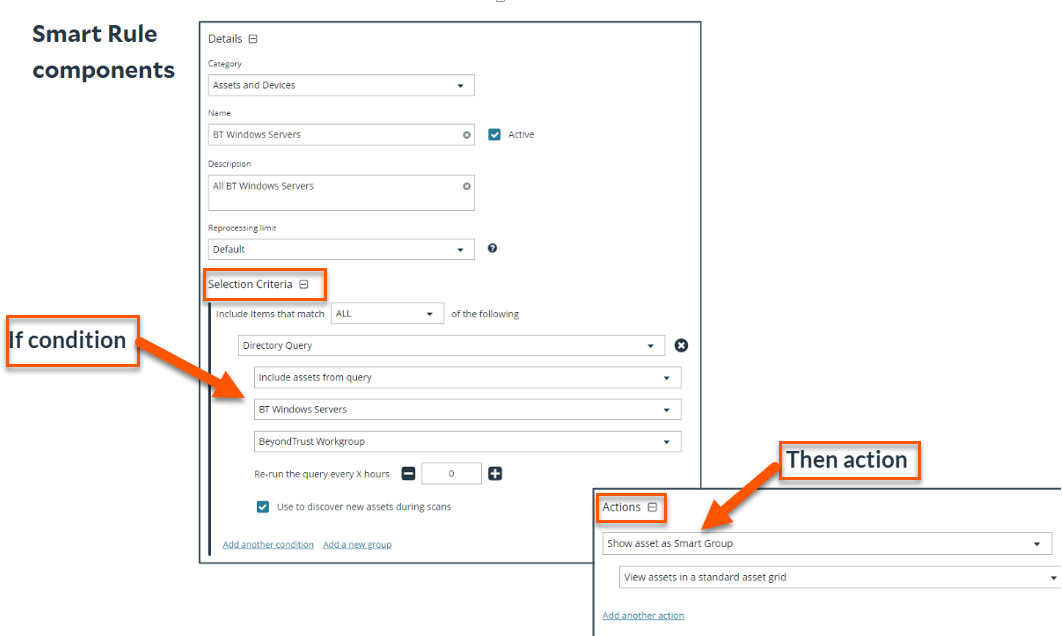
When you create a smart rule, you are essentially creating "if-then" logic.
The IF portion is the criteria you use to select assets in the Selection Criteria section. This criterion can be based on any collected data from scans or event processing.
The Then is the action you wish to take. This is in the Actions part of the smart rule form and can have multiple actions.
The View Results button allows you to preview the results of your smart rule, however you must create your smart rule before the results display by clicking Create Smart Rule.

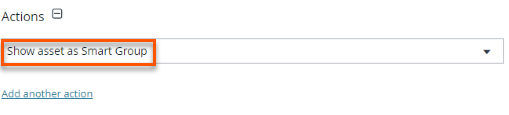
You must include the Show as a Smart Group action for the preview of results to take effect.
For this reason, we recommend creating a smart rule without adding any additional actions beyond Show as a Smart Group.
Why use Smart Rules for asset discovery and onboarding
Smart Rules play a vital role in automating and optimizing asset management workflows. Use them to:
- Group assets and accounts into Smart Groups- Allows you to simplify classification and policy enforcement.
- Streamline onboarding workflows- Allows you to automate asset handling based on predefined logic.
- Apply rules across asset, account, and managed system types- Allows you to achieve broad coverage and consistency.
- Define selection criteria and actions using IF/THEN logic- Allows you to create dynamic, responsive rules and is the core of how Smart Rules operate; that is, evaluating conditions in real time and executing actions based on defined criteria.
- Target specific assets with scheduled discovery scans- Ensures you get timely updates and visibility.
- Reference Smart Groups within other Smart Rules- Allows you to build layered, modular logic.
- Enable role-based assignment - Allows you to enforce granular access control and improve security posture.
Smart Rules types
You can use a Smart Rule to organize assets based on the filters selected. There are three types of smart rules:
| Smart Rules Type | Description |
|---|---|
| Asset-based | This rule target assets that are stored within Password Safe database or through a Directory Query to onboard them for Password Safe management. |
| Managed Account | This rule manages accounts in Password Safe by giving the ability to change passwords on accounts and corresponding settings, functional accounts, and password policies. |
| Managed System | This rule targets current managed systems in Password Safe to edit settings or to group them using the Smart Rule action Show managed system as Smart Group. |
Some common uses for Smart Rules are:
- Search for assets to onboard to Password Safe
- Discover Active Directory accounts and manage them in Password Safe
- Link discovered Active Directory accounts to manage them
TipThink of a Smart Rule as the logic engine which asks the question "How to select items"?
What are Smart Groups?
Smart Groups are a collection of managed assets, managed systems, or assets defined by a Smart Rule. These Smart Groups are automatically associated with:
- Read permissions for all groups that the group creator is a member of
- Full Control permissions for all groups that the user is a member of, and where the user has Asset Management and Smart Rule Management permissions
TipThink of a Smart Group as the resulting buckets that hold the filtered items created by a Smart Rule.
How are Smart Rules useful?
When you use a Smart Rule to register assets as Smart Groups, you can run Discovery Scans, and monitor and view assets. Smart rules can:
- Save time: Automating actions based on vulnerability findings or asset changes saves time for IT and security teams.
- Ensure consistency: Actions are taken consistently, reducing the risk of human error or missed steps in critical processes.
- Reduce risk: By automating responses to vulnerabilities and security issues, Smart Rules help reduce the time window in which systems remain vulnerable.
- Enhance compliance: Smart Rules help ensure that remediation efforts align with compliance requirements, automating compliance workflows and reporting.
- Improve your security posture: Automating security processes leads to quicker identification and remediation of risks, improving overall security.
How do I access Smart Rules?
- Use a browser to sign in to your BeyondInsight/Password Safe URL.
This URL is provided in the BeyondTrust welcome email and includes your site URL followed by /login. - From the left menu, click
 .
.
The Smart Rules page displays.
The Smart Rule page
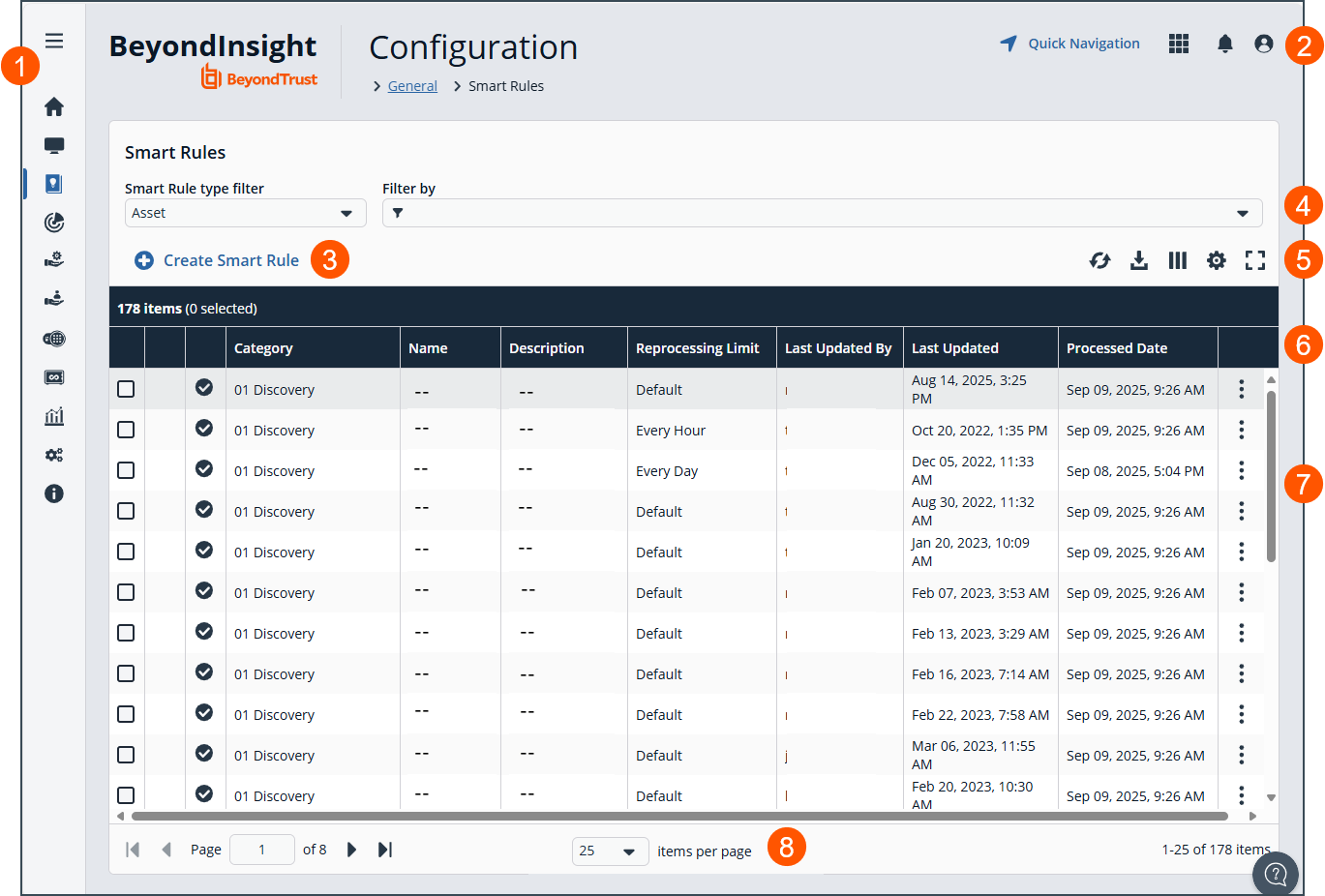
The Smart Rule page
- Left menu: Easy access to all pages in BeyondInsight/Password Safe, including the Home, Assets, Smart Rules, Discovery Scanner, Management Systems, Managed Accounts, Password Safe, Secrets Safe , Analytics and Reporting, Configuration, and About pages.
- Header: Navigate to your favorite pages, view your notifications, access your connected apps, and set your account preferences.
-
Create Smart Rule: Click to create a new Smart Rule.
-
Filters: Select a filter to refine your results.
Filter types
-
Smart Rule type filter: Filter by Asset, Managed Account, or Managed System,
-
Filter by: Filter by Locked, Status, Category, Name, Description, Reprocessing Limit, Last Updated By, Last Updated, or Action.
-
-
Grid display preferences: Set display preferences on the Smart Rules grid using the following options represented by icons above the grid:
- Click
 to refresh the list,
  to download the list to a .csv file,
  to select which columns to display on the page,
  to configure your page display, and
 to expand the grid.
- Click
-
Smart Rules list columns: Not all columns display in the image above.
Column Names
-
Category
-
Name
-
Description
-
Reprocessing Limit
-
Last Updated By
-
Last Updated
-
Processed Date
-
Processing Status
-
Last Attempt
-
Average Time (min)
-
Successful Attempts
-
Failed Attempts
-
-
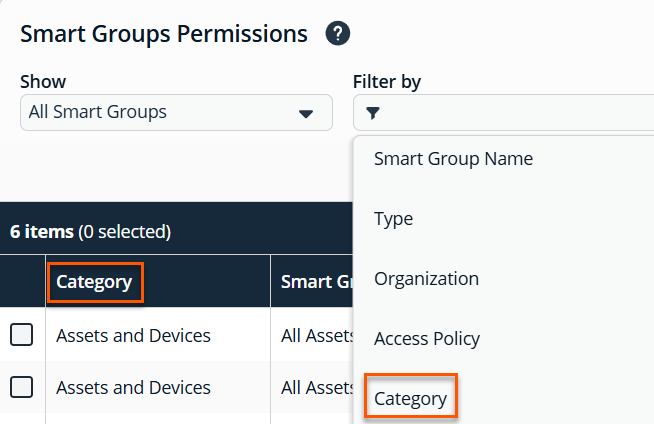
Smart Rules grid: Displays information based on filter selections. You can now filter the Category property in Group Details > Smart Groups.
-
List navigation options: Navigate in the Smart Rule list.
Critical Importance of Smart Rules
- The BeyondInsight user must be a member of the Administrators group or be assigned the Full Control permission on the Asset Management and the applicable Smart Rule Management feature(s) to be able to create and edit Smart Rules.
- Users assigned Read Only permissions on these features may only view the details of Smart Rules.
- Smart Rules update results automatically, ensuring assets match the criteria and are current.
- You can create address groups or Active Directory queries from the Configuration page to use as Smart Rule filters.
- You can use more than one filter to refine or extend the scope of assets in a Smart Rule. Filters can be joined with and (match ALL criteria) or or (match ANY criteria) conditions. If you select to match ALL, every indented filter must be set to True for an asset to be included. If you select to match ANY, only one of the indented filter items must be set to True for an asset to be included.
For configuration of Smart Rules, see Smart Rules: Configure.
Updated 3 days ago
