
Create and edit directory credentials | PS Pathfinder
What is a directory credential?
A directory credential is a username and password (or other authentication data) that provides access to an account within a directory service, such as Microsoft Active Directory (AD), LDAP, or Azure AD.
How is it useful?
Directory credentials make it easier and safer to control who can access what within an organization, while enabling automation and compliance through integration with products like Password Safe.
A directory credential is required for querying Active Directory (AD), Entra ID, and LDAP. It is also required for adding AD, Entra ID, and LDAP groups and users in BeyondInsight. Follow the steps below for creating each type of directory credential.
Create a directory credential in Password Safe
-
At the top left of the page, click
 > Password Safe > Configuration.
The Configurationpage displays. -
Under Role Based Access, click Directory Credentials.
-
Click + Create New Directory Credential.
-
Select the Directory Type and follow the steps below that are applicable for that type.
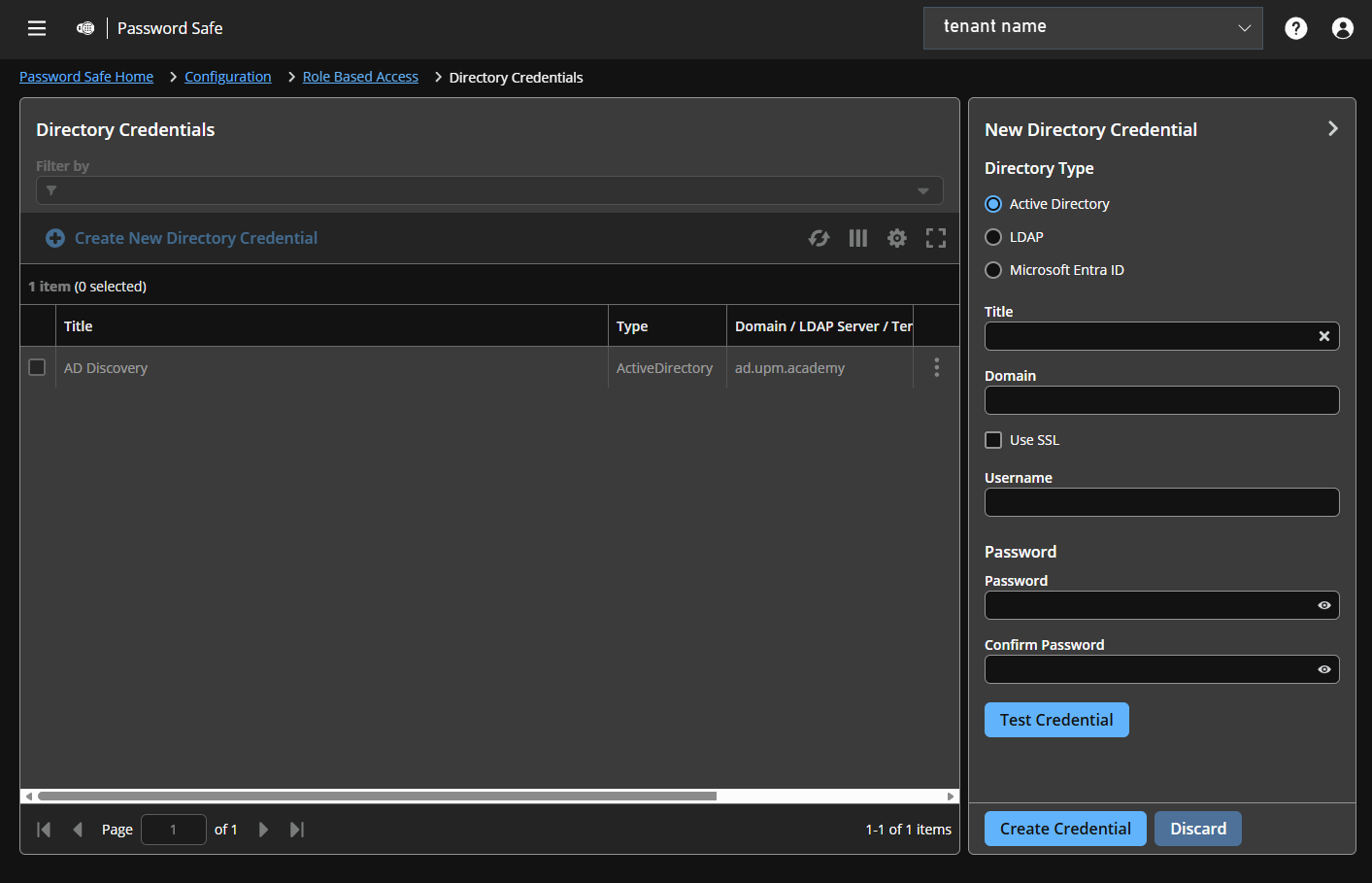
Create a directory credential
Create an Active Directory credential
- Select Active Directory for the Directory Type.
- Provide a name for the credential.
- Enter the name of the domain where the directory and user credentials reside.
- Enable the Use SSL option to use a secure connection when accessing the directory.
If Use SSL is enabled, SSL authentication must also be enabled in the Password Safe configuration tool.
- Enter the credentials for the account that has permissions to query the directory.
- Click Test Credential to ensure the credential can successfully authenticate with the domain or domain controller before saving the credential.
- Click Create Credential.
Create an LDAP credential
- Select LDAP for the Directory Type.
- Provide a name for the credential.
- Enter the name of the LDAP server where the directory and user credentials reside.
- Enable the Use SSL option to use a secure connection when accessing the directory.
If Use SSL is enabled, SSL authentication must also be enabled in the Password Safe configuration tool.
- Enter the credentials for the account that has permissions to query the directory.
- Click Test Credential to ensure the credential can successfully authenticate with the domain or domain controller before saving the credential.
- Click Create Credential.
Create an Entra ID credential
- Select Microsoft Entra ID for the Directory Type.
- Select a credential scope: Public or US Government (supports Azure GCC High). The scope cannot be changed after the directory credential is created.
- Provide a name for the credential.
- Paste the Client ID, Tenant ID, and Client Secret that you copied when registering the application in your Entra ID tenant.
Only one credential is supported per Entra ID tenant.
- Click Test Credential to ensure the credential can successfully authenticate with the domain or domain controller before saving the credential.
- Click Save Credential.
Edit a directory credential
- At the top left of the page, click > Password Safe > Configuration.
The Configurationpage displays. - Under Role Based Access, click Directory Credentials.
- Locate the credential in the grid.
- Click
 > Edit.
 - Make the changes required.
For AD or LDAP credentials, if you change the Domain or LDAP Server, enable or disable the Use SSL option, or update the Username or Bind DN, you must change the password. Click Change Password to display fields to enter and confirm the new password.
- Click Test Credential to ensure the edited credential can successfully authenticate with the domain or domain controller before saving the credential.
- Click Save Credential.
Sign in to Password Safe on Pathfinder
Pathfinder supports four kinds of Password Safe users:
- Local BeyondTrust accounts
- SAML users (such as Microsoft Entra ID)
- Active Directory users
- LDAP users
Each type signs in a little differently.
This topic shows administrators how to check the configuration, shows users how to sign in, and explains how to confirm a sign in in the audit logs.
How sign in works
Each user type signs in at a different place and enters different information.
| User type | Where they sign in | What they enter | Name shown in Pathfinder |
|---|---|---|---|
| Local BeyondTrust account | Standard login page | Email, then password | Email address |
| Entra ID (SAML) | Standard login page, then Microsoft | Email, then Microsoft password | Entra ID email |
| Active Directory | Your AD/LDAP sign-in URL | username@domain and directory password | username@domain.<Org ID> |
| LDAP | Your AD/LDAP sign-in URL | username@domain and directory password | username@domain.<Org ID> |
Active Directory and LDAP users must use the AD/LDAP sign in URL. That URL includes your Org ID, which sends directory users to the correct Pathfinder instance. The standard sign in page does not work for them.
After a user signs in, their group roles and features control what they see in Password Safe.
Prerequisites
Make sure you have the following:
- You have a Pathfinder administrator account.
- Your SAML identity provider is already added in Pathfinder.
- The groups and users you want to give access to are already added in Password Safe, with the roles and features they need.
This guide does not cover how to add a new Active Directory or LDAP provider.
Part 1: Check the configuration (administrators)
Open Administration
-
Sign in to Pathfinder with your administrator account.
-
Select the tenant menu in the top right corner.
-
Select Administration.
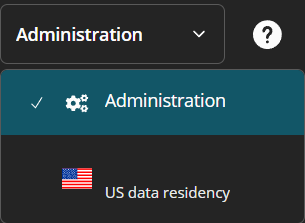
Check your SAML provider
- In Administration, click Identity & Authentication Providers.
The SAML Providers page displays. - Find your provider in the list. Open the row menu and select Edit provider.
- Review the settings. If you have set up SAML in Microsoft Entra ID before, these fields look familiar:
- SAML single sign-on URL
- Service provider entity ID
- Identity provider entity ID
- Identity provider sign-on URL
- Signing certificate
- Select Save Changes to keep your edits, or Discard to close the panel without saving.
Get the AD/LDAP sign-in URL
Directory users need this URL. Send it to them before they try to sign in.
-
In Administration, open the menu and select Directory Authentication.
-
Review the provider list. Each row shows the label, the type (Active Directory or LDAP), the domain or server, the proxy site, and the product.
-
In the AD/LDAP sign-in URL panel, select Copy link.
-
Share the link with your Active Directory and LDAP users. It looks like this:
https://login.beyondtrust.io/signin?orgId=<your Org ID>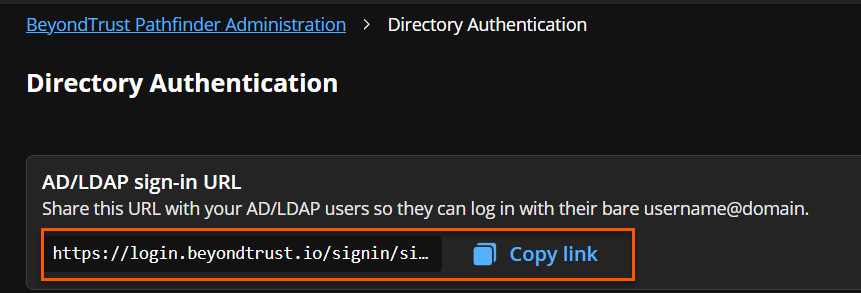
Your Org ID also appears in the top right corner of every Administration page. Keep it handy when you contact BeyondTrust Support.
Check groups and users in Password Safe
- Open the tenant menu and select your tenant to return to Pathfinder Home.
- Select the Password Safe tile.
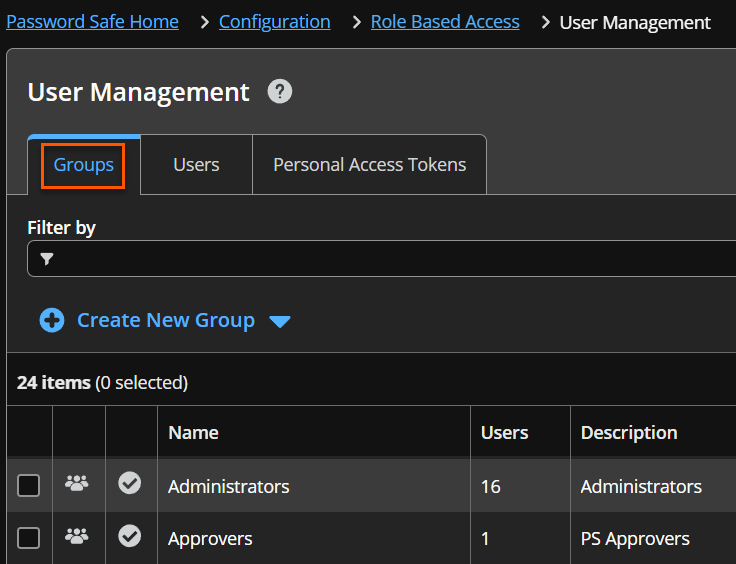
- Select Configuration, then select User Management under Role Based Access.
- On the Groups tab, confirm that your Active Directory, LDAP, and SAML groups appear. Directory groups use the format
domain\group. - Select a group to review its roles and features. Or open the Users tab to see the users from those domains.
Part 2: Sign in (users)
Sign in with Entra ID (SAML)
- Go to the standard Pathfinder login page at
login.beyondtrust.io. - Enter your work email address and select Next.
- Pathfinder sends you to the Microsoft sign-in page. Enter your Microsoft password and select Sign in.
- If Microsoft asks whether to stay signed in, choose the option you prefer.
- Pathfinder Home opens. Select the Password Safe tile.
To check which account you are using, select the profile icon in the top right corner. Pathfinder shows your Entra ID email address.
Sign in with Active Directory or LDAP
-
Open the AD/LDAP sign in URL your administrator sent you. Do not use the standard login page.
-
Enter your username in
username@domainformat. For example,[email protected]. -
Enter your directory password and select Sign in.
-
Pathfinder Home opens. Select the Password Safe tile.
-
Password Safe shows only the areas your groups give you permission to use.
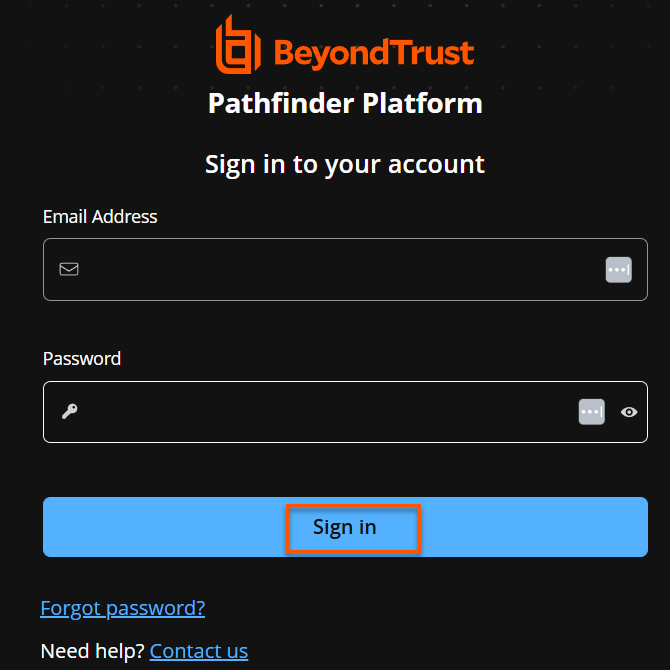
To check which account you are using, select the profile icon. Pathfinder shows your directory username with your Org ID added to the end. For example, [email protected].<Org ID>.
The AD/LDAP sign in page does not have a Forgot password link. Directory users reset their passwords through their own organization's IT process.
Part 3: Check sign-ins in the audit logs (administrators)
Two logs record a Password Safe sign-in. Pathfinder Audit Logs record the sign-in to the platform. Password Safe User Audits record the sign-in to the product.
Pathfinder Audit Logs
-
Sign in as an administrator and open Administration.
-
Open the menu and select Audit Logs.
-
Filter by date, or search the User Email or Action columns.
-
Select the plus icon on a row to see more detail.
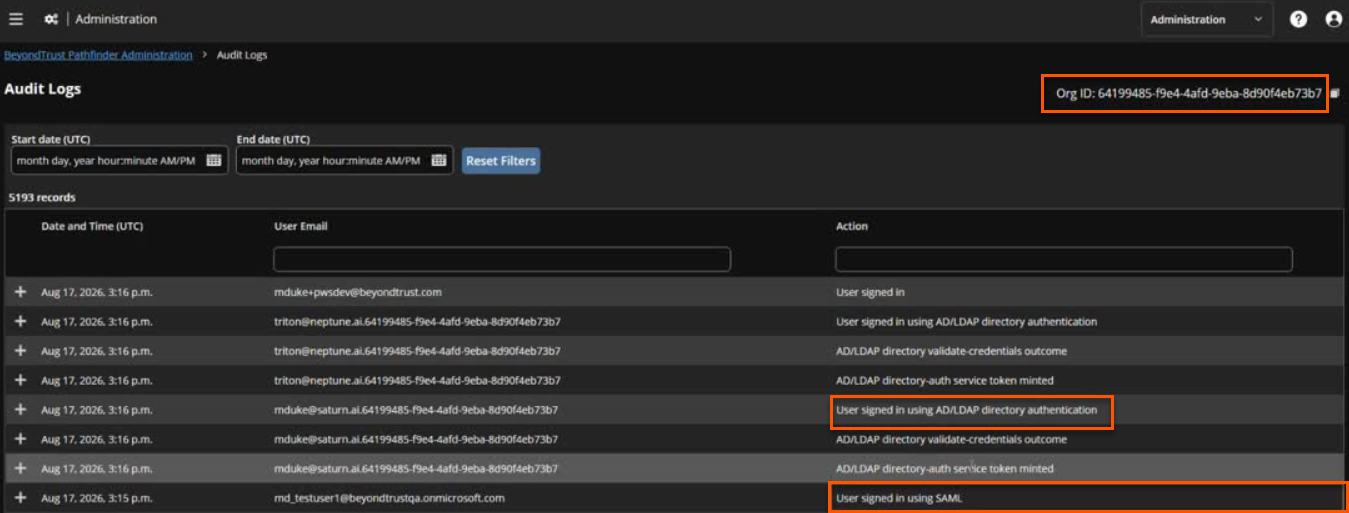
Each user type records a different action:
| User type | Action recorded |
|---|---|
| Local | User signed in |
| Entra ID (SAML) | User signed in using SAML |
| Active Directory or LDAP | Three events, in this order: AD/LDAP directory-auth service token minted, AD/LDAP directory validate-credentials outcome, then User signed in using AD/LDAP directory authentication |
Password Safe User Audits
-
Select the Password Safe tile, then select Configuration.
-
Under General, select User Audits.
-
Find the Login entry for the user and select the information icon at the end of the row.
-
The Login Details panel shows the username, user type, and the group used for authentication.
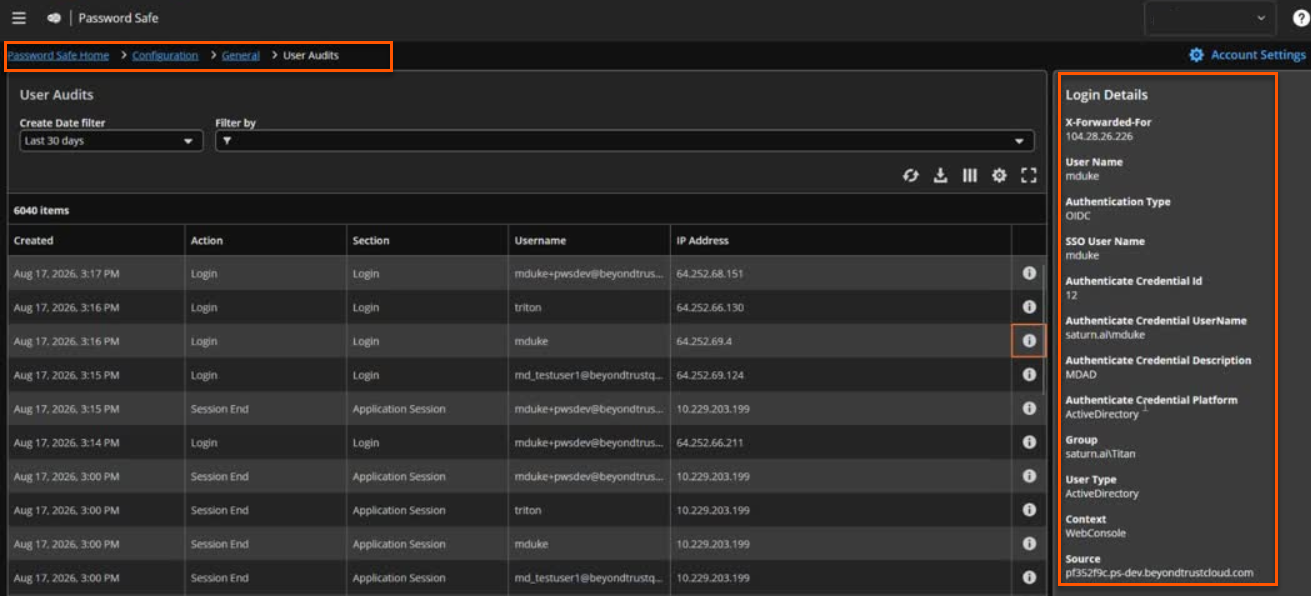
These fields in Login Details are the most useful:
| Field | What it tells you |
|---|---|
| User Type | Shows ActiveDirectory or LDAP for directory users. |
| Group | The group that granted access. Active Directory shows domain\group. LDAP shows the full group path, such as cn=group,ou=groups,dc=example,dc=com. |
| Authentication Type | Shows OIDC for directory users. This is expected. Pathfinder passes the signed-in session to Password Safe. |
| Authenticate Credential | For Active Directory users, this is the directory credential used to look up the account. LDAP users may show No Domain Mapped Credential Found. |
Pathfinder Audit Logs show directory users as
username@domain.<Org ID>. Password Safe User Audits show onlyusername. To match an entry across the two logs, compare the username and the time.
Troubleshooting
An Active Directory or LDAP user says their account is not recognized
This is the most common issue. Check these causes in order.
| Cause | What to do |
|---|---|
| The user is on the standard login page. | Send them the AD/LDAP sign-in URL from Administration > Directory Authentication. |
| The username is in the wrong format. | Confirm the user enters username@domain, and that the domain matches a provider you configured. |
| The domain does not match a provider. | Domain matching is exact, not hierarchical. [email protected] does not match a provider registered for corp.local. Each domain needs its own provider row. |
| The account is a local user, not a directory user. | An account created without the .<Org ID> suffix is a local user. Local users have no directory path, so they get a generic Invalid username or password message. |
The sign-in page shows "Authentication service unavailable"
The outcome metadata shows ServiceUnavailable or ProxyUnavailable. The BeyondTrust Authentication API sends the credential check to the product instance through the configured proxy site, so both the proxy site and the Password Safe instance must be reachable. Check that they are online.
A directory user signs in but cannot find their organization or data
Compare the Org ID in the link the user opened with the Org ID in the top right corner of your Administration pages. They must match.
A user signs in but sees only some areas of Password Safe
Group roles control this. In User Management, confirm the user's group appears in the list and has the roles they need.
A directory user's sign-in does not appear as successful in Audit Logs
If you see service token minted and validate-credentials outcome but no User signed in using AD/LDAP directory authentication, the directory rejected the credentials. Expand the validate-credentials row for details, then ask the user to confirm their password with their IT team.
An Entra ID user cannot finish signing in at Microsoft
Compare the entity IDs, the sign-on URL, and the certificate in SAML Providers with the enterprise application in Microsoft Entra ID. They must match.
A directory user wants to reset their password
The user's own organization manages directory passwords. Send the user to their IT team.
Contact BeyondTrust Support
To help Support resolve your case faster, include:
- Your Org ID
- The user type: local, SAML, Active Directory, or LDAP
- The username exactly as the user entered it
- The time of the sign in attempt, in UTC
- The matching entries from Audit Logs
Updated 4 days ago
