
Two-Factor Authentication Using TOTP
What is TOTP?
Time-based one-time password (TOTP), is a type of two-factor authentication method that generates a temporary, unique passcode based on the current time.
How is TOTP useful?
TOTP adds a strong, time-sensitive layer of security to user authentication:
- Protects against password theft: Even if an attacker steals a user’s password, they still can’t log in without the TOTP code, which changes every 30 seconds.
- Reduces phishing and replay attacks: Since each code is unique and short-lived, stolen or intercepted codes can’t be reused.
- Works offline: The authenticator app doesn’t need internet access to generate codes, making it reliable even without a network connection.
- Simple and low-cost: Users only need a smartphone app (like Google Authenticator or Microsoft Authenticator), with no special hardware required.
- Widely supported: Compatible with many security systems, VPNs, and enterprise authentication solutions — including BeyondInsight and Password Safe.
Configure TOTP two-factor authentication
BeyondTrust supports two-factor authentication options using a time-based one-time password (TOTP). TOTP integrates with two-factor authentication apps. The end user must install one of these apps, such as Google Authenticator or Microsoft Authenticator, to register their device.
As part of the configuration process, the user must register this two-factor app with BeyondTrust. The below sections detail how to configure TOTP two-factor authentication settings, apply TOTP authentication to user accounts in BeyondInsight, and how to register their authenticator app device with BeyondTrust.
Configure TOTP two-factor authentication settings
-
Use a browser to sign in to your BeyondInsight/Password Safe URL.
This URL is provided in the BeyondTrust welcome email and includes your site URL followed by /login. -
From the left menu, click
 .
.
The Configuration page displays. -
Under Authentication Management, select Authentication Options.
-
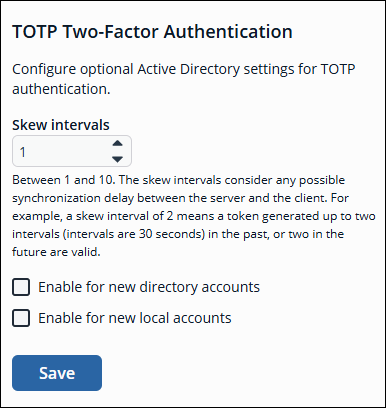
Under TOTP Two-Factor Authentication, set the following:
-
Skew Intervals: Considers how many prior tokens are valid and accepted. You can increase this value from the default if a lag is anticipated in the synchronization between the server and client.
-
Enable for new directory accounts
-
Enable for new local accounts
-
-
Click Save.
Set TOTP two-factor authentication on user accounts
The type of two-factor authentication can be set on a user account when a new user is created or when editing an existing user account. You can enable TOTP two-factor authentication for all new users from Authentication Options > TOTP Two-Factor Authentication settings, as indicated in the above section.
- Use a browser to sign in to your BeyondInsight/Password Safe URL.
This URL is provided in the BeyondTrust welcome email and includes your site URL followed by /login. - From the left menu, click .
The Configuration page displays. - Under Role Based Access, select User Management.
The User Management page displays. - Select the Users tab.
- To create a new user, click Create New User.
- To edit an existing user, click
 > Edit User Details.
 - At the bottom of the user account settings, select TOTP from the Two-Factor Authentication list.
Register an authenticator app
The first time a new user logs in, they must register their device with an authenticator app, as follows.
- Download an authenticator app.
- Scan the QR code or manually enter the alphanumeric code into the authenticator app. Once the code is detected, the app generates a 6-digit authenticator code.
- Enter the code into the Authenticator Code field, and then click Continue. This activates the user's device.
- Click Continue, and then enter login credentials.
- Enter 6-digit code again.
- Click Submit.
The authenticator app generates a new code roughly every 30 seconds.
Unregister an authenticator application device
Administrators can unregister a device by removing it from a user account. Users can remove a device from their own account only.
Steps for administrators
- Use a browser to sign in to your BeyondInsight/Password Safe URL.
This URL is provided in the BeyondTrust welcome email and includes your site URL followed by /login. - From the left menu, click .
The Configuration page displays. - Under Role Based Access, select User Management.
The User Management page displays. - Select the Users tab.
- To edit an existing user, click > Edit User Details.
- Scroll to the bottom of the user's details.
- Under Two-Factor Authentication, click Remove Device.
Steps for users
- In the top-right corner of the console, click
 > Account Settings.
The Account Settings page displays. - Under My Account, select Two-Factor Authentication.
- Click Replace Authenticator App.
- To register the app again, click Reconfigure Authenticator App.
Users may not enable both RADIUS and TOTP. Only one two-factor authentication type may be selected.
Enable TOTP for managed accounts
Enable for a new managed account
-
From the BeyondInsight console, click the Managed Systems.
-
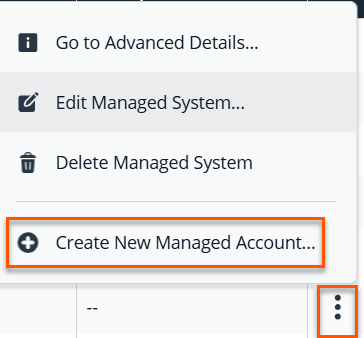
From the list of accounts you want to enable TOTP, right-click the ellipsis and click Create New Managed Account.
-
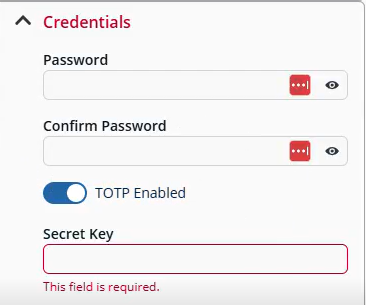
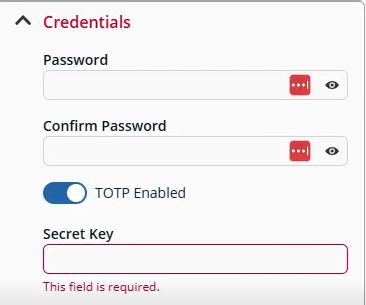
From the Managed account form, go to the Credentials section.
-
Turn on the toggle TOTP Enabled.
-
Enter a Secret Key which is provided by the Managed account. This field is required.
- Click Create Account.
Enable for an existing managed account
To enable TOTP for an existing managed account, do the follow:
- From the BeyondInsight console, click the Managed Accounts
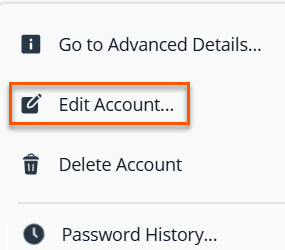
- Select a managed account you want to enable TOTP, right-click the ellipsis and click Edit Account.
-
From the Managed account form, go to the Credentials section.
-
Turn on the toggle TOTP Enabled.
-
Enter a Secret Key which is provided by the Managed account. This field is required.
- Click Update Account.
Verify TOTP is enabled
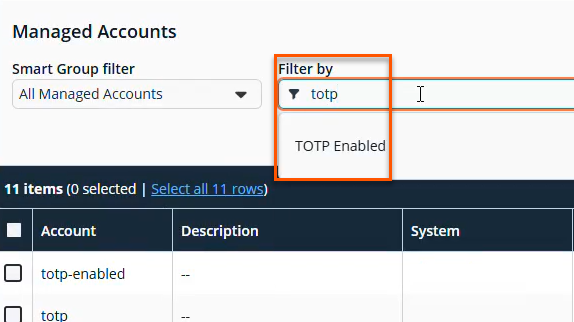
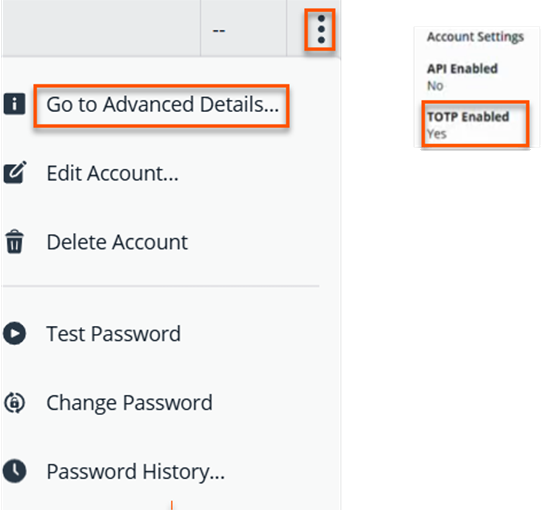
To verify the managed account is enabled for TOTP, there are several places you can check.
- The TOTP Enabled column in the table.

- You also can search for TOTP items using Filter by and the keyword totp.
- The Account Settings from Go to Advanced Details.
Access TOTP codes as an Information Security Administrator (ISA)
- Use a browser to sign in to your BeyondInsight/Password Safe URL.
This URL is provided in the BeyondTrust welcome email and includes your site URL followed by /login. - Locate the managed account in the list, click Access.
- Initiate a session by retrieving a password or starting a RDP/SSH Application session.
The TOTP form displays. - Copy the code from the Verification Code (TOTP) field.
There is a timer associated with this field. The default start time is 30 seconds. When the timer reaches 0, a new code is generated.
By default, the code is masked because every time you use the code, an entry is logged in to the audit log file.
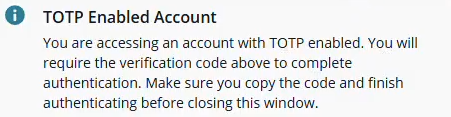
The following message displays to warn you that a code is required:
Access TOTP codes as a Requestor
- Use a browser to sign in to your BeyondInsight/Password Safe URL.
This URL is provided in the BeyondTrust welcome email and includes your site URL followed by /login. - Locate the managed account in the list, click Access.
- Fill out and submit a request for access to the account. This can be from the Quick Launch or Submit Request tabs of the Access form.
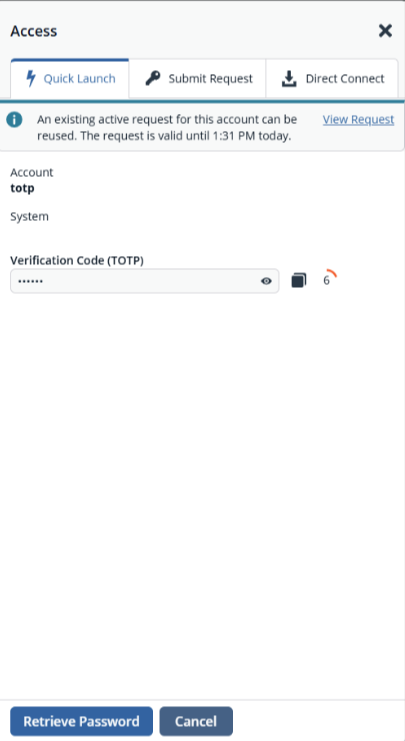
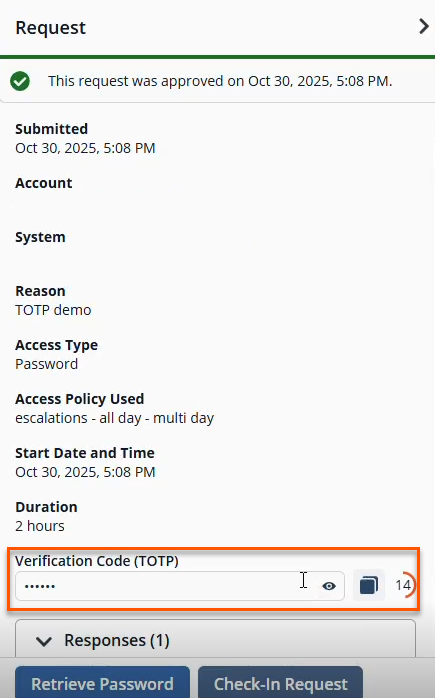
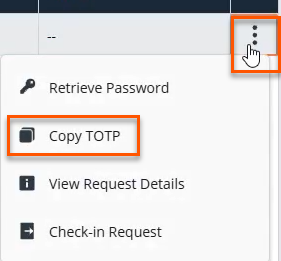
- Once the request is approved, you can retrieve the TOTP code from any one of the following methods:
-
Access Panel:
-
Requests Detail page:
- Copy from the grid.
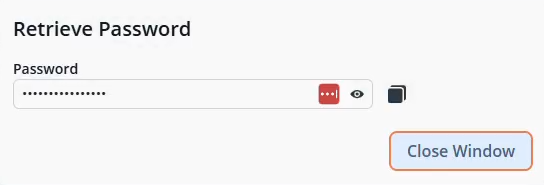
- Click Retrieve Password.
The Retrieve Password dialog box displays.
Store a TOTP secret key in Secret Safe
This section describes how to store a TOTP secret key on a credential secret in Secrets Safe, read and copy the current code, find which credentials have TOTP turned on, and load TOTP secret keys in bulk with a CSV import. It also covers the API calls behind each of those actions.
TOTP applies only to credential secrets. This section does not cover TOTP on Password Safe managed accounts, which you set up on the managed account itself.
Prerequisites
- BeyondInsight and Password Safe 26.3 or later is installed and licensed.
- You have the Secrets Safe or Workforce Passwords feature assigned to a group you belong to.
- You have Read Secrets and Folders permission on the safe that holds the credential. This is also the permission that lets you copy a code.
- To add or change a TOTP secret key, you own the secret with Read access to a safe. Additionally, a user with the Create permission can create secrets with TOTP enabled or have Update Secrets and Folders permission on the safe.
- You have the TOTP secret key from the site or application. This is either a raw
Base32secret or a fullotpauth://provisioning URI, up to 1024 characters. - To import TOTP secret keys from a file, Workforce Passwords is enabled for your user and you have permission to create secrets in the target folder.
Most sites show the TOTP secret key as a QR code, with an option to view the key as text instead. Choose that option and copy the text. Secrets Safe does not scan QR codes.
Add a TOTP secret key to a credential
-
In BeyondInsight, select Secrets Safe from the left sidebar.
-
Under Safes, select the safe or subfolder that holds the credential.
-
In the Secrets grid, select the vertical ellipsis for the credential, and then select Edit Secret.
-
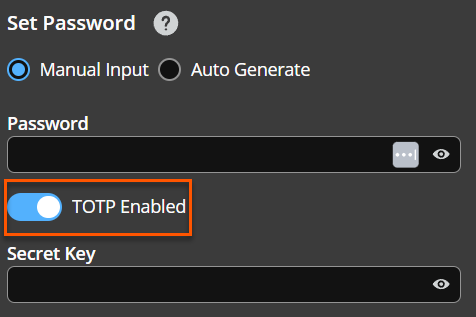
In the TOTP section, slide the TOTP Enabled toggle to the right.
-
Enter the TOTP secret key in the Secret Key field. Enter either a
Base32secret or anotpauth://URI. -
Click Update Secret.
If the value is not a valid Base32 secret or otpauth:// URI, Secrets Safe rejects it and displays the following message:
Invalid format. Enter a valid Base32 secret or an otpauth://URI.
An
otpauth://URI carries its own algorithm, digit count, and refresh period, and Secrets Safe uses those values. A rawBase32secret carries no settings, so Secrets Safe applies the defaults: SHA1, 6 digits, and a 30-second period.
Turn on TOTP when creating a new credential:
- Select Add Secret > Add Credential, fill in the credential fields.
- Slide the TOTP Enabled toggle to the right.
- Enter the secret key.
- Select Create Secret.
Replace a secret key later:
- Open the credential in the edit panel.
- Turn on Change secret key.
- Enter the new key. The stored key stays in place until you save a new one, and Secrets Safe never displays or returns it.
Stop using TOTP for a credential:
-
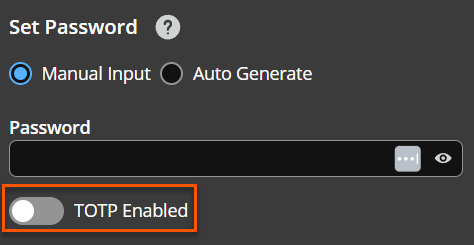
Slide the TOTP Enabled toggle to the left.
-
Click Save. This also removes the stored secret key, which matches how Password Safe managed accounts behave. You can enable TOTP again with any secret key; it does not have to be the original secret key.
View and copy the current code
To copy a code without opening the credential:
-
In Secrets Safe, find the credential in the Secrets grid.
-
Select the vertical ellipsis for that row.
-
Select Copy TOTP Code. Secrets Safe copies the current code to your clipboard and confirms with a message.
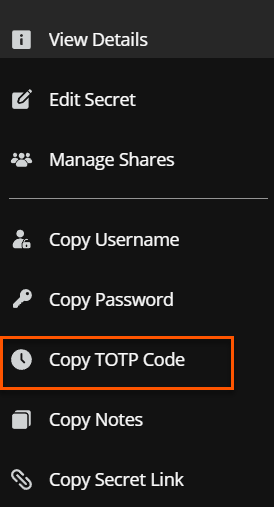
Copy TOTP Code appears only for credential secrets that have TOTP turned on, and only if you have permission to copy. It does not appear on any other row.
To view the code and remaining validity:
-
In the Secrets grid, select the vertical ellipsis for the credential, and then select View Details.
-
In the TOTP section, select the mask to reveal the code, or select the copy control to copy the code without revealing it.
-
Read the countdown next to the code to see how much time is left. When the countdown reaches zero, Secrets Safe masks the code again.
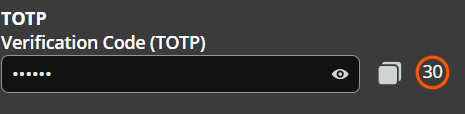
The TOTP section appears in the view panel only when TOTP is turned on for that credential.
Find the credentials that use TOTP
-
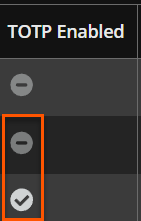
In Secrets Safe, look at the TOTP Enabled column in the Secrets grid. A checkmark means TOTP is turned on; a minus means it is not.
-
To narrow the list, open the filter on the TOTP Enabled column and select Enabled, Disabled, or both.
-
To group the two states together, select the TOTP Enabled column heading to sort. Ascending order lists credentials without TOTP first, then sorts by Title.
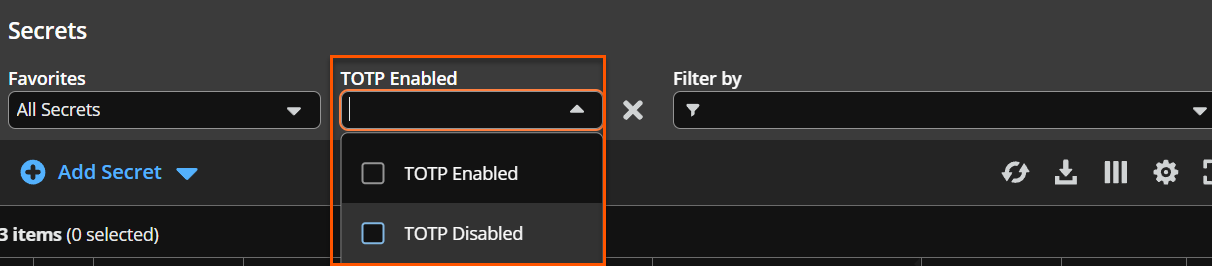
Selecting both filter values, or neither, returns every row. A shared secret takes its TOTP state from the credential it points to, so shared rows display, filter, and sort on the source credential.
If you do not see the TOTP Enabled column, use the grid column options to add it.
Import TOTP secret keys in bulk
The Secrets Safe CSV import now reads the TOTPSecret column, which earlier releases ignored. The eight-column format and the 200 KB file limit is unchanged.
-
In your CSV file, enter the
Base32secret orotpauth://URI in the TOTP column, the fourth column, afterurl,username, andpassword. -
Leave the column blank for credentials that do not need TOTP, and blank on any text or file row. TOTP is not allowed on those secret types.
-
In BeyondInsight, select Secrets Safe, and then select the safe or subfolder to import into.
-
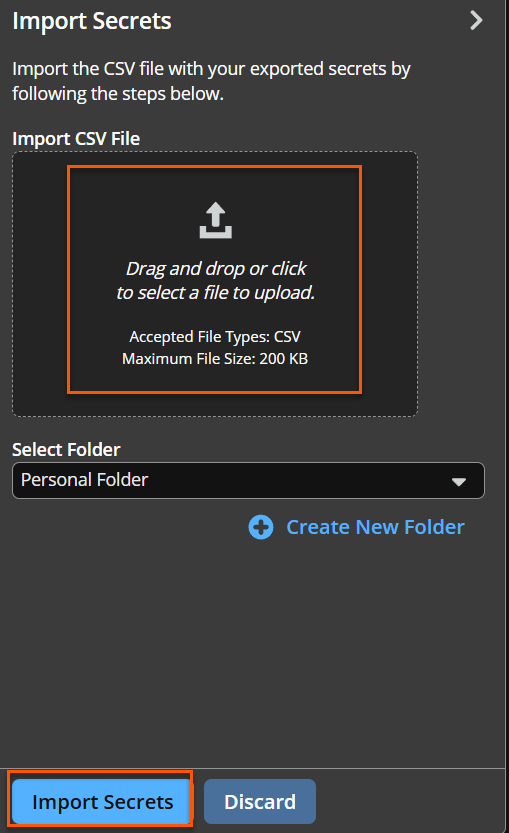
Select Add Secret > Import Secrets. Drag the file into the Import CSV File box, or select the box to choose a file.
-
Select the folder to save the imported secrets to, and then click Import Secrets.
-
Review the import results. Secrets Safe reports each rejected row with its line number and a message.
The following two TOTP messages may display:
- Invalid TOTP secret. Enter a valid Base32 secret or an otpauth:// URI. The TOTP value is not a valid key.
- TOTP can only be set on credential secrets and is not allowed on this secret type. A TOTP value appears on a text or file row.
Rows with an empty TOTP column import exactly as they did before, so your existing CSV files keep working. To import through the API, call POST Secrets-Safe/Folders/{folderId}/upload.
Work with TOTP through the API
The Password Safe API exposes the same behavior.
- To get the current code, call
GET api/secrets-safe/Secrets/{secretId}/totp/code. The response returns the code and the window it is valid for:
{
    "code": "492610",
    "validFromUtc": "...",
    "validToUtc": "..."
}- To check whether a secret uses TOTP, call
GET api/secrets-safe/secrets/{secretId}, orGET api/secrets-safe/secrets/share/{shareId}for a shared secret. The response includes the TOTP state and settings:
  {
      "id": "...",
      "totpEnabled": true,
      "totpParameters": {
          "digits": 6,
          "periodSeconds": 30
      }
}- To turn TOTP on or off when you create or update a secret, send the TOTP properties on
POST Secrets-Safe/Folders/{folderId}/secret. Both properties accept null, so calls that omit them behave as before.
The API returns an error if you request a code for a text or file secret, or for a credential that does not have TOTP turned on. It never returns the stored TOTP secret key. Text and file secrets, and credentials without TOTP, report "totpEnabled": false with no parameters.
In the Workforce Passwords browser extension, you can turn on TOTP and enter a secret key when you create a credential, and you can copy the current code for a saved credential. To change or remove a TOTP secret key on an existing credential, use Secrets Safe in BeyondInsight.
Verify the results
Confirm that the credential shows a checkmark in the TOTP Enabled column and that Copy TOTP Code appears in its vertical ellipsis menu.
Next, confirm that the code from Secrets Safe signs you in to the target site. If it does, the secret key, digit count, and period all match what the site expects.
Updated 12 days ago
