
BeyondInsight Password Safe Secrets Safe FAQ
What are the limits for Secrets Safe entries?
When you create entries within Secrets Safe, there are limitations to the number of characters that can be used with each type. The below lists the maximum length for each type of entry.
Secrets Safe entry limits
Credential
When you create a Secret Credential, it is required to have a Title, Username and Password. Additionally, the below maximum character limits must not be exceeded. If this credential is used with Workforce Passwords, a URL is also required.
- Title, Description, Username and Password - 256
- Notes - 4000
- URL - 2048
- Text
Text
When you create a Secret Text, it is required to have a Title and enter information into the Text Body field. Additionally, the below maximum character limits must not be exceeded.
- Title and Description - 256
- Text Body - 4000
- Notes - 4000
- URL - 2048
- File
File
When you create a Secret File, it is required to have a Title along with the File. Additionally, the below maximum limits must not be exceeded.
- Title and Description - 256
- Notes - 4000
- URL - 2048
- File size - 5 MB (must be over 0 MB)
For additional information regarding API use with Secrets Safe, see Secrets Safe APIs.
How are passwords stored in BeyondInsight Password Safe?
It is not possible to change the cipher or the encryption algorithm used to encrypt passwords in Password Safe.
Can you auto generate passwords for Secrets Safe credentials?
Password Safe can be used to auto generate a password when users are creating or editing credentials in Secrets Safe. Password policies are used to determine the generated password requirements.
This is a two-step process.
- You first create a password policy making sure the Allow use for Secrets Safe checkbox is selected. This allows the policy to be available for selection within team password credentials.
- Next, you generate a password for the secret.
Create a password policy
To create a password policy, see Create a new password policy.
Generate a password for a secret
To generate a password for a secret, follow these steps:
-
From the BeyondInsight Console, click the Secrets Safe tab.

-
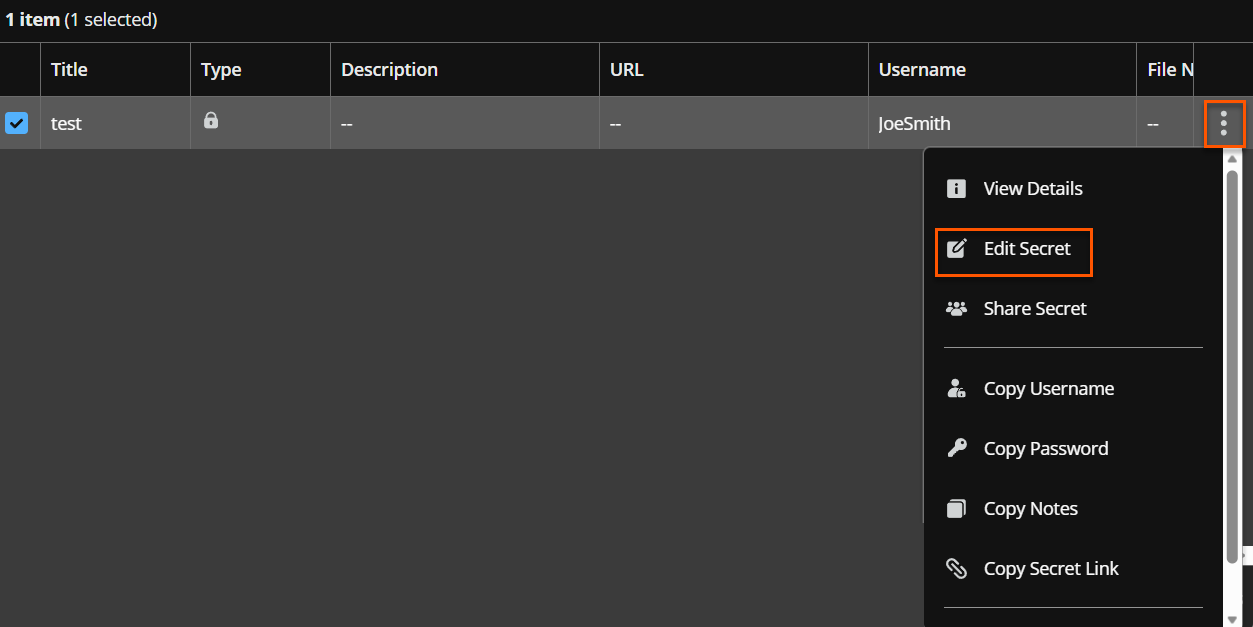
Click the ellipsis next to the credential and select Edit Secret.
-
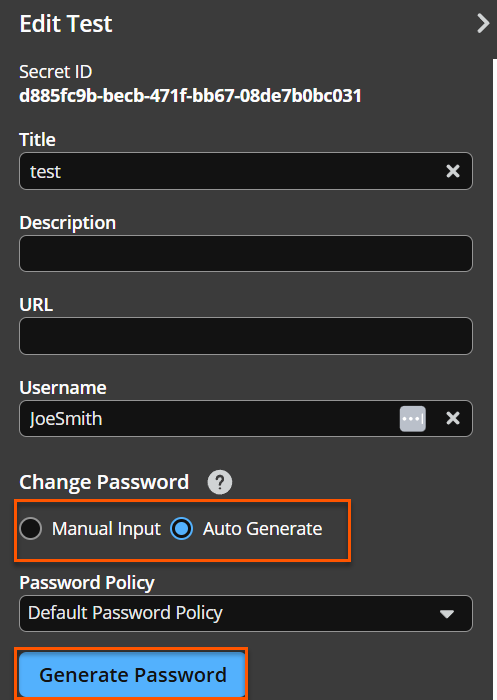
Click Change Password.
-
Switch from Manual Input to Auto Generate.
You may get a pop-up warning about confirming password creation. Click OK to confirm the switch.
-
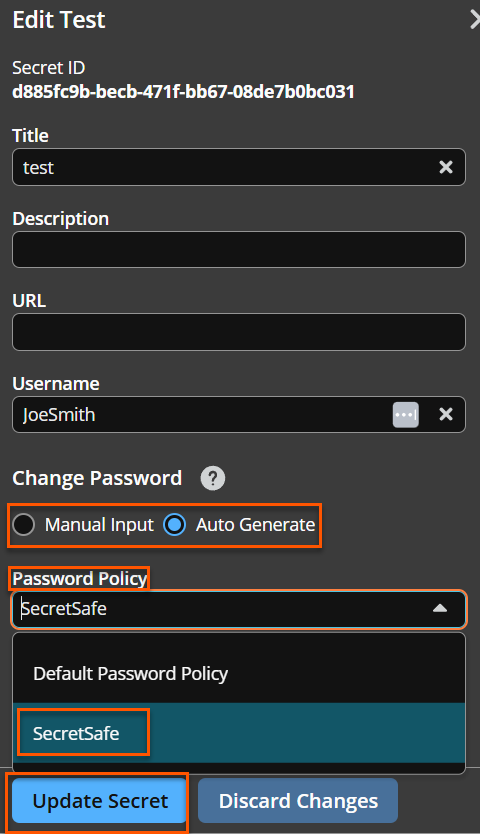
Select the newly created Password Policy, and click Generate Password.
-
Once the password has been generated, click Update Secret.
Updated 25 days ago
