
Assets: Overview | PS Pathfinder
What are assets?
Assets refer to any IP addressable device that exists in your environment (i.e. desktop machine, network device, or any of several supported platforms).
How are assets useful?
Asset management is necessary for several reasons:
- Network Visibility & Inventory Management – Keeping track of all assets ensures that organizations have a clear understanding of what devices are connected to their network, preventing unauthorized or unknown devices from posing security risks.
- Security & Compliance – Identifying and monitoring assets helps enforce security policies, ensuring compliance with regulations and detecting vulnerabilities before they can be exploited.
- Risk Management – Understanding what assets exist allows organizations to assess risks associated with each device, apply necessary patches, and implement security measures to reduce potential threats.
- Incident Response – When a security incident occurs, knowing the assets in the environment helps in tracing the source of the issue, containing the attack, and implementing remediation steps.
- Lifecycle Management – Organizations can track asset lifecycles, plan for hardware refreshes, software updates, and decommission obsolete devices.
How do I access assets?
- Sign into app.beyondtrust.io.
The BeyondTrust Pathfinder Home page displays. - At the top right of the page, select your site from the drop-down.
- Select the Password Safe tile from your list of available applications.
The Password Safe Home page displays. - At the top left of the page, click
 > Password Safe > Assets.
The Assets page displays. You can also select the Assets container card on the Password Safe Home page.
The Assets page
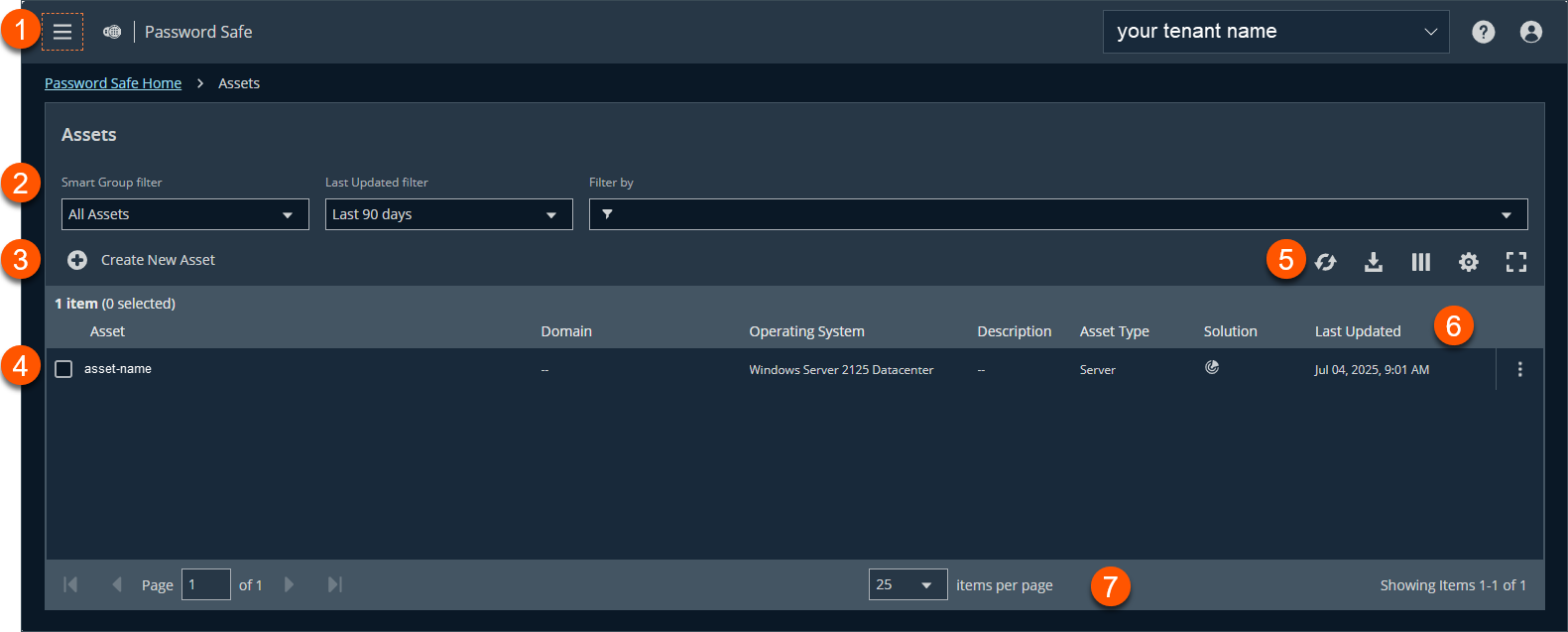
- Administration menu: Access Pathfinder administration pages if you are assigned as an administrator. You can also access all permissioned areas within Password Safe from the menu.
- Filters: Select a filter to refine your results.
Filter types- Smart Group filter: Filter by Agents and Scanners, Assets and Devices, or Servers.
Last Updated filter: Filter by last updated timeframe.
Filter by: Filter by Asset, Domain, Operating System, Description, Asset Type, Solution, DNS Name, Workgroup, or IP Address.
- Create New Asset: Click to create a new asset.
- Assets grid: Displays information based on filter selections.
- Grid display preferences: Set display preferences on the Assets grid using the following options represented by icons above the grid:
- Click
 to refresh the list,
  to download the list to a .csv file,
  to select which columns to display on the page,
  to configure your page display, and
  to expand the grid.
- Click
- Asset list columns: Not all columns display in the image above.
Column Names
- Asset
-
Domain
-
Operating System
-
Description
-
Asset Type
-
Solution
-
Last Updated
-
Created
-
DNS Name
-
Workgroup
-
IP Address
-
- List navigation options: Navigate in the Assets list.
Core concepts to understand before you add assets
Before you start to onboard assets to your environment, you should have a brief understanding of the following accounts and systems that are used.
| Account or System Name | Description |
|---|---|
| Functional account | A functional account is one that can access the system with the privileges required to manage and change passwords for shared accounts on the system. |
| Managed System | A managed system is a computer or device where one or more account passwords are to be maintained by Password Safe. Managed systems can be Windows computers, Unix or Linux computers, network devices, databases, firewalls, routers, iLO computers, and LDAP or Active Directory domains. For more information about managed systems, see Managed systems. |
| Managed Accounts | A managed account is an account on the managed system whose password is being stored and maintained through Password Safe. Typically, managed accounts are privileged accounts that can perform administrative tasks on the managed system. For more information about managed accounts, see Managed accounts. |
| Smart Rules | A Smart Rule is a query that you can use to organize assets into Smart Groups and manage Password Safe managed accounts. Use a Smart Rule to organize assets based on the filters selected. For more information about managed accounts, see Smart Rules. |
| Smart Groups | Smart Groups are a collection of managed assets, managed systems, or assets defined by a Smart Rule. For more information about managed accounts, see Smart Groups. |
| Role-based access | Explicitly assign permissions to groups on specific product features based on their role. Users are provisioned based on the permissions of their assigned groups. You want to start by creating a user group with either the Approver or Requestor role, then create an access policy to permit accounts to access the systems, applications, and sessions, and to request password releases. For more information about role-based access, see Role-based access. |
Add Assets to Password Safe Cloud
Once assets are managed by Password Safe, selected users can request access to them. For details on adding specific systems, search for the particular system using the Search field.
There are three ways to add systems and accounts to Password Safe:
- Add the asset manually.
- Run a Discovery Scan and then import the assets using an address group or directory query.
- Use API scripts.
To maintain a manageable database size, assets and scan data is purged every 30 days. We recommend running discovery scans at least every 30 days to refresh asset data.
Create a functional account
A functional account on a managed system is required to manage passwords for accounts on that managed system. The passwords for functional accounts cannot be retrieved through the Password Safe web portal.
Important informationDo not set up a functional account as a managed account. Functional accounts have built-in management capabilities and passwords might fail to synchronize, causing issues.
The settings vary, depending on the type and platform chosen.
-
Sign into app.beyondtrust.io.
The BeyondTrust Pathfinder Home page displays. -
At the top right of the page, select your site from the drop-down.
-
Select the Password Safe tile from your list of available applications.
The Password Safe Home page displays. -
At the top left of the page, click
> Password Safe > Assets. -
Click + Create New Functional Account.
The Create New Functional Account panel displays. -
Select a type from the list.
-
Select a platform from the list.
DSS authentication and Automatic password management settings are not supported if you are using the pbrun jumphost elevated credential.
- Provide credentials and a description for the account.
- Provide an alias. The Alias value is shown in the selectors throughout Password Safe where you must select a functional account to use.
- Select a Workgroup, if applicable.
- If required, enable Automatic Password Management.
- Select the password policy and change frequency. This option enables automatic password changes for each managed system that this functional account is associated with at the designated frequency.
If the Automatic Password Management option is enabled, passwords are set immediately when a new functional account is added to Password Safe.They are changed during the next scheduled rotation.
- Click Create Functional Account.
For configuration of Assets, see Assets: Configure.
Updated 6 months ago
