
QuickStart templates draft
{/*
REVIEWER NOTES – delete before publishing
- Matrix message mappings (section "What your users experience") are inferred from the Workstyle descriptions. Verify against the policy.
- Blocklist group: Workstyle text said "Block - Blocklisted Apps", tables said "Block - Blocked Apps". This draft uses "Block - Blocked Apps" throughout. Confirm the name in the product.
- Add Admin - Protected Operations and (Default) Child Processes of TraceConfig.exe had no description. Placeholders marked TODO.
- macOS table listed "Add Admin - Low Flexibility" and "Child Processes of TraceConfig.exe". Confirm these exist on macOS with these names.
- "Passive - Medium Business Apps" kept as-is. Confirm whether the product name is "Passive - Medium Flexibility (Business Apps)".
*/}
What is a QuickStart template?
A QuickStart template is a preconfigured policy you customize to fit your organization. It gives you a working starting point instead of a blank policy.
The templates are based on BeyondTrust's experience implementing Endpoint Privilege Management across thousands of customers, and are designed to balance security with user freedom. Each template comes with Workstyles, Application Groups, messages, and custom tokens already configured.
When you create a new policy, choose one of three QuickStart templates:
Workstyles, Application Groups, and messages for Windows workstations.
Workstyles, Application Groups, and messages for macOS endpoints.
Workstyles and groups for managing common Windows server roles.
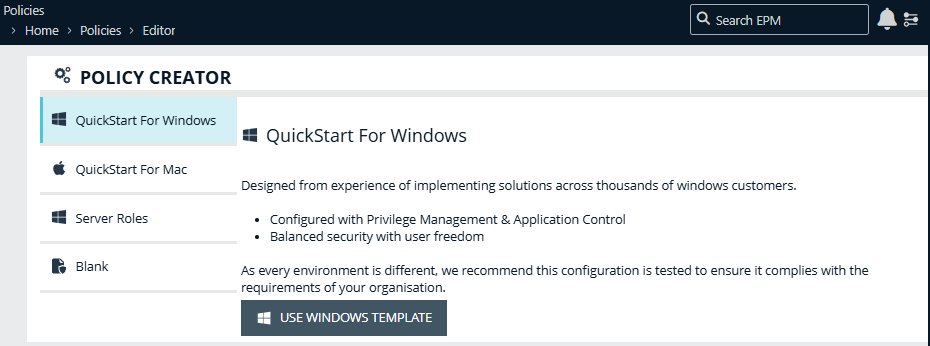
Test before you deployEvery environment is different. Test the QuickStart configuration thoroughly to make sure it meets your organization's requirements.
Before you begin
Before you deploy a QuickStart policy, complete these steps:
- Configure the users or groups that can authorize requests that trigger messages.
- Assign users and groups to the High, Medium, and Low Flexibility Workstyles.
- Add any applications you want to block for all users to the Block - Blocked Apps Application Group.
- Set your shared key so you can generate an Endpoint Privilege Management for Windows and Mac response code.
How QuickStart policies work
When a user starts an application, the policy matches the user to a Workstyle, then matches the application to an Application Group. The rule for that group decides what happens and which message, if any, the user sees.
flowchart LR
    A[User starts an application] --> B{Which Workstyle<br/>applies to the user?}
    B --> C{Which Application Group<br/>matches the application?}
    C --> D[Allow]
    C --> E[Allow with admin rights]
    C --> F[Show a message<br/>confirm, reason, or support]
    C --> G[Block]
QuickStart templates for Windows and macOS
What your users experience
Users are assigned to one of three flexibility levels. This table shows what each level means for common requests.
| When a user… | Low Flexibility | Medium Flexibility | High Flexibility |
|---|---|---|---|
| Runs a known business app or OS function | ✅ Runs¹ | ✅ Runs | ✅ Runs |
| Runs a signed app that needs admin rights | 📞 Contacts support | ❓ Confirms, then runs elevated | ✅ Runs elevated |
| Runs an unknown app that needs admin rights | 📞 Contacts support | ✍️ Gives a reason, then runs elevated | ❓ Confirms, then runs elevated |
| Runs an unknown app | 📞 Contacts support | ✅ Runs on demand | ✅ Runs on demand |
| Uses a restricted OS function | 📞 Contacts support | 📞 Contacts support | – |
| Runs an app in their flexibility level's Add Admin group | ✅ Runs elevated | ✅ Runs elevated | ✅ Runs elevated |
¹ Windows only.
Workstyles for Windows and macOS
Assign each user group to the flexibility level that matches how much freedom they need:
For example: software developers
Runs signed apps with admin rights. Confirms before elevating unknown apps.
For example: sales engineers
Confirms before elevating signed apps. Gives a reason before elevating unknown apps.
For example: helpdesk operators
Contacts support for any app that needs admin rights or isn't known.
These Workstyles apply on top of the flexibility levels:
| Workstyle | Applies to | What it does |
|---|---|---|
| All Users | All standard users | Blocks apps in Block - Blocked Apps. Allows Endpoint Privilege Management support tools. Allows standard OS functions, business apps, and apps from trusted deployment tools to run with admin rights. Allows approved standard user apps to run passively. |
| Administrators | Administrator accounts | Captures user and host information so you can see which administrator accounts are in use. Blocks users from changing local privileged group memberships. |
| SYSTEM | The SYSTEM account | Protects the Restricted System Functions Application Group from users who can run elevated PowerShell commands. |
Full rule list for the flexibility Workstyles
High Flexibility
- Allow known business applications and operating system functions to run.
- Allow users to run signed applications with admin rights.
- Allow users to run unknown applications with admin rights after they confirm that the application should be elevated.
- Allow applications in the Add Admin - High Flexibility group to run with admin rights.
- Allow unknown business applications and operating system functions to run on demand.
Medium Flexibility
- Allow known business applications and operating system functions to run.
- Allow users to run signed applications with admin rights after they confirm that the application must be elevated.
- Prompt users to provide a reason before they can run unknown applications with admin rights.
- Allow applications in the Add Admin - Medium Flexibility group to run with admin rights.
- Allow unknown business applications and operating system functions to run on demand.
- Prevent restricted OS functions that require admin rights. These require support interaction.
Low Flexibility
- Prompt users to contact support if a trusted or untrusted application requests admin rights.
- Prompt users to contact support if an unknown application tries to run.
- Allow known, approved business applications and operating system functions to run (Windows only).
Application Groups
Application Group names start with a prefix that tells you what the group does:
| Prefix | What happens to applications in the group |
|---|---|
| Add Admin / Authorize | Run with admin rights. Windows uses Add Admin; macOS uses Authorize. |
| Passive | Run as a standard user, without admin authorization. |
| Block | Blocked. |
| (Default) / (Recommended) | Managed by BeyondTrust. Hidden by default. You don't need to change these. |
Groups you customize
| Name | Contains |
|---|---|
| Add Admin - General (Business Apps) | Applications approved for elevation for all users, at any flexibility level. |
| Add Admin - General (Windows Functions) | Operating system functions approved for elevation for all users. |
| Add Admin - High Flexibility | Applications that require admin rights, for High Flexibility users only. |
| Add Admin - Medium Flexibility | Applications that require admin rights, for Medium Flexibility users only. |
| Add Admin - Low Flexibility | Applications that require admin rights, for Low Flexibility users only. |
| Add Admin - Protected Operations | TODO: add description. |
| Passive - High Flexibility (Business Apps) | Applications allowed for High Flexibility users without admin authorization. |
| Passive - Medium Business Apps | Applications allowed for Medium Flexibility users without admin authorization. |
| Passive - Low Flexibility (Business Apps) | Applications allowed for Low Flexibility users without admin authorization. |
| Passive - All Users Functions & Apps | Trusted applications, tasks, and scripts that run as a standard user. |
| Block - Blocked Apps | Applications blocked for all users. |
Groups managed by BeyondTrust
Default and Recommended groups (no changes needed)
| Name | Contains |
|---|---|
| (Default) Any Application | All application types. Catch-all for unknown applications. |
| (Default) Any UAC Prompt | Application types that request admin rights or authorization. |
| (Default) Any Trusted & Signed UAC Prompt | Signed (trusted ownership) application types that request admin rights or authorization. |
| (Default) Signed UAC Prompt | Signed (trusted ownership) application types that request admin rights or authorization. |
| (Default) Authorize - System Trusted | Operating system functions authorized for all users. |
| (Default) Passive - System Trusted | System applications allowed for all users. |
| (Default) Trusted Parent Processes | Trusted processes for reference in parent rules. |
| (Default) Endpoint Privilege Management Tools | A BeyondTrust executable that collects Endpoint Privilege Management troubleshooting information. |
| (Default) Child Processes of TraceConfig.exe | TODO: add description. |
| (Recommended) Restricted Functions | OS applications and consoles used for system administration that trigger UAC or authorization when they run. |
| (Recommended) Restricted Functions (On Demand) | OS applications and consoles used for system administration. |
| (Recommended) Block - Microsoft Recommended Blocks | Microsoft-recommended .exe files to block because they could bypass PowerShell restrictions. Managed by BeyondTrust. |
Messages
Application rules use these messages to tell users what's happening or ask them for input:
| Message | Platform | What the user sees |
|---|---|---|
| ❓ Allow Message (Yes / No) | Windows, macOS | Asks the user to confirm they want to run the application with admin rights. |
| ✍️ Allow Message (Select Reason) | Windows, macOS | Asks the user to select a reason from a list before the application runs with admin rights. |
| 🔑 Allow Message (Authentication) | Windows | Asks the user to provide a reason and enter their password before the application runs with admin rights. |
| 🔑 Allow Authorize (Authentication & Reason) | macOS | Asks the user to enter their password and provide a reason before the application is authorized to run. |
| 📞 Allow Message (Support Desk) | Windows, macOS | Shows a challenge code and asks the user to get authorization from the support desk. Support can provide a response code, or a designated authorized user can sign in to approve the request. |
| ⛔ Block Message | Windows, macOS | Warns the user that an application has been blocked. |
| ⛔ Block Notification | Windows, macOS | Tells the user that an application has been blocked and submitted for analysis. |
| ✅ Notification (Trusted) | Windows, macOS | Tells the user that an application has been trusted. |
QuickStart template for server roles
This template contains Workstyles, Application Groups, and Content Groups for managing common Windows server roles. Each role has a Workstyle and an Application Group with the same name: Server Role - [role] - Template.
| Server role | Supports | Related Content Group |
|---|---|---|
| Active Directory | Management of the Active Directory role | AD Management |
| DHCP | Management of the DHCP role | – |
| DNS | Management of the DNS role | Hosts Management |
| File Services | Management of the File Services role | – |
| Hyper V | Management of the Hyper-V role | – |
| IIS | Management of the IIS role | IIS Management |
| Print Services | Management of the Print Services role | Printer Management |
| Windows General | General server management operations | Public Desktop |
Updated 24 days ago
