
Display options and notifications | EPM-WM Pathfinder
You can view your account settings and notifications from any page in EPM-WM.
View your notifications
-
Sign into app.beyondtrust.io.
The BeyondTrust Home page displays. -
At the top right of any page in EPM for Windows and Mac, click
 .
.
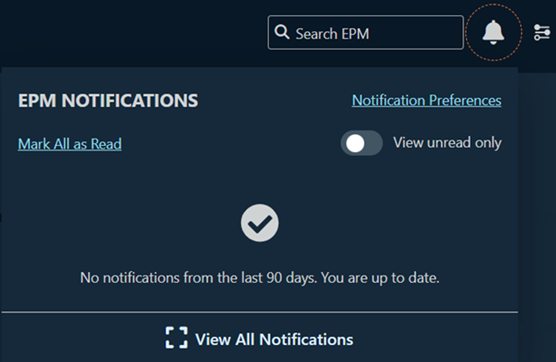
The Notification menu displays. View All Notifications: Click to open the Notifications page, with a complete list of all notifications.
- Mark all as read: Click to mark all messages as read.
- View unread only: Filter the notifications in your list to only unread messages.
- Download Ready: Click
 to mark the download as read.
Select notification preferences
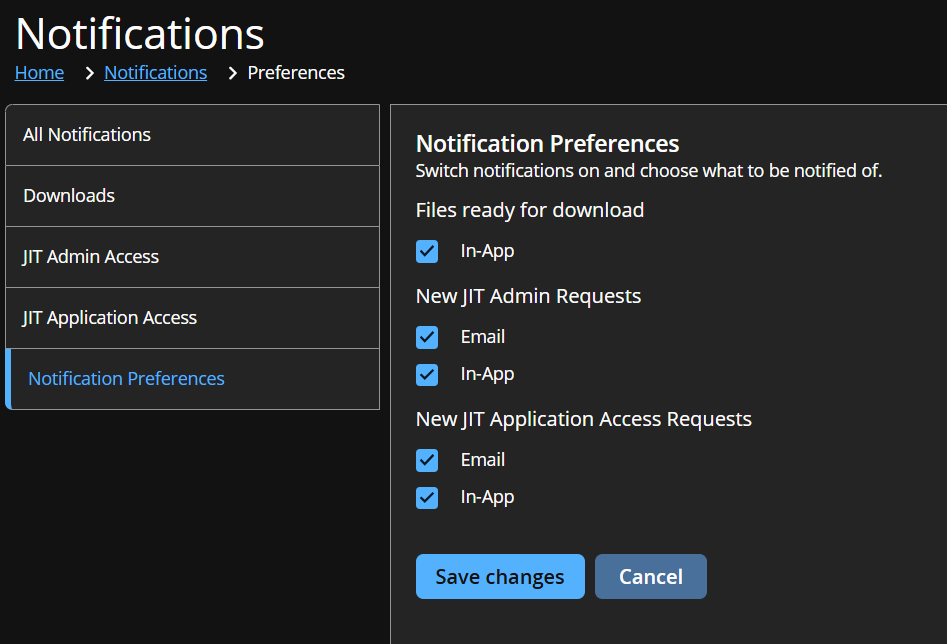
Permissions are required to set JIT notifications. The JIT settings only display in Notification Preferences when the permissions are in place.
-
At the top right of any page in EPM-WM, click
. -
Click Notification Preferences.
-
Select the Notification Preferences tab.
-
For each notification type, select how you want to be notified:
- Files ready for download: In-App only. The files download check box is selected by default and cannot be changed.
- New JIT Admin Requests: Email, In-App, or both
- New JIT Application Access Requests: Email, In-App, or both
Email alerts include a direct link to the relevant JIT request.
-
Click Save Changes.
Change your site language
- Sign into app.beyondtrust.io.
The BeyondTrust Home page displays. - At the top right of any page in EPM for Windows and Mac, click
 .
.
The EPM display options section expands. - Select a supported Language from the list.
Your site displays in the selected language immediately.
Change your site time zone
- Sign into app.beyondtrust.io.
The BeyondTrust Home page displays. - At the top right of any page in EPM for Windows and Mac, click .
The EPM display options section expands. - Select a Time Zone from the list.
Your site time zone updates immediately.
Change your site date and time format
- Sign into app.beyondtrust.io.
The BeyondTrust Home page displays. - At the top right of any page in EPM for Windows and Mac, click .
The EPM display options section expands. - Select a Date Format.
Your date format updates immediately across your site.
Updated 3 months ago
