
JIT access management | EPM-WM Pathfinder
What is just-in-time access management?
Just-in-Time (JIT) access is a privileged access model in which elevated permissions are provided only when needed, for the minimum duration required, and are revoked automatically when the session ends or the time limit expires. This contrasts with traditional models in which users are permanently members of the local Administrators group on their workstations.
In BeyondTrust EPM for Windows and Mac, JIT access covers two distinct use cases:
- JIT Application Access: Elevating the privileges of a specific application (such as an installer or configuration tool) without granting the user full administrator rights on the computer.
- JIT Admin Access: Temporarily granting a user full local administrator rights on their endpoint for a defined period, subject to a request and approval workflow.
What is a use case for JIT access management?
An example use case is controlling application access for your general application rules, such as those matching Any Application or Any UAC Prompt.
In a policy, creating a JIT Application Request message type requires the users to add a reason for access. The approver reviews the request and can either approve (for a limited time period) or deny the access based on that information.
To manage JIT access requests, you need one of the following:
- Administrator or Request Manager role
- Manage Application Access Requests permission (application requests)
- Manage Admin Access Requests permission (admin requests)
For more information, see User management.
JIT access management workflow
- Activate the user request service in Configuration.
- Create a policy with a message type JIT Application Request.
- Add the policy to a computer group.
- Set the permissions for the users that will manage approvals. Select custom permissions or use the Manage Request role.
- After the policy and ticket system are configured and ready for use, the administrator can review and approve the requests in EPM.
Turn on notifications to receive an alert when a request is ready for you to review. In-app and email alerts are available.
JIT Access Management page
Use the JIT Access Management page to view user requests if you are using the ticket system.
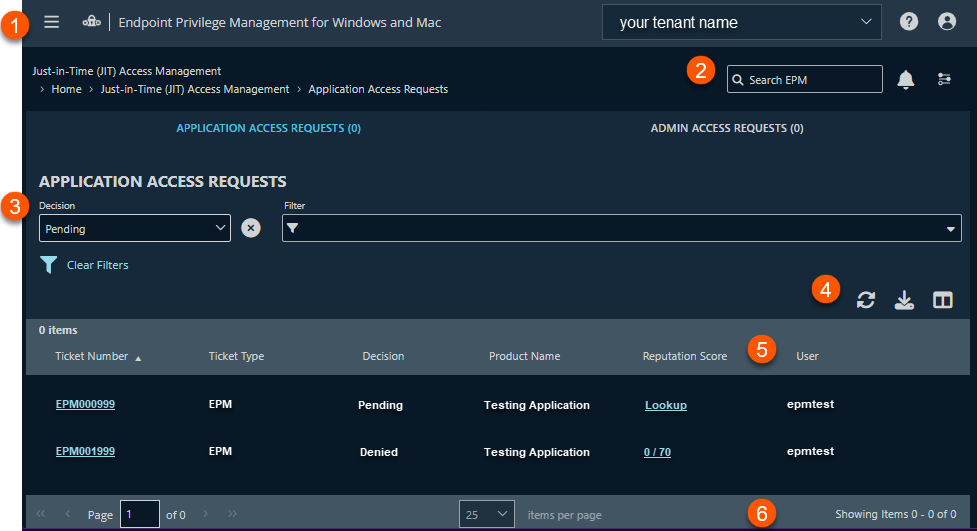
- Navigation menu: Access BeyondTrust apps and their menus, and Pathfinder administration pages if you are assigned as an administrator.
- Header: Enter keywords to run a global search across computer groups, policies, computers, and users, view your notifications, change your site language, change your time zone.
- Filters: Click the drop arrow to select a filter type. The selected filter displays to the left of the drop-down.
- Clear Filters: Click to remove all filters and search results
-
Decision filters
- Approved: Filter by requests approved.
- Denied: Filter by requests denied.
- Pending: Filter by requests in a pending state.
-
List options: Click
 to refresh the list,
 ![Download icon in [%=Products.PMAb%] SaaS.](https://files.readme.io/4184083cd292ef8bdfd540e7050b85eb3c303c586674e267bbfbb608cbe5ab83-download.png) to download the list to a .csv file, and
to download the list to a .csv file, and  to select which columns to display on the page.
 - Ticket list columns: Not all columns display in the image above.
-
Column names
- Ticket Number: The ticket number.
- Ticket Type: or ServiceNow.
- Decision: The decision on the request, approved or denied.
- Product Name: The name of the application the user wants to access.
- Reputation Score: The reputation score.
- User: The user requesting access.
- Computer Name: The computer where the request was initiated.
- Reason: The reason provided by the user.
- Requested on: The date the user submitted the request.
- Decision Performed By: The user who managed the request.
- File Path Object ID: The location of the application.
- Publisher: The publisher on the application.
- Application Type: The type of application
- Product Version: The version of the application.
- File version: The file version of the application.
- Message: The message defined in the policy.
- Product Description: A description of the application, if available.
- COM Display Name: The COM name used by the application.
- List navigation options: Navigate in the JIT Access Management list.
Manage JIT requests
Approve or deny JIT access requests on the Just-in-Time (JIT) Access Management page.
For more information about JIT access, see Just-in-time (JIT) settings.
To access JIT requests:
- Sign into app.beyondtrust.io.
The BeyondTrust Home page displays. - From the top left of the page, click
 > Endpoint Privilege Management for Windows and Mac > JIT Access Management. The Just-in-Time (JIT) Access Management page displays.
 - Select either the Application Access Requests tab or the Admin Access Requests tab.
- Review the requests.
- Click
 for a request to access the approve and deny options.
Set a request already approved to deny if the session is no longer required or approved in error.
Manage requests on the endpoint app
On the endpoint app:
- Users can request a session duration between 5 minutes and 24 hours. The approver sets the session duration during the approval process.
- Users can have only one request open at a time.
- On an Admin session, notifications are issued when 5 minutes and 1 minute remain in the session. The user is logged off the session when the time expires.
- Users can select End Session to close the session before the allocated session time passes.
View ticket details
Review the request details before deciding to approve or deny the request. The details include information about the policy and application information.
To view details and approve the request:
- Sign into app.beyondtrust.io.
The BeyondTrust Home page displays. - From the top left of the page, click > Endpoint Privilege Management for Windows and Mac > JIT Access Management. The Just-in-Time (JIT) Access Management page displays.
- Find the request in the list.
- Click > View Details.
- Add information about your decision in the Notes section.
- Select approve or deny.
Approve a request
Permissions must be assigned to users managing requests.
To approve a user request:
- Sign into app.beyondtrust.io.
The BeyondTrust Home page displays. - From the top left of the page, click > Endpoint Privilege Management for Windows and Mac > JIT Access Management. The Just-in-Time (JIT) Access Management page displays.
- Find the request in the list.
- Click > Approve Request.
- Select a duration.
- Once: Permits access to the application only one time.
- Hours: Enter the number of hours the user will be permitted access, between 1 and 24.
- Days: Enter the number of days. The maximum is 30 days.
- Months: Enter the number of months, between 1 and 12.
- Select Approve Request.
- Provide information for the reason of your decision.
How time limits work
The time limit for a JIT session works differently depending on the access type:
- JIT Application Access: The approved time limit defines how long the user has to start the application or process. For example, if a request is approved for 24 hours, the user has 24 hours from approval to launch the task. After the process starts within that window, EPM does not terminate it when the time limit expires; it is a launch window, not a session timer.
- JIT Admin Access: The approved time limit defines the duration of the elevated admin session. For example, if a request is approved for 2 hours, the user has 2 hours of elevated access from the moment the session begins. EPM notifies the user five minutes and one minute before the session ends. When the time limit expires, the user is logged off.
Updated about 1 month ago
