
Quickstart templates | EPM-WM Cloud
What is a QuickStart template?
A QuickStart template is a preconfigured policy you customize to fit your organization. It gives you a working starting point instead of a blank policy.
The templates are based on BeyondTrust's experience implementing Endpoint Privilege Management across thousands of customers, and are designed to balance security with user freedom. Each template comes with Workstyles, Application Groups, messages, and custom tokens already configured. You can deploy a template as it ships, then adjust it as your needs change.
When you create a new policy, choose one of two QuickStart templates:
- QuickStart for Windows: Workstyles, Application Groups, and messages for Windows workstations and Windows Server. There is no longer a separate Server Roles template.
- QuickStart for Mac: Workstyles, Application Groups, and messages for macOS endpoints.
English only: QuickStart templates are available in English only.
Already using QuickStart?
QuickStart templates were updated in EPM for Windows and Mac v. 26.4. Your existing policy keeps running as it does today. The new version applies only to policies you create from the template, so adopting it is your choice. To plan the move, see the adoption guide to learn more.
Before you begin
Before you deploy a QuickStart policy, complete these steps:
- Configure the users or groups that can authorize requests that trigger messages.
- Assign users and groups to the High, Medium, and Low Flexibility Workstyles.
- Add any applications you want to block for all users to the Block - All Users Application Group on Windows, or Block - Blocked Apps on macOS.
- Set your shared key so you can generate an Endpoint Privilege Management for Windows and Mac response code.
- Optional: To block the Microsoft Recommended Blocked DLLs, turn on DLL blocking in the Policy Editor. It is a separate feature and isn't part of the template.
ImportantTest before you deploy
Every environment is different. Test the QuickStart configuration thoroughly to make sure it meets your organization's requirements.
How QuickStart policies work
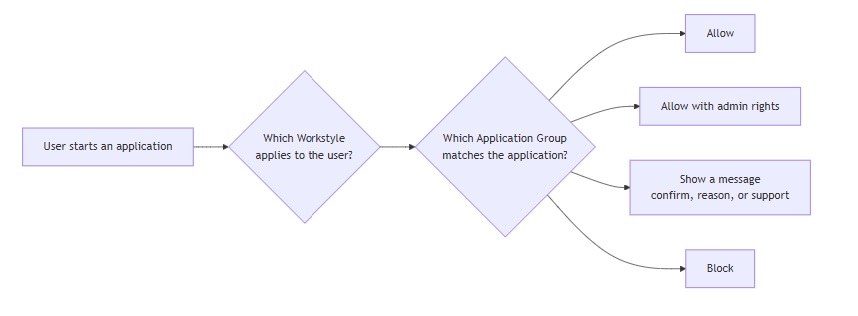
When a user starts an application, the policy matches the user to a Workstyle, then matches the application to an Application Group. The rule for that group decides what happens and which message, if any, the user sees.
Privilege levels
Most elevations in the Windows template grant basic admin, a reduced privilege set, instead of full administrator rights. If an elevated process is compromised, it has much less to work with.
| Token | What it does |
|---|---|
| Add Basic Admin | Elevates the application with a reduced privilege set. Used for most elevations, including UAC prompts and restricted built-in Windows tools. |
| Add Full Admin | Elevates the application with the complete local administrator token. Reserved for tools that need it, such as hardware wizards, debugging tools, and support desk sessions. |
| Add Admin Group | Adds the user to the local Administrators group without elevating the process token. Suits applications that check group membership rather than privilege, such as Windows System Settings. |
| Drop Admin | Removes administrator rights from a process that starts with an admin token but doesn't need one. |
On macOS, approved applications and system functions are authorized rather than elevated.
QuickStart templates for Windows and macOS
What your users experience
Users are assigned to one of three flexibility levels. This table shows what each level means for common requests on Windows.
| When a user… | Low Flexibility | Medium Flexibility | High Flexibility |
|---|---|---|---|
| Runs a known business app or OS function | Runs | Runs | Runs |
| Runs a trusted and signed app that needs admin rights | Contacts support | Confirms, then runs with basic admin | Confirms, then runs with basic admin |
| Runs a signed app that needs admin rights | Contacts support | Selects a reason, then runs with basic admin | Confirms, then runs with basic admin |
| Runs an unsigned app that needs admin rights | Contacts support | Enters a password and reason, then runs with basic admin | Confirms, then runs with basic admin |
| Requests elevation on demand (Run as Administrator) | Contacts support | Runs on demand | Runs on demand |
| Uses a restricted built-in tool, such as PowerShell or Registry Editor | Contacts support | Contacts support | Enters a password and reason, then runs with basic admin |
| Runs an app in their flexibility level's Add Basic Admin or Add Full Admin group | Runs elevated | Runs elevated | Runs elevated |
What your macOS users experience
The macOS template uses the same flexibility levels, but the user experience is different from Windows. macOS authorizes applications and system functions instead of granting Windows-style basic admin.
| Request | Low Flexibility | Medium Flexibility | High Flexibility |
|---|---|---|---|
Restricted function, such as Users & Groups, Security & Privacy, or sudoedit /etc/hosts | Contacts support | Contacts support | Contacts support |
| Trusted Apple-signed app or pane that needs authorization | Contacts support | Selects a reason | Confirms |
| Signed app that needs authorization | Contacts support | Selects a reason | Confirms |
| Unsigned app that needs authorization | Contacts support | Selects a reason | Selects a reason |
sudo from system bin or sbin paths | Contacts support | Enters a password | Enters a password |
Installs to or deletes from /Applications | Contacts support | Selects a reason | Confirms |
Workstyles for Windows and macOS
Assign each user group to the flexibility level that matches how much freedom they need:
| Workstyle | For example | What users can do |
|---|---|---|
| High Flexibility | Software developers | Confirms before elevating apps that need admin rights. Enters a password and reason to use restricted built-in tools. Can run debugging tools with full admin after authenticating. |
| Medium Flexibility | Sales engineers | Confirms before elevating trusted and signed apps, selects a reason for other signed apps, and authenticates for unsigned apps. Contacts support for restricted built-in tools. |
| Low Flexibility | Helpdesk operators | Contacts support for any app that needs admin rights. No general on-demand elevation. |
Each Windows flexibility Workstyle also applies the Microsoft Recommended Blocks, the Restricted LOLBAS groups, and Passive - All Users, so every Windows tier gets that protection. Microsoft Recommended Blocks are Windows only.
These Workstyles apply on top of the flexibility levels:
| Workstyle | Applies to | What it does |
|---|---|---|
| All Users | All standard users | The primary enforcement layer. Blocks apps in Block - All Users. Elevates approved business apps and OS functions with basic admin or full admin. Removes admin rights from apps in Drop Admin - All Users. Allows Endpoint Privilege Management support tools. |
| Administrators | Administrator accounts | Disabled by default. Captures user and host information, and gives screen readers the access they need through the Add System Integrity token. |
| SYSTEM | The SYSTEM account | The only Workstyle active at import. Protects the Restricted System Functions Application Group (anti-tamper) and captures host information. |
macOS note: Administrators and SYSTEM are Windows-only Workstyles. The macOS template has four Workstyles: All Users, High Flexibility, Medium Flexibility, and Low Flexibility. All are disabled at import and exclude the local admin admingroup.
Application Groups
Application Group names follow the pattern [Action] - [Scope] [(On-Demand)]. The action prefix tells you what the group does:
| Prefix | What happens to applications in the group |
|---|---|
| Add Basic Admin | Run with a reduced set of admin rights. Windows only. |
| Add Full Admin | Run with full admin rights. Windows only. |
| Add Admin Group | Run with the user added to the local Administrators group. Windows only. |
| Drop Admin | Run with admin rights removed. Windows only. |
| Authorize | Run with admin authorization. macOS only. |
| Passive | Run as a standard user, without admin authorization. Activity is audited. |
| Block | Blocked. |
| (Default) / (Recommended) | Managed by BeyondTrust. Hidden by default. You don't need to change these. |
Application definitions with a (BT) prefix are maintained by BeyondTrust and update with each policy release. Don't remove or change them. Add your own definitions without the prefix so you can tell them apart.
Groups you customize
Windows:
| Name | Contains |
|---|---|
| Add Basic Admin - All Users Add Basic Admin - All Users (On-Demand) | Business applications approved for basic admin for all users, at any flexibility level. The On-Demand group is empty by default. |
| Add Full Admin - All Users Add Full Admin - All Users (On-Demand) | Operating system functions and applications approved for full admin for all users. The On-Demand group is empty by default. |
| Add Basic Admin - High Flexibility Add Basic Admin - Medium Flexibility Add Basic Admin - Low Flexibility | Applications that need basic admin, for users in that flexibility level only. Each group also has an (On-Demand) version. Empty by default. |
| Add Full Admin - High Flexibility Add Full Admin - Medium Flexibility Add Full Admin - Low Flexibility | Applications that need full admin, for users in that flexibility level only. Each group also has an (On-Demand) version. Empty by default. |
| Add Admin Group - High Flexibility | Applications that check for Administrators group membership, such as Windows System Settings, for High Flexibility users. |
| Drop Admin - All Users Drop Admin - All Users (On-Demand) | Applications that start with an admin token but don't need one. Ships with the Microsoft Teams Add-in Installer. |
| Drop Admin - High Flexibility Drop Admin - Medium Flexibility Drop Admin - Low Flexibility | Applications that don't need the admin token they start with, for users in that flexibility level only. Each group also has an (On-Demand) version. Empty by default. |
| Passive - All Users | Trusted applications, tasks, scripts, and signed installers that run as a standard user. |
| Passive - High Flexibility Passive - Medium Flexibility Passive - Low Flexibility | Applications allowed for users in that flexibility level without admin authorization. Empty by default. |
| Block - All Users | Applications blocked for all users. |
| Block - High Flexibility Block - Medium Flexibility Block - Low Flexibility | Applications blocked for users in that flexibility level only. Empty by default. |
macOS:
| Name | Contains |
|---|---|
| Authorize - All Users (Business Apps) | Approved business applications for all macOS users, including BeyondTrust Remote Support, Edge and Google updaters, and Sparkle. |
| Authorize - All Users (macOS Functions) | Approved macOS functions for all users. This release adds standard-user support for forgetting Wi-Fi networks and ejecting disk images, external volumes, and removable media without an admin prompt. |
| Authorize - High Flexibility Authorize - Medium Flexibility Authorize - Low Flexibility | Applications that need authorization for users in that flexibility level only. Empty by default. |
| Passive - Allowed Functions & Apps | Functions and applications allowed to run as standard user and audited. |
| Passive - High Flexibility (Business Apps) Passive - Medium Flexibility (Business Apps) Passive - Low Flexibility (Business Apps) | Business applications allowed for users in that flexibility level without admin authorization. |
| Block - Blocked Apps | Applications blocked for all macOS users. |
Groups managed by BeyondTrust
Windows:
| Name | What it does |
|---|---|
| (Recommended) Add Basic Admin - Restricted LOLBAS | About 145 built-in Windows tools that attackers commonly abuse, such as Command Prompt, PowerShell, Registry Editor, and script hosts. Elevated with basic admin after authentication. |
| (Recommended) Add Basic Admin - Restricted LOLBAS (On-Demand) | The on-demand version of the restricted tools group. |
| (Recommended) Add Full Admin - Restricted LOLBAS (Recommended) Add Full Admin - Restricted LOLBAS (On-Demand) | 10 debugging tools, such as WinDbg, that need full admin. Elevated after authentication. |
| (Recommended) Passive - Restricted LOLBAS | Tools such as remote assistance tools that are audited but not elevated or blocked. |
| (Recommended) Block - Microsoft Recommended Blocks | 36 applications Microsoft recommends blocking. Applied in each flexibility Workstyle. |
| (Default) Keep Privileges - Restricted System Functions (Default) Keep Privileges - Task Scheduler | Protects Endpoint Privilege Management from tampering by SYSTEM processes, including Task Scheduler. Used by the SYSTEM Workstyle. |
| (Default) Passive - Windows Store App Parent Process (Default) Passive - Trusted Parent Processes | Parent processes, such as Microsoft Store apps, that other rules reference to match the child processes they start. |
| (Default) Add Basic Admin - Any Trusted & Signed UAC Prompt (Default) Add Basic Admin - Any Signed UAC Prompt (Default) Add Basic Admin - Any UAC Prompt | Applications that trigger a UAC prompt and match no more specific rule. Elevated with basic admin. |
| (Default) Add Basic Admin - Any Application (On-Demand) (Default) Passive - Any Application | Applications that match no other rule. The first allows on-demand elevation with basic admin; the second audits only. |
| (Default) Support - Privilege Management Tools (Default) Support - Child Processes of TraceConfig.exe | Endpoint Privilege Management support tools. Used by the All Users Workstyle. |
| (Default) System Integrity - Screen Readers | Gives screen readers SYSTEM integrity so they can read elevated windows. Used by the Administrators and All Users Workstyles. |
macOS:
| Name | What it does |
|---|---|
| (Recommended) Restricted Functions | Restricted macOS functions that require support desk authorization, including the Security & Privacy and Users & Groups settings and functions such as sudoedit /etc/hosts. |
| (Default) Any Application | Catch-all group for applications that match no more specific rule. |
| (Default) Any Authorization Prompt (Default) Any Signed Authorization Prompt (Default) Any Trusted & Signed Authorization Prompt | Authorization prompts for applications and panes that match no more specific macOS rule. |
| (Default) Any Sudo Command (System bin/sbin Paths) | sudo commands from system bin and sbin paths. |
| (Default) Authorize - Install to /Applications (Default) Authorize - Delete from /Applications | Authorization rules for installing to or deleting from /Applications. |
| (Default) Authorize - System Trusted | Trusted macOS system authorization prompts. |
| (Default) Privilege Management Tools: Support Desk | Privilege Management tools used to support challenge and response authorization for all users. |
Messages
Application rules use these messages to tell users what's happening or ask them for input:
| Message | Platform | What the user sees |
|---|---|---|
| ActiveX Message Text | Windows | Shows the progress of an ActiveX control installation. |
| Allow Message (Yes / No) | Windows, macOS | Asks the user to confirm they want to run the application with admin rights or authorization. |
| Allow Message (Select Reason) | Windows, macOS | Asks the user to select a reason before the application runs with admin rights or authorization. |
| Allow Message (with Authentication) | macOS | Asks the user to authenticate before the command or application is authorized. |
| Allow Message (Authentication & Reason) | Windows, macOS | Asks the user to authenticate and provide a reason. In the July macOS file, no rule uses this message. |
| Allow Message (Support Desk) | Windows, macOS | Shows a challenge code and asks the user to get authorization from the support desk. Support can provide a response code, or a designated authorized user can sign in to approve the request. |
| Request Message | Windows | Asks the user to give a reason and request authorization through your helpdesk integration. |
| JIT Application Request Message | macOS | Lets the user request just-in-time access to an application. |
| Allow Notification | Windows | Tells the user that a trusted application has run. No authentication or reason needed. |
| Block Message | Windows, macOS | Warns the user that an application has been blocked. |
| Block Notification | Windows | Tells the user that an application has been blocked and submitted for analysis. |
macOS template changes: QuickStart policy version 2 rolls in macOS fixes for Wi-Fi network removal, ejecting mounted volumes, System Settings prompt handling, macOS 26 signing certificate naming, anti-tamper coverage, the policy-copy block, and a prevent double-sudo rule. It also adds the JIT Application Request Message and removes duplicate install reasons and stray Windows-only template content.
Updated 2 days ago
