
Password Safe - Getting Started
What is Password Safe? 
Password Safe is your privileged access management solution that does the following:
- Privilege Access Management: Ensures your resources are protected from insider threats. It combines privileged password and session management to discover, manage, and audit all privileged credential activity.
- Secrets Management: Creates and secures privileged accounts through automated password management, encryption, secure storage of credentials, and a sealed operating system. This is designed to save you time and reduce the risk of human error.
- Credential Security: Password Safe's random password generator algorithm does not use any common phrases or dictionary words as inputs or in its generation. It selects each password character randomly from the list of allowable characters, numerals, and symbols to build the password.
Password capabilities and benefits
You can use Password Safe to accomplish the following core tasks:
- Scan, identify, and profile all assets for automated Password Safe management, ensuring no credentials are left unmanaged.
- Control privileged user accounts, applications, SSH keys, cloud admin accounts, RPA accounts, and more.
- Use adaptive access control for automated evaluation of just-in-time (JIT) context for authorization access requests.
- Monitor and record live sessions in real time and pause or terminate suspicious sessions.
- Enable a searchable audit trail for compliance and forensics, and achieve complete control and accountability over privileged accounts.
- Restrict access to critical systems, including assets and applications, keeping them safe from potential inside threat risks.
Prerequisites
Before you start using Password Safe, there are a few decisions you need to make. The right choices depend on your organization’s size and business requirements. This isn’t a complete checklist, but it gives you a solid starting point for planning your deployment.
- Decide on the deployment model, on‑premises or Cloud. The choice usually depends on the organization’s infrastructure, security policies, and operational preferences.
- Confirm the firewall settings needed for the deployment. For example, ensure required ports, such as TCP 443, are open so services can communicate properly.
- Identify which Directory service you use for Identity and Access management. Common options include Active Directory, LDAP, and Azure AD. This selection affects authentication, authorization, and overall integration.
- Determine what type of certificates the system requires. In most cases, you use SSL/TLS certificates to secure communication between components.
- Define the type of accounts that need to be created for operation. These might include functional accounts, managed service accounts, or other role‑based accounts depending on the deployment and security model.
Deployment methods
There are several methods in which you can deploy Password Safe. You can deploy via the Cloud or on-premises via a U-Series Appliance.
Password Safe Cloud
For Password Safe Cloud deployment, this reduces the managing of underlying infrastructures, such as appliances and databases. With Password Safe Cloud, a Resource broker is needed to invoke the sessions. This broker is installed on a Windows system and is used to communicate with the systems in your Resource Zones. It is essentially a bundle of software that contains all the services and components required for Password Safe Cloud to interact with your on-premises servers, over port 443. It acts as the bridge between your onboarded systems and the appliance in the cloud.
The Broker is primarily used to provide authentication to the Password Safe interface, discover assets and accounts using the discovery scanner, and facilitate credential management and session proxies.
At least one Resource Zone is required, and by default a Resource Zone called Default is created. This is a catch-all for all domains and workgroups in your network.
Usually the Default Zone is suitable, however you may use more than one for split geographical locations or when using more than one domain.
For more information about Resource Brokers, see Resource broker.
On-premises (U-Series appliance)
The U-Series appliance is a self-contained appliance that includes the operating system, database and pre-installed and configured BeyondInsight software. It contains a dedicated Management Interface for initial implementation and day to day management.
To support minimal supervision, BeyondTrust supplies and automatically updates the OS and database.
The appliance is the host web server for the management console and other worker applications that handle functions, such as credential and session management. They can also be locally hosted and cloud hosted.
For more information about U-Series appliance, see Welcome to U-Series appliance.
The following table describes what each deployment method provides:
| Password Safe Cloud | Virtual on-premises (U-Series Appliance) |
|---|---|
| Cloud-Hosted Appliance | Virtual Appliance |
| No Appliance Administrator | Appliance Administrator |
| No Maintenance Page | Maintenance Page |
| Updates made by BeyondTrust | Manual/scheduled updates |
| Automated weekly Back-Ups | Manual/scheduled Back-Up |
| Resource Zones/Resource Broker | No Resource Zones/Resource Broker |
| Locally hosted Discovery Agent | Appliance hosted Discovery Agent |
| SMTP settings not configurable | SMTP settings configurable |
Password Safe Essentials
When you manage BeyondTrust Password Safe, it's important to identify and add the critical accounts and systems that are governed by the platform. These foundational components should be added during the initial setup to ensure proper access control, policy enforcement, and asset visibility from the start.
| Name | Description |
|---|---|
| Functional account | A functional account is one that can access the system with the privileges required to manage and change passwords for shared accounts on the system. |
| Managed System | A managed system is a computer or device where one or more account passwords are to be maintained by Password Safe. Managed systems can be Windows computers, Unix or Linux computers, network devices, databases, firewalls, routers, iLO computers, and LDAP or Active Directory domains. For more information about managed systems, see Managed systems. |
| Managed Accounts | A managed account is an account on the managed system whose password is being stored and maintained through Password Safe. Typically, managed accounts are privileged accounts that can perform administrative tasks on the managed system. For more information about managed accounts, see Managed accounts. |
| Smart Rules | A Smart Rule is a query that you can use to organize assets into Smart Groups and manage Password Safe managed accounts. Use a Smart Rule to organize assets based on the filters selected. For more information about Smart Rules, see Smart Rules. |
| Smart Groups | Smart Groups are a collection of managed assets, managed systems, or assets defined by a Smart Rule. For more information about Smart Groups, see Smart Groups. |
| Access Policies | An access policy defines the time frame and frequency that users can request passwords, remote access sessions, or access applications under Password Safe management. An access policy is selected when you are configuring the Requester role. The Requestor role is applied to a group of accounts, and then has a specific policy attached. For example, a policy might be what time of the day can they request, can they view the password, location restrictions etc. For more information about access policies, see Configuration: Access policies |
| Role-based access | Explicitly assign permissions to groups on specific product features based on their role. Users are provisioned based on the permissions of their assigned groups. Start by creating a user group with either the Approver or Requestor role, then create an access policy to permit accounts to access the systems, applications, and sessions, and to request password releases. For more information about role-based access, see Role-based access. |
Asset types
In Password Safe, an Asset is any IP addressable device known to BeyondInsight/Password Safe and eligible for management, grouping, and policy application.
It is important to know the difference between several asset types: Known and Managed Asset types.
| Asset type | Definition |
|---|---|
| Known | Any System, Database, Application, or Network Device added to BeyondInsight. |
| Managed | Subset of Known Assets that have been onboarded and added to Password Safe. This may be referred to as an Asset that is Under Management and is also referred to as a Managed System. |
BeyondInsight vs Password Safe ?
Because BeyondInsight and Password Safe are closely integrated, it can sometimes be unclear which product name to use when describing a specific feature.
In short, the relationship between Password Safe and BeyondInsight can be summarized as follows:
- Password Safe is the tool that manages systems and accounts and actually secures and rotates privileged credentials.
- BeyondInsight provides centralized management, reporting, and analytics for Password Safe and other BeyondTrust products. This acts as the management console for administrators to perform the implementation where data is stored in the database and management console.
Web console vs Web portal
Another important concept is understanding the difference between the Web Console and the Web Portal.
Both the Web Console and the Web Portal are interfaces used to interact with Password Safe, but they serve different purposes. So when should you use one instead of the other?
The following table describes the differences and when to use them appropriately.
| Feature | Description |
|---|---|
| Web Console | Web Console is used for administrators and used for the configuration and management of Password Safe settings and performing administrative tasks. |
| Web Portal (Password Safe User Portal) | Web Portal is a feature of the Password Safe web application that is used by end users including Requestors and Approvers for requesting access to credentials and sessions and approving or denying access requests. |
![A diagram showing two entry points into Password Safe. On the left, the Web Console includes Asset Management, Policy Configuration, Role Setup, and Discovery Scans, accessed at “[App/Inst]/ps/webconsole.” On the right, the Web Portal includes Password Requests, Session Launch, Access Approval, and Credential Checkout, accessed at “[App/Inst]/ps/webportal.” Both paths point to the Password Safe platform at the bottom.](https://files.readme.io/7cae652cdbf7a2e01aa48181e2c71cf61b4656452a7bcd9ab6a4f6d7425d515e-webconsole_vs_webportal.png)
Initial Setup
Before using Password Safe, it's essential to complete the initial setup to ensure secure and efficient password management across your environment. This process includes adding systems, accounts, and groups, and the onboarding of assets.
The initial steps are the following:
Step 1: Sign in to Password Safe
Sign in to your BeyondInsight/Password Safe URL.
For more information, see Sign in to Password Safe
Important informationThe steps must be completed in the order presented.
1. Sign in to Password Safe
- Use a browser to sign in to your BeyondInsight/Password Safe URL.
This URL is provided in the BeyondTrust welcome email and includes your site URL followed by /login.Important informationYou must sign in as a BeyondInsight Administrator.
- From the left menu, click Password Safe
 .
.
The Password Safe home page displays.
2. Add a functional account and password policies
You create a functional account first because it enables credential rotation on managed systems. Functional accounts are applied to managed systems and are required before you can onboard any accounts from those systems. Without a functional account, account onboarding is blocked.
After you add a functional account, you configure a password policy. The password policy defines how the system generates and rotates the account password on the managed system based on the policy’s composition requirements.
You can technically onboard a system without a functional account, but doing so limits what you can manage. A functional account is still required to onboard accounts associated with that system. Some scenarios onboard systems without a functional account, for example, when you only need Active Directory accounts to proxy access and do not require credential rotation.
The following steps add a Windows Functional account. You can also create accounts on different platforms.
Add a functional account
-
From the BeyondInsight home page, click the Configuration card.
-
The Configuration page displays.
-
Under Privileged Access Management, select Functional Accounts.
-
The Functional Accounts page displays.
-
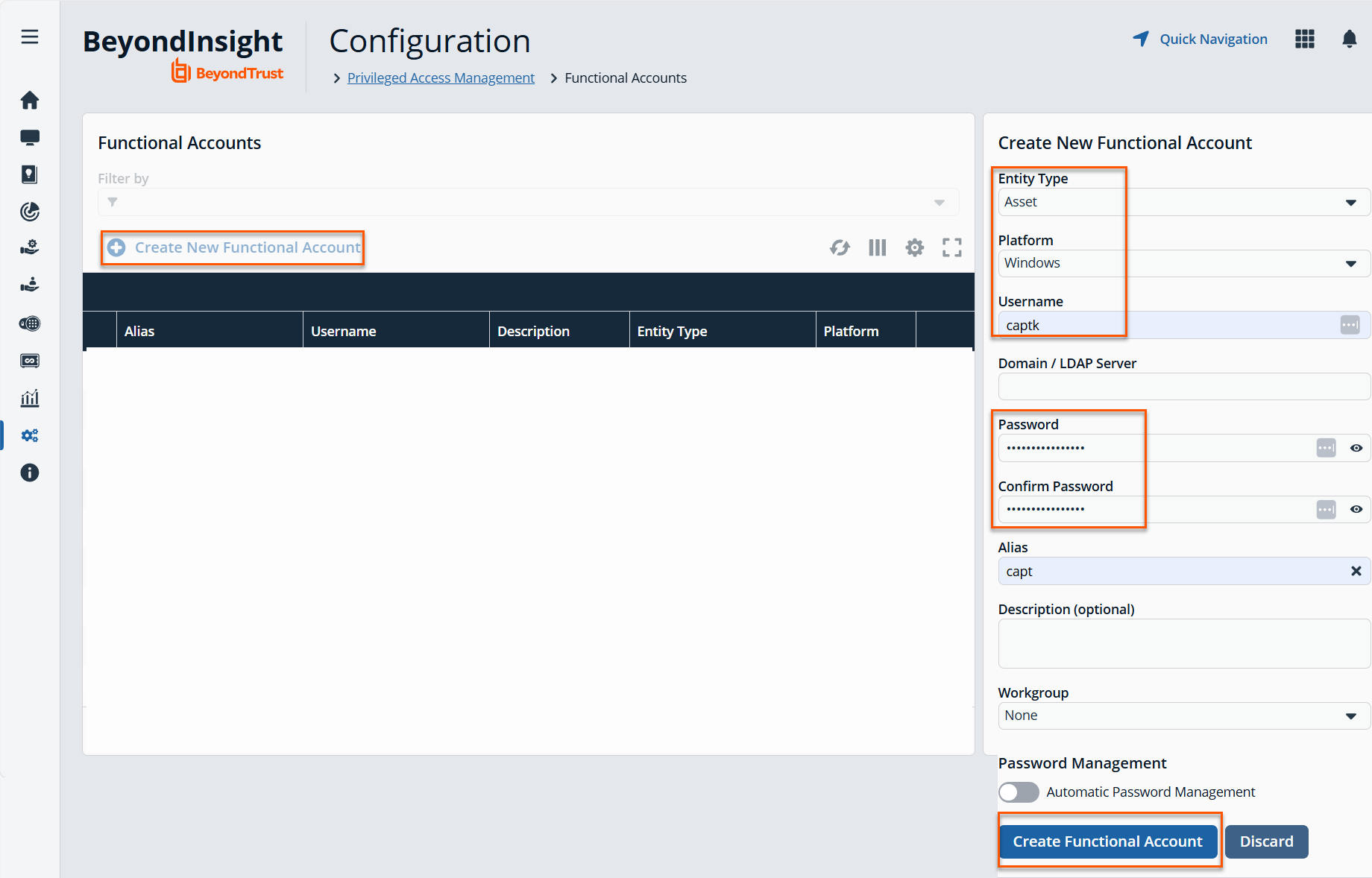
Click Create New Functional Account.
-
For Entity Type, select Asset. This is a required field.
-
For Platform, select Windows. This is a required field.
-
For Username, select a unique username. This is a required field.
-
For Domain/ LDAP Server, enter a domain name. This field is optional.
-
For Password, enter a unique password. This is a required field.
-
For Confirm Password, enter the same password from step 10. This is a required field.
-
For Alias, enter a unique name for the alias. This is a required field.
-
Click Create Functional Account.
Create a password policy
After you create a functional account, you should create a password policy, see Password policies.
3. Discover and add assets
Asset scanning can occur before the onboarding process begins. When the system scans assets, it collects enumerated data that helps identify known assets. Asset scanning is one method of onboarding assets, but not all assets can be discovered this way.
Some assets, such as Windows domains, cannot be scanned directly. For example, a domain controller can be scanned, but the domain itself cannot. In these cases, administrators onboard the domain manually through the Managed Systems page.
Because not all assets are discoverable through scanning, the system also supports onboarding assets manually. This allows administrators to add assets that scanning cannot detect or that are not reachable during discovery.
For more information, see Scan assets.
TipA good practice is to onboard the domain first (before scanning) when you work with domain-joined systems.
4. Onboard systems
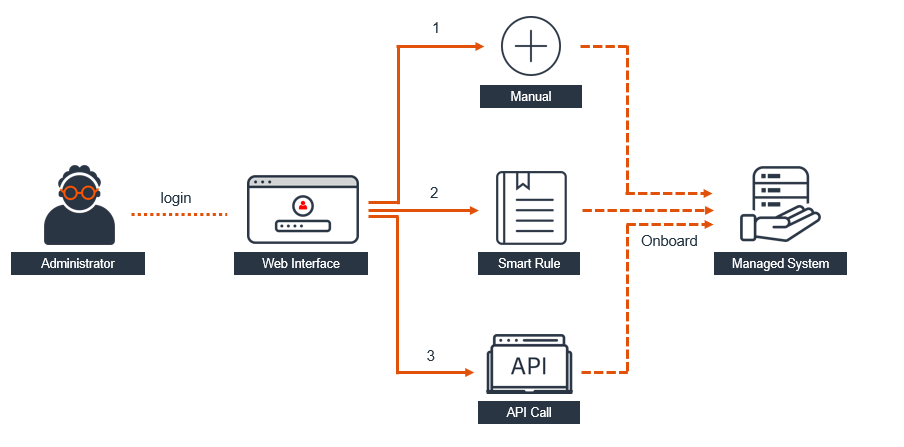
There are three ways to onboard systems so they are managed by Password Safe:
-
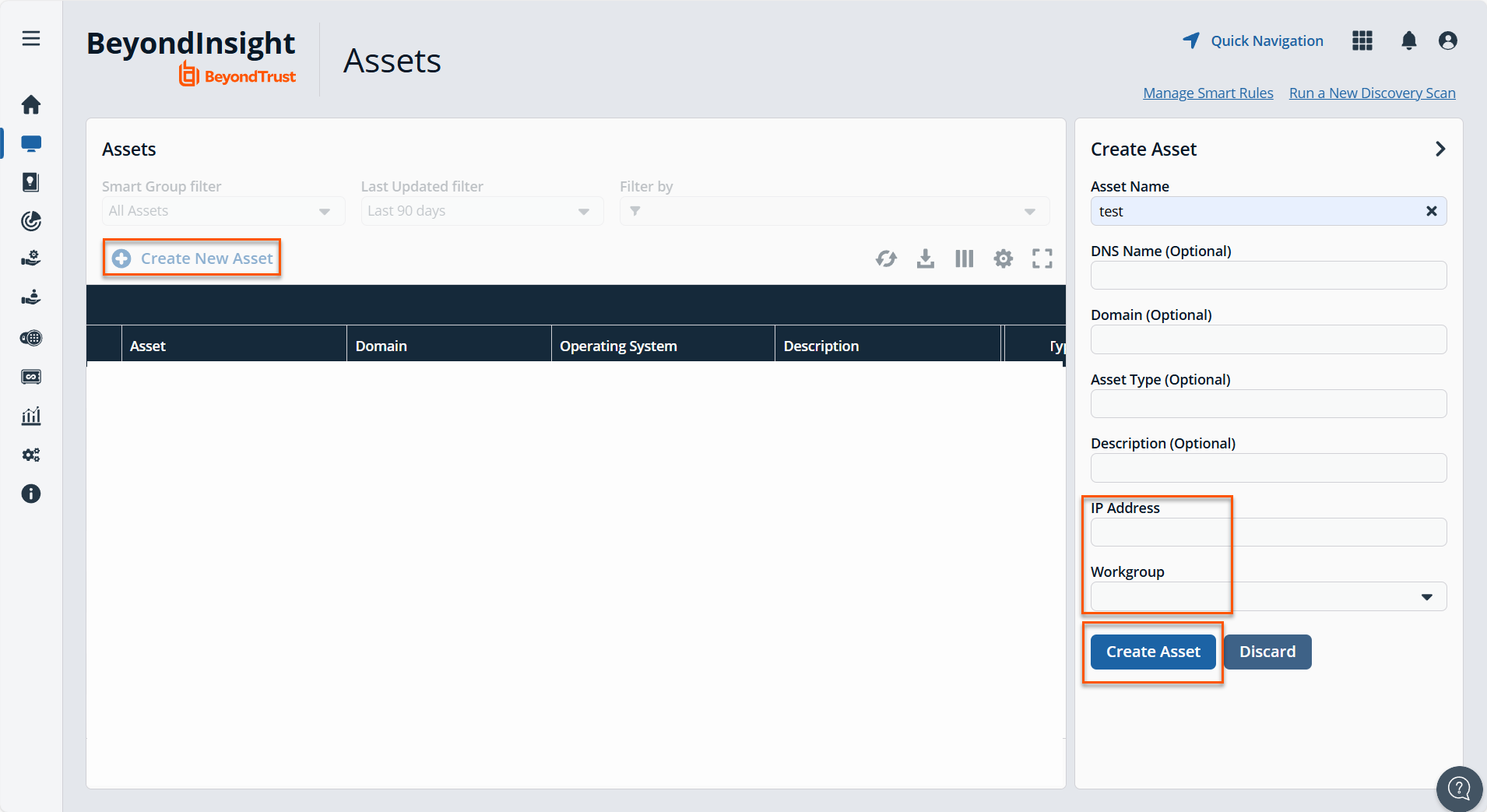
Add the asset manually, see Create assets manually.
-
Run a Smart Rule to locate the asset. Smart Rules are configured and scheduled using asset-based selection criteria. For information on how to create an Asset-based Smart Rule, see Smart Rules: Configure.
-
Use API scripts, see Password Safe APIs.
Important informationYou cannot onboard accounts until you have onboarded systems. This is applicable to any platform.
5. Onboard accounts
Once systems are onboarded, you can onboard accounts.
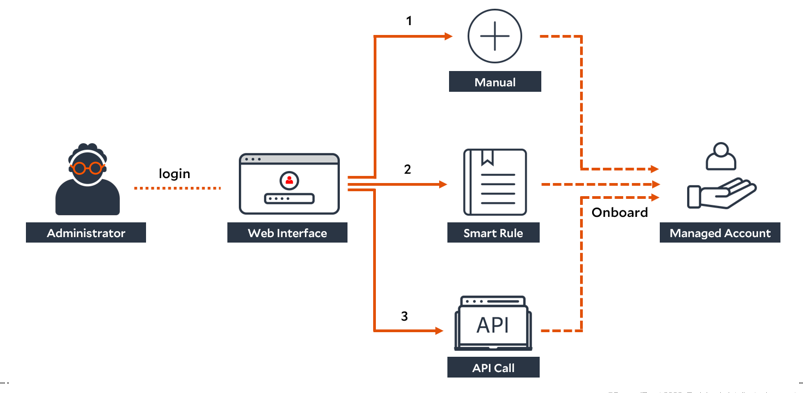
There are three ways to discover assets and onboard Managed Accounts in Password Safe:
- Add the account manually, see Create assets manually.
- Run a Smart Rule to locate the asset. Smart Rules are configured and scheduled using account-based selection criteria. For information on how to create an Asset-based Smart Rule, see Smart Rules: Configure.
- Use API scripts, see Password Safe APIs.
Updated 7 months ago
