
Requests | PS Pathfinder
What is the Requests tab?
The Requests tab displays for users who have been assigned the Requestors role for any managed systems in Password Safe.
How is it useful?
From this grid, you can view all of your requests. You can view a complete history of each request, allowing you to track progress and review statuses without extra navigation.
How do I access the Requests tab?
- Sign into app.beyondtrust.io with your credentials.
The BeyondTrust Pathfinder Home displays. - At the top right of the page, select your site from the drop-down.
- Select the Password Safe tile from your list of available applications.
The Password Safe Home page displays. - At the top left of the page, click
 > Password Safe > Password Safe.
The Password Safe home page displays. - Click the Requests tab.
The Requests grid displays.
View request details
To filter by approved and pending requests and view the request details:
- At the top left of the page, click > Password Safe > Password Safe.
The Password Safe home page displays. - Click the Requests tab.
The Requests grid displays. - Click
 to the right of the request.
 - Select View Request Details.
Check in a request
To check in a request:
- At the top left of the page, click > Password Safe > Password Safe.
The Password Safe home page displays. - Click the Requests tab.
The Requests grid displays. - Click
 to the right of the request.
 - Select Check-in Request.
A progress bar displays. When it completes loading, the user is notified that the request was checked in successfully.
Initiate secure sessions with enhanced Requestor workflow
Retrieve a password
Using a configuration that requires requests to be approved by a designated approver adds accountability and strengthens security. This setup ensures that no one person has full control over managed account passwords. You can initiate a session (RDP or SSH) or retrieve a password directly without opening the Request Details panel. This allows you to streamline the workflow while security protocols are maintained.
To retrieve a password, do the following:
-
From Password Safe Home page, click the Requests tab.
-
From the Requests tab, select a request in the table.
-
Right-click the ellipsis, and click Retrieve Password.
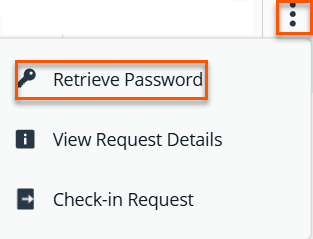
-
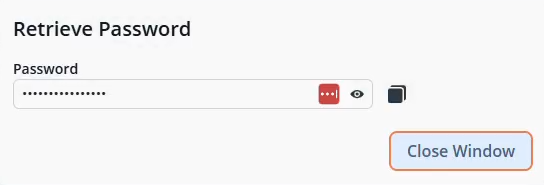
The Retrieve Password dialog box displays.
-
Copy the password and then click Close Window.
Create a RDP session
-
From Password Safe Home page, click Requests.
-
From the Requests tab, select a request in the table.
-
Right-click the ellipsis, and click Start Session.
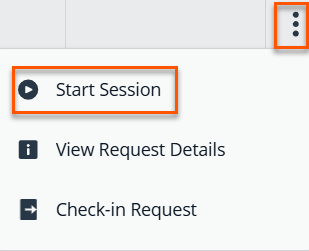
-
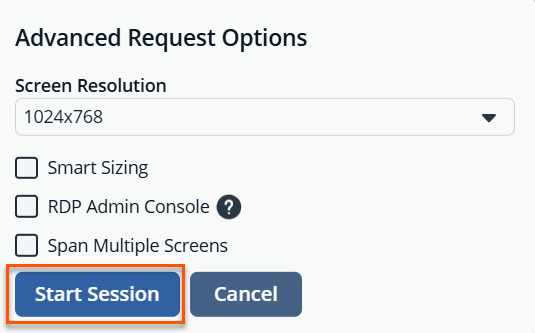
From the Advanced Request Options dialog box, verify the settings.
-
Click Start Session.
Password Safe users must be assigned the Requestor or Approver role, or both.
For more information on this configuration, see:
Updated 7 months ago
