
Workload identities
A workload identity lets an automated workload, such as a CI/CD pipeline, cloud service, or script, authenticate to BeyondTrust without a stored secret or API key.
Instead of issuing the workload a long-lived credential, you register the workload's existing OpenID Connect (OIDC) identity provider, such as GitHub Actions or Microsoft Entra ID, as a trusted issuer. At runtime, the workload presents the short-lived OIDC token it already receives from its own platform. BeyondTrust exchanges that token for a scoped BeyondTrust access token, but only if the token's claims match every condition you registered.
Benefits
- No shared secrets: There is nothing to store in a pipeline, rotate on a schedule, or revoke when someone leaves. Trust is based on the identity provider, not on a copied credential.
- Least privilege per workload: Each workload identity is limited to the sites you choose. On each site, you pick the products it can access, its access level, and the claim conditions it must meet. For example, you can allow only the
mainbranch of a single repository. - Standards-based: Workload identities use OIDC token federation, the same model GitHub Actions and Microsoft Entra ID use for keyless cloud access.
Requirements
- You must have the Organization Admin role to view, register, or delete workload identities.
- You can only view and select sites that you administer.
Key terms
The table describes the terms used in this topic.
| Term | Description |
|---|---|
| Workload identity | A registered trust relationship between an external OIDC issuer and one or more of your sites. |
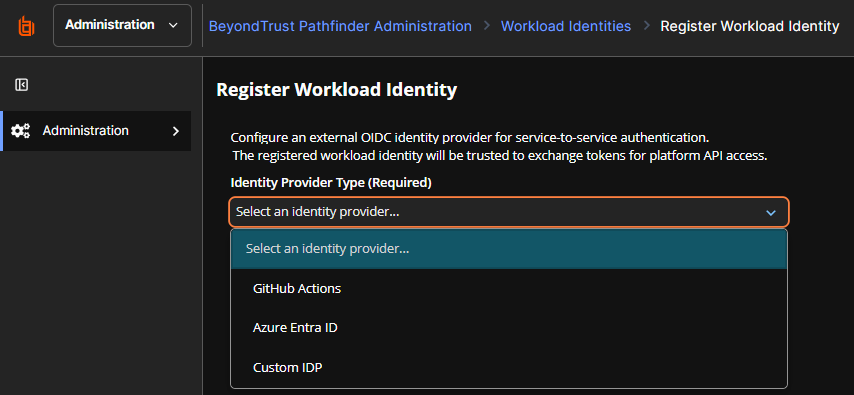
| Identity provider type | The type of external issuer: GitHub Actions, Azure Entra ID, or Custom IDP. |
| Issuer URL | The iss value in the identity provider's tokens, for example https://token.actions.githubusercontent.com. Must use HTTPS. |
| Service name | A name for the workload identity. The workload sends this value in the X-BT-Service-Name header when it requests a token. |
| Claim conditions | Rules that BeyondTrust checks against the claims in the workload's token. A token is accepted only if it matches all conditions, for example repository = my-org/my-repo and ref = refs/heads/main. |
| Product scopes | The BeyondTrust products the workload identity can access on a site. You set these for each site, and each site needs at least one. |
| Access level | Standard access or Administrator access. You set this for each site. |
| Identity ID | A unique ID that BeyondTrust generates when you register the workload identity. It becomes the subject (sub) of the access token the workload receives. A workload identity has one ID, no matter how many sites it's bound to. |
| Sites | The BeyondTrust sites the workload identity is bound to. The workload can only access these sites, using the products and access level set for each one. |
How workload identities work
- Register the workload identity. An organization administrator registers the external issuer, chooses one or more sites, selects the products and access level for each site, and defines the claim conditions a valid token must meet. You only do this once per workload.
- The workload gets a token from its own platform. At runtime, the workload's platform, such as GitHub Actions, issues it a short-lived OIDC token.
- The workload calls BeyondTrust. The workload sends its OIDC token and its service name, in the
X-BT-Service-Nameheader, to BeyondTrust. - BeyondTrust exchanges the token. BeyondTrust checks the token against the matching workload identity. To pass, the token must come from a trusted issuer, match the site, and meet every claim condition. If the token passes, the workload receives a scoped BeyondTrust access token. If any condition fails, the request is denied.
Supported identity providers
The registration form changes based on the identity provider type you select.
GitHub Actions
- The issuer URL is set automatically to
https://token.actions.githubusercontent.com. You cannot change the URL. - Select a Repository (
owner/repo), and then choose how to limit which workflows can authenticate:- Branch: Only workflows running on a specific branch, such as
main - Environment: Only workflows running in a specific GitHub environment, such as
production - Any: No branch or environment limit
- Branch: Only workflows running on a specific branch, such as
- Optionally, add the GitHub Organization ID and Repository ID. These numeric IDs don't change if the organization or repository is renamed, so matching stays reliable.
- A
subcondition is required and must start withrepo:<owner>/<repo>. - Additional claim conditions can use only these GitHub claims:
sub,repository,repository_owner,ref,job_workflow_ref,workflow_ref,environment,event_name, andactor.
Azure Entra ID
- The issuer URL must use the format
https://login.microsoftonline.com/<tenant-id>/v2.0. - Enter the Service Principal OID which is a globally unique identifier (GUID). This becomes the required
subcondition.
Custom IDP
- Use this option for any other OIDC-compliant identity provider.
- Enter the issuer URL which must use HTTPS, and define the claim conditions. The form starts with a
subcondition. - At least one condition must have a specific value. A condition that uses only
*is not accepted on its own.
View workload identities
-
From the console sidebar, go to Security > Workload Identities.
-
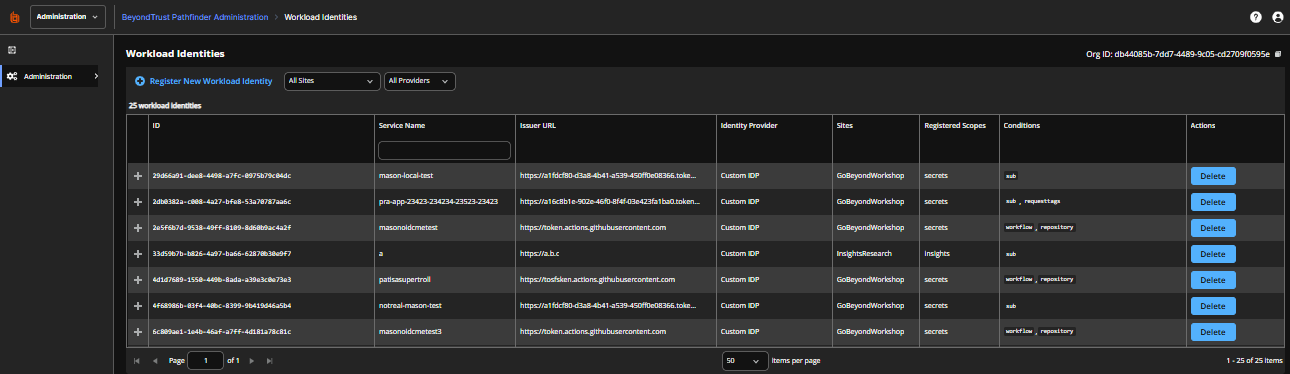
Review the list of registered workload identities. The list shows the following columns:
- ID
- Service Name
- Issuer URL
- Identity Provider
- Sites: Shows up to two site names, followed by +N if there are more
- Registered Scopes: The products the workload identity can access across all of its sites
- Conditions: Shows up to three claim names, followed by +N if there are more, or None if there are no conditions
-
To narrow the list, use the All Sites and All Providers filters.
-
To see all details for a workload identity, expand its row. The details include each site with its products, the description, and the full claim conditions.
In the details view, a condition set to only
*shows as Any (no constraint) with a warning icon. A value that ends in*shows a wildcard badge.
Register a workload identity
-
From the console sidebar, go to Security > Workload Identities.
-
Click Register New Workload Identity.
-
Select an Identity Provider Type. The form displays after you select a type.
-
Enter a Service Name, such as secrets-deploy or ci-pipeline. The workload sends this value in the
X-BT-Service-Nameheader. -
Enter or confirm the Issuer URL. For GitHub Actions, this is filled in for you.
-
Complete the provider-specific fields:
- GitHub Actions: Select the repository and the branch, environment, or Any.
- Azure Entra ID: Enter the Service Principal OID.
- Custom IDP: Enter your claim conditions.
-
(Optional) Add more claim conditions under Additional Claim Conditions. For each condition, enter the claim name and a comma-separated list of allowed values. To add another row, click Add condition.
-
Under Site access, add a site for each site the workload needs to reach. For each site, complete the following:
- Products: Select the products the workload can access on this site. The list shows only the products available on that site.
- Access level: Select Standard access or Administrator access. Administrator access gives the workload administrator access to that site.
You must add at least one site, and select at least one product for each site.
-
(Optional) Enter a Description.
-
Click Register Workload Identity.
A confirmation message shows the details of the new workload identity. Click Register another to add another workload identity, or click Done.
To cancel registration, click Discard. If you have unsaved changes, you are prompted to confirm.
Test your claim conditions
For GitHub Actions and Custom IDP, the registration form includes a Token preview panel. Use it to confirm your conditions are correct before your workload tries to authenticate.
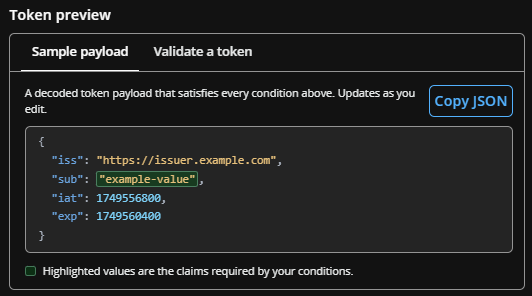
- Sample payload: Shows an example decoded token that meets all the conditions you entered. Click Copy JSON to copy it.
- Validate a token: Paste a real token from your workload, and then click Validate token. The result for each condition is one of the following:
- Matched: The claim is present and its value matches.
- Present but no match: The claim is present, but its value doesn't match.
- Not present: The claim isn't in the token.
You can also generate a sample passing or failing token to see how validation works.
Change a workload identity
You can't edit a workload identity in the console. To change it, including adding or removing a site, delete the workload identity and register a new one.
ImportantDeleting a workload identity removes its access on every site immediately. Plan the change so your workload isn't interrupted.
Delete a workload identity
- From the console sidebar, go to Security > Workload Identities.
- Find the workload identity, and then click Delete.
- In the Remove Workload Identity dialog, confirm the deletion.
ImportantAny services using the workload identity lose access on every site it's bound to, immediately. This can't be undone.
Validation rules
BeyondTrust checks the rules listed in the table when you register a workload identity.
| Field | Rule |
|---|---|
| Issuer URL | Must be a full https:// URL. |
| Service name | Up to 64 characters. Letters, numbers, periods (.), underscores (_), and hyphens (-) only. |
| Sites | At least one site is required. You can't add the same site twice. |
| Product scopes | At least one is required for each site. |
| Claim condition values (all providers) | Can't be empty. Up to 256 characters. Can include one *, only as the last character. |
| GitHub Actions | sub condition is required and must start with repo:<owner>/<repo>. Only supported GitHub claims are allowed. Values can contain letters, numbers, and : / - _ . * @. |
| Azure Entra ID | Issuer URL must use the format https://login.microsoftonline.com/<tenant-id>/v2.0. A sub condition (the Service Principal OID) is required. |
| Custom IDP | At least one condition must have a specific value, not only *. |
| Uniqueness | The service name must be unique within each site you choose. Service names aren't case-sensitive. The registration is rejected if any of the sites already has a workload identity with the same service name. |
| Sites | Every site must belong to your organization. |
There is no limit to the number of workload identities you can register for a site or organization.
Troubleshooting
The workload is denied when it requests a token
This is usually caused by a claim condition that doesn't match. Get a real token from the workload, and then use Validate a token in the Token preview panel to see which condition failed.
I can't see the Workload Identities page
Confirm that you have the Organization Admin role. If you still can't see the page, contact BeyondTrust Technical Support.
I need to change the issuer URL or service name
These fields can't be changed. Delete the workload identity and register a new one. Access is removed as soon as you delete the workload identity.
I need to add or remove a site
In the console, delete the workload identity and register it again with the sites you need. Access is removed on every site as soon as you delete it, so plan for a short interruption.
Authentication stopped working after a GitHub repository was renamed
Add the numeric GitHub Organization ID and Repository ID to the workload identity. These IDs don't change when a repository or organization is renamed.
Updated about 1 hour ago
