
Endpoints details | AI Agent Security
The Endpoints list shows one row per machine. The details panel opens that row up: what the endpoint is, whether its agent is healthy and up to date, which AI agents, MCP servers, and skills it hosts, which policies and settings apply to it, and what it has been doing. It is also where you tag an endpoint, pin its agent version, change its settings, and revoke it.
Scope of this guide
This guide explains the endpoint details panel: the summary tiles, each section of the Overview tab, the other tabs, and the Revoke button. It does not cover writing policies or the fleet-wide settings on the Administration page.
Prerequisites
- You have administrator access to the tenant.
- The AI Agent Security agent is installed on at least one endpoint.
Open the details panel
- Go to Visibility > Endpoints.
- Select the row of the endpoint you want to review.
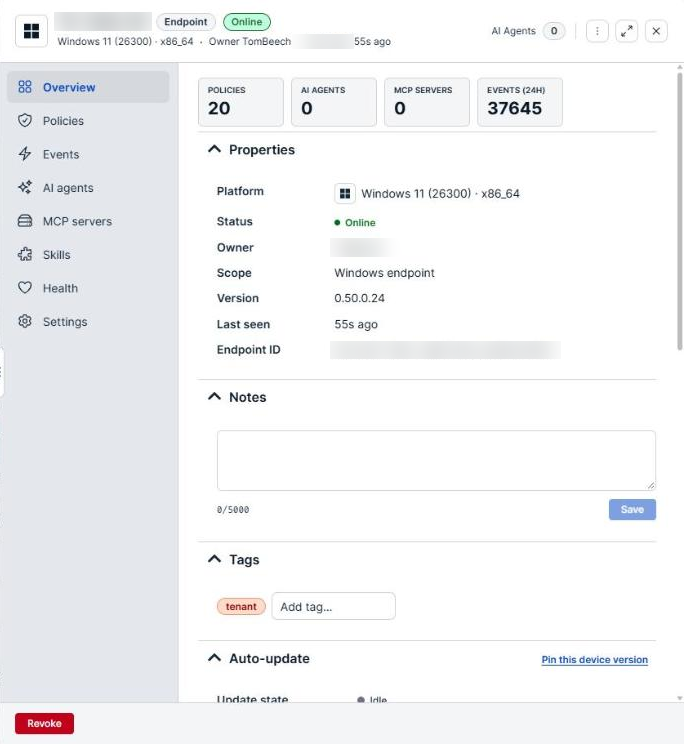
The details panel opens with the endpoint name and platform icon at the top. To close it, select the X in the top right corner.
Actions
| Button | Description |
|---|---|
| Revoke | At the bottom of the panel. Cuts the endpoint off: its agent tears down within about 30 seconds and cannot reconnect until it is enrolled again. Unavailable for an endpoint that is already revoked. |
Revoking the wrong endpoint loses visibility into a live machine. Check the Endpoint ID under Properties, not only the name, before you confirm.
Tabs
The tabs down the left side of the panel group the endpoint's information. Overview is selected when the panel opens.
| Tab | Description |
|---|---|
| Overview | Summary tiles, properties, notes, tags, auto-update state, health, and recent activity. |
| Policies | The policies attached to the endpoint, directly or through its tags. |
| Events | The endpoint's recent events. Select View all events to open them on the Events page. |
| AI agents | The AI agents discovered on the endpoint. Select a row to open the agent. |
| MCP servers | The MCP servers discovered on the endpoint. |
| Skills | The flagged agent skills on the endpoint. |
| Health | Agent health in detail. See Health tab. |
| Settings | The agent settings that apply to this endpoint, and where each value comes from. See Settings tab. |
Overview tab
Summary tiles
| Tile | Description |
|---|---|
| Policies | The number of policies that apply to the endpoint. Select it to open the Policies tab. |
| AI agents | The number of AI agents discovered on the endpoint. |
| MCP servers | The number of MCP servers discovered on the endpoint. |
| Events (24h) | The number of events recorded in the last 24 hours. |
An endpoint with few policies and a high event count is being watched but not controlled. Open the Policies tab to check whether that is deliberate.
Properties
Select the caret beside the heading to collapse or expand the section.
| Field | Description |
|---|---|
| Platform | The operating system, build, and architecture, such as Windows 11 (26200) · x86_64, with the platform icon. |
| Status | Whether the endpoint is reporting, such as Online, or Revoked. |
| Owner | The user account that owns the endpoint. |
| IP | The endpoint's IP address. Shown only when the agent reports one. |
| Scope | The scope the endpoint belongs to. Shown only when known. |
| Version | The version of the AI Agent Security agent installed. |
| Last seen | How long ago the endpoint reported, such as 15s ago. |
| Endpoint ID | The endpoint's full unique identifier. |
Notes
The Notes section holds free text about the endpoint, such as who to contact or why it is configured the way it is. Enter your note and save it. Notes on a revoked endpoint are read-only.
Tags
The Tags section shows the tags applied to the endpoint.
- To add a tag, select the Add tag… box, then choose an existing tag or enter a new one.
- To remove a tag, select the X on its badge.
A tag brings its policies and its pinned settings to the endpoint, so adding or removing one can change what the endpoint enforces.
Auto-update
| Field | Description |
|---|---|
| Update state | Where the agent is in the update cycle. |
| Updater version | The version of the updater on the endpoint, or Not reported yet. |
| Last updater check-in | When the updater last reported, or Never. |
| Last update error | The most recent update error. Shown only when there is one. |
| Pinned to | The version the endpoint is held on. Shown only for a pinned endpoint, with Pinned by, Pinned, and Reason when recorded. |
Select Pin this device version to hold the endpoint on one agent version instead of letting it update automatically. In the dialog, choose the Version, enter an optional reason, and confirm. Select Unpin to let the endpoint update again.
When an update failed, the section reads Held after a failed update. Select Clear hold and retry after you fix the cause.
Compare Last updater check-in with Last seen. An endpoint that is online but whose updater stopped checking in falls behind on versions while still looking healthy.
Health at a glance
| Field | Description |
|---|---|
| CPU | The current CPU use reported by the agent, as a percentage. |
| Memory | Memory in use, followed by total memory. |
| Modules | How many agent modules are running, out of the total, such as 2/2 running. |
| Last heartbeat | How long ago the agent last sent a heartbeat. |
Modules is the field to check when an endpoint reports Online but behaves oddly. A count below the total, such as 1/2 running, means part of the agent is not working.
Recent activity
The Recent activity section lists the endpoint's latest events. Select a row to open the event, or select View all events to see the endpoint's full history on the Events page.
Health tab
The Health tab opens with four tiles: Last heartbeat, Uptime, Last policy sync, and Policies, the number of policies the agent reports it is enforcing. Below them:
| Section | Description |
|---|---|
| Provisioning | Whether the endpoint is Enrolled, whether coding-agent hooks are installed, and the state of hook enforcement. |
| Enforcement surfaces | Each way the agent enforces policy on the endpoint, with its state. |
| Resource usage | CPU, Memory, and Events processed. |
A dash (—) means the agent has not reported that value.
Settings tab
The Settings tab lists the agent settings that apply to this endpoint. A setting can be set in four places, and the most specific one wins:
- Set on the endpoint, on this tab.
- Set by the endpoint's tags, on each tag's Settings tab.
- Fleet defaults, the baseline for every endpoint, on the Administration page.
- Built-in default, the product value used when nobody has set one.
Each row shows where its value comes from, such as Inherited from Fleet defaults or Inherited from followed by a tag name. To set a value for this endpoint only, pin it with the pin control in its row and change the value. A pinned value overrides the endpoint's tags and Fleet defaults. Unpin it to inherit again.
Example: To raise a limit on one build server without changing the rest of the fleet, pin the setting on that endpoint. Every other endpoint keeps the value from its tags or Fleet defaults.
Verify the results
Confirm that the Endpoint ID matches the machine you meant to open. Confirm that Last seen and Last heartbeat are recent. A panel showing old times describes the endpoint's last known state, not its current one.
Next steps
- Open the AI agents and MCP servers tabs to see what the endpoint's agents can reach.
- Record who to contact in Notes when the Owner field shows a dash.
- Check the Settings tab for values pinned on the endpoint that no longer need to differ from the fleet.
Updated about 2 hours ago
