
Visibility – AI agents | AI Agent Security
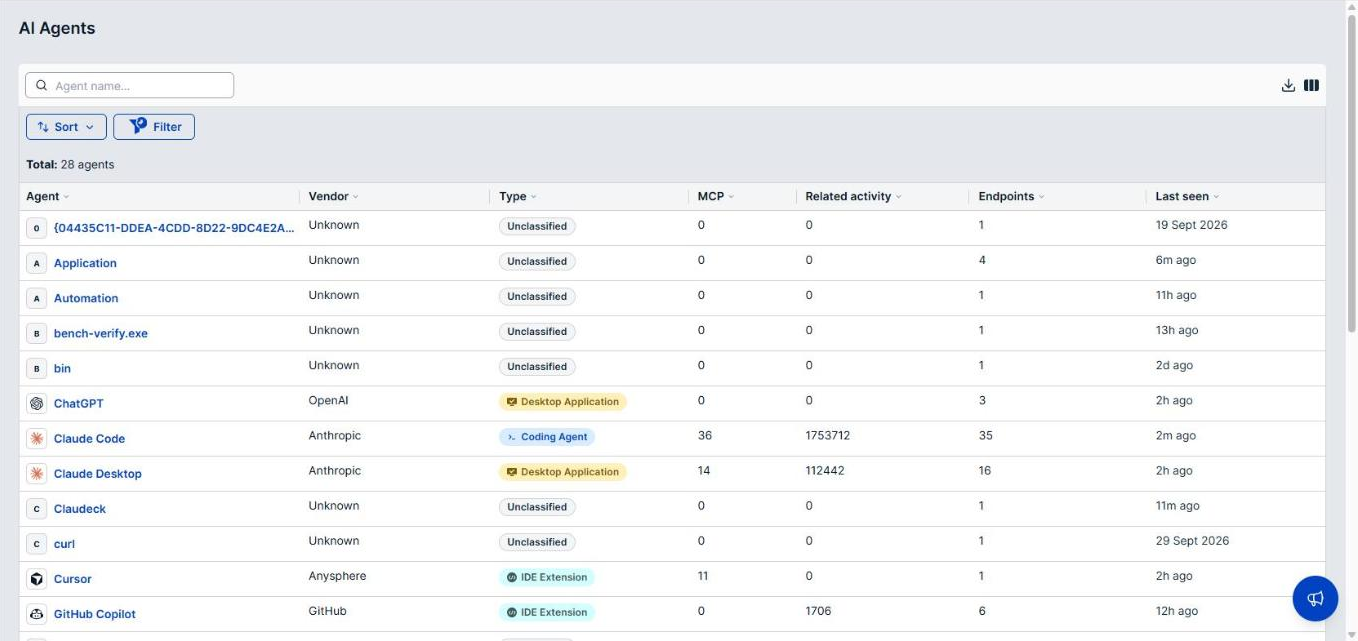
You cannot govern an AI agent you do not know is running. Coding assistants, desktop AI apps, and IDE extensions arrive on endpoints without a purchase order, and each one acts with the permissions of the user who runs it. The AI Agents page lists every AI agent AI Agent Security discovered on your endpoints, so you can see what is in use, how far each agent has spread, and which ones to govern first.
Scope of this guide
This guide explains each column on the AI Agents page and shows you how to search, filter, sort, and download the list. It does not cover the details panel for a single agent, which has its own guide.
Prerequisites
- You have administrator access to the tenant.
- The AI Agent Security agent is installed and reporting on at least one endpoint.
Open the AI Agents page
Go to Visibility > AI Agents.
The line above the list shows the number of agents, such as Total: 12 agents. When a search or filter is active, the line adds the matching number, such as Total: 12 agents | Filtered to: 3 agents.
What the list includes
The list shows one row for each AI agent product, not one row for each process or install. AI Agent Security recognizes the same product under the different names and versions it reports, and folds them into a single row.
Two things follow from this:
- An agent installed on many endpoints is still one row. The Endpoints column tells you how far it has spread.
- Other names for the same product are kept, not lost. Open the agent to see them under Also seen as in its details panel.
When nothing has been discovered yet, the list reads No AI agents discovered yet. When agents exist but none match your search or filters, it reads No agents match the current filters. Adjust or clear the filters above.
Column reference
| Column | Description |
|---|---|
| Agent | The name of the AI agent, with its icon. Select the row to open the agent's details panel. |
| Vendor | The company that makes the agent, such as Anthropic. |
| Type | The category of agent, shown as a badge, such as Coding Agent. |
| MCP | The number of distinct MCP servers running on the endpoints where this agent was seen. |
| Related activity | The number of events from processes this agent launched, over the current time window. A dash (—) means the count is not available. |
| Endpoints | The number of distinct endpoints where this agent was seen. |
| Last seen | How long ago activity was last recorded from this agent. |
Hover over the MCP and Related activity headings for a short description of each count.
Related activity counts what the agent set in motion, such as the shell commands and scripts a coding assistant launched, not the agent's own process. An agent with a high Related activity count is doing work on the endpoint, which makes it worth reviewing even when it is installed on only a few endpoints.
Each row is a link. Select a row to open the agent's details panel, or open the row in a new browser tab to keep your place in the list.
Find an agent by name
- Select the Agent name… box at the top of the list.
- Enter all or part of the agent name.
The search also matches the vendor and the type, so entering Anthropic shows every agent from that vendor. Clear the search box to show all agents again.
Filter the list
- Select Filter.
- Choose the column you want to filter on: Agent, Type, Vendor, or Last seen.
- Choose the values you want to keep, then apply the filter.
Each active filter shows as a chip beside Filter. Select a chip to change it. Select Clear all to remove every filter and the search at once.
Example: Filter on Last seen to show only agents seen after a date you choose, so you can set aside agents that are no longer in use.
Sort the list
Select a column heading to sort by that column. Select the same heading again to reverse the order.
You can also select Sort and choose a preset:
| Option | Description |
|---|---|
| Vendor A–Z | Groups agents by vendor. |
| Endpoints most first | Puts the most widespread agents at the top. |
| MCP servers most first | Puts the agents with the most MCP servers on their endpoints at the top. |
| Related activity most first | Puts the agents that launched the most activity at the top. |
| Last seen newest first | Puts the most recently active agents at the top. |
Choose Default order to return to the list sorted by agent name.
Change the columns
- Select Columns to show or hide columns. The Agent column is always shown.
- Drag the edge of a column heading to make the column wider or narrower.
Download the list
Select Download to save the list as a CSV file. The file has one row per agent, with the same seven columns as the list, in the current sort order.
Load more agents
The list loads more agents as you scroll. When every matching agent is showing, the end of the list reads All agents loaded.
Verify the results
Confirm that each AI agent you expect to be in use appears in the list, and that its Endpoints count matches the number of machines you believe it runs on. An agent that is missing, or an endpoint count lower than you expect, points to machines where the AI Agent Security agent is not installed or not reporting.
Next steps
- Choose Endpoints most first from Sort and open the most widespread agents first.
- Choose Related activity most first from Sort to find the agents doing the most work on your endpoints.
- Select an agent and review its Policies tab to confirm that a policy governs it.
Updated about 2 hours ago
