
AI Agents – Events | AI Agent Security
An AI agent rarely acts alone: a coding assistant runs shell commands, starts scripts, and launches other tools, and that activity carries the agent's reach even though it comes from other processes. The Events tab of the agent details panel shows what the agent did and what the processes it launched did, so you can judge its behavior before you decide how to govern it.
Scope of this guide
This guide explains the Events tab of the agent details panel. It does not cover the event details panel that opens when you select an event; see Event details.
Prerequisites
- You have administrator access to the tenant.
- At least one agent appears on the AI Agents page.
Open the Events tab
- Go to Visibility > AI Agents.
- Select the row of the agent you want to review.
- Select the Events tab, or select Events in the summary diagram on the Overview tab.
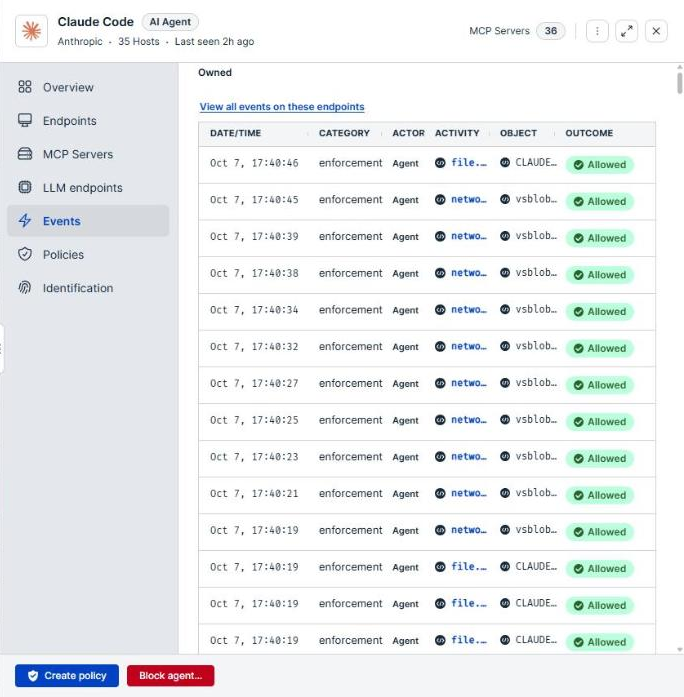
What the tab includes
The tab shows two lists:
- Owned: events attributed to the agent itself, newest first. This includes events from the agent's coding sessions, so a command a person ran inside the session appears here too. The Actor column tells the two apart.
- Related: events from processes the agent launched. This is the activity the Related activity column counts on the AI Agents page.
The two lists are separate, and their counts are never added together. When the agent launched nothing in the loaded window, the Related list reads No related events for followed by the agent name.
Select Load more below a list to show older events.
Column reference
| Column | Description |
|---|---|
| Date/time | When the event was recorded. |
| Category | The source of the event, such as codinghooks for activity captured by a coding-agent hook, or enforcement. |
| Actor | Who performed the action. human means a person ran it, such as a command typed inside the agent's session. |
| Activity | What happened. |
| Object | What the activity acted on, such as a command line or a file path. A dash (—) means no object was recorded. |
| Outcome | What was done about the action: Blocked, Audited, Allowed, or Observed. |
Select a row to open the event's details, where you see its process ancestry, the policies that matched it, and the raw payload.
View all events
Select View all events on these endpoints above the list to open the Events page filtered to the endpoints where the agent runs. That page shows everything those endpoints recorded, not only the agent's activity. When the endpoints are not known, the link reads View all events and filters the Events page on the agent's name instead.
When nothing in the loaded window traces back to the agent, the tab reads No events attributed to followed by the agent name.
Verify the results
Confirm that the most recent event matches the agent's Last seen time, and that any action you expected a policy to stop shows Blocked under Outcome.
Next steps
- Select a Blocked or Audited event to see which policy matched it.
- Review the Related list for commands or connections the agent should not be starting.
- Select Create policy to govern activity you want to control.
Updated about 2 hours ago
