
Visibility – LLM endpoints | AI Agent Security
Every AI agent sends its prompts, and often your code, to a model inference host. AI Agent Security treats a process that calls one of these hosts as an AI agent and inspects that traffic, so a host it does not know about, such as a private model gateway, leaves its callers unrecognized. The LLM Endpoints page lists the hosts your AI agents call, so you can declare the ones you run, reject the ones that are not model traffic, and block the ones you do not allow.
Scope of this guide
This guide explains the LLM Endpoints page: the columns, the endpoint states, declaring, rejecting, restoring, and removing an LLM endpoint, the details panel, and the Set access dialog. It does not cover writing policies for model traffic; see Policies for that.
Prerequisites
- You have administrator access to the tenant. Other users can view the page, but declaring, rejecting, restoring, removing, and setting access need an administrator.
- At least one endpoint with the AI Agent Security agent has called a model, or you are about to declare an LLM endpoint.
Open the LLM Endpoints page
Go to Visibility > LLM Endpoints.
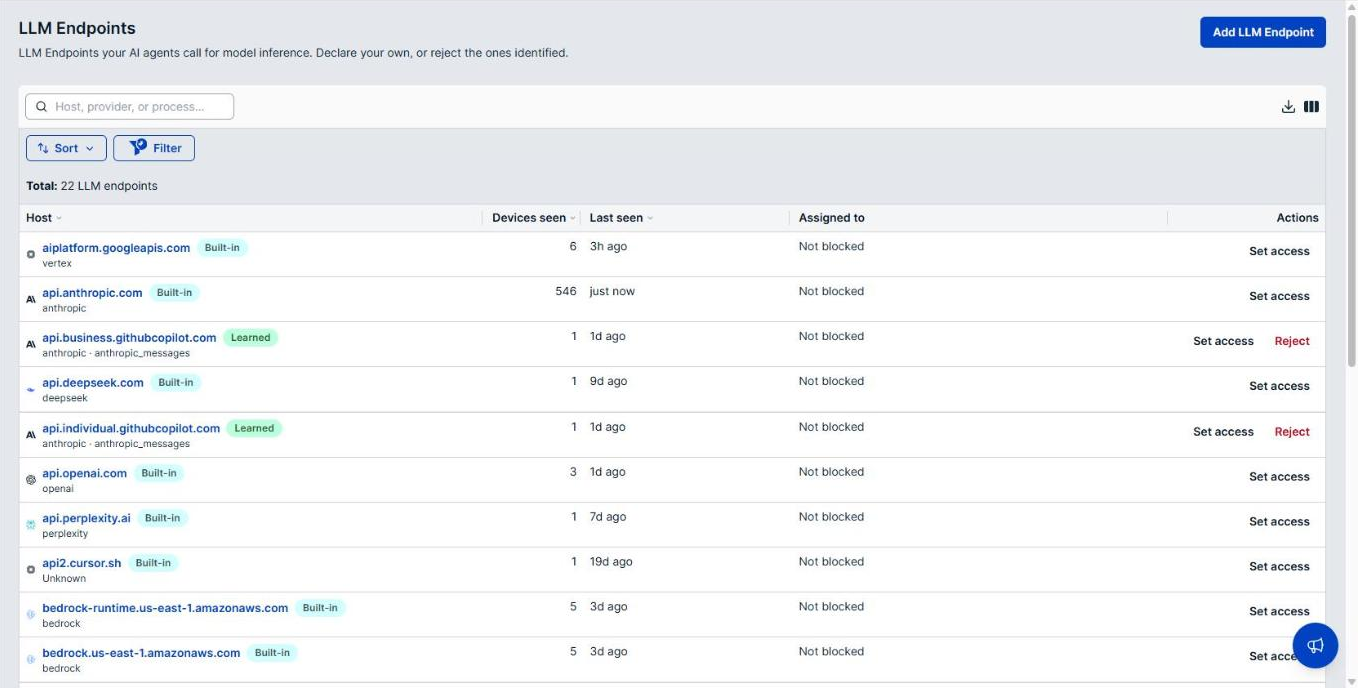
When the list is empty, the page reads No LLM endpoints yet. LLM endpoints appear once an endpoint sees an inference request, or when an administrator declares one.
What the list includes
Each row is one host, shown with a state beside its name.
| State | Description |
|---|---|
| Built-in | A model provider host that AI Agent Security recognizes out of the box. Built-in hosts cannot be rejected or removed. |
| Learned | A host your endpoints identified from inference traffic. |
| Declared | A host an administrator added. Declare the gateways and self-hosted models your teams use. |
| Rejected | A host an administrator rejected. Endpoints stop treating its callers as AI agents and stop inspecting its traffic. When endpoints still report traffic to it, the state reads such as still seen on 3 devices. |
Two things follow from this:
- Rejecting a host is reversible. Sightings of a rejected host keep being reported, so you can restore it later and its history is still there.
- Removing a declared host is not the same as rejecting it. Removing withdraws your declaration only. If endpoints also learn the host from traffic, it comes back as Learned.
When a tenant reaches its limit of learned hosts, a Learned LLM endpoint limit reached banner says how many were not added. Reject learned hosts you no longer need to make room.
Actions
| Button | Description |
|---|---|
| Add LLM Endpoint | Opens a form above the list to declare a host. See Declare an LLM endpoint. |
| Set access | In a row's Actions column. Opens the Set access dialog to block the host. See Block an LLM endpoint. |
| Reject | In the Actions column of a Learned host. Asks you to confirm, then rejects the host. |
| Restore | In the Actions column of a Rejected host. Restores it at once. |
| Remove | In the Actions column of a Declared host. Asks you to confirm, then withdraws the declaration. |
Each change reaches endpoints at their next sync, about a minute later. A banner above the list confirms it, such as Declared llm.example.com.
Column reference
| Column | Description |
|---|---|
| Host | The host name, with its provider icon and state. The line below names the provider and, when known, the model family. Select the host name to open its details. |
| Devices seen | The number of endpoints that have called the host. A dash (—) means none have. |
| Last seen | How long ago an endpoint last called the host. A dash (—) means no endpoint has, such as for a declared host nobody uses yet. |
| Assigned to | Whether the host is blocked. Not blocked, or Blocked followed by the tags it is blocked for, or Every device, and the number of endpoints assigned. |
| Actions | Set access and the one state action the host offers: Reject, Restore, or Remove. |
The count under Assigned to is the number of endpoints the block is assigned to, not the number it has stopped. A block takes effect on macOS endpoints, and on Windows endpoints whose coding-agent traffic is redirected to the inspector.
Declare an LLM endpoint
- Select Add LLM Endpoint.
- In the LLM Endpoint box, enter the host name only, such as
llm.example.com. Do not include a scheme, a path, or a wildcard. - In the Provider box, choose a provider or enter your own.
- Select Save LLM Endpoint.
The host appears in the list as Declared.
Reject, restore, or remove an LLM endpoint
- Find the host in the list.
- In its Actions column, select Reject, Restore, or Remove.
- For Reject or Remove, read the warning that appears above the list, then select Reject LLM Endpoint or Remove LLM Endpoint. Select Cancel to leave the host as it is.
Reject a host that is not model traffic, such as a general web service an agent happens to call. Rejecting a host that is real model traffic means processes recognized only through that host are no longer treated as AI agents.
Block an LLM endpoint
- Select Set access in the host's row, or in its details panel. The Set access for dialog opens with the host name in its title.
- Choose who is blocked:
- Not blocked: every endpoint may connect. This is the default.
- Blocked for devices in these tags: an endpoint carrying any of the tags you add is blocked, and every other endpoint is unaffected.
- Blocked for every device: every endpoint in the tenant is blocked, including endpoints enrolled later. This option appears only where your tenant offers tenant-wide blocks.
- For a tag block, select the Add a tag… box and add one or more tags. The dialog shows how many endpoints the tags cover, such as Up to 40 devices in 2 tags.
- Select Save block, Block for every device, or Clear block, depending on your choice.
Changes apply at each endpoint's next sync.
Example: To stop contractors' machines from reaching a model provider your contract does not cover, tag those endpoints, then choose Blocked for devices in these tags and add that tag.
LLM endpoint details
Select a host name to open its details panel. The header shows the host, its provider, Set access, and the host's state action. Two tabs sit down the left side.
Overview tab
| Field | Description |
|---|---|
| Devices | The number of endpoints that have called the host. |
| First seen | When the host was first seen. For a declared host no endpoint has called, the row reads Declared instead. Built-in hosts do not show this row. |
| Declared by | For a declared host, who declared it. |
| Last seen | How long ago an endpoint last called the host. |
| Still seen on | For a rejected host, how many endpoints still report traffic to it. Rejected and Rejected by say when and by whom. |
| Access | Blocked or Not blocked. |
The Seen from table below lists the processes that called the host, with the Process, the Device it ran on, the number of Connections, and when it was Last seen. For a built-in host, select a row to see Why this shows as called, the evidence that matched the process to the host.
Access tab
The Access tab shows Assigned to, the same block summary as the list column. Some hosts, such as a bare IPv6 address, cannot carry a managed block; for those, the tab says so and no Set access action is offered.
Search, filter, and sort the list
- To search, select the Host, provider, or process… box and enter your text. The search also matches the paths of the processes that called each host.
- To filter, select Filter, choose Host, State, or Provider, then choose the values to keep. Select Clear all to remove every filter.
- To sort, select the Host, Devices seen, or Last seen heading, or select Sort and choose a preset such as Devices seen most first.
- Select Columns to show or hide columns, and Download to save the list as a CSV file.
The list loads more hosts as you scroll. When every matching host is showing, the end of the list reads All LLM endpoints loaded.
Verify the results
After you declare or reject a host, confirm that its state in the list changed and that the confirmation banner appeared. After you set access, confirm that Assigned to shows the tags you chose and a device count you expect.
Next steps
- Filter on State for Learned and review each host your endpoints identified.
- Declare the model gateways your teams use, so their callers appear as AI agents.
- Sort on Devices seen and decide whether the most widely used hosts are ones you allow.
Updated about 2 hours ago
