
Policies details | AI Agent Security
The Policies list tells you a policy exists and what posture it is at. The details panel tells you what the policy does and where it reaches: it holds the posture switch, the rules the policy runs, the endpoints and tags it is attached to, and a record of what it has matched.
Scope of this guide
This guide explains the policy details panel: the header actions, the posture switch, and the Overview, Attachments, and Activity tabs. It does not cover writing rules in the policy builder.
Prerequisites
- You have administrator access to the tenant.
- At least one policy appears on the Policies page.
Open the details panel
- Go to Protection > Policies.
- Select the name of the policy you want to review.
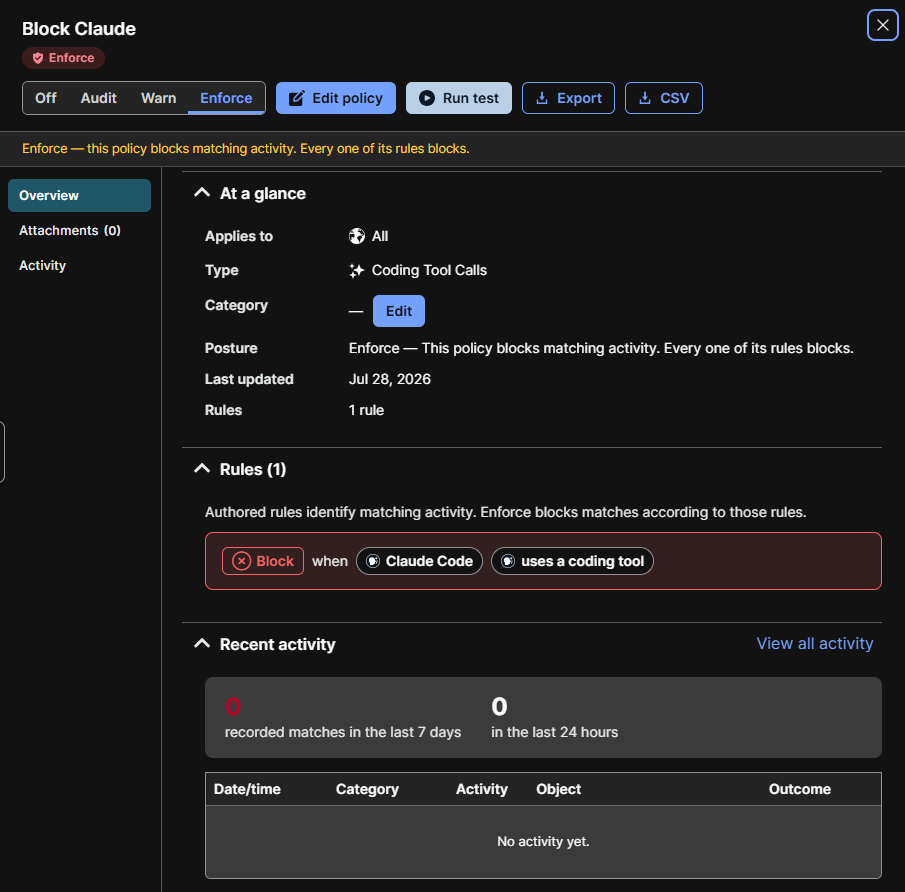
The header shows the policy name, its identifier below it, and its posture badge beside its description. A banner below the header states the current posture and what it does. To close the panel, select the X in the top right corner.
Actions
The actions you see depend on who owns the policy.
| Button | Description |
|---|---|
| Posture switch | Changes the policy posture. See Set the policy posture. |
| Info icon | Explains each posture, from the loosest to the strictest. |
| Edit policy | Opens the policy in the builder at the rules step. Customer Managed policies only. |
| Delete | Deletes the policy. Customer Managed policies only. |
| Fork to my policies | Opens the builder with a new, editable copy of the policy in your Customer Managed set. BeyondTrust Managed policies only. |
| Run test | Opens the builder's test step, where you replay recorded activity against the policy. Customer Managed policies only. |
| CSV | Downloads the policy as a CSV file. |
For a Customer Managed policy, the pencil beside the policy name opens the Edit policy details dialog. Change the Name or the Description (optional), then select Save. The identifier below the name does not change.
Delete a policy
- Select Delete.
- Read the warning in the dialog. When the policy is attached, it says how many endpoints and tags it reaches.
- Select Delete policy.
Deleting cannot be undone. The policy stops blocking or recording on every endpoint it reached, and anything it blocked is allowed again.
Set the policy posture
The posture switch has four settings on a Customer Managed policy.
| Setting | Description |
|---|---|
| Off | The policy is not sent to endpoints, so nothing is recorded or blocked. Every endpoint and tag override of it is off too. Its rules, posture, and overrides are kept for when it is turned back on. |
| Audit | The policy records matching activity but does not block it. Other policies may still block the same action. |
| Require Approval | The policy blocks matching activity, and the user can approve a time-limited exception themselves to clear the block and retry. |
| Block | The policy blocks matching activity. A rule written with its own outcome, such as audit, keeps that outcome. |
- Select the setting you want.
- Read the confirmation that appears below the switch. It states what the new posture does.
- Select the confirm button, which reads Turn off, Use Audit, Use Require Approval, or Use Block. Select Cancel to keep the current posture.
Posture belongs to the whole policy, not to individual rules. Moving a policy from Audit to Block turns on every rule in it at once, so check the Rules section first.
A BeyondTrust Managed policy offers only Off and Audit. The line below the switch reads To use Require Approval or Block, select Fork to my policies. Your fork is an ordinary Customer Managed policy, and you can set it to any posture.
Tabs
The tabs down the left side of the panel group the policy's information. Overview is selected when the panel opens.
| Tab | Description |
|---|---|
| Overview | A summary of the policy, its rules, and its most recent activity. |
| Attachments | The endpoints and tags the policy is attached to. The count appears in the tab label. |
| Activity | The full record of activity attributed to the policy. |
Overview tab
At a glance
| Field | Description |
|---|---|
| Applies to | Who the policy covers. AI Agents limits it to AI agents; All covers every process on the endpoint. |
| Type | The kind of action the policy governs, such as Coding Tool Calls. |
| Category | The category the policy belongs to. Where you can change it, select the edit control beside the value, then choose a category or enter a new name. |
| Source | Shown only for older platform-supplied policies, where it reads Platform managed. |
| Posture | The current posture and what it means. Not shown while the policy is turned off. |
| Last updated | When the policy was last changed. |
| Rules | How many rules the policy contains. |
Assigning a Category is worth the few seconds it takes. The Policies list groups and filters by category, and an uncategorized policy is easy to miss in a filtered view.
Rules
The Rules section lists every rule the policy runs, with a count in the heading. A line above the rules explains what they do at the current posture.
Each rule reads as a sentence: the outcome, then when, then who and what. For example, Block when Any AI agent reads a file. The outcome follows the posture: at Audit every rule reads Audit, and at Off the rules are kept but do not run.
Recent activity
The Recent activity section shows how many matches were recorded in the last 7 days and the last 24 hours, followed by the three most recent matches. Select View all activity to open the Activity tab, or select a row to open the event.
| Column | Description |
|---|---|
| Date/time | When the activity happened. |
| Category | The kind of activity. |
| Activity | What was attempted. |
| Object | What the activity applied to. |
| Outcome | What happened to it. |
When a policy has never matched anything, the table reads No activity yet.
Zero matches is ambiguous. It can mean nothing tried the action, or that the policy does not match what you thought it would. Select Run test to tell the two apart rather than reading a zero as good or bad news.
Attachments tab
A published policy applies only where it is attached. The Attachments tab lists every attachment in two sections.
Endpoints
The Endpoints section lists the endpoints the policy is attached to directly, one row per attachment and per active override.
| Column | Description |
|---|---|
| Endpoint | The endpoint. Select the row to open its details. |
| Status | The endpoint's connection status. |
| Policy Enforcement | The posture the policy runs at on that endpoint. A filled badge is the policy's own posture; an outlined badge is an override. |
| TTL | When an override expires, or Never. |
To attach the policy, select Attach to endpoints, choose the endpoints, and decide whether to use the policy's own posture or an override with an expiry.
Tags
The Tags section lists the tags the policy is attached to. A tag attachment reaches every endpoint that carries the tag.
| Column | Description |
|---|---|
| Tag | The tag. Select the row to open its details. |
| # Endpoints | How many endpoints carry the tag. |
| Policy Enforcement | The posture the policy runs at through that tag. |
| TTL | When an override expires, or Never. |
To attach the policy, select Attach tags and choose the tags.
When the policy has no attachments, the sections read No endpoint attachments and No tag attachments. A policy with no attachments reaches no endpoints, whatever its posture.
While a policy is turned off, its overrides are off too and can be viewed but not changed. New attachments use the policy's own posture.
Activity tab
The Recorded activity section lists every outcome attributed to the policy, with the same columns as Recent activity. Changing the posture affects future matches only; past rows keep the outcome they were recorded with. Select a row to open the event.
Verify the results
After changing a posture, confirm that the badge beside the description, the banner below the header, and the Posture field under At a glance all show the new setting. Then open the Attachments tab and confirm the policy reaches the endpoints and tags you expect.
Next steps
- Select Run test on any Customer Managed policy at Audit or Off to see what it would catch.
- Open the Attachments tab and attach the policy where it is needed.
- Assign a Category if the field is empty.
Updated about 2 hours ago
