
Update strategy | AI Agent Security
Agent versions drift. Machines are offline when an update ships, updates fail and leave an endpoint held back, and a version that works for most of your fleet may not suit one group. The Update Strategy page is where you decide which agent version each endpoint runs, using ordered rules that an endpoint matches from the top down.
Scope of this guide
This guide explains the Update Strategy page: the Overview, Rules, Releases, and Emergency controls tabs. It does not cover installing the agent on a new endpoint.
Prerequisites
- You have administrator access to the tenant.
- At least one endpoint is enrolled.
Open the Update Strategy page
Go to Settings > Update Strategy.
The counts in the Rules and Releases tab labels are the number of rules and releases, such as Rules (3).
How rules work
Rules are ordered. An endpoint follows the first rule whose scope matches it, and stops there. Later rules do not apply, even if they also match.
The Default rule sits at the bottom and always comes last. It applies to all endpoints, so anything not matched by a rule above it lands there. This means no endpoint is ever without a rule.
A device pin overrides every rule for one endpoint. See Device pins below.
Overview tab
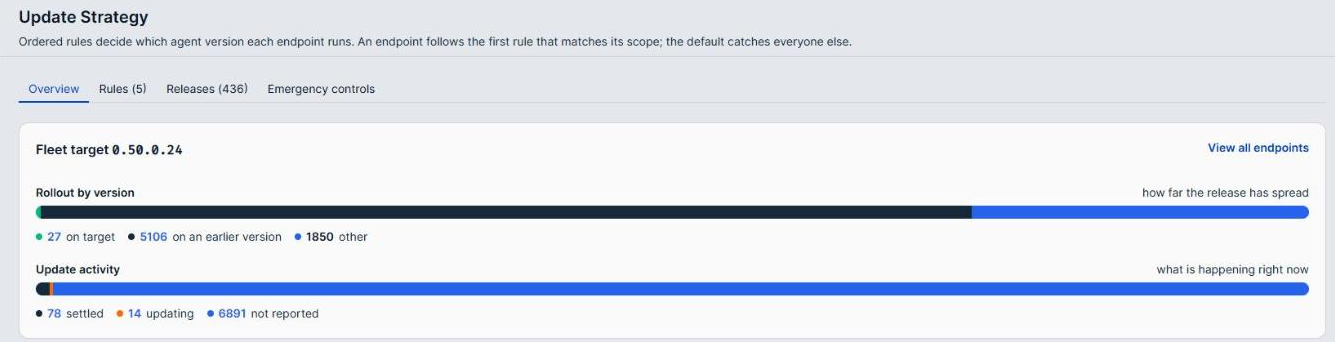
The Overview tab shows how far your fleet is on its target version, and what is happening right now.
When updates are paused, an Updates are paused alert sits at the top of the tab with the reason recorded when they were paused. Resume them from the Emergency controls tab.
The heading names the version the fleet is aiming for, such as Fleet target 0.41.2. When no fleet-wide default is set, it reads Following the latest release instead. Select View all endpoints to open the Endpoints page.
Two bars break the fleet down:
| Bar | Description |
|---|---|
| Rollout by version | How far the release has spread: endpoints on target, on an earlier version, and other. |
| Update activity | What is happening right now: endpoints settled, updating, held, and not reported. |
Select a segment of either bar to see the endpoints in it.
Below the bars, By platform shows how many endpoints on each operating system are on target, and Version distribution lists how many endpoints run each version, with the target version marked TARGET. Select a count to see those endpoints.
Read the Update activity segments separately, because they describe different problems. held means an update was attempted and did not work, and those endpoints need attention. not reported means no information at all, which is a connectivity problem rather than an update one.
Check By platform before concluding a rollout has stalled. A fleet that is mostly Windows can show a low overall figure while macOS is fully on target.
Rules tab
The Rules tab lists your rules in the order they are evaluated.
| Column | Description |
|---|---|
| Rule | The rule name. The Default rule is marked (always last). |
| Applies to | The scope the rule matches, such as an operating system and tags. |
| Keeps them on | The version the rule holds endpoints on, such as Latest release (0.41.2 today) or Pinned to 0.40.1. |
| Endpoints | How many endpoints the rule governs. Select the number to see them. |
Create a rule
-
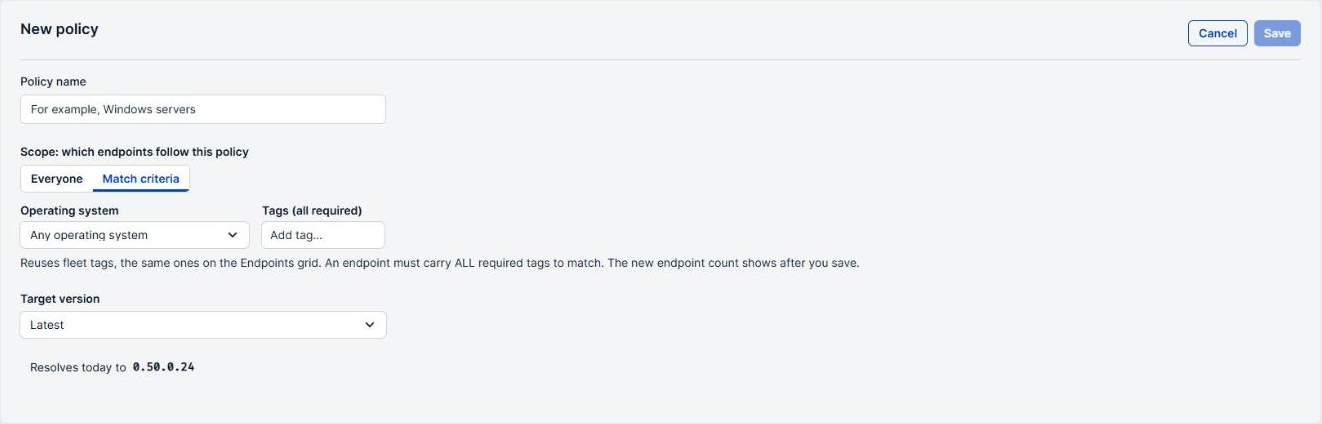
Select New policy.
-
Enter a Policy name that describes the group it covers, such as
Windows servers. -
Under Scope: which endpoints follow this policy, select Match criteria, then set the criteria described below. Only the Default rule can target Everyone, so a new rule cannot be saved with that option.
-
Choose the Target version.
-
Select Save.
Match criteria
| Field | Description |
|---|---|
| Operating system | Limits the rule to one operating system, such as Windows or macOS. Any operating system matches all of them. |
| Tags (all required) | Limits the rule to endpoints carrying tags. An endpoint must carry all the tags you add, not one of them. |
Tags here are the same tags shown on the Endpoints page, so you can tag a group of endpoints there and scope a rule to them here.
Adding a second tag narrows the rule rather than widening it. Two tags match only the endpoints carrying both.
The endpoint count appears after you save, so you cannot preview how many endpoints a rule catches while building it. Save the rule, check the count on the Rules tab, then adjust it if it is not what you expected.
Target version
| Option | Description |
|---|---|
| Latest | The newest release. |
| Patch N-1, latest minor, one patch behind | The latest minor version, one patch behind its newest release. |
| Patch N-2, latest minor, two patches behind | The latest minor version, two patches behind its newest release. |
| Minor N-1, one minor behind | One minor version behind the newest. |
| Minor N-2, two minors behind | Two minor versions behind the newest. |
| Pinned version | One specific release, which you choose from the list that appears. Yanked releases cannot be chosen. |
Below the choice, Resolves today to shows the version the rule would give endpoints right now. Every option except Pinned version moves as new releases ship, so the version a rule resolves to today is not the one it resolves to next month.
Reorder rules
Use the arrows on a rule to move it up or down. The Default rule cannot be moved; it always stays last.
Put your narrowest rules at the top. A broad rule placed above a specific one absorbs the endpoints the specific rule was written for.
Edit, roll back, or delete a rule
- Select Edit to change a rule's name, scope, or target version.
- Select Roll back on the Default rule, or Roll back… in the editor of any rule, to move its endpoints to an earlier release. The button is unavailable when there is no earlier release to roll back to. The confirmation asks for a reason and names how many endpoints move, such as Roll back 12 endpoints.
- Select Delete policy in the editor to remove a rule. Endpoints it matched fall through to the next rule that matches them, or to the Default rule. This cannot be undone.
See a rule's endpoints
Select the number in the Endpoints column. The list shows each endpoint with the version it is Running, its Update status, and its Last check-in. Use the Filter endpoints… box to find one, or select Open in Endpoints grid to see the same endpoints on the Endpoints page.
Device pins
A device pin holds one endpoint on a version you choose, whatever the rules say. To pin an endpoint, open a rule's endpoint list and select Pin on its row, choose the Version, and enter a reason if you want one recorded. Select Unpin to return the endpoint to your rules.
When any device is pinned, a Device pins (n) row sits at the top of the Rules tab. Select it to list the pins. Each one applies to This device only.
Review the pins from time to time. A pinned endpoint stays where it is while the rest of the fleet moves on, so a pin set for a short investigation can hold an endpoint back for months.
Releases tab
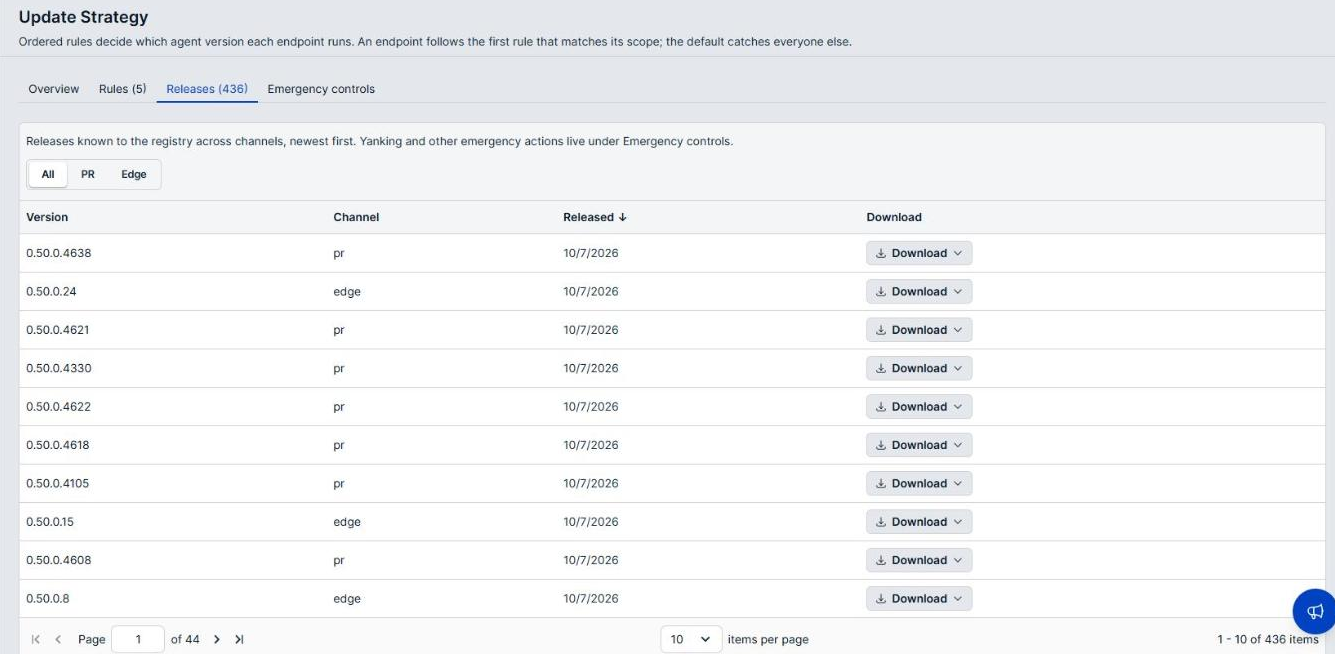
The Releases tab lists the agent releases known to the registry across channels, newest first.
| Column | Description |
|---|---|
| Version | The release version, with a Yanked or Expedited pill where one applies. A yanked release is pulled from resolution for your tenant. |
| Channel | The channel the release was published to. |
| Released | The date the release was published. |
| Download | Downloads the installer for the release. A yanked release cannot be downloaded. |
Select a column heading to sort by it. Select the same heading again to reverse the order.
When releases come from more than one channel, a Filter by channel control appears above the list. Choose All or a single channel.
This tab is a reference list. To change what your endpoints run, use the Rules tab. To pull a release, use Emergency controls.
Check the release dates before you set a rule to Latest. Versions can publish within days of each other, so the latest release can change several times in a week.
Emergency controls tab
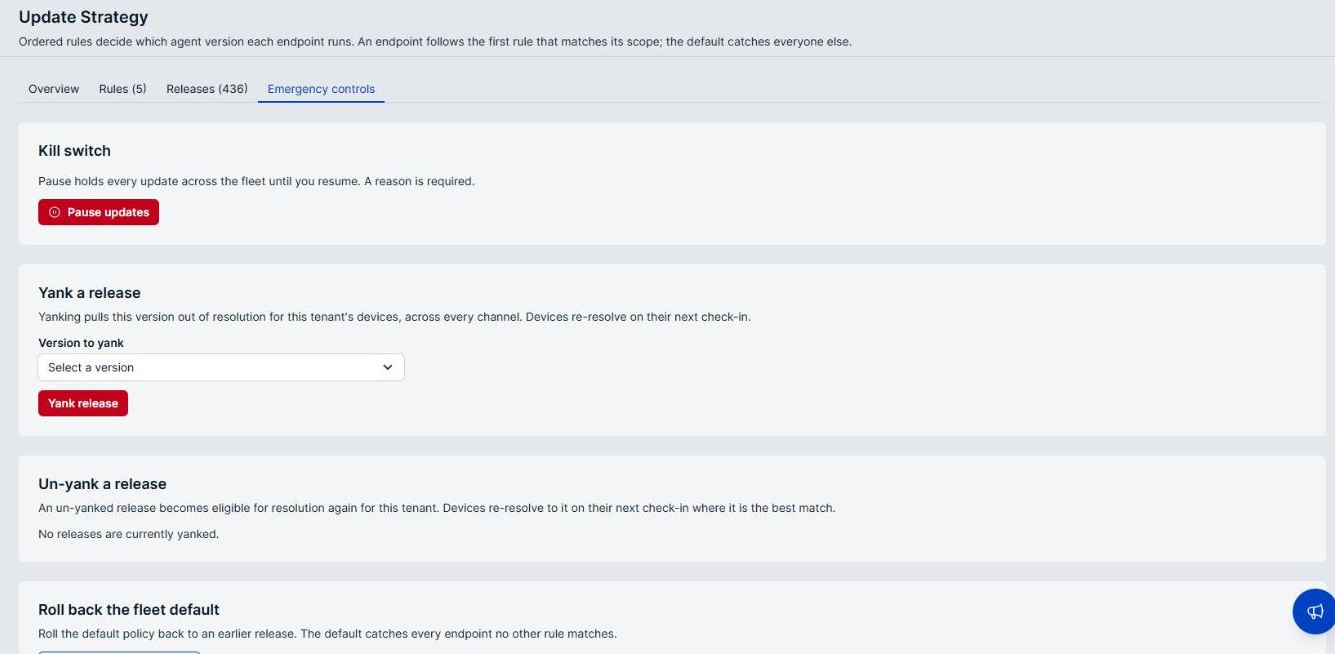
The Emergency controls tab holds the actions for stopping a bad rollout. A dot on the tab label means updates are paused.
Pause all updates
The Kill switch holds every update across the fleet until you resume.
- Select Pause updates.
- In the Pause all updates? dialog, enter why in the Reason (required) field.
- Select Pause updates.
Devices keep their current version while updates are paused. Endpoints already partway through an update may finish; endpoints yet to start do not begin. Check the Overview tab afterward rather than assuming the fleet froze at the moment you paused.
To resume, select Resume updates.
Yank a release
Yanking pulls a version out of resolution for your tenant's devices, across every channel. Devices re-resolve to a different version at their next check-in.
- Choose the version in the Version to yank list.
- Select Yank release.
- In the confirmation dialog, enter why in the Reason (required) field.
- Select Yank release.
A yank applies to your tenant only. Use it for a release that is causing harm on your endpoints, and use Roll back the fleet default when you only need to move the endpoints on your Default rule.
Un-yank a release
Choose the version in the Version to un-yank list, then select Un-yank release. The release becomes eligible for resolution again for your tenant, and devices re-resolve to it at their next check-in where it is the best match.
When nothing is yanked, the section reads No releases are currently yanked.
A release can stay unavailable after you un-yank it. When the page shows Un-yanked, but still not resolvable, BeyondTrust has also pulled that version, and devices still do not resolve to it.
Roll back the fleet default
Select Roll back the fleet default to move the Default rule to an earlier release. Because the default catches every endpoint that no other rule matches, this moves most of your fleet. The confirmation asks for a reason.
Use this control when a release is bad for your fleet and you want your endpoints back on the previous one. It changes your Default rule rather than removing the release from resolution.
Verify the results
After changing a rule, check the Endpoints count on each rule. The counts show how the fleet actually divides between your rules, and a rule showing zero endpoints is being matched by something above it.
After a rollout, watch the Overview tab rather than the rule itself. Endpoints move onto a target version as they check in, so the figures lag the change.
The same applies to every emergency control. Pausing, yanking, and rolling back all take effect as devices check in, so none of them is instant across the fleet.
Next steps
- Investigate any endpoints in the held segment of Update activity. They do not move forward on their own.
- Check the not reported endpoints on the Endpoints page to see whether they are offline.
- Create a rule for a small group of endpoints to test a version before the rest of the fleet takes it.
- Agree in advance who can use the Emergency controls, and what counts as a reason worth recording.
Updated about 2 hours ago
