
AI Agents – Policies | AI Agent Security
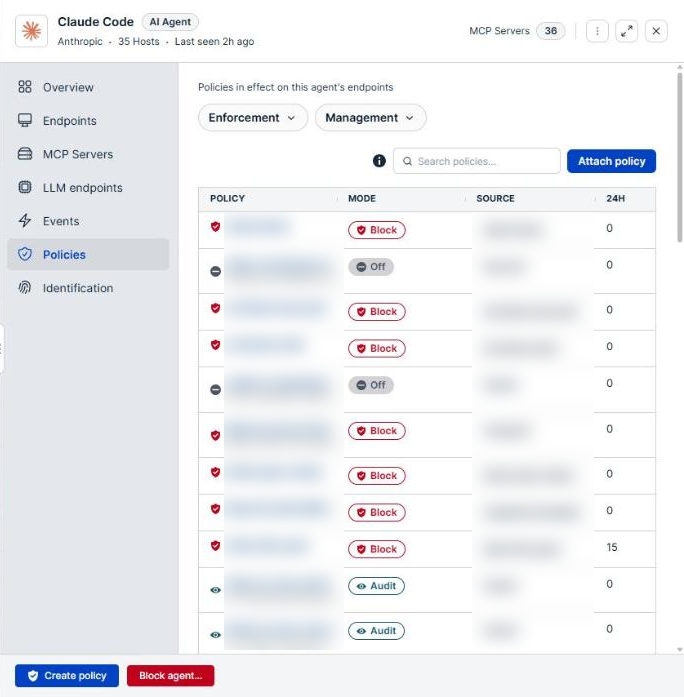
Knowing that policies exist is not the same as knowing they govern an agent. Policies attach to endpoints, not to agents, so an agent is governed only where a policy reaches the endpoints it runs on. The Policies tab of the agent details panel lists the policies in effect on those endpoints, with how often each one matched in the last 24 hours, so you can see whether your intent for the agent matches what is enforced.
Scope of this guide
This guide explains the Policies tab of the agent details panel: the filters, the policy list, and attaching a policy to every endpoint the agent runs on. It does not cover writing or editing a policy.
Prerequisites
- You have administrator access to the tenant.
- At least one agent appears on the AI Agents page.
Open the Policies tab
- Go to Visibility > AI Agents.
- Select the row of the agent you want to review.
- Select the Policies tab, or select Policies in the summary diagram on the Overview tab.
The tab opens with the caption Policies in effect on this agent's endpoints.
What the list includes
The list shows one row for each policy in effect on any endpoint where the agent runs. It is built from the endpoints, not from the agent: a policy appears because it reaches those endpoints, whether or not its rules mention this agent.
Two things follow from this:
- A policy can be stricter on some endpoints than on others. When the same policy runs in different modes on different endpoints, the row shows the strictest one.
- An empty list means none of the agent's endpoints carry a policy. The tab then reads No policies apply to followed by the agent name and on these hosts.
Filter the list
The filters above the list narrow it by two properties. Select a filter, choose one or more values, and the list keeps only the policies that match. Filters combine, so a policy must match every filter you set.
| Filter | Description |
|---|---|
| Enforcement | The policy's mode: Off, Audit, Require Approval, Block, or Exception. |
| Management | Who authors the policy: BeyondTrust managed or Customer managed. |
To find a policy by name, enter all or part of the name in the Search policies… box.
Select the information icon beside the search box to read what each enforcement mode does.
Column reference
| Column | Description |
|---|---|
| Policy | The policy name, with its description below where one exists. |
| Mode | What the policy does when it matches. See Enforcement modes. |
| Source | How the policy reaches the endpoints, such as direct for a policy attached to an endpoint, or the name of the tag it was inherited through. |
| 24h | The number of times the policy matched in the last 24 hours. |
Enforcement modes
| Badge | Description |
|---|---|
| Off | The policy's rules are not sent to endpoints. Nothing is recorded or blocked. |
| Audit | Matching activity is recorded but not blocked. |
| Require Approval | Matching activity is blocked, and the user can request an exception and approve it themselves for up to 24 hours. |
| Block | Matching activity is blocked. The user can request an exception, but an administrator must approve it. |
| Exception | An approved exception is letting matching activity through. The policy's normal mode returns when the exception expires. |
A 24h count of 0 on a Block policy means nothing matched it in the last day. That is the expected result when the policy is working as a guardrail, but check its rules if you expected activity to reach it.
Attach a policy to the agent's endpoints
- Select Attach policy. The Attach policy to this agent dialog opens and states how many endpoints the attachment applies to.
- Enter all or part of a policy name in the Search policies… box, then select the policies you want.
- Optional: choose a mode in Mode override to run the policies in a different mode from their default on these endpoints. When you choose one, you can also set how long the override lasts.
- Select Attach selected.
The policy attaches to every endpoint the agent runs on, not to the agent itself. Every other agent on those endpoints is governed by it too, so check the agents on those endpoints before you attach a Block policy.
Verify the results
Confirm that the policy you attached appears in the list with the mode you expected. Its 24h count rises once it matches activity on the agent's endpoints.
Next steps
- Filter on Enforcement for Audit to find the policies that only record, and decide whether any should block.
- Select Create policy to write a policy for activity no current policy covers.
Updated about 2 hours ago
