
AI Agents – MCP servers | AI Agent Security
Every tool an MCP server exposes becomes an action an AI agent can take, so the servers an agent uses decide how far it can reach beyond the endpoint. The MCP Servers tab of the agent details panel lists the servers tied to one agent, and says how each one is tied to it, so you can see what the agent can do before you govern it.
Scope of this guide
This guide explains the MCP Servers tab of the agent details panel. It does not cover the MCP server details panel that opens when you select a server, or setting a server's access; see MCP server details.
Prerequisites
- You have administrator access to the tenant.
- At least one agent appears on the AI Agents page.
Open the MCP Servers tab
- Go to Visibility > AI Agents.
- Select the row of the agent you want to review.
- Select the MCP Servers tab, or select MCP servers in the summary diagram on the Overview tab.
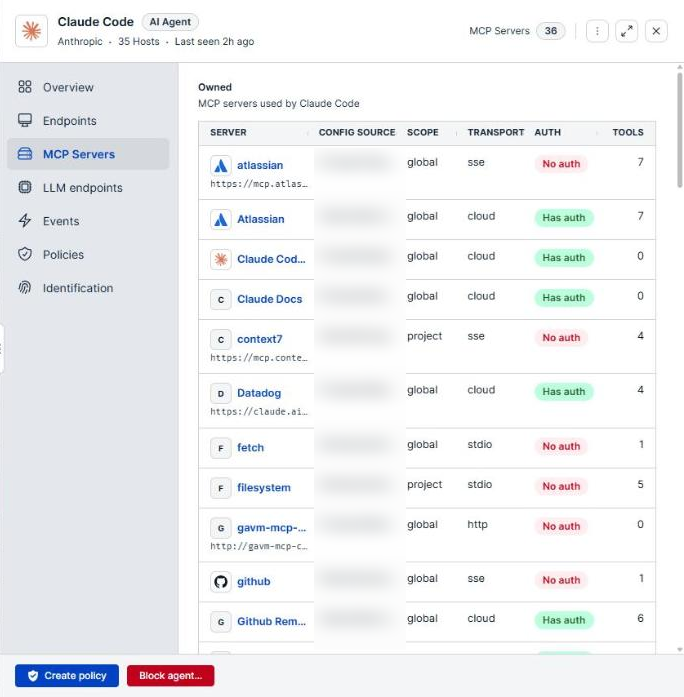
What the tab includes
The tab groups servers by how they are tied to the agent, and the counts of the groups are never added together.
| Group | Description |
|---|---|
| Owned | Servers declared in a configuration file of this agent. These are the servers the agent is set up to use. |
| Called | Servers the agent was observed calling but that no configuration file declares. Appears only when there are any. |
| Related | Servers the agent launched, or that run alongside it on the same host. Appears only when there are any. |
When only the Owned group has servers, the tab shows them without a heading. When the agent has no configured servers, the tab reads No MCP servers are configured by followed by the agent name.
Called deserves a closer look: an agent calling a server no configuration declares can mean a server added at run time, outside the configuration you review.
Column reference
| Column | Description |
|---|---|
| Server | The server name. A remote server shows its address below the name. Select the row to open the server's details. |
| Config source | The configuration file that declares the server. A dash (—) means no file is known. |
| Scope | The scope of the configuration that declares the server. A dash (—) means no scope is known. |
| Transport | How the agent talks to the server, such as stdio for a local process. |
| Auth | Whether the server requires authentication: Has auth, No auth, or Unknown. |
| Tools | The number of tools the server exposes. |
Servers seen in traffic
Below the groups, a section that opens with Seen in traffic from and the agent name lists servers the agent reached over the network but that no configuration file declares. It shows Server, Transport, Auth, and Last seen for each. These servers have no details to open. Select Refresh to read the latest traffic.
Servers appear here only for connections AI Agent Security inspects: AI coding tools on managed macOS endpoints with TLS inspection turned on.
Verify the results
Confirm that every server in the Owned group is one your team approved, and that any server under Called or Seen in traffic from has an explanation.
Next steps
- Select a server and review its Tools tab before you decide whether to allow it.
- Select a server marked No auth and set its access. See MCP server details.
Updated about 2 hours ago
