
Visibility – MCP servers | AI Agent Security
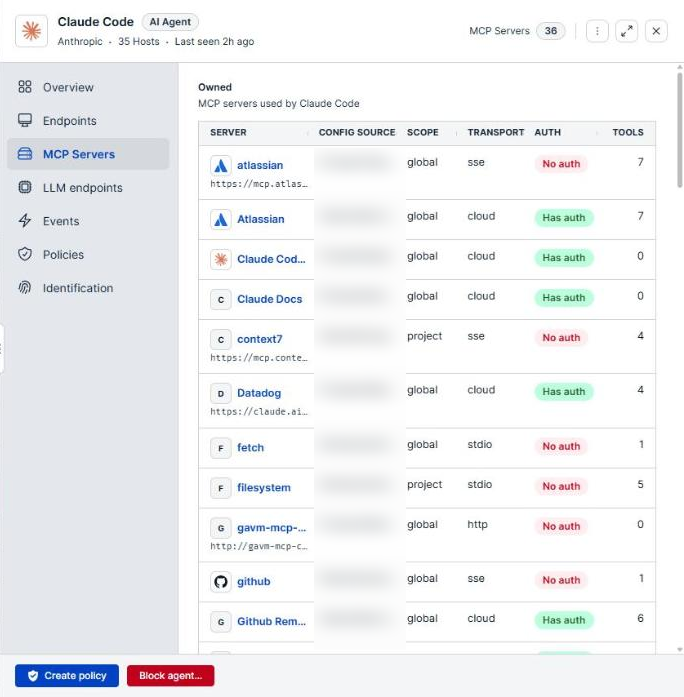
Model Context Protocol (MCP) servers give AI agents access to your data and systems. A server nobody reviewed can hand an agent tools that read files, call internal services, or send data out, and none of it shows up in a traditional inventory. The MCP Servers page lists every MCP server discovered in your environment, the access each one has, and whether that access is enforced, so you can find the servers that need a control and the controls that are not reaching every endpoint.
Scope of this guide
This guide explains the MCP Servers page: the summary cards, the columns, adding a server before it is discovered, and how to search, filter, sort, and export the list. It does not cover the server details panel or setting a server's access; see MCP server details for both.
Prerequisites
- You have administrator access to the tenant.
- At least one endpoint with the AI Agent Security agent runs an AI agent that uses an MCP server.
Open the MCP Servers page
Go to Visibility > MCP Servers.
What the list includes
A server appears once an endpoint reports an AI agent using it, or once an administrator adds it with Add server. The list holds one row per server, however many endpoints it runs on.
Two things follow from this:
- A server stays listed after it goes quiet. A server that no endpoint has reported for 30 days shows not seen in 30 days under its name instead of leaving the list.
- Every server has an access level, even without a control. A server you have not set access for reads Allowed: every tool call is permitted and recorded.
Summary cards
Four cards sit above the list. Select a card to filter the list to the servers it counts. Select Servers discovered to remove the filter.
| Card | Description |
|---|---|
| Servers discovered | The number of MCP servers in the list. |
| Blocked | The number of servers whose access is Blocked for every tool. |
| Monitored or approval required | The number of servers whose access is Monitored or Approval required for every tool. |
| Enforcement gaps | The number of online endpoints that a server's access control is not reaching yet, added up across every server. Select the card to list the servers with a gap. |
Enforcement gaps is the card to check first. A server set to Blocked with a gap is still reachable from the endpoints the control has not reached.
Actions
| Button | Description |
|---|---|
| Add server | Adds a server that no endpoint has reported yet, so you can set its access before agents start using it. See Add a server. |
Column reference
| Column | Description |
|---|---|
| Server | The server name. The line below shows how agents reach it: the transport (SSE, Cloud, HTTP, or stdio) and the address, which is a host name for a remote server or the package or command that launches a local one. Select a row to open the server's details. |
| Endpoints | The number of endpoints where the server was discovered. |
| Access | What the server's access control allows. See Access values. |
| Enforcement | How far the access control has reached across online endpoints. See Enforcement values. |
| Tools | The number of tools the server makes available to agents. This column appears once at least one server has reported its tools. |
A dash (—) means no value is available.
Access values
| Value | Description |
|---|---|
| Allowed | No control applies. Every tool call is permitted and recorded. |
| Monitored | Tool calls are recorded and nothing is blocked. |
| Approval required | Tool calls are stopped, but a developer working through a coding agent gets a link to request a time-bounded exception and approve it. |
| Blocked | Tool calls are stopped. |
| N of M tools blocked | The control covers some of the server's tools only, such as 2 of 9 tools blocked. The same shape reads need approval or monitored for the other levels. |
A second line under the value adds detail when it applies. Tags: followed by tag names means the control reaches only endpoints that carry those tags. control saved, off means a control exists but is switched off, so the server reads Allowed.
Enforcement values
| Value | Description |
|---|---|
| Enforcing on all N endpoints | The control is active on every online endpoint that uses the server. A green dot marks it. |
| Enforcing on N of M endpoints | The control is active on some online endpoints only. The line below gives the most common reason for the rest. |
| Monitoring on all N endpoints | A Monitored control is recording on every online endpoint. |
| Delivery pending on N | That many endpoints have not picked up the control yet. |
| No endpoints online (N known) | Every endpoint that uses the server is offline, so nothing can enforce the control right now. |
| Not enforcing | The control is not active on any online endpoint. A red dot marks it. |
A dash (—) in this column means the server has no control switched on, so there is nothing to enforce.
Add a server
Add a server when you want to set its access before any endpoint reports it.
- Select Add server.
- Enter the Server name.
- Under How do agents reach it?, enter a Hostname, a Package or command, or both. At least one is required.
- Select Continue.
- Set the server's access in the dialog that opens. See Set access for a server.
You do not choose a transport. A hostname means agents reach the server over the network; a package or command alone means agents launch it on the endpoint.
Find a server by name
- Select the Server name… box at the top of the list.
- Enter all or part of the server name or its address.
The list narrows as you type. Clear the search box to show all servers again.
Filter the list
- Select Filter.
- Choose the column you want to filter on: Server, Transport, Access, or Enforcement.
- Choose the values you want to keep.
Each filter appears as a chip above the list. Select Clear all to remove every filter and the search at once. The count above the list shows the total and how many servers match, such as Total: 27 servers | Filtered to: 4 servers.
The Access filter groups every control that covers only some tools under one value, Partially controlled. The Enforcement filter offers one value, Not enforcing, which keeps every server with an enforcement gap.
Example: Filter on Access for Allowed, then sort on Endpoints, to see the most widely used servers that have no control.
Sort the list
Select a column heading to sort by that column. Select the same heading again to reverse the order. You can also select Sort and choose a preset: Server A–Z, Endpoints most first, Enforcing endpoints most first, or Tools most first.
Choose columns and export
- Select Columns to show or hide columns. Server is always shown.
- Drag the edge of a column heading to change its width.
- Select Download to save the list as a CSV file. The file carries the transport and the address in columns of their own.
Load more servers
The list loads more servers as you scroll. When every matching server is showing, the end of the list reads All servers loaded.
Verify the results
Confirm that the Enforcement gaps card reads 0, or that you know why it does not. Select the card and open each server it lists to see which endpoints the control has not reached.
Confirm that the chips above the list are the only filters you meant to apply. The summary cards always count the whole list, not the filtered one.
Next steps
- Open each Allowed server that runs on many endpoints and decide whether it needs a control.
- Select Enforcement gaps and follow the reasons on each server's Enforcement tab.
- Use Add server to block a server your organization does not allow before anyone installs it.
Updated about 2 hours ago
