
Visibility – Agent skills | AI Agent Security
Agent skills are instruction files that change how an AI agent behaves. A skill installed from a marketplace can tell an agent to read files, call tools, or send data somewhere you did not intend, and it does so with the agent's permissions rather than its own. The Agent Skills page lists the skills on your endpoints that carry security findings, how far each one has spread, and whether anyone uses it, so you can decide which ones to review or remove first.
Scope of this guide
This guide explains the Agent Skills page: the Overview tab with its summary cells and cards, and the Skills tab with its columns, search, filters, sorting, saved views, and export. It does not cover the skill details panel; see Agent skill details. It also does not cover removing a skill from an endpoint.
Prerequisites
- You have administrator access to the tenant.
- At least one endpoint with the AI Agent Security agent reports agent skill data.
Open the Agent Skills page
Go to Visibility > Agent Skills.
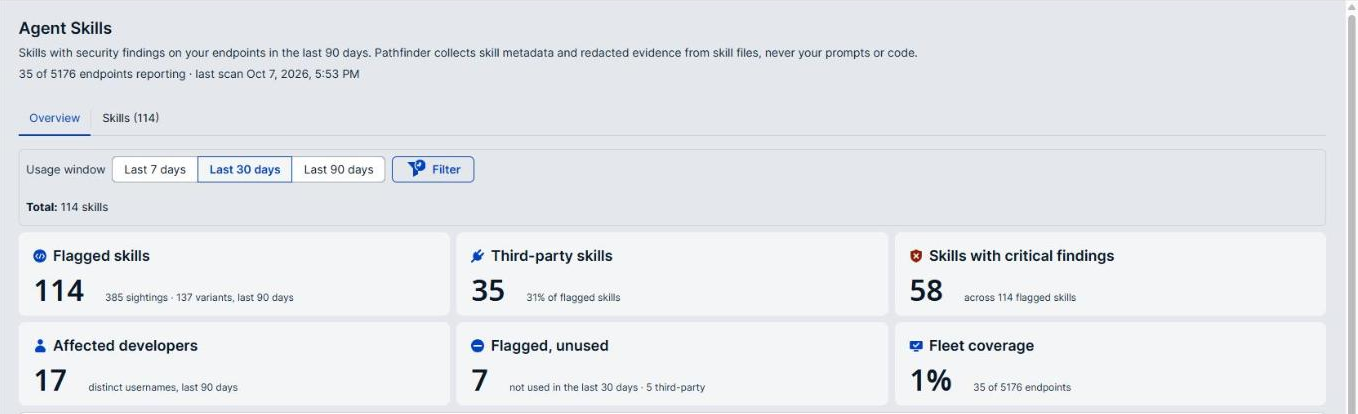
The line below the page title says what the page holds: skills with security findings on your endpoints in the last 90 days. The agent collects skill metadata and redacted evidence from skill files, never your prompts or code. A second line shows how many endpoints report skill scans, such as 14 of 15 endpoints reporting, and when the last scan ran. When a scan stopped before it finished, the line adds a count such as 1 scan incomplete, because that endpoint may hold skills the page does not list.
What the page includes
The page shows flagged skills only: a skill with no findings does not appear. Each skill appears as it was last reported in the last 90 days.
Two things follow from this:
- Remediated skills age out. When you remove or fix a skill, it leaves the page after 90 days pass without a new report. It does not disappear the moment you fix it.
- The same skill can appear more than once. The Skills tab lists one row for each place a skill is installed, so a skill on three endpoints is three rows. Its tab label, such as Skills (12), counts distinct skills.
Tabs
| Tab | Description |
|---|---|
| Overview | Summary cells, a usage chart, and ranked cards across all flagged skills. The page opens on this tab. |
| Skills | The list of flagged skills. The number in the label is the number of distinct skills. |
Filters apply to both tabs: a filter you add on one tab is still active when you switch to the other.
Overview tab
Usage window and filters
Select Last 7 days, Last 30 days, or Last 90 days beside Usage window. Last 30 days is selected by default. The window changes the usage figures only; the page always lists the flagged skills from the last 90 days.
To narrow every number on the tab, select Filter, choose Source, Severity, Agent, or Endpoint, then choose the values to keep.
Summary cells
| Cell | Description |
|---|---|
| Flagged skills | The number of distinct skills with at least one finding. |
| Third-party skills | The number of flagged skills that came from outside your organization, with their share of all flagged skills. |
| Skills with critical findings | The number of flagged skills whose worst finding is Critical. |
| Affected developers | The number of developers with at least one flagged skill. |
| Flagged, unused | The number of flagged skills with no explicit Claude Code invocation inside the usage window. |
| Fleet coverage | The share of enrolled endpoints that report skill scans. |
Flagged, unused is the cell to act on first. A flagged skill nobody uses is one you can remove without breaking anyone's work.
Usage against exposure
The chart plots each flagged skill's Claude Code invocations against the number of developers seen with it. A hollow point has no usage data. Once a skill reaches two or more developers, a Fix first region marks the skills that are both widespread and flagged.
Invocation counts are explicit Claude Code uses, read from its local usage file and matched by skill name. Skills that Claude Code triggered on its own are not counted, and other AI agents do not report usage.
Cards
| Card | Description |
|---|---|
| Most exposed flagged skills | Skills ranked by worst finding, then by reach. Each row shows the severity, the number of developers, and the number of endpoints. |
| Flagged, unused in the last N days | Flagged skills with no explicit invocation inside the usage window, with when each was last used. |
| Top finding types | The kinds of finding seen most often, counted once per skill. |
Select a skill name in a card to open its details on the Skills tab.
Skills tab
Column reference
| Column | Description |
|---|---|
| Skill | The skill name, with its path on the endpoint below. Long paths are shortened with an ellipsis (…). Select a row to open the skill's details. |
| Source | Where the skill came from, such as marketplace. |
| Risk | The severity of the worst finding, followed by the number of findings, such as Critical and 3 findings. |
| Users | The number of user accounts the skill is installed under. Hover over the number to see the names. A dash (—) means no user was identified. |
| Last reported | When the agent last reported the skill. An unchanged skill is reported again at least every 20 hours, so this can trail the present by most of a day. |
| Invocations (explicit) | The number of explicit Claude Code invocations of the skill. A dash (—) means no usage data is available, not zero uses. |
| Last used | When Claude Code last invoked the skill explicitly. |
The severity reflects the worst finding on the skill, not all of them. A Critical skill with 50 findings and a Critical skill with 1 finding carry the same severity, but the first has far more to review.
Find a skill by name
- Select the Search flagged skills box.
- Enter all or part of the skill name.
The list narrows as you type. Clear the search box to show all skills again.
Filter the list
- Select Filter.
- Choose the column you want to filter on: Source, Severity, Agent, or Endpoint.
- Choose the values you want to keep.
Each filter appears as a chip above the list. Select Clear all to remove every filter and the search at once. The count above the list counts sightings, one for each row.
Example: Filter on Severity for the critical findings to see only the skills that need immediate review.
Sort the list
Select a column heading to sort by that column. Select the same heading again to reverse the order. You can also select Sort and choose a preset: Skill A–Z, Risk highest first, Last reported newest first, or Last used newest first.
Sorting on Last reported with the oldest first surfaces the rows closest to aging out.
Save a view
- Set the filters, search, sort, and columns you want to keep.
- Select Save View.
- Name the view and save it.
To return to a saved view, select View at the top left of the list and choose it.
Choose columns and export
- Select Columns to show or hide columns. Skill is always shown.
- Select Download to save the whole list as a CSV file. The file holds every row, whatever filters are active.
The list loads more rows as you scroll. When every matching row is showing, the end of the list reads All sightings loaded.
Verify the results
Confirm that Fleet coverage is close to 100%, or that you know which endpoints are not reporting. A skill on an endpoint that does not report cannot appear here, so a low coverage figure means a quiet page is not a clean fleet.
Next steps
- Review every skill with a Critical finding, starting with the ones in Most exposed flagged skills.
- Remove the skills listed in Flagged, unused in the last N days, since nobody depends on them.
- Check whether the marketplace skills on your endpoints are ones your team approved.
Updated about 2 hours ago
