
Visibility – Endpoints | AI Agent Security
An endpoint you cannot see is an endpoint you cannot protect. If the AI Agent Security agent stops reporting, or an endpoint is not enforcing the policies you attached, that machine sits outside your controls while still appearing to be managed. The Endpoints page lists every machine running the AI Agent Security agent, so you can search your fleet, group endpoints with tags, and confirm that enforcement is reaching the machines you expect.
Scope of this guide
This guide explains the Endpoints page: the operating system cards, the Endpoints and Tags tabs, the two column sets, and how to search, filter, sort, select, tag, and revoke endpoints. It does not cover the endpoint details panel; see Endpoint details. It also does not cover installing the AI Agent Security agent or creating policies.
Prerequisites
- You have administrator access to the tenant.
- The AI Agent Security agent is installed on at least one endpoint.
Open the Endpoints page
Go to Visibility > Endpoints.
Operating system cards
The cards across the top of the page count endpoints per operating system, such as Windows and macOS. Select a card to show only the endpoints that run that operating system. Select the same card again to show every operating system.
Use the cards as a sanity check. A count that drops without explanation usually means agents stopped reporting, not that machines were removed.
Tabs
| Tab | Description |
|---|---|
| Endpoints | The endpoint list. The number in the label, such as Endpoints (152), is the number of endpoints in your fleet. |
| Tags | The tags you use to group endpoints. The number in the label is the number of tags. See Manage tags. |
What the list includes
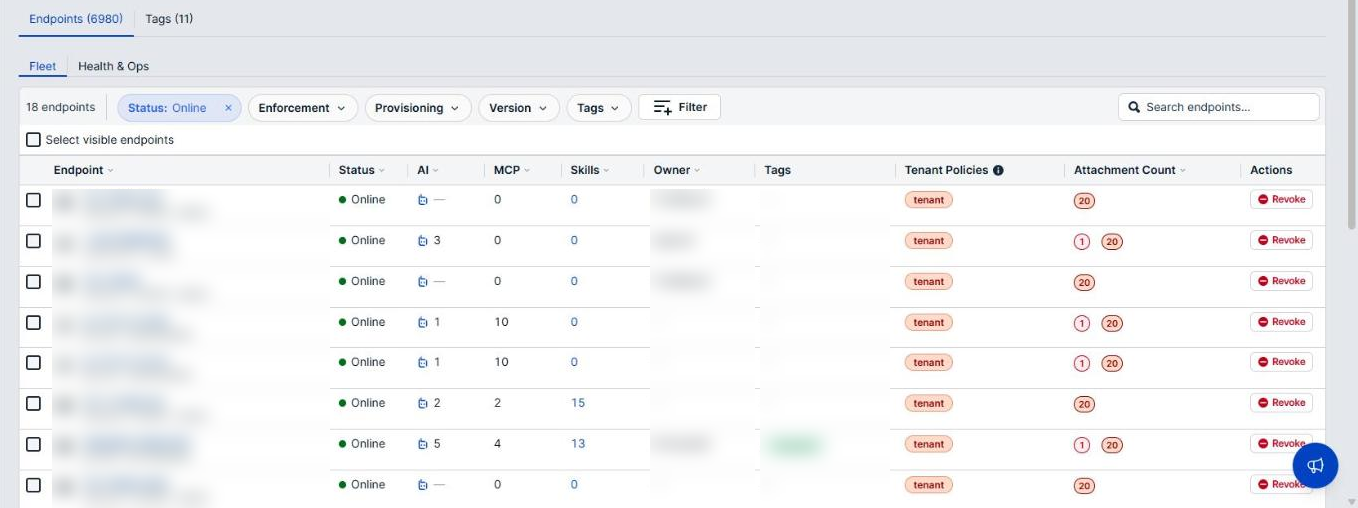
The list opens with the Status filter set to Online, so it starts by showing only the endpoints that are reporting now. An endpoint that went offline, or that you revoked, is still in your fleet; clear the Status filter or choose other values to see it.
The number at the left of the toolbar, such as 48 endpoints, counts the rows loaded so far. When more pages remain and a filter chip is active, the toolbar adds a note such as filtering 50 loaded, because the chip has only been applied to those rows.
Column reference
Two views above the list, Fleet and Health & Ops, swap which columns appear. Fleet is selected by default. The selection checkbox, Endpoint, Status, and Actions appear in both.
Columns in both views
| Column | Description |
|---|---|
| Checkbox | Selects the endpoint so you can act on several at once. See Act on several endpoints. |
| Endpoint | The endpoint name, with the operating system icon to the left and the operating system and architecture below. Select a row to open the endpoint's details. |
| Status | Whether the endpoint is reporting, such as Online with a green dot. Hover over the status to see the reason for anything other than Online. |
| Actions | Revoke for the endpoint. See Revoke an endpoint. |
Fleet view
| Column | Description |
|---|---|
| AI | The number of AI agents discovered on the endpoint. |
| MCP | The number of MCP servers discovered on the endpoint. |
| Skills | The number of flagged agent skills on the endpoint. Select the number to open the endpoint's Skills tab. |
| Owner | The user account that owns the endpoint. |
| Tags | The tags you applied to the endpoint, shown as colored badges. |
| Tenant Policies | The tenant tag, which every endpoint carries. It stands for the BeyondTrust-managed baseline policies applied to every endpoint automatically. Select the information icon beside the heading for the full explanation. |
| Attachment Count | The policies attached to the endpoint, counted by posture: Off, Audit, Require Approval, and Block, each as a colored circle with a number. A separate circle counts the baseline policies the endpoint holds through the tenant tag. |
Health & Ops view
| Column | Description |
|---|---|
| Version | The version of the AI Agent Security agent installed on the endpoint. |
| Modules | The agent modules running on the endpoint. |
| TLS | Whether TLS inspection is On or Off on the endpoint. Unstable means it keeps restarting. |
| CPU | The current CPU use reported by the agent, as a percentage. |
| Memory | The memory in use, such as 5.6 GB. |
A dash (—) means the value is empty or does not apply. A 0 means the agent looked and found nothing. The difference matters when you are deciding whether an endpoint was scanned.
Search for an endpoint
- Select the Search endpoints… box at the right of the toolbar.
- Enter all or part of the endpoint name.
The list narrows as you type. Clear the search box to show all endpoints again.
Filter the list
Five filter menus sit in the toolbar. Select a menu and choose the values you want to keep.
| Filter | Description |
|---|---|
| Status | Online, Stale, Offline, or Revoked. Online is selected when the page opens. |
| Enforcement | Enforce, Audit, or Off: how the endpoint is applying its policies. |
| Provisioning | Healthy, Stale, or Revoked. |
| Version | Endpoints whose agent version is equal to, at least, or older than the version you choose. |
| Tags | Endpoints that carry the tags you choose. |
To filter on other values, select Filter, choose AI agents, MCP servers, or Update state, then set the value. Each such filter appears as a chip; select X on a chip to remove it.
Example: Set Enforcement to Off and Status to Online to find the reporting endpoints that are not applying their policies.
Sort the list
Select a column heading to sort by that column. Select the same heading again to reverse the order. Tags, Tenant Policies, Modules, TLS, and Actions cannot be sorted.
Sorting Version in ascending order brings the endpoints running the oldest AI Agent Security agent to the top.
Load more endpoints
The list loads more endpoints as you scroll. When every endpoint is showing, the end of the list reads All endpoints loaded.
Act on several endpoints
- Select the checkbox of each endpoint you want, or select Select visible endpoints above the list to select every row that is showing.
- In the bar that appears, such as 3 selected, choose an action:
- Select the Add to tag… box and choose or enter a tag to add it to every selected endpoint.
- Select Revoke to revoke every selected endpoint.
- Select Clear to clear the selection.
Select visible endpoints covers the rows that are loaded, not every endpoint that matches your filters. To act on a larger group, narrow the list with filters first.
Revoke an endpoint
Revoking cuts the endpoint off. The AI Agent Security agent on that machine tears down within about 30 seconds and cannot reconnect until it is enrolled again.
- Find the endpoint in the list.
- Select Revoke in its Actions column.
- Read the confirmation, then select Revoke.
Revoke the wrong endpoint and you lose visibility into a live machine. Check the endpoint name before you confirm, and open the endpoint's details to compare its Endpoint ID when two names look alike.
Manage tags
Select the Tags tab to see every tag, with its Description, the number of Endpoints that carry it, and the number of Policies attached to it.
- To create a tag, select Create tag, enter a name and an optional description, and save it.
- To search, select the Search tags or descriptions… box and enter your text.
- To open a tag, select its row. The tag's panel has the tabs Overview, Policies, and Tagged endpoints, plus Settings for every tag except tenant. Use Policies to attach policies to every endpoint that carries the tag, Tagged endpoints to add or remove endpoints, and Settings to pin agent settings for those endpoints.
Deleting a tag removes it from every endpoint that carries it.
Verify the results
Confirm that the endpoint count at the left of the toolbar matches what you expect for the filters you applied, and that Status shows the values you meant. Remember that the list opens filtered to Online endpoints.
Next steps
- Clear the Status filter and choose Stale and Offline to find endpoints that stopped reporting.
- Switch to Health & Ops and sort on Version to find out-of-date agents.
- Set Enforcement to Off and confirm that each endpoint it lists is meant to be off.
- Tag endpoints by team or risk so you can attach policies to a group at once.
Updated about 2 hours ago
