
Exception requests | AI Agent Security
Policies block actions, and sometimes the blocked action was legitimate. When a policy blocks an AI agent, the user can ask for an exception, and either an administrator decides or, where the policy allows it, the user approves a limited exception themselves. The Exception requests page is the record of every request, so you can work the ones waiting on you and see which exceptions are live. Every exception is scoped, time-bounded, and audited, so it loosens one control for a set period rather than opening a hole.
Scope of this guide
This guide explains the Exception requests page: the summary cards, the status tabs, the request list and its columns, and how to search and filter it. It does not cover the decision on a single request, which is in Exception request details.
Prerequisites
- You have administrator access to the tenant.
Open the Exception requests page
Go to Protection > Exception Requests.
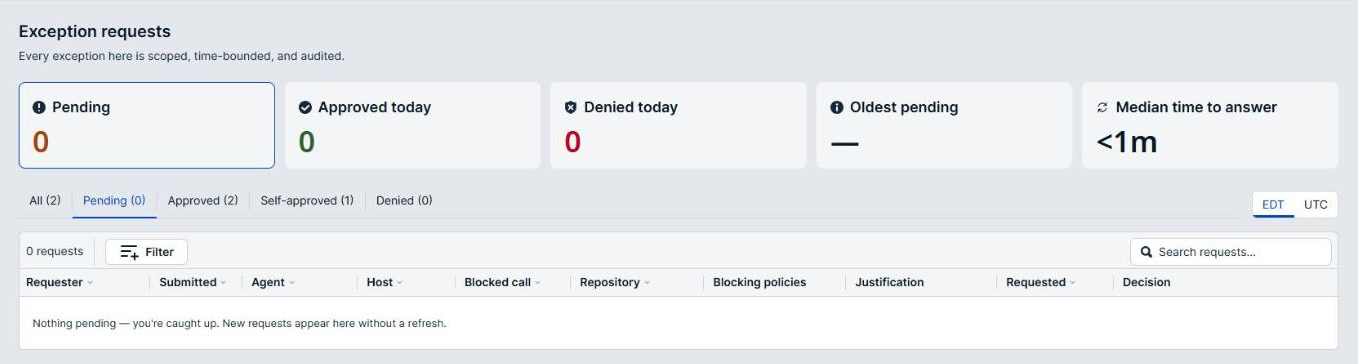
The subtitle reads Every exception here is scoped, time-bounded, and audited.
How requests reach this page
A request starts on the endpoint. When a policy at Require Approval or Block stops an action, the user gets a link to a request form, where they explain why they need the action.
- Block: the user selects Submit for review, and the request waits on this page for an administrator.
- Require Approval: the user can instead select Approve it myself to grant a time-limited exception without waiting. The request is recorded here as self-approved.
Either way, every request lands on this page, which makes it the audit trail for self-approved exceptions as well as the queue for administrator decisions.
Summary cards
Five cards across the top summarize the queue. They appear only for administrators.
| Card | Description |
|---|---|
| Pending | Requests waiting on a decision. Select the card to show the Pending tab. |
| Approved today | Requests approved today. Select the card to show the Approved tab. |
| Denied today | Requests denied today. Select the card to show the Denied tab. |
| Oldest pending | How long the oldest pending request has waited. A dash (—) means nothing is pending. |
| Median time to answer | The median time between a request and its decision. A dash (—) means there is not enough data yet. |
Selecting a highlighted card again returns the list to the All tab.
Oldest pending is the card to watch. A request that nobody answers never moves the median, so a healthy Median time to answer can hide one user who has been blocked for days.
Status tabs
Select a tab to filter the list by status. Each tab label carries a count. Pending is selected when the page opens.
| Tab | Description |
|---|---|
| All | Every request, whatever its status. |
| Pending | Requests not yet decided. |
| Approved | Requests an administrator or the requester approved. |
| Self-approved | Requests the requester approved themselves under a Require Approval policy. |
| Denied | Requests an administrator denied. |
Requests that were revoked, expired, or withdrawn by the requester appear on the All tab only.
The time zone toggle at the right of the tabs switches every timestamp on the page, and in the details panel, between your local time zone and UTC.
Column reference
| Column | Description |
|---|---|
| Requester | Who submitted the request. |
| Submitted | How long ago the request was submitted. |
| Agent | The AI agent that was blocked, such as Claude Code. |
| Host | The endpoint the agent ran on. |
| Blocked call | The action the policy blocked, such as the tool and its input. |
| Repository | The repository the agent was working in, where one was recorded. |
| Blocking policies | The policies that blocked the action. Select a policy to open its details. |
| Justification | The reason the requester gave. |
| Requested | How long the requester asked the exception to last, or Session when it lasts for the agent session. |
| Decision | The outcome, such as Approved, Self approved, Denied, Revoked, Expired, or Cancelled, with who decided and when. On a pending request, administrators see Deny and Approve; everyone else sees Awaiting review. |
Selecting Deny or Approve in a row opens the request's details panel with that decision ready to complete; it does not decide from the list. Select anywhere else on a row to open the details panel. See Exception request details.
Read Justification against Blocked call rather than on its own. The justification explains why the requester wants the action; the blocked call is what they would be granted, and the two are not always the same size.
Search for a request
- Select the Search requests… box.
- Enter all or part of a requester name or email, an endpoint, an agent, a tool, a repository, a policy, or justification text.
The list and the tab counts narrow as you type. Clear the search box to show all requests again.
Filter the list
- Select Filter.
- Choose the field you want to filter on: Requester, Agent, Tool, or Repository.
- Enter or choose the values you want to keep, then select Apply.
Each active filter appears as a chip, and the request count on the left of the toolbar updates to match. Select Clear all to remove every filter.
Example: Filter on Tool for one tool to see whether the same call keeps generating requests.
Empty lists and updates
The list loads more requests as you scroll, and the end of the list reads All requests loaded. New requests appear without reloading the page.
When the Pending tab is empty and no search or filter is active, the list says nothing is pending and that new requests appear without a refresh. When a search or filter hides every request, the list reads No requests match this filter.
Verify the results
Confirm the status tab, the search box, and any filter chips before you conclude the queue is clear. An empty Pending tab describes pending requests only; requests can still sit under Approved or Self-approved with exceptions that are live right now.
Next steps
- Work the Pending tab, reading each request's Justification against its Blocked call before you decide.
- Check the Self-approved tab for exceptions users granted themselves, and confirm each one was reasonable.
- Review the policy behind a call that is requested again and again. A call that generates frequent exceptions may need a policy change rather than another exception.
Updated about 2 hours ago
