
Administration | AI Agent Security
A setting changed in the wrong place can quietly empty an inventory, stop traffic inspection, or leave enforcement off on every endpoint. The Administration page is where you set the defaults every endpoint follows, get the certificate endpoints must trust, and see who changed which setting and when.
Scope of this guide
This guide explains the Administration page: users, the fleet default settings, the Windows driver process exclusions, your tenant trust anchor, the audit trail, and the appearance options. It does not cover setting a value on a single endpoint or tag.
Prerequisites
- You have administrator access to the tenant.
Open the Administration page
Go to Settings > Administration.
Tabs
| Tab | Description |
|---|---|
| Users | Lists who has access to the tenant, and lets you add and remove users. |
| Fleet defaults | Sets the values every endpoint uses unless one of its tags, or the endpoint itself, sets the setting. |
| Trust anchor | Holds your tenant root certificate, which endpoints must trust before the agent can inspect traffic. |
| Audit trail | Records every change to a fleet, tag, or endpoint setting, newest first. |
| Appearance | Controls which modules appear in your sidebar and whether the chatbot is on. |
Users
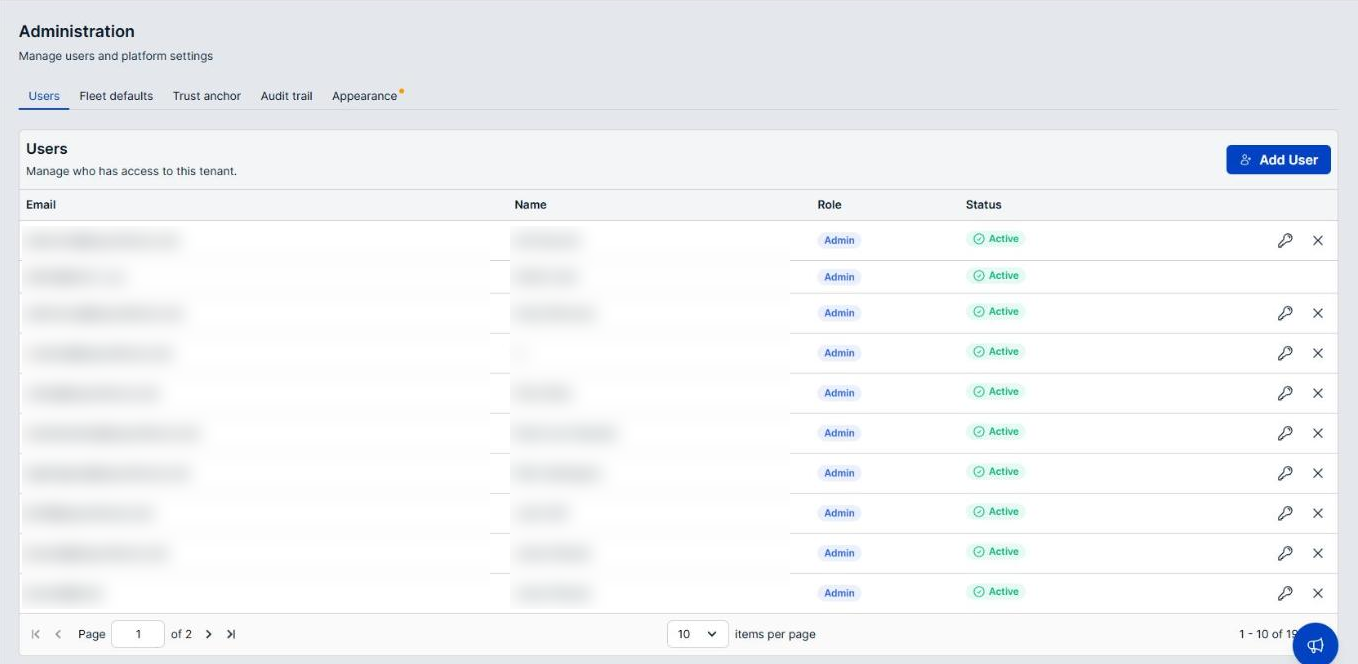
The Users tab lists everyone with access to the tenant, with their Email, Name, Role, and Status.
Add a user
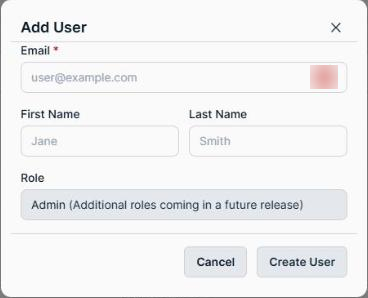
- Select Add User.
- Enter the person's address in the Email field. This is the only required field.
- Enter their First Name and Last Name.
- Select Create User.
The confirmation shows a temporary password. It is shown only once, so copy it and share it with the user securely. To close the dialog without adding anyone, select Cancel or the X.
About roles
The Role field is set to Admin and cannot be changed. Additional roles are coming in a future release.
Every user you add is an administrator, with full access to the tenant. There is no way to give someone read-only access, or to let them review sessions without also letting them change policies, revoke endpoints, and add further users.
Two things follow from this:
- Add users deliberately. Each one can change anything in the tenant.
- Separation of duties rests on your own practice. Where your process depends on one person requesting an exception and another approving it, the product does not enforce that split.
Reset a password or remove a user
Each row has two actions at its right end:
| Button | Description |
|---|---|
| Reset password | Generates a new temporary password. The user must change it the next time they sign in. |
| Remove user | Removes the user's access to the tenant. |
Fleet defaults
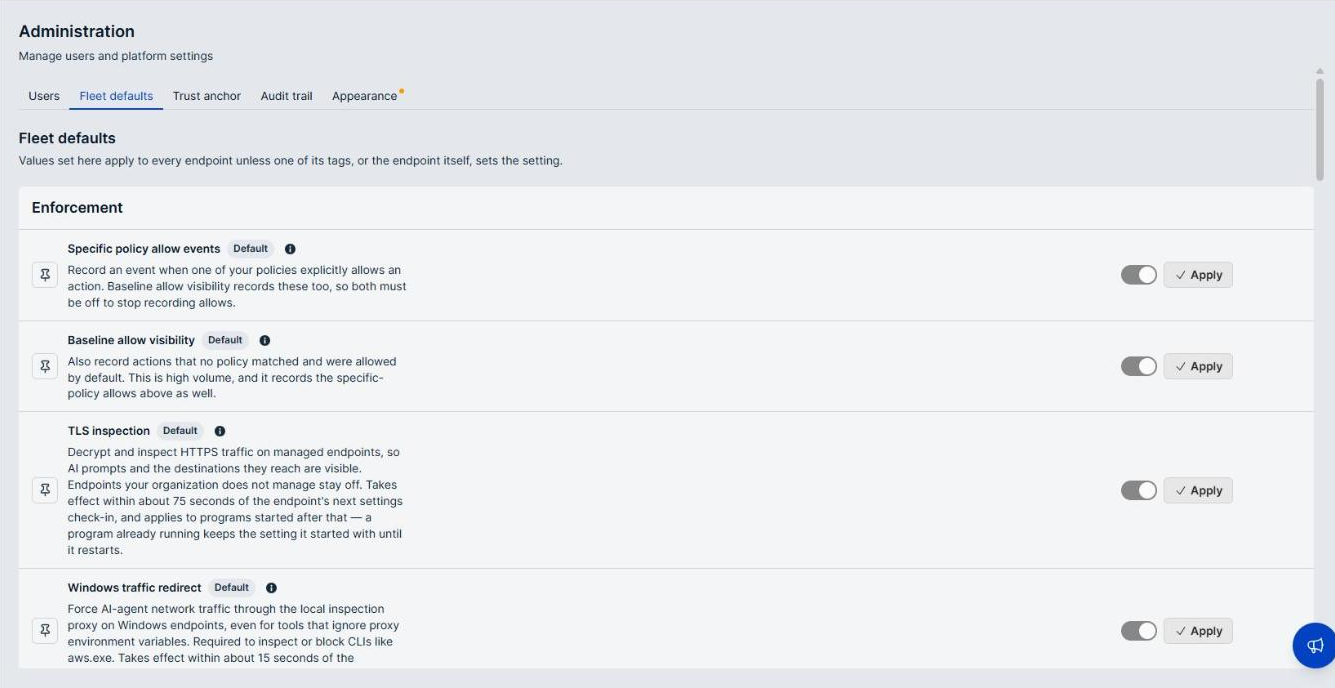
The Fleet defaults tab sets the values every endpoint uses. As the tab puts it: "Values set here apply to every endpoint unless one of its tags, or the endpoint itself, sets the setting." A fleet default is a starting point, not a fleet-wide guarantee.
How a row works
Each setting is a row with a pin toggle at its left, the setting name and description in the middle, and the control at its right.
- Not pinned means endpoints use the built-in default. The control shows that default but is greyed out and locked, and the row shows a Default badge.
- Pinned means every endpoint gets the value you set here, unless one of its tags or the endpoint sets its own. The row shows a Directly modified badge, with who pinned it and when.
Select the information icon beside a setting name to see which value applies and where it comes from. Select the Directly modified badge to open the Audit trail tab filtered to that setting.
Change a setting
- Select the pin toggle on the row, so it reads as pinned.
- Set the toggle, or enter the value you want.
- Select Apply on that row.
Each setting applies on its own. Changing several means selecting Apply on each one.
To return a setting to its built-in default, select the pin toggle again to unpin it.
Enforcement
| Setting | Description |
|---|---|
| Specific policy allow events | Records an event when one of your policies explicitly allows an action. |
| Baseline allow visibility | Also records actions that no policy matched and were allowed by default. |
| TLS inspection | Decrypts and inspects HTTPS traffic on managed endpoints, so AI prompts and the destinations they reach are visible. Endpoints your organization does not manage stay off. Applies to programs started after the endpoint's next settings check-in. A program already running keeps its setting until it restarts. |
| Windows traffic redirect | Forces AI-agent network traffic through the local inspection proxy on Windows endpoints, even for tools that ignore proxy environment variables. Required to inspect or block command-line tools such as aws.exe. |
| TLS interception detection | Recognizes AI tools by the network destinations they reach rather than by process name alone, and brings their traffic under TLS interception once inspection is on. |
The two allow-recording settings overlap. Baseline allow visibility records the specific-policy allows as well, so turning off Specific policy allow events on its own changes nothing. Both must be off to stop recording allows.
Baseline allow visibility is high volume. It records every action that no policy matched, which in an allow-by-default environment is most of what happens. Leave it on when you need complete visibility, and expect the event counts on the Events page to reflect it.
Health reporting
| Setting | Description |
|---|---|
| Heartbeat interval | How often each endpoint checks in to report that it is healthy. Accepts 10 to 3600 seconds. |
Visibility
| Setting | Description |
|---|---|
| Scan interval | How often each endpoint runs its discovery scans. Accepts 30 to 86400 seconds. A change applies to the next scan, not to one already running. |
| Process discovery | Inventories the processes running on each endpoint as workloads. |
| Credential discovery | Finds credentials stored on each endpoint, and the identities they grant access to. |
| MCP discovery | Finds the MCP servers that AI coding tools on each endpoint are configured to use. |
| Skill discovery | Finds the agent skills installed for AI coding tools on each endpoint. |
| Coding transcript capture | Captures the assistant messages and reasoning from AI coding sessions, so their prompts and responses are visible. |
The discovery settings are what populate the Visibility pages. Turning MCP discovery or Skill discovery off empties the corresponding inventory over time, so an inventory that looks clean may only mean discovery is off.
Other
| Setting | Description |
|---|---|
| MCP tool inspection enabled | Adjudicates MCP tool calls inline at the endpoint's inspection proxy, blocking calls your policies deny before they reach the server. Applies to MCP clients whose HTTPS traffic the proxy inspects. |
| MCP observed emit enabled | Records which MCP servers AI coding tools actually call, once per session and server, so servers reached without a configuration entry still appear on the MCP Servers page. |
| Uninspected signal enabled | Records TLS connections that could not be decrypted and inspected, so gaps in visibility are surfaced rather than silent. Off by default. |
| Hook shadow sample bps | How often endpoints check upcoming policy changes against current policies on live coding-agent activity, in hundredths of a percent. Set -1 for automatic, 0 for off, or a value from 1 to 10000 to turn sampling on. |
| Probe enabled | Samples the first connections to hosts the agent does not recognize. |
| Probe budget connections | The most connections sampled for one unrecognized host before it is let through without sampling. Accepts 1 to 64. |
Enforcement planes
| Setting | Description |
|---|---|
| Process execution plane | Turns on enforcement for processes as they start. |
| File access plane | Turns on enforcement for file access. This plane produces a high volume of file-open events. |
| Restricted file audit | Audits file opens on the restricted set of files that matter for credentials. |
| Network connect plane | Turns on enforcement for outbound network connections. |
Telemetry
| Setting | Description |
|---|---|
| Telemetry dedup TTL (seconds) | How long a baseline file-open event is suppressed after it is first seen. Accepts 1 to 3600 seconds. |
| Telemetry dedup capacity | How many entries the suppression list holds. Accepts 100 to 1000000. |
| Drop directory-open telemetry | Discards file-open events for directories, which are rarely useful. |
Break-glass
| Setting | Description |
|---|---|
| Enforcement master switch | Turns enforcement on or off on the endpoint. Turning it off disables every enforcement plane. Requests that no rule permits stay refused, and built-in safety limits still apply. |
| Audit ceiling (stop blocking) | Records every matching rule as an audit instead of blocking, requiring approval, or ending the process, on every enforcement plane. Off by default. |
The break-glass settings exist for an emergency, such as a policy blocking work across the fleet. Pinning either one at the fleet level changes enforcement on every endpoint that does not set its own value, so record why in your change process and unpin it once the emergency is over.
Windows traffic redirect rollout
When the tenant has Windows endpoints, a Windows traffic redirect rollout panel below the settings tracks the redirect, such as 2 of 29 Windows endpoints have the redirect armed.
| Figure | Description |
|---|---|
| Armed | Endpoints where the redirect is active. |
| Pending restart | Endpoints that will arm at their next agent restart. |
| Declined (corp proxy) | Endpoints that did not arm because they are on a corporate-proxy-only network with TLS inspection off. The endpoint fails safe rather than break outbound traffic. |
| Set to on | Endpoints where the setting is on, whether or not they have armed yet. |
Roll this setting out to a few endpoints first using per-endpoint values, watch the Armed count climb, then turn it on fleet-wide.
Do not arm browsers (Chrome, Edge, and Firefox). Their traffic is routed, but the inspection certificate is not trusted, so their connections break. AI coding agents such as Node, Python, curl, and git are safe.
To roll back, turn the redirect off. Endpoints disarm at their next sync or restart.
Windows driver process exclusions
The Windows driver process exclusions panel at the bottom of the tab carves specific processes out of specific driver features on every Windows endpoint that uses this list. Only administrators can change it.
An excluded process is invisible to the features you choose for it, on every Windows endpoint in the tenant that uses the list. Exclude a process only when a driver feature is causing a real problem with it, such as a backup tool that fails when its file opens are intercepted.
| Column | Description |
|---|---|
| Pattern | The process image the exclusion matches, such as C:\TestApp\ for a whole folder or *\backup.exe for an image by name anywhere. |
| File, Hook, TLS, Net, SNI, Exec | Whether the exclusion applies to file-open interception, hook DLL injection, TLS transparent redirect, network connect interception, inline SNI capture, and process-exec interception. Hover over a heading for its full name. |
| Note | Why the process is excluded. |
To add an exclusion:
- Select Add exclusion.
- Enter the Process image pattern.
- Under Features to exclude, select at least one feature.
- Enter a Note that says why the process is excluded.
- Select Add exclusion to close the dialog.
- Select Save.
The list is not saved until you select Save. Select Discard to drop your unsaved changes. When some endpoints use their own exclusion list, the panel says how many, and a save here does not reach them.
Trust anchor
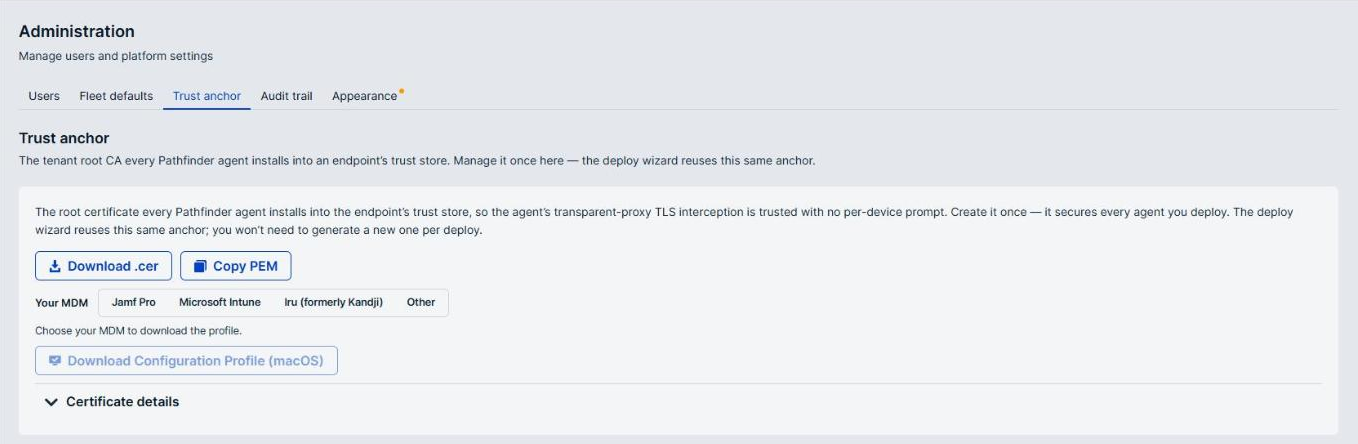
The Trust anchor tab holds your tenant root CA, the root certificate every AI Agent Security agent installs into an endpoint's trust store. It is what makes the agent's TLS interception trusted without a prompt on each device.
You create the anchor once and it secures every agent you deploy. The deploy wizard reuses this same anchor, so you do not generate a new one per deployment.
Get the certificate
| Option | Description |
|---|---|
| Download .cer | Downloads the certificate as a .cer file. |
| Copy PEM | Copies the certificate in PEM format to your clipboard. |
| Your MDM | Chooses the device management tool the macOS profile is built for: Jamf Pro, Microsoft Intune, Iru (formerly Kandji), or Other. Jamf Pro gets a signed profile; the others get plain XML. |
| Download Configuration Profile (macOS) | Downloads a .mobileconfig profile containing the certificate, built for the tool you chose. |
Expand Certificate details to see the certificate's Subject, Expires, Tenant, and SHA-256 fingerprint.
Use the format your distribution method expects: the configuration profile for a macOS device management tool, the .cer file for Intune or Group Policy on Windows, and PEM where you need to paste the certificate into a configuration file.
Audit trail
The Audit trail tab records who changed fleet, tag, and endpoint settings, and when, newest first. It records settings changes only.
Filter the audit trail
Enter a value in any of the boxes above the list. The filters combine.
| Field | Description |
|---|---|
| Setting key | The setting to show, by its key. |
| Actor | Who made the change. |
| From | The first date to include. |
| To | The last date to include. |
Column reference
| Column | Description |
|---|---|
| When | When the change was made. |
| Changed by | The user or process that made the change. |
| Setting | The setting that changed. |
| Scope | Where the change applies: Fleet default, a tag name, or an endpoint name. Select an endpoint name to open that endpoint. |
| Action | What was done to the setting. |
| Old value | The value before the change. |
| New value | The value after the change. |
Appearance
The Appearance tab controls how the interface looks for you.
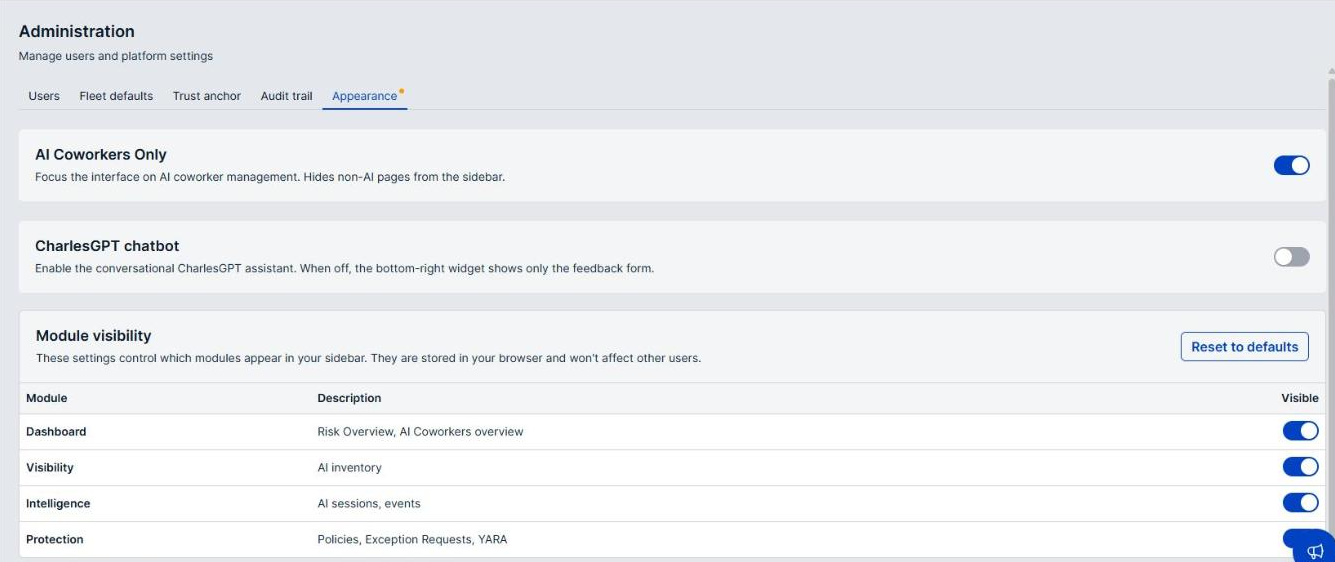
| Setting | Description |
|---|---|
| AI Coworkers Only | Focuses the interface on AI coworker management and hides non-AI pages from the sidebar. |
| CharlesGPT chatbot | Turns on the conversational assistant. When off, the widget at the bottom right shows only the feedback form. |
Module visibility
The Module visibility table controls which modules appear in your sidebar.
| Module | Description |
|---|---|
| Dashboard | The Dashboard page. |
| Visibility | The inventory pages: AI agents, MCP servers, LLM endpoints, agent skills, and endpoints. |
| Intelligence | The Events and AI Sessions pages. |
| Protection | The Policies and Exception Requests pages. |
Set a module's Visible toggle to show or hide it. Select Reset to defaults to restore the original selection. Settings is always visible.
These settings affect only you. Hiding a module does not restrict anyone's access to it. Use this to reduce clutter, not to control what people can reach.
Verify the results
After adding a user, confirm they appear on the Users tab with the email address you entered.
After changing a fleet default, confirm the row shows the value you set and a Directly modified badge, then check the Audit trail tab for the change. For Windows traffic redirect, check the rollout figures. Endpoints move from Pending restart to Armed only as their agents restart, so the change is not immediate.
Next steps
- Review the Users list periodically and remove anyone who no longer needs access.
- Download your tenant certificate from Trust anchor in the format your device management tool expects.
- Roll out Windows traffic redirect to a few endpoints before enabling it fleet-wide.
Updated about 2 hours ago
