
Dashboards | AI Agent Security
AI agents run on your endpoints with the same privileges as the people using them, and most organizations cannot say how many are running or what they have done. The Dashboard answers that on one screen: which AI tools are active in your environment, including the AI agents, desktop AI apps, and MCP servers the AI Agent Security agent has discovered on your endpoints, how much AI coding work is happening, and which high-risk agent actions were blocked or audited.
Use it to tell expected activity from something you need to investigate, and to show reviewers that the AI tools in your environment are inventoried and monitored.
Scope of this guide
This guide explains the Dashboard page: the reporting period, the summary tiles, and the Discovered AI activity, Coding activity and adoption, and Risky agent behavior cards. It does not cover the pages the dashboard links to, which have their own guides.
Prerequisites
- You have administrator access to the tenant.
- At least one endpoint with the AI Agent Security agent is reporting AI activity.
Open the Dashboard
The Dashboard is the first page you see in AI Agent Security.
-
Sign in to app.beyondtrust.io with your credentials.
The Home page displays. -
Select the AI Agent Security tile.
The Dashboard page displays by default.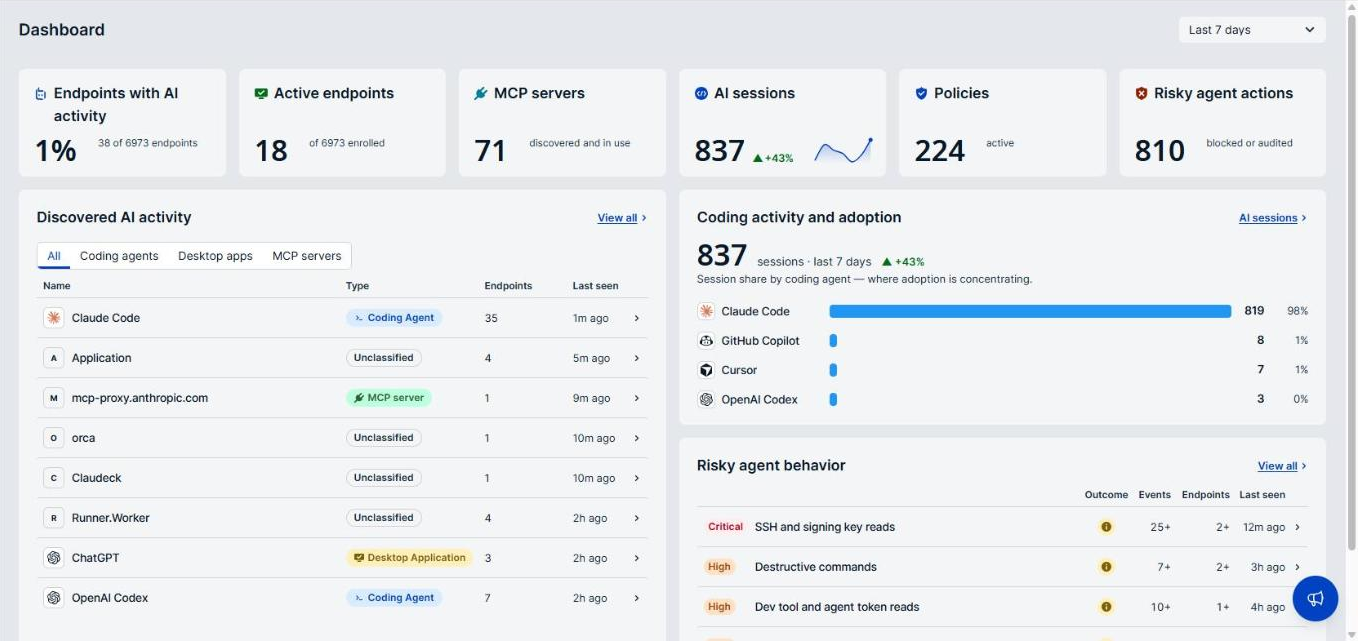
-
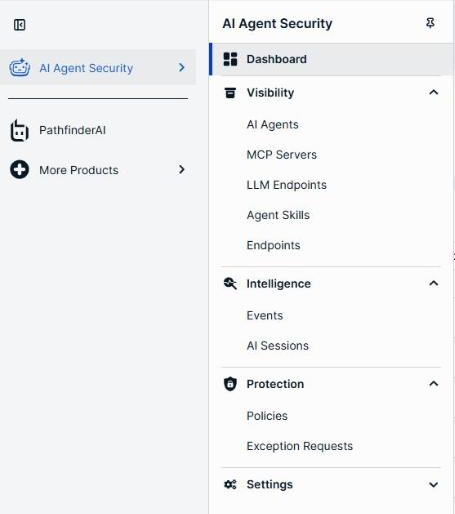
To return to it from another page, select Dashboard at the top of the left menu.
Set the reporting period
The period selector at the top right of the page sets the time window for the dashboard. Choose Last 7 days, Last 30 days, or Last 90 days. Last 7 days is the default.
Because Last 7 days is the default, the dashboard opens on a short window. Activity from earlier in the month is absent until you choose a longer period, so confirm the period before you treat an empty card as good news.
Summary tiles
Six tiles across the top give you the state of your environment at a glance. Select a tile to open the page behind it.
| Tile | Description |
|---|---|
| Endpoints with AI activity | The share of your endpoints where AI activity was seen, with the counts below, such as 12 of 40 endpoints. Opens the Endpoints page filtered to those endpoints. |
| Active endpoints | How many endpoints are online, out of every enrolled endpoint. Opens the Endpoints page filtered to online endpoints. |
| MCP servers | How many MCP servers are discovered and in use. Opens the MCP Servers page. |
| AI sessions | How many AI coding sessions ran in the period, with the change from the previous period and a trend line. Opens the AI Sessions page. |
| Policies | How many policies are active. Opens the Policies page filtered to active policies. |
| Risky agent actions | How many agent actions BeyondTrust Managed policies of High or Critical severity blocked or audited in the period. Opens the Events page filtered to those actions. |
Compare Endpoints with AI activity with Active endpoints first. A low share of AI activity on a fleet that is mostly online means AI tools are concentrated on a few machines, which is where to start.
Read Risky agent actions against AI sessions. More risky actions during a period of heavy agent use is expected. More risky actions during a quiet period is worth investigating.
Discovered AI activity
This card lists the AI tools found on your endpoints. Each row is one coding agent, desktop app, or MCP server.
Select a tab to narrow the list: All, Coding agents, Desktop apps, or MCP servers. All shows the most recently seen items across every kind, and a line at the bottom of the card, such as Showing 7 of 31, tells you how many more there are.
| Column | Description |
|---|---|
| Name | The agent, app, or server that was discovered. |
| Type | The kind of tool, such as a coding agent, a desktop app, or an MCP server. |
| Endpoints | How many endpoints the tool is present on. |
| Last seen | When the tool was last active. |
Read the last two columns together. A tool on many endpoints with recent activity is part of your working environment and needs a policy. A tool on one endpoint with no recent activity is present but idle, and it is still worth knowing about, because it can start running at any time.
Select a row to open the tool's details panel. Select View all to open the AI Agents page.
Coding activity and adoption
This card shows where AI coding work is concentrating. The large number is the session count for the period, and the bars below it show each coding agent's share of those sessions.
Read this card for two things:
- Concentration. One agent holding most of the sessions tells you adoption is standardized on a single tool. A spread across several agents tells you teams are choosing their own, which is harder to govern consistently.
- Change over time. An agent that appears here for the first time is a tool your teams have adopted, whether or not it was approved.
Select AI sessions to open the AI sessions page and see the sessions behind the numbers.
Risky agent behavior
This card lists the BeyondTrust Managed policies of High or Critical severity that blocked or audited agent actions in the period, Critical first. Each row shows the policy's severity and name. Your own policies do not appear here; their activity is on the Events page.
| Column | Description |
|---|---|
| Outcome | Whether the policy blocked the actions or audited them. |
| Events | How many matching events the policy recorded in the period. |
| Endpoints | How many endpoints those events came from. |
| Last seen | When the policy last matched. |
A count followed by + is a lower bound: there were at least that many.
Use this card to separate the two things a block can mean: an agent repeatedly attempting something it should not, or a policy that is too broad and getting in your users' way. One policy dominating the list with events from many endpoints usually points to the second.
Select a row to open the Events page filtered to that policy. Select View all to open the Events page filtered to every blocked or audited agent action.
When nothing matched in the period, the card reads No risky agent behavior in this window.
Verify the results
Confirm the reporting period matches the window you intend to review, and that the tiles agree with the cards below them, such as Risky agent actions against the rows in Risky agent behavior. If a card is empty, confirm it is empty because there is nothing to report, not because the period excludes the activity you are looking for.
Next steps
- Open each row in Risky agent behavior and confirm the policy is catching the actions it was written for.
- Check the Discovered AI activity list against your approved tools.
- Choose Last 90 days to see whether a pattern from the last week is new or long-running.
Updated about 2 hours ago
