
Policies | AI Agent Security
An AI agent can read a credential file, run a destructive command, or reach a cloud account with the same permissions as the developer who started it, and nothing stops it unless a policy says so. The Policies page lists the policies in your environment, shows which ones block and which ones only record, and is where you build new ones.
Scope of this guide
This guide explains the Policies page: the two tabs, the list and its columns, and how to search, filter, and delete policies. It also walks through the policy builder, from describing a policy to testing and publishing it. It does not cover the policy details panel, the curated BeyondTrust Managed set in depth, or controlling MCP servers.
Prerequisites
- You have administrator access to the tenant.
Open the Policies page
Go to Protection > Policies.
The line below the page title counts the policies on the tab you are viewing, such as 14 policies, and reminds you that everything is allowed by default. When a search or filter is active, the count reads as shown out of the tab total, such as 6 of 14 policies.
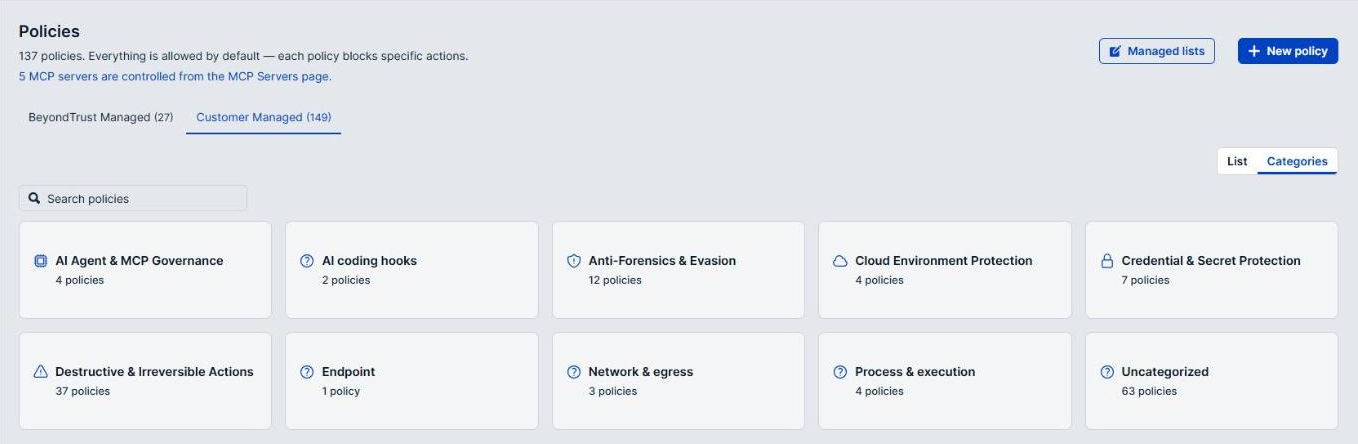
Everything is allowed by default
Each policy blocks or records specific actions. Anything no policy covers is permitted.
Two things follow from this:
- An empty policy list is an unrestricted environment. An agent action you have not written a policy for is allowed.
- Removing a policy re-permits what it was blocking. Deleting a policy, or turning it off, does not return the endpoint to a safe default; it removes that control.
Actions
| Button | Description |
|---|---|
| Managed lists | Opens the reusable lists that rules can reference, such as host patterns or AWS account IDs, so you can change a list without editing each policy that uses it. See Manage reusable lists. |
| New policy | Opens the policy builder. See Create a policy. |
When MCP server controls exist in your tenant, a line below the header reads such as 3 MCP servers are controlled from the MCP Servers page. Those controls do not appear in this list. Select the line to manage them on MCP Servers.
Tabs
| Tab | Description |
|---|---|
| BeyondTrust Managed | The curated policies BeyondTrust supplies and keeps current. They run at Audit or Off only. See BeyondTrust Managed policies. |
| Customer Managed | The policies your organization created, including unpublished drafts. This tab is selected when the page opens. |
The number in each tab label is the total for that tab. Search and filters apply on top of it, so a tab can read Customer Managed (11) while the list shows 6 policies. The difference is the filter, not a missing policy.
Choose a view
Two buttons at the right of the tab content change how policies are presented.
- Select List to see the policies as a flat list.
- Select Categories to group them into cards, one per category, each with a policy count. Select a card to open that category as a list.
While a category is open, a Category chip sits beside the search box. Select All categories, or the X on the chip, to return to the cards. Drafts have no category, so they appear only in List view.
Column reference
| Column | Description |
|---|---|
| Checkbox | Selects the policy so you can delete it with others. Shown on the Customer Managed tab only. |
| Name | The policy name, with its description below. Select the name to open the policy details panel. |
| Status | The policy posture. See Postures. |
| Applies to | Who the policy covers. AI Agents limits it to AI agents; All covers every process on the endpoint. |
| Type | The kind of action the policy governs. See Types. A Template badge marks a starter template from the Example templates category. |
| Updated | When the policy was last changed. |
The columns cannot be sorted. Use search and filters to narrow the list instead.
Postures
| Badge | Description |
|---|---|
| Off | The policy is not sent to endpoints. Nothing is recorded or blocked. Its rules are kept for when it is turned back on. |
| Audit | The policy records matching activity but does not block it. Other policies may still block the same action. |
| Require Approval | The policy blocks matching activity, and the user can clear the block themselves by approving a time-limited exception, without waiting for an administrator. |
| Block | The policy blocks matching activity. The user can request an exception, which an administrator must approve. |
| Draft | The policy has been saved in the builder but never published. It has no effect. Select it to resume editing. |
To change a posture, open the policy and use the posture switch in its details panel. See Policy details.
A policy name says nothing about whether it works. A policy called Block cloud credential reads at Off blocks nothing. Read the Status column, not the names, when you need to know what is enforced.
Audit is the posture to use when you want to see what a policy would catch before it blocks anything. It is also the posture that most resembles protection without providing any, so review your Audit policies periodically and decide whether each should move to Require Approval or Block.
An endpoint can also show a policy at Exception. That label is never chosen on this page: it appears while an approved exception request is relaxing the policy on that endpoint, and the policy returns to its normal posture when the exception ends. See Exception requests.
Types
| Type | Description |
|---|---|
| Coding Tool Calls | Tools an AI coding agent runs, such as Bash, Read, or Write. |
| MCP Tool Calls | Tool calls an agent makes to an MCP server. |
| Process Executions | Programs launched on the endpoint. |
| File Reads | Files opened for reading on the endpoint. |
| HTTP Requests | Outbound HTTPS requests. |
| Network Connections | Outbound network connections, before any TLS. |
| Multiple | The policy has rules for more than one kind of action. |
| Cedar policy | A policy written directly in Cedar rather than in the builder. |
Find a policy by name
- Select the Search policies box.
- Enter all or part of the policy name.
The list narrows as you type. Clear the search box to show all policies again.
Filter the list
- Select Filter.
- Choose the field you want to filter on: Status, Type, Applies to, or Category.
- Choose the values you want to keep, then select Apply.
Each active filter appears as a chip, and the count to the left of the chips updates to match. To remove one filter, select the X on its chip; to remove them all, select Clear all. Clear all leaves the search box as it is.
Category is offered on the Customer Managed tab only. On the BeyondTrust Managed tab, use Categories view instead.
Example: Filter on Status for Off to find policies that someone wrote and never turned on.
Scroll through the list
The list loads more policies as you scroll. When every policy is on screen, the end of the list reads All policies loaded.
Delete policies
You can delete several Customer Managed policies at once. BeyondTrust Managed policies cannot be deleted.
- Select the checkbox beside each policy you want to delete. To select every policy on screen, select the checkbox in the column heading.
- In the bar that appears, which reads such as 3 selected, select Delete policies.
- In the Delete 3 selected policies? dialog, select Confirm delete.
Select Clear selection to start over. Deleting cannot be undone, and each deleted policy stops blocking or recording on every endpoint it reached.
Create a policy
Select New policy to open the policy builder. The step rail on the left shows three steps: Describe, Build rules, and Test & save. Select Back to Policies at the top of any step to leave the builder; your work is kept as a draft.
The builder saves your work as you go. If you return to a policy that has unsaved changes, a banner offers Restore draft or Discard.
Step 1: Describe the policy
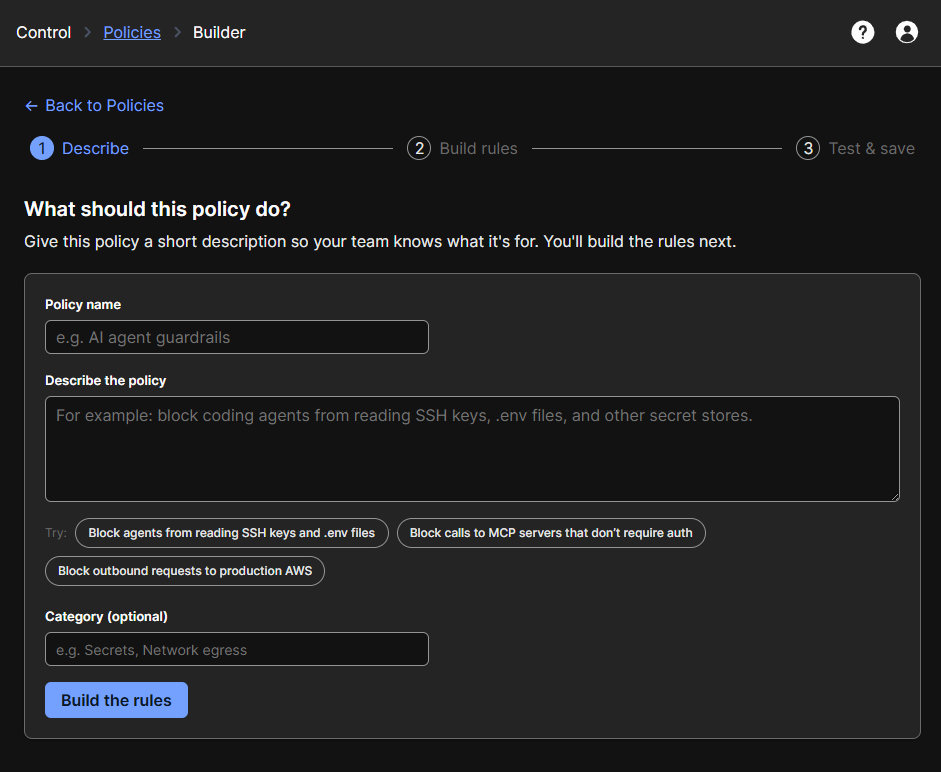
- Enter a Policy name. A name is required before you can continue, and it must not match an existing policy or contain
/. - Enter a description in Describe the policy (optional) so your team knows what the policy is for.
- To start from a suggestion, select one of the suggestions after Try:, such as Block agents from reading SSH keys and .env files. It fills in the description, and the name when the name is empty.
- Choose or enter a Category (optional). Entering a name that does not exist yet creates that category.
- Select Build the rules.
The description is the only place the intent behind a policy is recorded. The rules show what a policy matches, not why anyone wanted it. Write the description for the person who inherits the policy.
Step 2: Build the rules
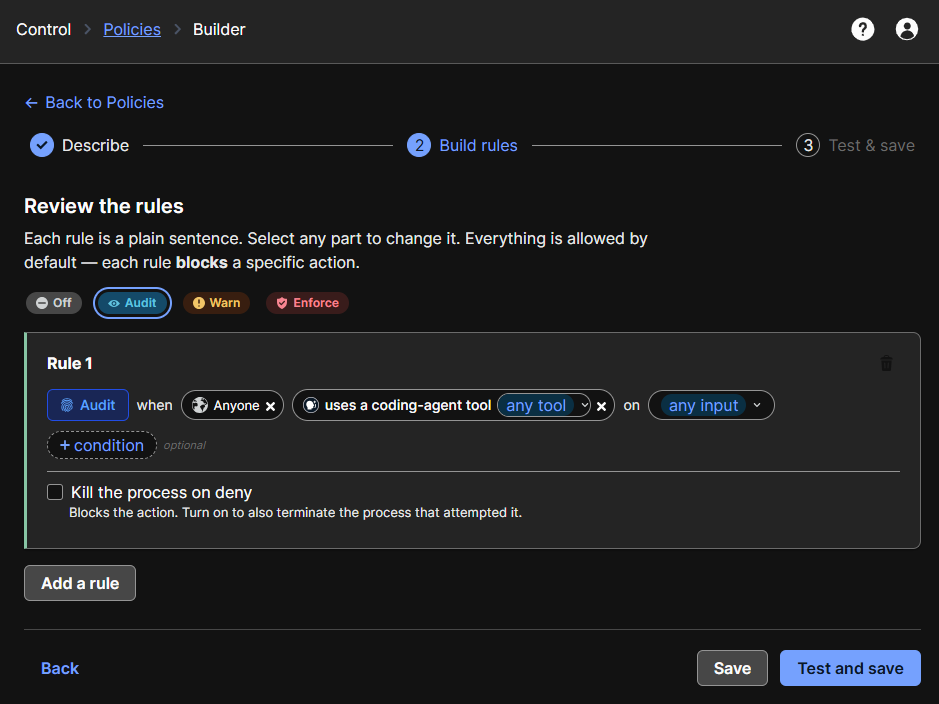
The Enforcement mode sentence at the top sets what every rule in the policy does: when any rule matches, the action is handled the way you choose. Select the mode in the sentence and choose one of the following.
| Option | Description |
|---|---|
| Do nothing | Publishes the policy at Off. |
| Audit | Records matching actions without blocking them. |
| Require approval | Blocks matching actions, and the user can approve a time-limited exception themselves. |
| Block | Blocks matching actions. Exceptions need an administrator. |
Each rule below the sentence reads as a plain sentence: the mode, then when, then who, then the action, then on and what the action applies to. For example, Audit when Any AI agent reads a file on File path */.ssh/*.
- In the rule card, select who and choose the subject.
- Select action and choose what the rule matches.
- Select the part after on to say which binaries, files, hosts, servers, or tools the rule covers.
- Select condition to narrow the rule further, if you need to. Conditions are optional.
- Turn on Kill the process on deny if the rule should also end the process that attempted the action.
- Select Add a rule to add another rule, or the trash icon on a rule card to delete it.
- Select Review & test to test the policy, or Save to save it without testing.
Select Back to return to the description.
A rule card that is missing a part says what is still needed, and the builder does not continue until every rule is finished.
Choose who the rule applies to
| Subject | Description |
|---|---|
| Any AI agent | Any AI agent on the endpoint. |
| Anyone | Every process on the endpoint, whether or not it is an AI agent. |
Anyone is broader than it sounds. A rule written to stop an AI agent reading a file stops your backup software and your installers from reading it too. Choose Any AI agent unless you mean everything on the endpoint.
Some actions are captured only for AI agents. For reads a file, Anyone is unavailable and the picker explains that file reads are only captured for AI agents.
Choose what the rule matches
Each rule covers one action. To govern another action, add another rule.
AI coding agent hooks
| Action | Description |
|---|---|
| uses a coding-agent tool | A tool your AI coding agent runs, such as Bash, Read, or Write. You can narrow it to specific tools and to the tool input, such as *rm -rf*. |
| calls an MCP tool | An agent invoking a tool on an MCP server. Marked limited: it sees only the MCP calls that the endpoint can inspect. You can narrow it to specific servers, or to servers with or without authentication. |
Any process on the endpoint
| Action | Description |
|---|---|
| runs a process | Any program launched on the endpoint, such as curl or bash, matched by binary path. |
| reads a file | A file opened for reading, such as an .env file or an SSH key, matched by file path. |
Network
| Action | Description |
|---|---|
| makes an HTTPS request | An HTTPS request, matched by host. Rules on the host alone are checked as soon as the connection starts; rules on the method, path, or content need decrypted traffic. |
| opens a network connection | The raw connection itself, before any TLS. Use it to stop an agent reaching a host at all, including a remote MCP server that calls an MCP tool cannot reach. |
For opens a network connection, choose how to match the destination:
- By hostname matches the resolved destination hostname, such as
mcp.context7.com. - By address and port matches the exact address and port, such as
169.254.169.254:*. Hostname patterns never match in this mode, and an address without a port must end in:*to match.
The action you choose sets the policy Type in the list. A rule using reads a file appears as File Reads, and one using makes an HTTPS request appears as HTTP Requests.
Patterns and exceptions
For binaries, file paths, and hosts, choose an Any option, such as Any file, or a pattern option, such as Paths matching a pattern, then enter glob patterns where * matches anything. Press Enter to add each one.
Under Except these (such as Except these file paths), select Add exception to leave specific values out of the match. An exception keeps a broad rule from catching something you rely on.
For makes an HTTPS request, the host picker also offers Use a managed host list, and conditions on AWS accounts or Azure tenants can use a managed account-ID or tenant-ID list instead of typed values. See Manage reusable lists.
Rules the builder refuses
A rule that denies every process or every file for Anyone would lock everyone out of the endpoint, including a person at the keyboard. The builder marks such a rule Not allowed, names it beside the footer buttons, and makes Review & test unavailable until you narrow it. Deny specific binaries or paths, or change the subject to Any AI agent.
Kill the process on deny
Kill the process on deny goes further than blocking. Blocking stops the action; this also ends the process that tried it, which can end work the user did not expect to lose. It takes effect only while the policy is at Block, and it has no effect on Windows endpoints yet. Turn it on deliberately.
Step 3: Test and save
The Try it before you save step replays recorded activity against the policy and shows what it would have done. Nothing here affects live traffic.
- Under Time range to replay, choose a window, such as Last 7 days.
- Select Run the test.
- Review the result tabs: Matched, Almost matched, Did not match, and Not enough detail. Select a row to open the event it came from.
- Select Save policy, or Back to rules to change the rules first.
Almost matched is the tab to read before you publish a blocking policy. It shows activity that came close to a rule, which is where a pattern that is slightly too narrow, or slightly too broad, shows up.
Publish the policy
Saving stores the policy as a draft and shows Policy saved. A draft affects no one.
- Select Publish policy. When the enforcement mode is Block, the button reads Publish and enforce.
- Select Keep editing instead to return to the rules.
After publishing, the policy details panel opens. A published policy applies only where it is attached, so open its Attachments tab next and attach it to endpoints or tags. See Policy details.
If the builder finds a rule that could remove human access, it shows a warning before publishing. Select Keep editing to change the rule, or Publish anyway if you have checked the effect.
Edit a policy
- Open the policy from the list.
- Select Edit policy in the details panel.
The builder opens with two steps, Build rules and Test & save. The policy name, category, and icon sit at the top of the rules. Save and publish as you would for a new policy.
BeyondTrust Managed policies cannot be edited. Select Fork to my policies in a managed policy's details panel to create your own editable copy instead.
Manage reusable lists
A managed list holds values that several rules share, such as the hosts of your production services. Change the list once, and every rule that references it follows.
- Select Managed lists in the page header.
- Find the section for the kind of list: Host lists, AWS account-ID lists, or Azure tenant-ID lists.
- In that section, select New host list, New account-ID list, or New tenant-ID list.
- Enter a List name, an optional Description, and the values, one per line. Host lists take glob patterns, such as
*.s3.amazonaws.com*. - Select Create list, then Done.
A list that a saved policy references cannot be edited or deleted until the policy stops referencing it. To use a list in a rule, choose its managed list option in the rule, such as Use a managed host list.
Verify the results
Confirm that a new policy appears on the Customer Managed tab with the posture you chose, not Draft. Then open it and confirm the Attachments tab lists the endpoints or tags it should reach. A published policy with no attachments reaches no endpoints.
Before you conclude a policy is missing, check the tab you are on, the filter chips, and whether a category is open.
Next steps
- Review every policy at Off and decide whether to delete it or turn it on. A policy at Off is a record of an intention, not a control.
- Review every policy at Audit and check what it has been recording before you move it to Block.
- Check the BeyondTrust Managed tab to see what is already covered before you write a new policy.
Updated about 2 hours ago
