
IP allowlist | Pathfinder
Organization administrators can now define an allowlist of trusted networks permitted to access Pathfinder. Only requests that originate from approved public networks can reach protected resources on the Pathfinder web console, the platform application programming interfaces (APIs), and supported platform-routed services.
An IP allowlist applies to your whole organization. It is disabled by default until an administrator configures and enables it.
What an IP allowlist protects
When you enable an IP allowlist, Pathfinder controls access to these authenticated resources from approved public source IP addresses:
- Pathfinder console access through
app.beyondtrust.io - Platform REST API requests
- Supported platform-routed Model Context Protocol (MCP) endpoints
Pathfinder evaluates the allowlist against the public IP address it sees, such as your office network address translation (NAT) gateway, secure web gateway, proxy, or virtual private network (VPN) egress point.
ImportantUsers can still reach the sign-in page from a non-approved network, because authentication happens before Pathfinder can determine your organization context. After sign-in, Pathfinder denies access to protected resources from any IP address that is not on the allowlist.
Prerequisites
Make sure you have the correct administrative access and a complete list of the public egress addresses your users and integrations use.
- You must be a Pathfinder organization administrator.
- Collect all required public IPv4 and IPv6 addresses or Classless Inter-Domain Routing (CIDR) ranges.
- Include office networks, corporate VPN egress addresses, proxies, secure web gateways, and automation or integration egress ranges.
- Confirm the public IP address your own session currently uses, so you do not block yourself during setup.
ImportantDo not add private or local device addresses such as
10.0.0.0/8,172.16.0.0/12,192.168.0.0/16, or a workstation's local adapter address, unless that exact public address is what Pathfinder sees. An allowlist evaluates public egress IP addresses, not local machine IP addresses.
Supported formats and limits
Pathfinder accepts these entry formats:
| Format | Example |
|---|---|
| Single IPv4 address | 203.0.113.14 |
| IPv4 CIDR block | 203.0.113.0/24 |
| IPv4 start-end range | 203.0.113.14-203.0.113.58 |
| Single IPv6 address | 2001:db8::44 |
| IPv6 CIDR block | 2001:db8::/48 |
Each entry also takes an optional description. An organization can hold up to 900 allowlist entries.
Plan your rollout
A short planning step helps prevent user disruption:
- List every network your administrators use to access Pathfinder.
- List every network that API clients, automation, and service integrations use.
- Verify whether remote users must connect through VPN to appear from an approved corporate egress IP address.
- Add descriptive labels so future administrators understand why each range exists.
- Validate entries before you enable enforcement.
Start with administrator and corporate VPN egress ranges, then add integration and branch office networks before you turn the feature on for general use.
Configure an IP allowlist
- Sign in to Pathfinder with an organization administrator account.
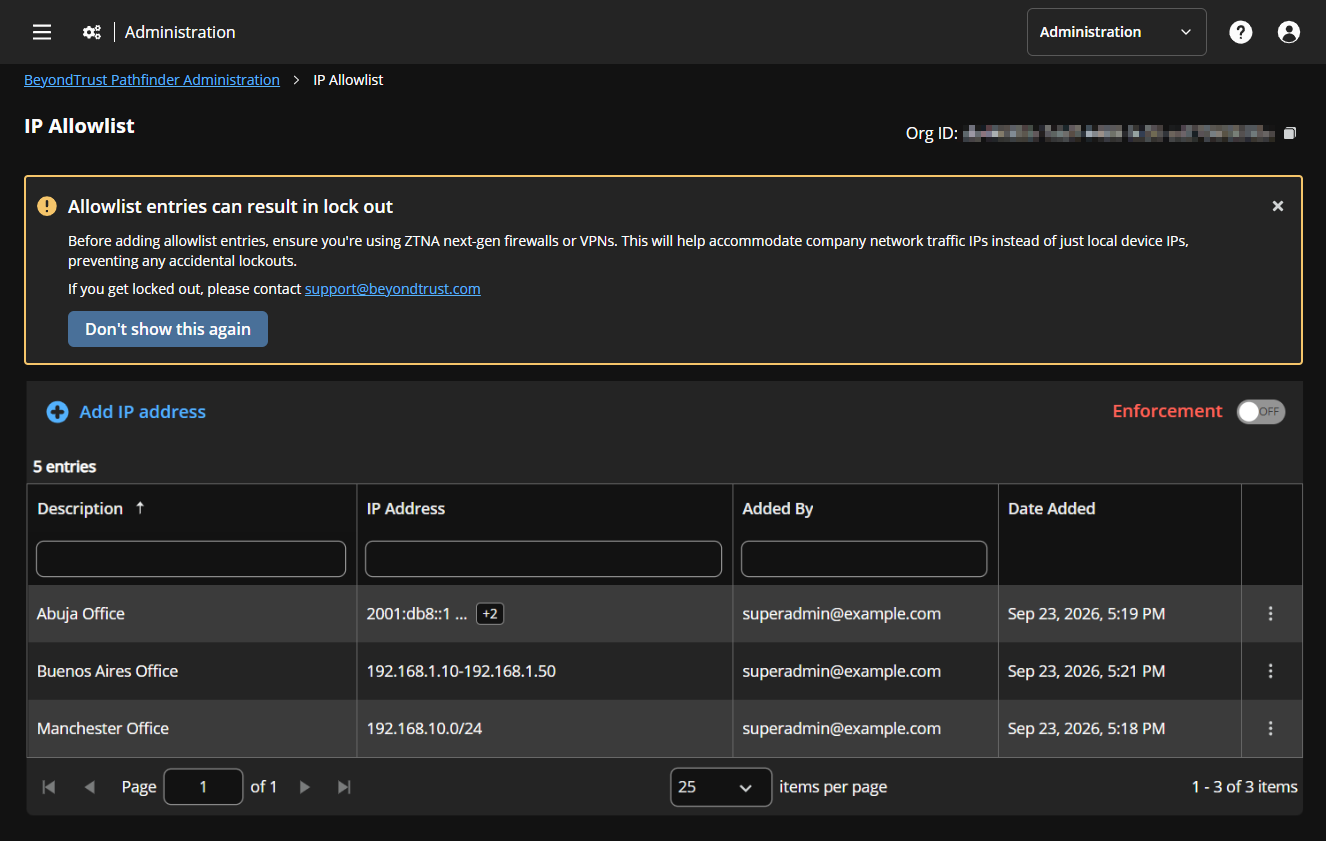
- Go to Administration > IP Allowlist.
This page provides a view of any previously configured allowlist entries and allows you to search them by description, by IP address, or by the email address of the person who added them.
Add individual entries
-
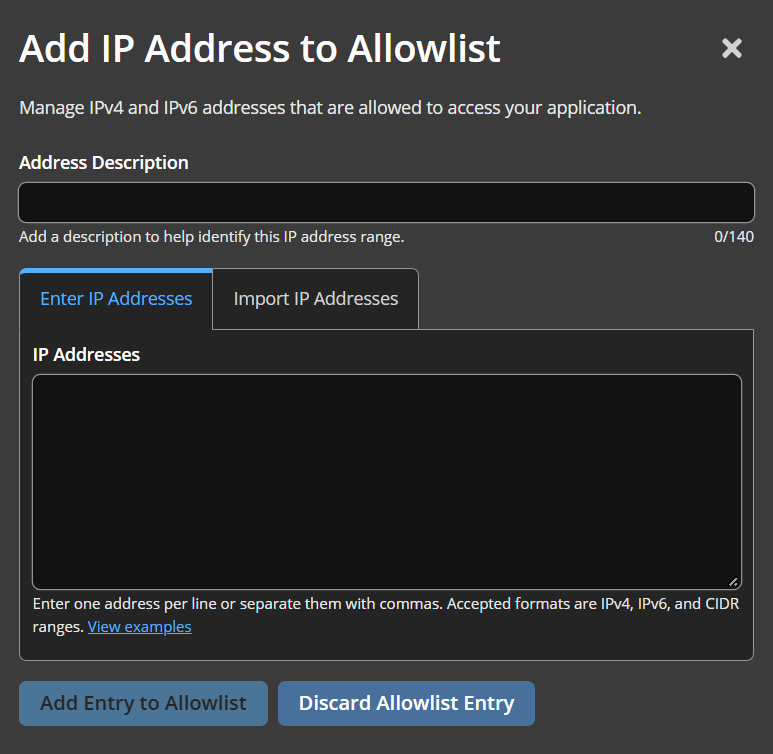
Select Add IP Address.
-
Optionally, enter a description, such as HQ Office NAT, Corporate VPN, or US East Integration Gateway. This description must be 140 characters or fewer.
-
Select the Enter IP Addresses tab.
-
Enter public IP addresses or CIDR ranges by typing individual entries or by pasting from an external source. Entries should be separated either by line or by comma. Each IP address or range is validated as you type.
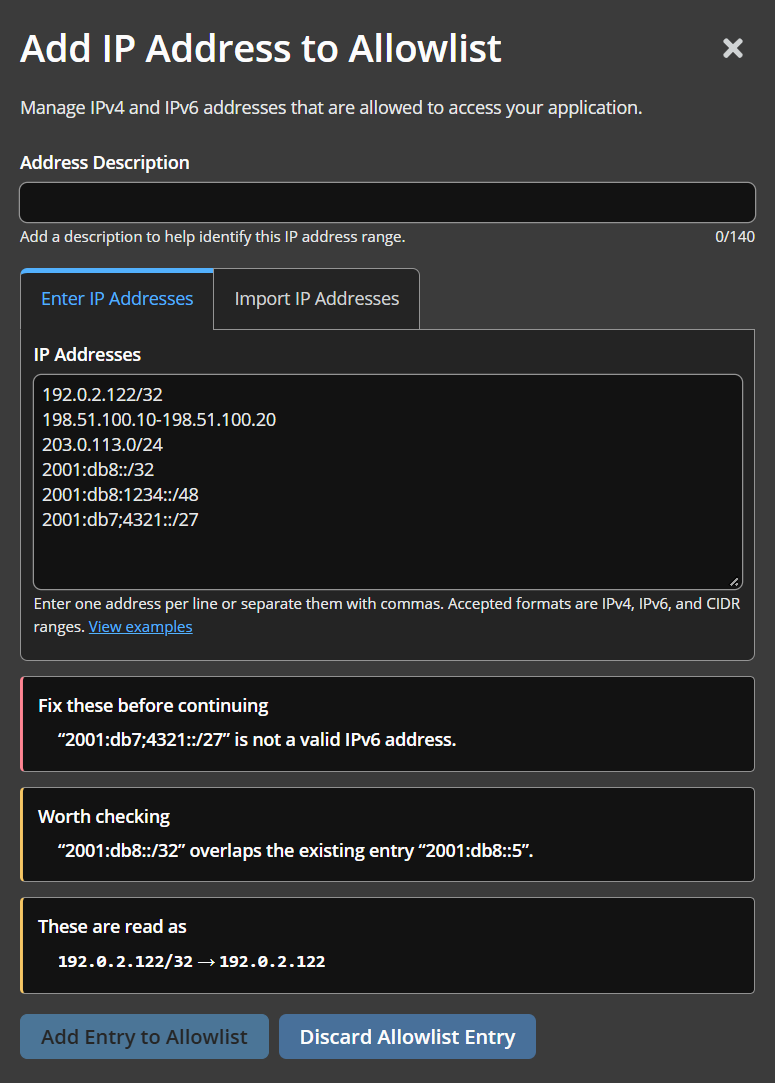
Validation confirms that an entry is well-formed: valid IPv4 or IPv6 format, valid CIDR prefix, no duplicates. It does not confirm that the address exists or that it is one your users, APIs, or integrations actually connect from. You are responsible for the accuracy of the entries.
-
Once you have corrected any errors are satisifed with the entry, click Add Entry to Allowlist.
Bulk import entries
If you have many entries, use bulk import to speed setup:
-
Select Add IP Address.
-
Optionally, enter a description, such as HQ Office NAT, Corporate VPN, or US East Integration Gateway. This description must be 140 characters or fewer.
-
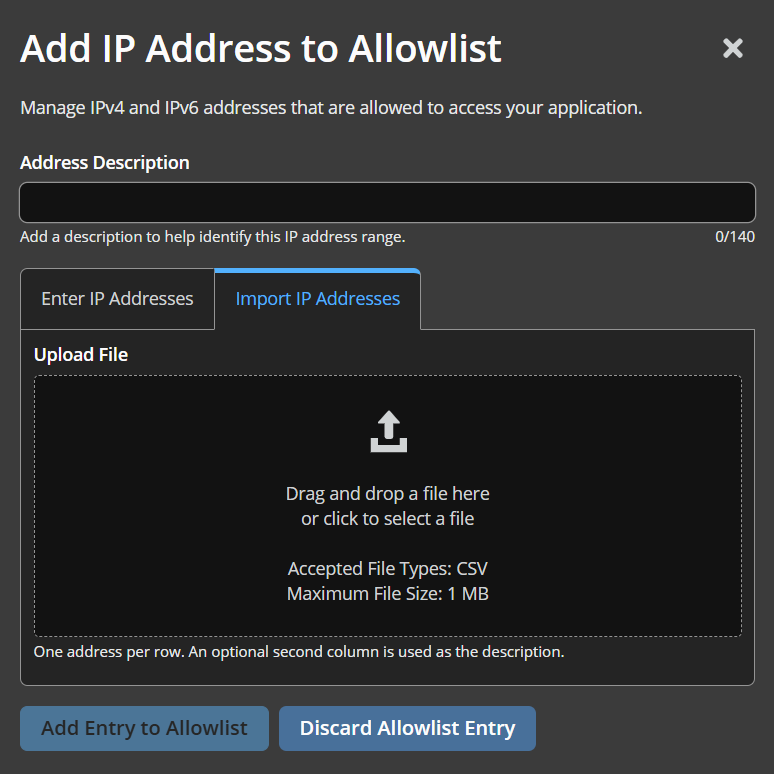
Select the Import IP Addresses tab.
-
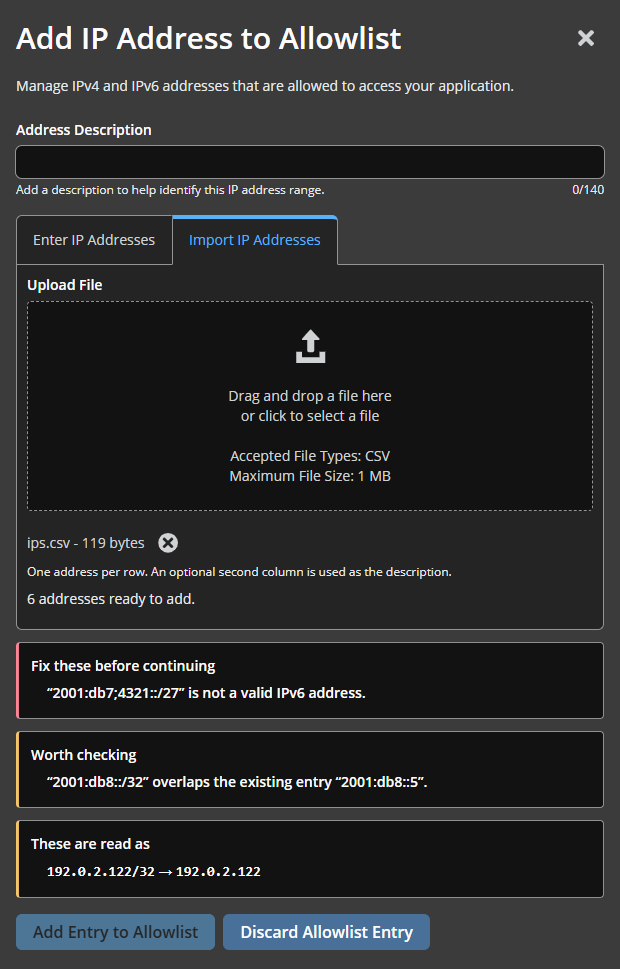
Upload a comma-separated values (CSV) file where the first column is the IP address or CIDR range. An optional second column can be used to add descriptions. Multiple rows with the same description are grouped together as one entry.
-
Each row is validated upon upload. If there are any validation errors, you must correct and reupload the CSV file.
Validation confirms that an entry is well-formed: valid IPv4 or IPv6 format, valid CIDR prefix, no duplicates. It does not confirm that the address exists or that it is one your users, APIs, or integrations actually connect from. You are responsible for the accuracy of the entries.
-
Once you have corrected any errors are satisifed with the entry, click Add Entry to Allowlist.
Enable enforcement
Important!Before you enable enforcement, confirm that your allowlist includes:
- Your current administrator public egress IP address
- All required office and VPN egress ranges
- All required integration and automation source ranges
- Any IPv4, IPv6, and CIDR ranges your environment uses
Pathfinder refuses any change that would leave your current public IP address outside the allowlist. If a change is refused, the error names the public IP address Pathfinder sees your session as. Use that address to correct your entries.
If administrators lose access despite this check, there is no in-product override. Contact BeyondTrust Support for recovery assistance.
-
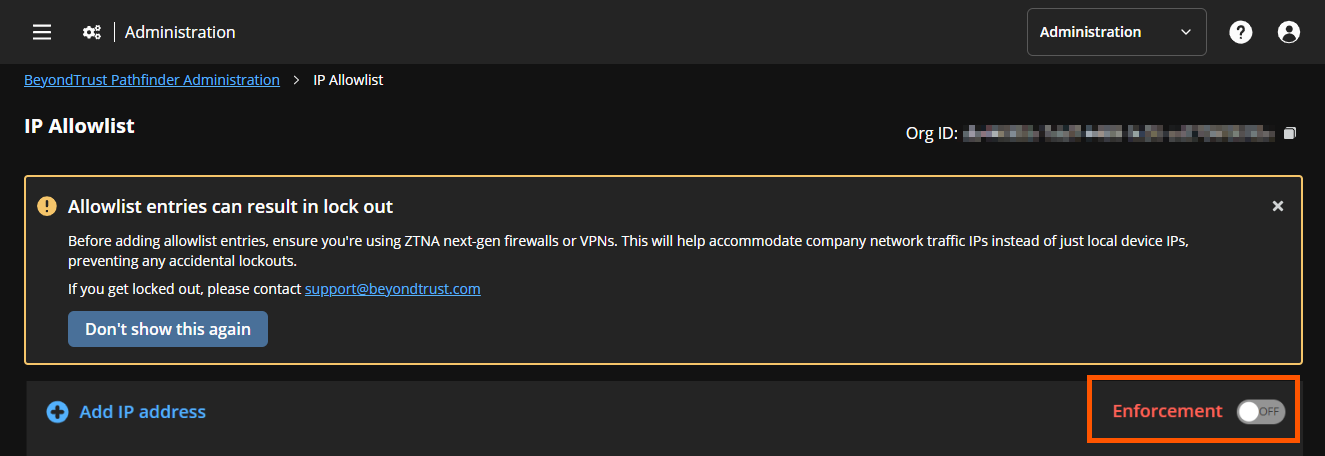
To begin allowlisting the configured IP addresses, turn on the Enforcement setting.
-
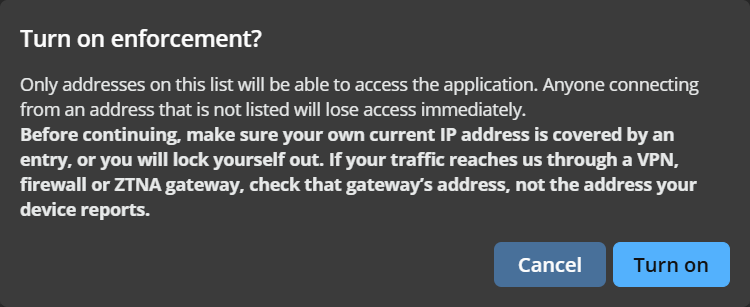
You are prompted to verify that you want to turn on enforcement. If you are sure of your settings, click Turn on.
Enforcement changes are not instant. Each edge instance caches your organization's settings for up to five minutes, so a change can take that long to take effect. This applies to turning enforcement off as well as on.
What users can expect
- Users who connect from an approved public network access protected Pathfinder resources normally.
- Users who connect from a non-approved public network can still reach the sign-in page, but Pathfinder denies access to protected resources after authentication.
- Blocked requests return an authorization failure, such as
403 Forbidden. - Remote users may need to connect through the corporate VPN if their home network is not on the allowlist.
Best practices
- Add a meaningful description to every entry.
- Review the allowlist whenever office networks, VPN providers, proxies, or integration egress ranges change.
- Use a CIDR range only when you know exactly which addresses it covers.
- Limit the list to trusted networks that have a business need for access.
- Coordinate changes with network, security, and integration owners.
Troubleshoot IP allowlist access
You can sign in but cannot open Pathfinder
Your network may not be on the allowlist. Confirm the public egress IP address your current connection uses, and compare it to the configured entries. If you are remote, connect to the approved corporate VPN and try again.
An administrator cannot save changes
Pathfinder may have detected that the new configuration would exclude the administrator's current public IP address. Add the correct public egress IP address, or connect from an approved network, then retry.
An integration stopped working after you enabled the allowlist
Verify the integration's outbound public IP address or CIDR range, and add it to the allowlist. This often applies to middleware, API gateways, hosted runners, and automation services.
Administrators are locked out
If all administrators lose access, for example, because a trusted egress IP address changed, there is no in-product way to disable enforcement. Contact BeyondTrust Support for recovery assistance.
Frequently asked questions
Does an IP allowlist apply to the entire organization?
Yes. You configure the allowlist at the organization level, and it applies across protected Pathfinder resources for that organization.
Does the feature support both IPv4 and IPv6?
Yes. You can add single addresses or CIDR ranges for both IPv4 and IPv6.
Does the feature evaluate a user's device IP address?
No. Pathfinder evaluates the public source IP address presented to the platform, typically the egress address of a corporate network, proxy, gateway, or VPN.
Can I use automation to manage the allowlist?
Yes. Pathfinder supports programmatic management through the platform APIs, which is useful for change control and large-scale administration.
For more information, see the API reference.
What happens if a request comes from a network that is not on the allowlist?
Pathfinder denies access to protected resources. Depending on the flow, the user may still reach sign-in before Pathfinder enforces organization-specific access rules.
Updated about 22 hours ago
