
MCP server details
The MCP Servers list tells you a server exists and what it is allowed to do. The details panel tells you who uses it, which of its tools are controlled, and whether that control is reaching every endpoint. It is also where you set the server's access: allow it, monitor it, require approval, or block it, for every tool or only some.
Scope of this guide
This guide explains the MCP server details panel: the header action, each tab, and the Set access dialog. It does not cover writing your own policies; see Policies for that.
Prerequisites
- You have administrator access to the tenant.
- At least one server appears on the MCP Servers page.
Open the details panel
- Go to Visibility > MCP Servers.
- Select the row of the server you want to review.
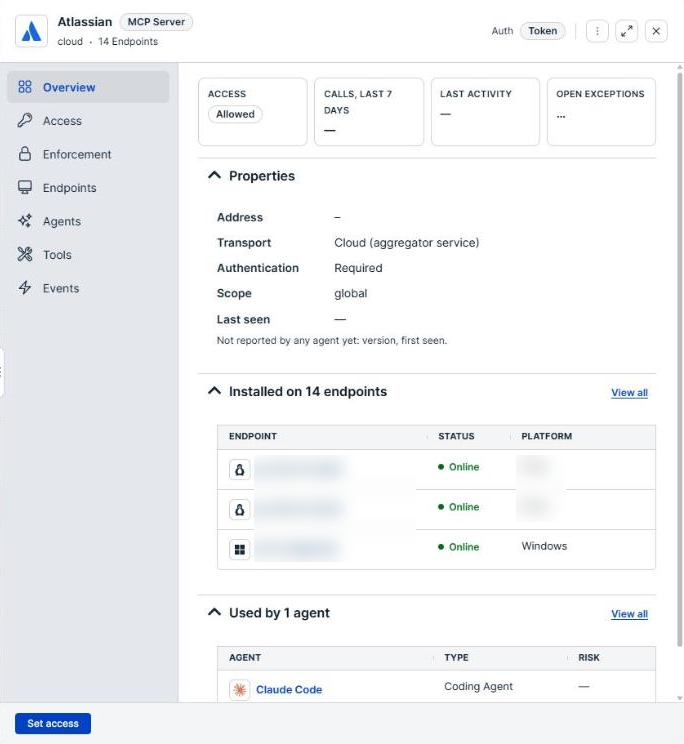
The details panel opens with the server name at the top. To close it, select the X in the top right corner.
Actions
| Button | Description |
|---|---|
| Set access | At the bottom of the panel. Opens the Set access dialog for a server that has no control switched on. See Set access for a server. |
| Change access | Replaces Set access once the server has a control switched on. It opens the same dialog with the current settings filled in. |
Blocking a server stops every agent that depends on it. Check the Agents and Endpoints tabs first so you know who you are about to affect.
Tabs
The tabs down the left side of the panel group the server's information. Overview is selected when the panel opens.
| Tab | Description |
|---|---|
| Overview | Four summary tiles, the server's properties, and short lists of the endpoints and agents that use it. |
| Access | The server's current access, how many endpoints have changed behavior, and the exceptions raised against the control. |
| Enforcement | The policies that govern the server, which endpoints the control applies to, and how far it has reached. |
| Endpoints | Every endpoint where the server was discovered, with how the control reaches each one. |
| Agents | The AI agents observed using the server. |
| Tools | The tools the server makes available, with the access each one has. |
| Events | Recent tool calls to the server. |
Overview tab
Summary tiles
| Tile | Description |
|---|---|
| Access | The server's access, such as Allowed or 2 of 9 tools blocked. |
| Calls, last 7 days | The number of tool calls to the server recorded in the last seven days. |
| Last activity | When the server was last observed. |
| Open exceptions | The number of exceptions raised against the server's control. |
Properties
Select the caret beside the heading to collapse or expand the section.
| Field | Description |
|---|---|
| Address | The host name or URL agents connect to. |
| Transport | How the server communicates: stdio (local process), SSE (remote server, streaming), HTTP (remote server), or Cloud (aggregator service). |
| Authentication | Required when the server asks clients to authenticate, or None when it does not. The row is absent when no endpoint has reported it. |
| Scope | The scope the server is installed under. |
| Version | The server version. |
| First seen | When the server was first discovered. |
| Last seen | When the server was most recently observed. |
A field no agent has reported is left out, and a line below the section names it, such as Not reported by any agent yet: version.
An Authentication value of None is worth attention: anything that can reach the server can call its tools.
Installed on and Used by
Installed on lists up to three endpoints running the server, with the count in the heading, such as Installed on 4 endpoints. Used by lists up to three AI agents connecting to it, such as Used by 2 agents. Select View all in either section to open the full list on the Endpoints or Agents tab.
Access tab
For a server with no control, the tab reads Allowed. Every tool call is permitted and recorded. and offers Set access.
For a server with a control, the tab shows:
- A summary card with the access, the tools it covers, and the enforcement state, such as Blocked · All tools · Enforcing on all 5 endpoints. Below it, Changed by names who last changed the control and when. When some endpoints are not enforcing, a line counts them; select See why to open the Enforcement tab. Select Change access in the card to edit the control.
- Endpoints changing behavior, a bar that splits endpoints into Enforcing, Recording, Waiting, and Not enforcing. Enforcing and recording endpoints are changing behavior now; waiting and not-enforcing endpoints are not yet.
- See the calls, a link that opens this server's MCP calls on the Events page in a new browser tab.
- Exceptions, the exceptions developers have raised against the control, each with its status, the tool, and whether it is applied on the endpoint. Select Open Exception Requests to manage them.
Enforcement tab
For a server with no control switched on, the tab reads This server is allowed, so nothing is being enforced.
For a server with a control, the tab has these sections:
| Section | Description |
|---|---|
| Policies governing the server | The control generated from the server's access settings, followed by the other policies that apply to the server's endpoints. Select a policy to open it. |
| Apply to | Which endpoints the control reaches: All endpoints, or These tags with the tags listed. You can change the scope here without reopening the dialog. |
| Coverage | How many online endpoints are enforcing the control, such as 3 of 5 enforcing, with the posture beside it and a meter. When some endpoints are not enforcing, a line counts them and gives the most common reason reported, and Show affected endpoints lists a sample of them. |
| Where it takes effect | Collapsed by default. How the control is applied on endpoints, and the state of each method. |
| Test this control | Collapsed by default. Replays recent activity against the control's rules to show what would have matched. |
When endpoints cannot enforce the control, two buttons can close the gap:
| Button | Description |
|---|---|
| Turn on inspection · tenant | Turns on traffic inspection for the whole tenant, for endpoints that cannot enforce the control without it. |
| Update out-of-date agents | Changes the update strategy so out-of-date agents move to the latest release. Agents update on their next check-in, not immediately. |
Both buttons need an administrator.
Endpoints, Agents, Tools, and Events tabs
| Tab | Columns |
|---|---|
| Endpoints | Endpoint, Status, Platform, and Governed by, which shows whether the control reaches that endpoint, such as Blocked · Tenant-wide, or Not governed. Select a row to open the endpoint. |
| Agents | Agent, Type, and Risk. Select a row to open the agent. |
| Tools | Tool, Description, Risk, and Access. Access reads Blocked, Needs approval, or Monitored for a tool the control covers, and is empty for a tool it does not. |
| Events | The most recent tool calls to the server. Select View all events to open them on the Events page. |
Set access for a server
- Open the server's details panel and select Set access or Change access. The Set access for dialog opens with the server name in its title.
- Choose an access level: Block, Require approval, Monitor, or Allow.
- Choose All tools, or choose Only these tools and select the tools to control. To control a tool no endpoint has reported yet, enter its name in the Add a tool name… box.
- Choose where the control applies: All endpoints, or These tags and then add one or more endpoint tags.
- Read the summary line above the buttons. It states what the control does and how many endpoints it reaches, such as Blocks all tools on github for 12 endpoints. Enforcing on 10 now.
- Select the button that confirms your choice, such as Block github, Require approval for 2 tools, Start monitoring, or Allow server.
| Option | Description |
|---|---|
| Block | Stops matching tool calls. |
| Require approval | Stops matching tool calls, but a developer working through a coding agent gets a link to request a time-bounded exception and approve it. Other connections to the server are recorded, not blocked. |
| Monitor | Records matching tool calls and blocks nothing. |
| Allow | Removes the control. The server has no access control and every tool call is permitted. The tool and tag choices are unavailable. |
Until endpoints pick up a new control, Enforcement on the list reads Delivery pending on N.
Example: To stop one dangerous tool without breaking the rest of a server, choose Block, choose Only these tools, and select that tool. The list then reads 1 of N tools blocked for the server.
Verify the results
Confirm that the Access tile on the Overview tab shows the access you set. Then open the Enforcement tab and confirm that Coverage reads Active on every online endpoint. If it does not, follow the reason it gives.
Next steps
- Open the Tools tab and confirm that every tool the server exposes is one your agents should be able to call.
- Review the Exceptions on the Access tab of every server set to Require approval.
- Use Test this control before you change a control from Monitor to Block, to see what it would have stopped.
Updated about 2 hours ago
