
Configure Pathfinder MCP | Pathfinder
The Pathfinder MCP (Model Context Protocol) gateway lets AI agents securely query data across your BeyondTrust products through a single endpoint. It is available as an Early Access feature in the US region only.
Activate MCP
MCP is off by default. An administrator must enable it for each site before users can generate tokens or connect agents.
-
Navigate to the Administration site of your Pathfinder instance.
-
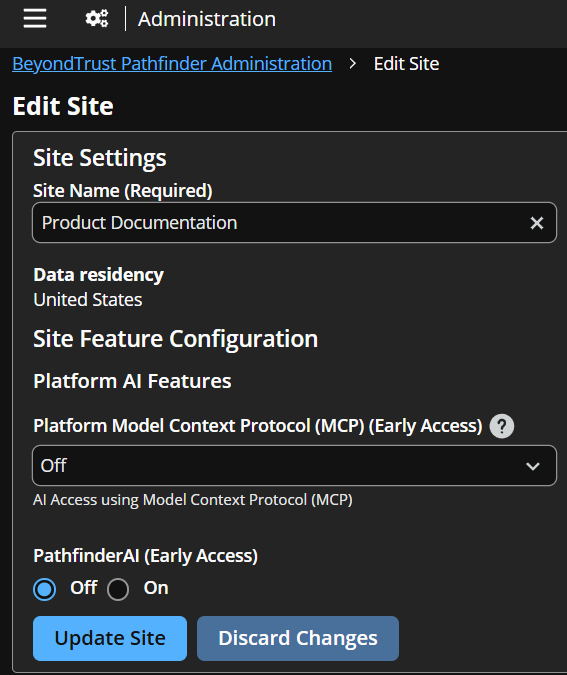
Under Site Feature Configuration > Platform AI Features, locate the Platform Model Context Protocol (MCP) dropdown.
-
Select Read Only.
-
Select Update Site.
Once enabled, users on that site can generate MCP access tokens from their profile.
Generate an MCP access token
Each user who needs to connect an AI agent to the MCP gateway must generate their own access token.
- Navigate to the site where MCP has been enabled.
- Select your profile icon in the top-right corner, then select Manage Profile.
- In the MCP Access Tokens section, select an expiration period from the Expiration Date dropdown:
- 30 days
- 60 days
- 90 days
- Custom date (maximum of one year)
- Select Create Token.
- Select Close.
Your token will look like: MCP_xxxxxxxxxxxxxxxxxxxx
Use it in your agent configuration as:
Authorization: Bearer MCP_xxxxxxxxxxxxxxxxxxxx
Manage tokens
The MCP Access Tokens section on the Manage Profile page displays a grid of all tokens generated by the current user.
Token grid columns
| Column | Description |
|---|---|
| Creation Date | When the token was created |
| Last Login | The last time the token was used to authenticate |
| Expiration Date | When the token expires |
| Token Status | Active or Expired |
| Command | Action available for the token |
Token actions
- Revoke: Available for active tokens. Revokes the token immediately and removes it.
- Delete: Available for expired tokens. Removes the expired token from the list.
Filter tokens
Use the Token Status Filter dropdown to filter the grid by status: All, Active, or Expired.
Product-Specific configuration
Some BeyondTrust products work with the MCP gateway automatically once MCP is enabled at the site level. Other products may require additional in-app configuration and a minimum product version.
| Product | Minimum Version | In-App Configuration Required |
|---|---|---|
| Identity Security Insights | 26.04.1 | No, works automatically when MCP is enabled |
| Entitle | April 2026 | No, works automatically when MCP is enabled |
| Password Safe | 26.1 | Requires the group feature MCP Server. In Password Safe, - Under Group Details, select Features. |
| EPM for Windows and Mac | 26.1 | No, works automatically when MCP is enabled |
| EPM for Linux | March 2026 | No, works automatically when MCP is enabled |
| Privileged Remote Access | 26.1 | TBD |
| Remote Support | 26.1 | Requires activating MCP server. - Select Configuration, and select the MCP Server tab. |
If a product requires in-app configuration, the MCP gateway will not expose tools for that product until the configuration is complete. Refer to the product-specific documentation linked above for setup steps.
Disable MCP
To disable MCP for a site:
- Navigate to the Administration site.
- Select the Edit button for the site.
- Set the Platform Model Context Protocol (MCP) dropdown to Off.
- Select Update Site.
Users on that site will no longer be able to use existing MCP tokens to connect. Previously generated tokens will stop working, but will still appear in the token management grid until they expire or are deleted.
Requirements
- An active BeyondTrust Pathfinder tenant
- A site in the US region with MCP enabled by an administrator
- One or more licensed BeyondTrust products connected to the site
Updated 11 days ago
