
Detections
What is the Detections page?
The Detections page summarizes areas of potential risk or compromised entities, including suspicious login failures, missing multi-factor authentication, and stale or dormant accounts.
By default, new and in-progress detections display in order of severity and discovery date. You can click any individual detection to display additional information about the identified risk and its importance or severity.
You can export the Detections page as a .csv using the Download button.
How is it useful?
Detections include the source system and entity type by default, allowing at-a-glance views into potentially compromised services, applications, or accounts.
Detection capabilities
Identity Security Insights leverages multiple methods to detect malicious and anomalous activity.
-
Tactics, Techniques, and Procedures (TTP), Indicators of Compromise (IOC), and Indicators of Attack (IOA) represent activity that is strongly associated with attackers. Identity Security Insights updates regularly with the latest in known attack strategies to ensure you are provided a comprehensive picture of identity-related risk. TTP, IOC, and IOA detections include areas of risk, like logins without MFA, dormant account activity, and new Identity Provider enrollment. The detection shows the reason for the concern and an example of how to address the threat.
-
Anomaly-based detections use AI-backed methods to report on unusual and specific account activity. This activity may not represent an attack signature, but instead detect novel and suspicious activity outside of recognized methods of compromise. Anomaly-based detections report on risks such as:
- Infrastructure changes following suspicious MFA events could indicate a compromised account.
- Changes to Azure service principals which seem unusual compared to other environments, can indicate a breach.
- Excessive Secret Safe read events, which may represent suspicious access within PasswordSafe.
The details for these detections describe how to determine if they are malicious.
Additional detections exist around integrated BeyondTrust products, allowing you to receive detections on anomalous activity and malicious IP access within your organization.
For more information, see the Detections list.
Review detection findings
- Grouped detections include all accounts that share a specific detection.
- Ungrouped detections include all detections.
Security frameworks
Insights classifies detections and recommendations with a security framework built by BeyondTrust Phantom Labs for identity risk. Each finding gets a theme that names the kind of risk and one or more categories that name the part of your environment it affects. You can tell what a finding is about, and who should own it, before you read the details.
- Themes: The nature of the risk: Each finding has exactly one theme.
- Categories: The part of your environment affected: Each finding has one or more categories, which point to the team that owns that area.
The Security Frameworks section also shows each finding's MITRE ATT&CK tactic and technique and NIST 800-53 control, so you can tie it back to the frameworks you already report against.
View findings
To view findings:
-
Go to the Detections page (click
 > Detections).
The Detections page displays. -
Use the filtering and table column headers to focus the results.
-
Select a detection name.
The Overview panel displays. -
Scroll through the overview to learn more.
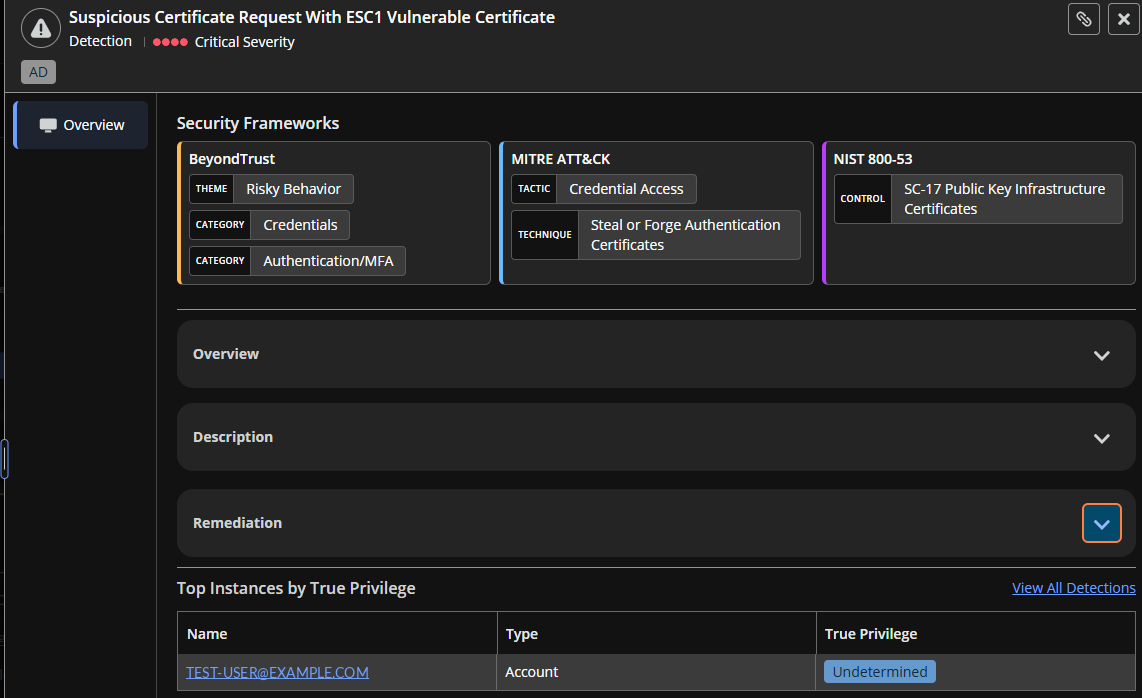
In the Overview panel, only the Top Instances by True Privilege grid is filtered by your selected workspace. The grid checks your 1,000 highest-privilege instances, and tells you if more matches might exist beyond them. The rest of the panel shows the detection's full context, including connections outside your workspace.
Search and filter detections
Use the interactive filters and table columns to narrow the results displayed.
On the Detections page, search results display automatically as you add search terms and select options.
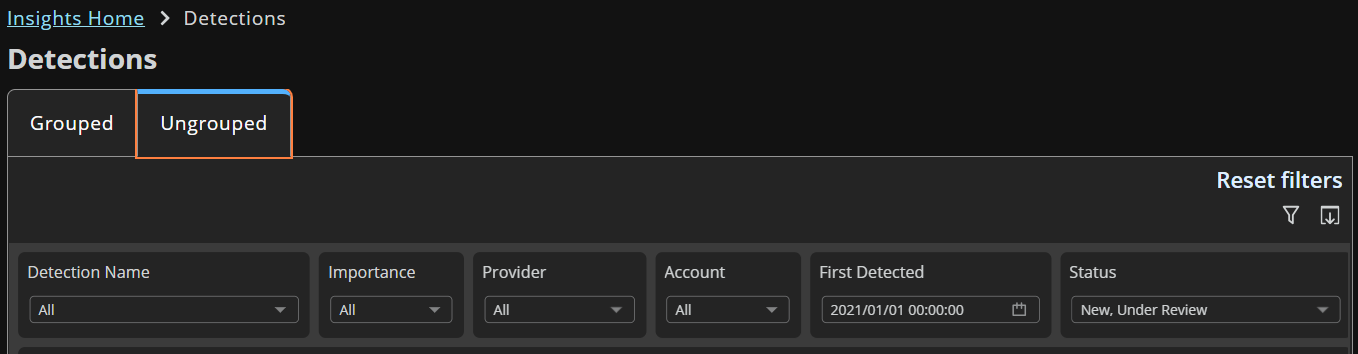
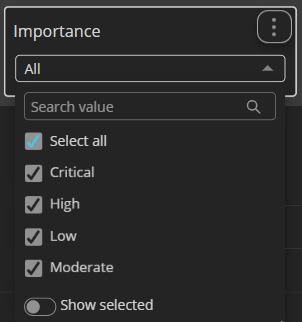
Select the down arrow to search and select filters.
Customize the display
- Click the column header to activate it.
- Click the arrow icon that displays to select a sort order.
- Select other options to further customize the view.
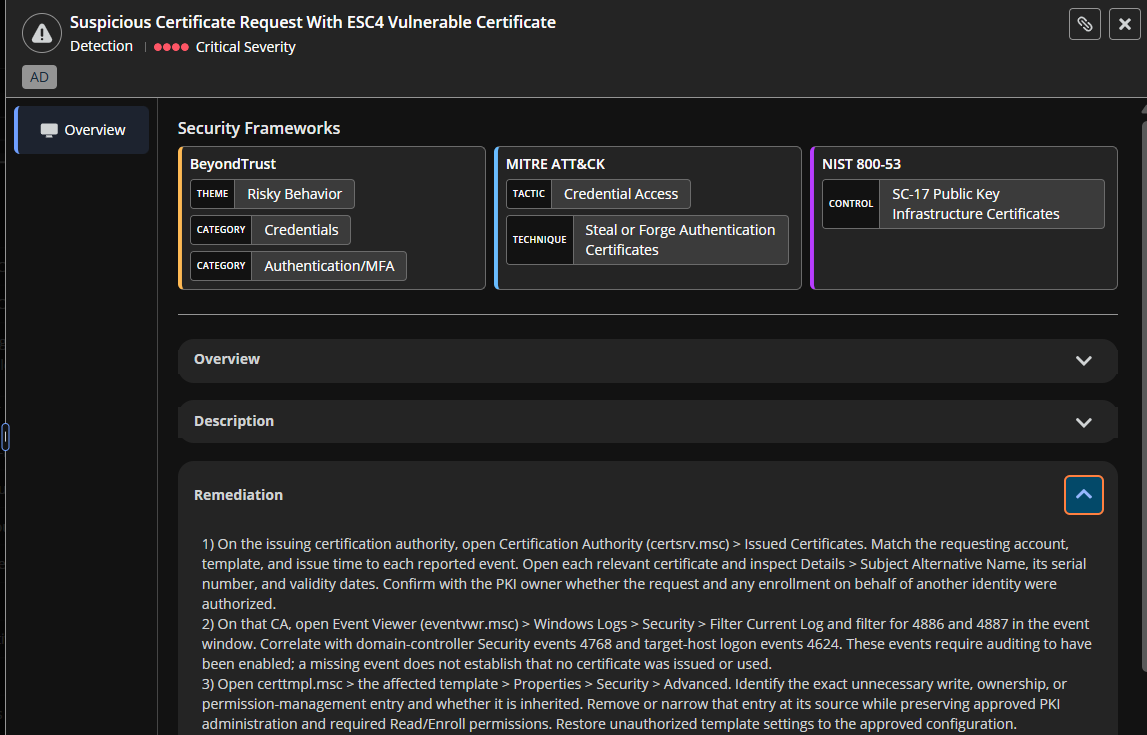
Remediation steps
The Remediation section of a detection lists the steps to resolve the finding. Where they apply, steps include console paths and commands, so you can complete the fix without consulting vendor documentation.
Verify the fix
Most remediations end with a verification step. Complete this step to confirm the change took effect before you close the finding.
Steps for each provider
When a finding spans more than one provider, the Remediation section shows a tab for each provider. Select a tab to view the steps for that provider.
When you open a finding for a specific account, the Remediation section shows only the steps for that account's provider.
Updated 10 days ago
