
AI explanations | Insights
AI explanations translate any privilege path or finding into a plain-language breakdown. No prompt writing required. Select a node or open a finding, click a button, and get an explanation that covers what the path or detection means, the risk it represents, and what to do about it.
Explanations persist for the session and can be copied at any time after they finish generating.
AI explanations are off by default and are only available to United States region sites.
Turn on AI explanations
You must be an administrator to complete this task.
- Go to Site Settings > Platform AI Features.
- Set Identity Security Insights AI features to On.
The Explain Path and Generate Explanation buttons are now available to all users in the graph, detection, and recommendation panels.
Explain a privilege path
-
Open the graph for a Secrets, AI Agents, Entitlements, or Accounts finding.
-
Select the side panel to open the graph in detail view.
-
Select a node along the path such as the secret or account at the end of the node.
-
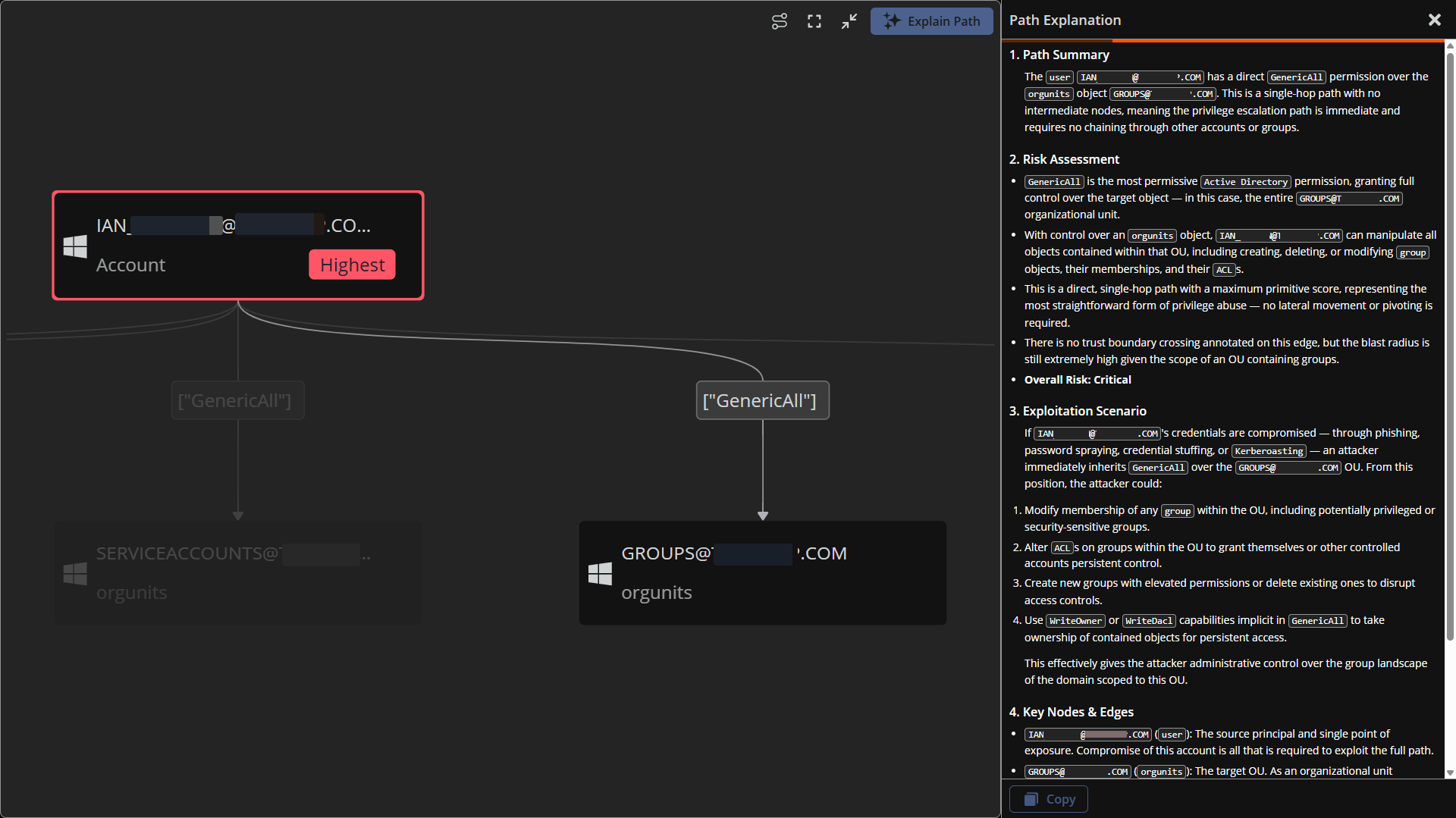
Click Explain Path.
The Path Explanation panel opens and streams a breakdown of how the path chains together, the risk it represents, how an attacker could exploit it, and the key nodes and relationships involved.
Generate an explanation for a detection or recommendation
- Open a detection or recommendation.
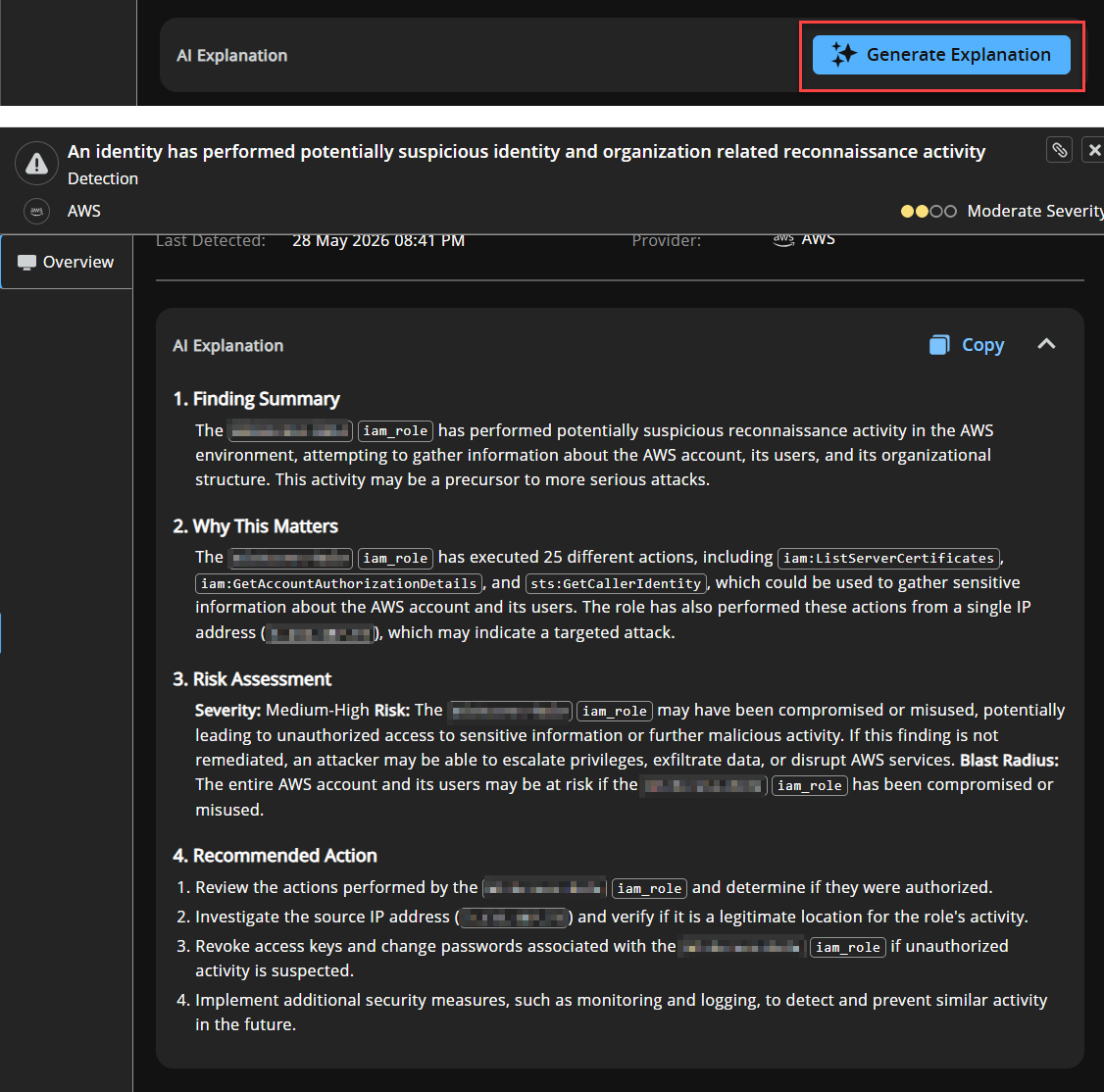
- In the AI Explanation section, click Generate Explanation.
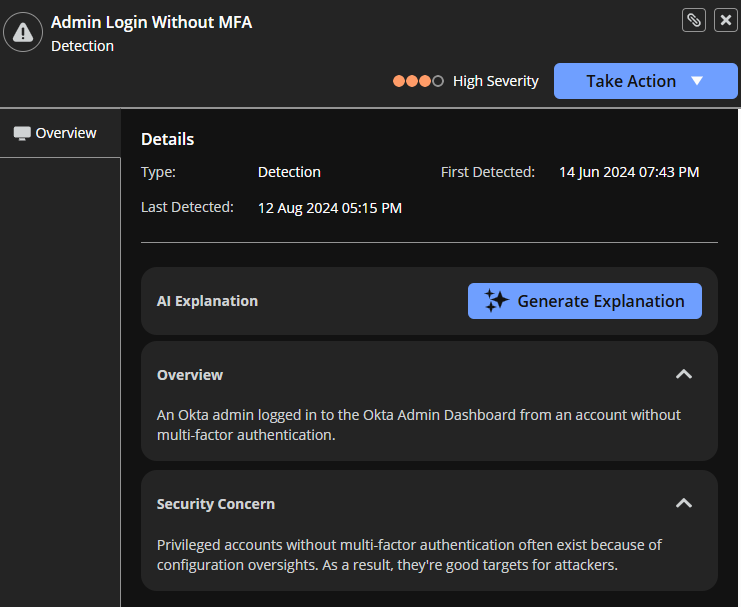
The panel streams a summary of the finding, why it matters in your environment, a severity and blast radius assessment, and recommended remediation actions.
Copy an explanation
After an explanation finishes generating, click Copy to copy the full text to your clipboard.
Copy the explanation directly into a ticket, incident note, or message.
Updated 2 months ago
