
Workspaces | Insights
Identity Security Insights can discover thousands of accounts across many providers. That full view is right for someone who oversees the whole organization. It's the wrong view for someone who owns two AWS accounts and one Microsoft Entra ID tenant.
A workspace is a saved, named scope built from the environments Insights has already discovered. When you select a workspace, Insights filters its pages to show only the environments in that scope.
ImportantA workspace filters every supported page, not only the page where you selected it. If results look incomplete on any page, check the Workspaces picker in the top-right corner.
How workspaces work
- Build a scope from discovered environments. You choose from the environments Insights has already found in your tenant, so you don't need to look up IDs.
- Your selection applies across Insights. The workspace you select stays applied as you move between pages, until you select a different workspace or clear the selection.
- Workspaces are shared. Any workspace you create is available to everyone in your tenant, and stays available unless it is deleted. Your selected workspace applies only to your current session, so you need to select it again the next time you sign in.
- A workspace filters the view. It changes what you see on each page.
You can scope a workspace to a whole top-level environment, or to specific environments within it, such as:
| Provider | Whole environment | Specific environments |
|---|---|---|
| Amazon Web Services (AWS) | AWS organization | Accounts |
| Microsoft Entra ID | Entra tenant | Subscriptions |
| Google Cloud | Google Cloud organization | Projects |
| GitHub | GitHub organization | Repositories |
Create a workspace
-
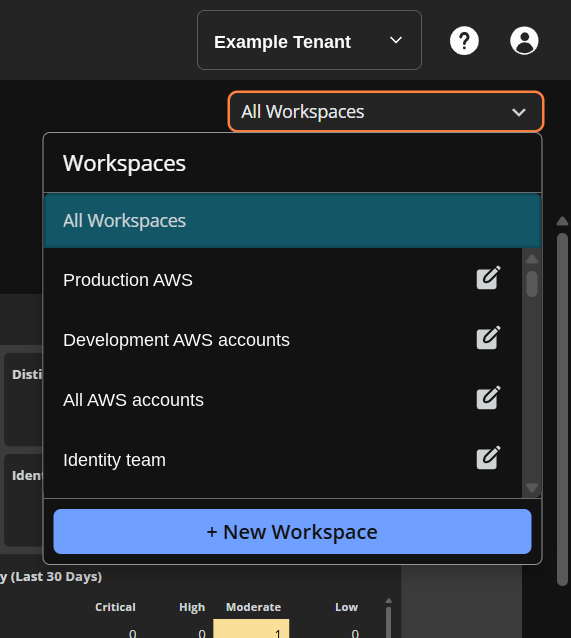
In the top-right corner of any Insights page, select the Workspaces picker.
-
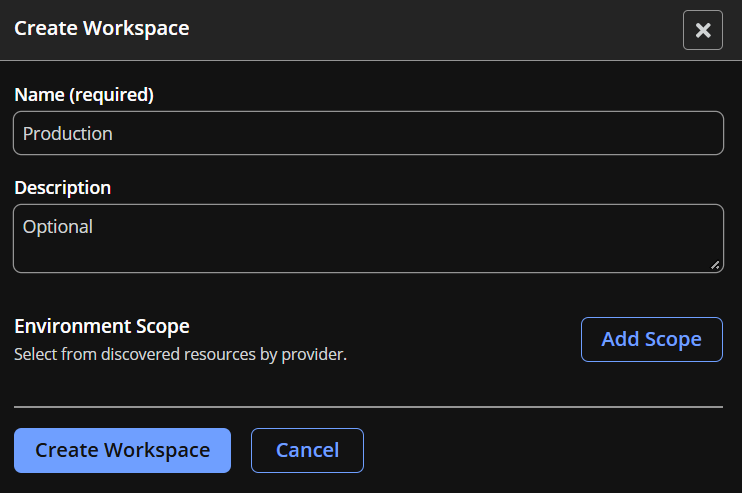
Click + New Workspace.
-
Enter a Name for the workspace.
-
(Optional) Enter a Description.
-
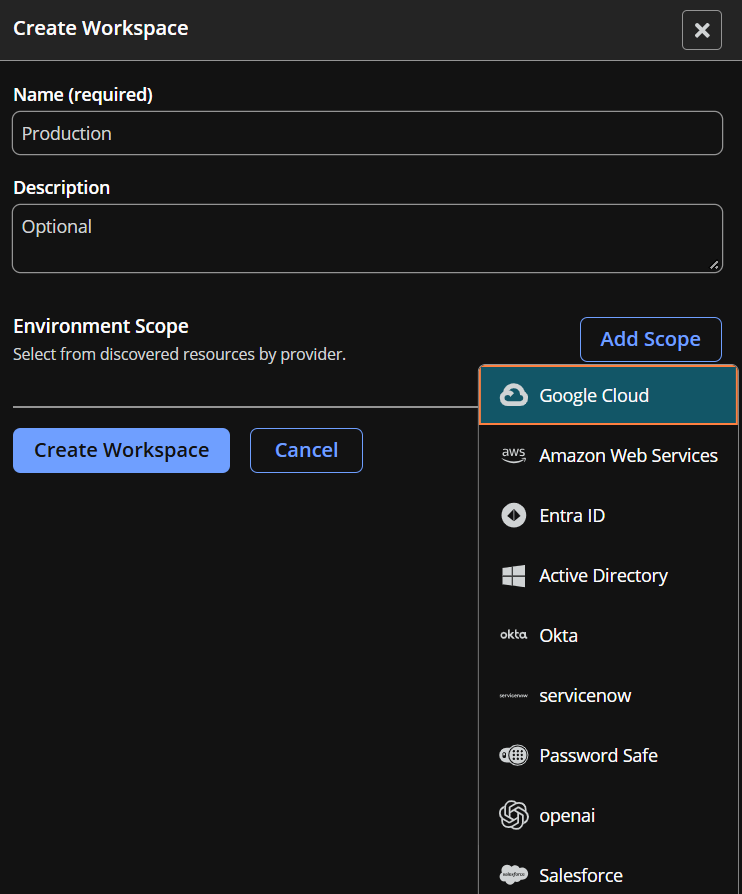
Click Add Scope.
-
Select a provider.
-
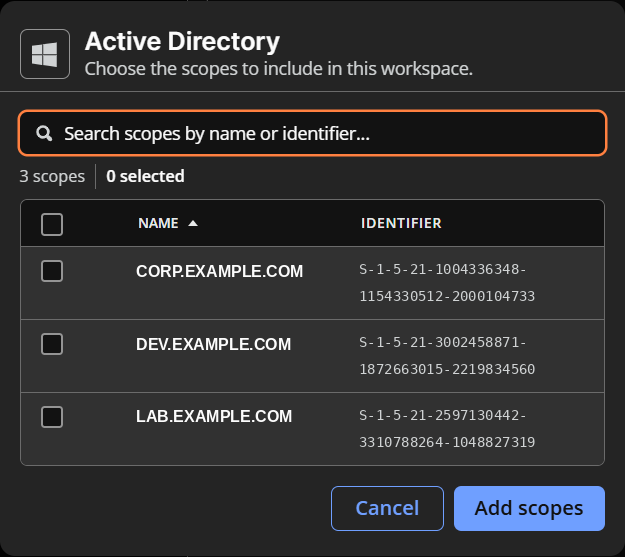
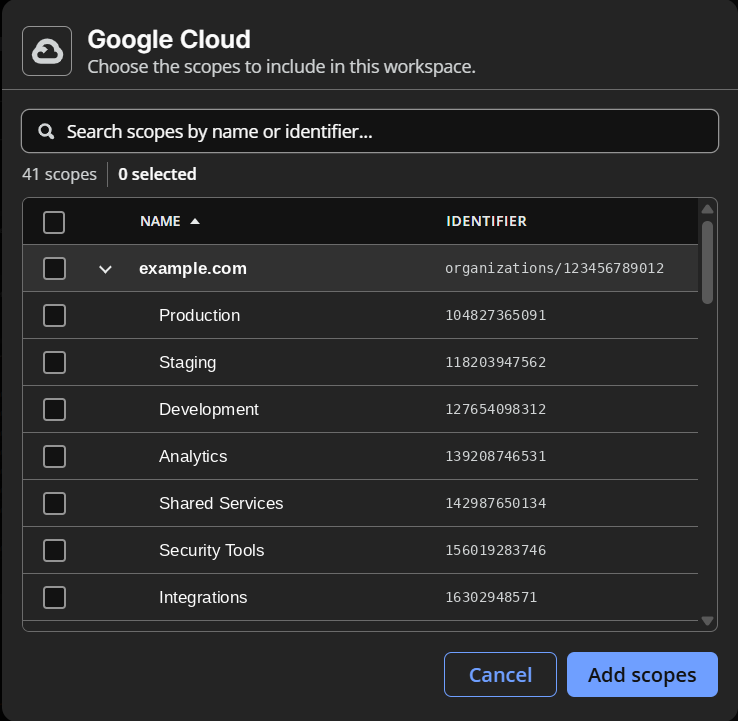
Select the environments to include. Select the whole organization or tenant, or select specific accounts, subscriptions, projects, or repositories.
-
Click Add scopes.
-
To add environments from another provider, repeat steps 5–8.
-
Click Create Workspace.
Select or clear a workspace
- To turn on a workspace, click the Workspaces picker, and then select the workspace.
- To view your whole tenant, click the Workspaces picker, and then select All workspaces.
Edit or delete a workspace
-
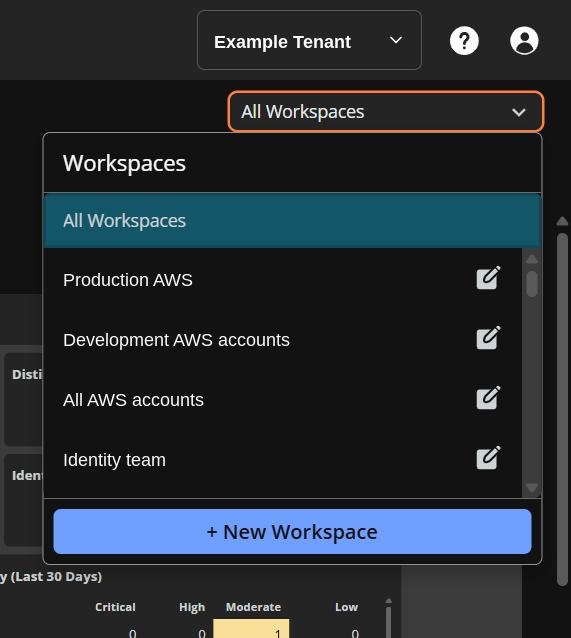
In the top-right corner of any Insights page, select the Workspaces picker.
-
Next to the workspace, click the edit icon.
The Edit Workspace panel displays.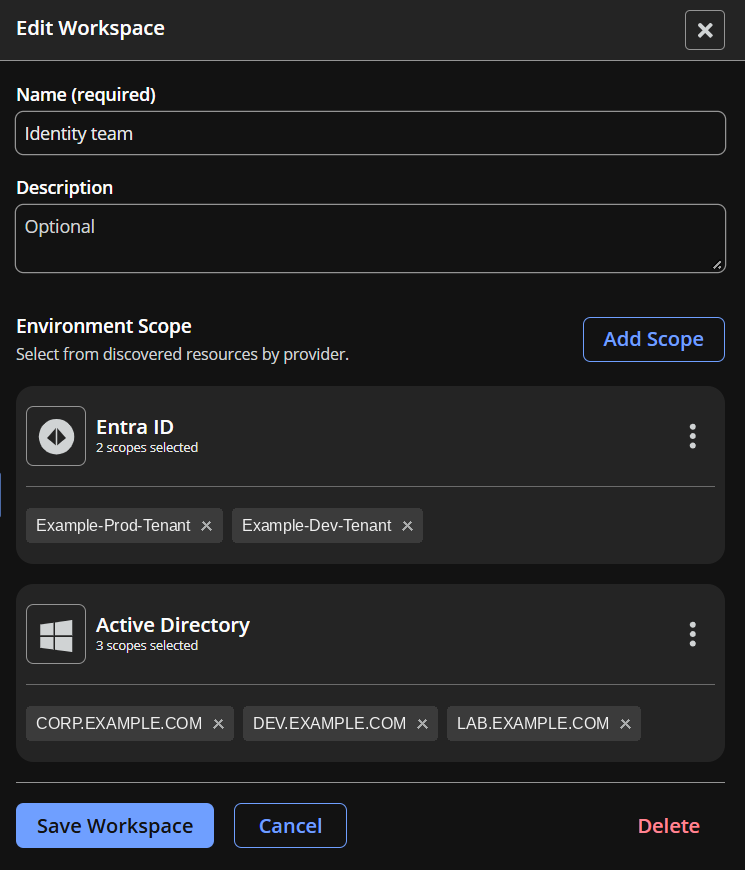
-
Make your changes:
- To change the name or description, edit the Name or Description field.
- To add scopes, select Add Scope.
- To edit scopes click ⁝, then select Edit scopes.
- To remove all scopes, click ⁝, then select Remove all.
- To remove a single scope, select the × on that scope.
- Select Save Workspace.
To delete the workspace, select Delete in the Edit Workspace panel. You must type "delete" and click Delete to remove the workspace.
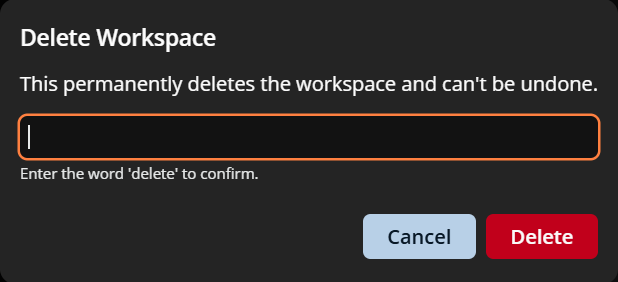
ImportantWorkspaces are shared with everyone in your tenant. Deleting a workspace removes it for all users.
What a workspace filters
- Dashboards
- Security Risk Assessment
- Identities
- Accounts
- Entitlements
- Secrets Security
- AI Security
- Insights
Detail side panels and path views aren't filtered by your workspace. They show an object's full context, including connections to environments outside your workspace. This means you can still see a path to privilege that starts in your workspace and leads somewhere else.
Connector Health always reports on your whole tenant, so you can see the status of every connector regardless of the workspace you selected.
Troubleshoot workspaces
Results look incomplete
A workspace is probably selected. Check the Workspaces selector in the top-right corner. To see your whole tenant, select All workspaces.
A path view shows objects outside my workspace
This is expected. Path views and detail side panels show an object's full context, including connections outside your workspace.
Connector Health shows connectors that aren't in my workspace
This is expected. Connector Health always reports on your whole tenant.
An environment I need doesn't appear when I add a scope
You can add only environments that Insights has already discovered. Confirm that the connector for that provider is set up and healthy. For more information, see Connectors.
Updated about 1 hour ago
