
Exclusion rules | Insights
What are exclusion rules?
To exclude specific results from appearing in an Insights app's detections or recommendations, Insights has exclusion rules, which are defined to fine-tune the results in your dashboards.
Manage exclusion rules
To manage exclusion rules, click the Menu button in your navigation bar, and click Exclusion Rules. If any exclusion rules exist, a list displays an overview of the rule's name and description.
Edit or delete exclusion rules
Edit rules by clicking the rule's Name and delete a rule by clicking the action menu to the right of the rule and selecting Delete.
The Exclusion Rules page
Your selected workspace filters the results on this page. If results look incomplete, check the Workspaces picker in the top-right corner. For more information, see What a workspace filters.
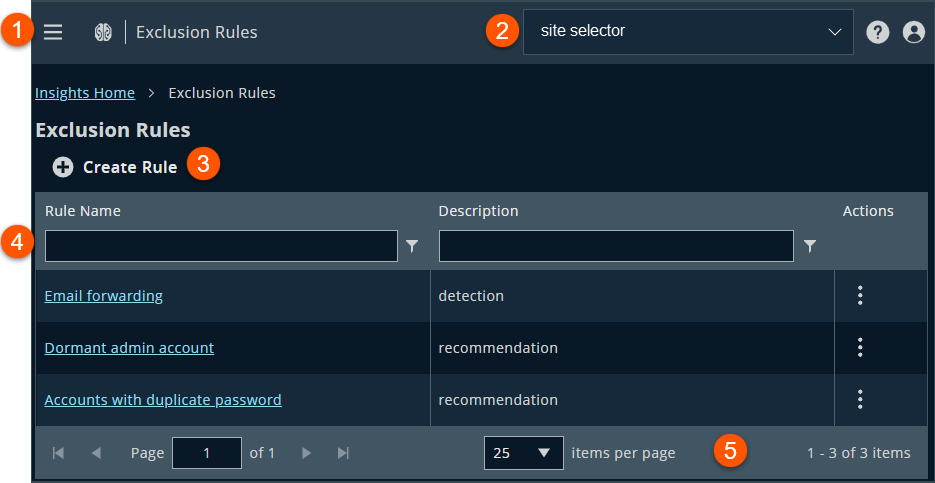
- Navigation menu: Access BeyondTrust apps and their menus, and Pathfinder administration pages if you are assigned as an administrator.
- Header: Select a site or Administration from the menu, manage your profile, and change the display theme.
- Create an exclusion rule.
- Filters: Select a filter to refine your results.
Filter types
Rule name: Enter a digit in the Rule Name field and, optionally, select a filter. Filters include is equal to, is not equal to, contains, Starts with, Ends with, and Does not contain.
Description: Enter a digit in the Description field and, optionally, select a filter. Filters include is equal to, is not equal to, contains, Starts with, Ends with, and Does not contain.
- Rule list columns:
Column names
Rule Name: Displays the name of the rule.
Description: Displays the description.
- List navigation options: Navigate in the Exclusion Rules list.
Create an exclusion rule
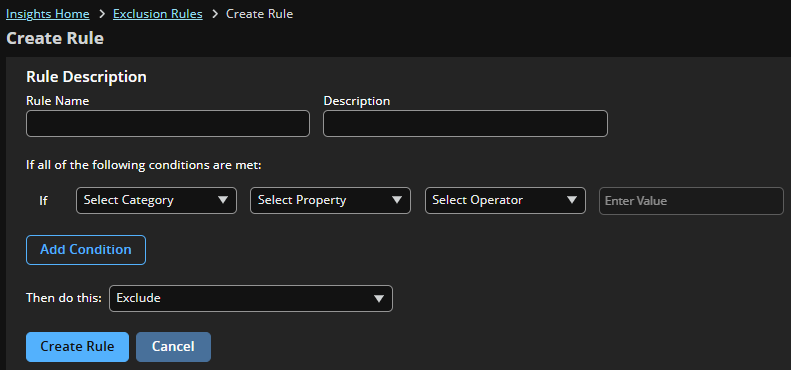
- Click Create Rule to add a new exclusion rule, and provide the rule a user-friendly Name and Description.
-
Under If all of the following conditions are met:, select detection or recommendation from the Category dropdown, and select values for the following:
- The Property dropdown allows you to select which property of the detection (e.g., name) you would like to filter on.
- The Operator dropdown determines the relationship of the property to the value (e.g. is or is not).
- The Value dropdown allows you to select a detection or recommendation to filter on.
For example, a condition with the property Name, the operator Is, and the value Account associated with personal email will exclude personal email detections from your dashboards.

-
Click Create Rule to save the rule. It may take a few hours for data to be reprocessed with the new rule.
Filter by account or identity
Further filter exclusion rules by account name or identity. Adding this condition applies the rule to only the matching account or identity.
- Click Add Condition to add a second condition to your exclusion rule, and select values for the following:
- The Category dropdown allows you to select between filtering on an account or an identity.
- The Property dropdown allows you to select which property of the category (i.e., name) you would like to filter on.
- The Operator dropdown determines the relationship of the property to the value (i.e. is or is not).
- The Value dropdown allows you to select the specific detection to filter on.
For example, a condition with the category Account, the property Name, the operator Is, and the value of an email address will only apply the exclusion rule to the provided email.
- Click Create Rule to save the rule. It may take a few hours for data to be reprocessed with the new rule.
An account or identity condition can only be added as a second condition to an exclusion rule.
Updated 8 days ago
