
Role-Based Policy transactions | EPM-L
The transactional Role-Based Policy (RBP) editing feature is designed to enhance performance and data integrity by allowing you to group a series of related policy changes into a single, cohesive unit called a transaction.
Instead of making individual, immediate updates to the live policy database, all your changes are temporarily stored. This prevents potential service interruptions and ensures that other users only see a complete, consistent set of changes.
Initiate a transaction
- Navigate to the Policy Management section of the application.
- At this point, all policy pages are in a read-only state.
- Select a tile.
- Click Start Policy Edits.
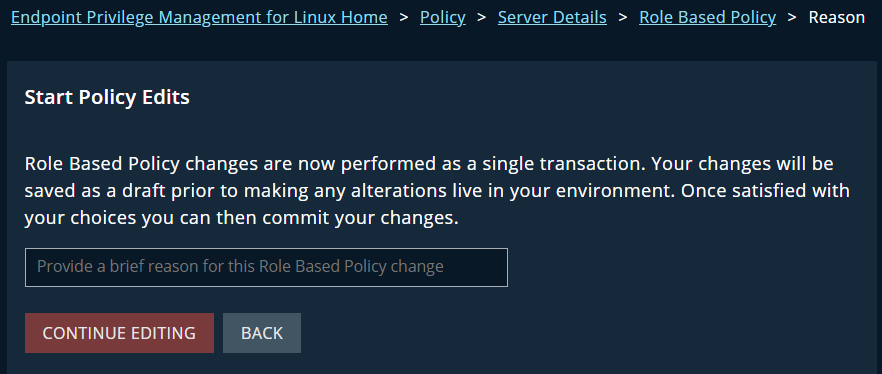
- Provide a reason for the transaction (for example, Updating permissions for new IT team members). This reason serves as a record for all administrators and will be visible in the transaction history.
- A message displays if another user has an active transaction. In the future, this notification will include details about the user and their reason, and will offer the option to override their transaction.
- Click Continue Editing. The page reloads, and the Edit Role Based Policy button changes to Review Policy Edits button. The policy pages are now fully editable.
Make and store your changes
- Change the policy configuration, such as adding or deleting users, creating new roles, or modifying access permissions.
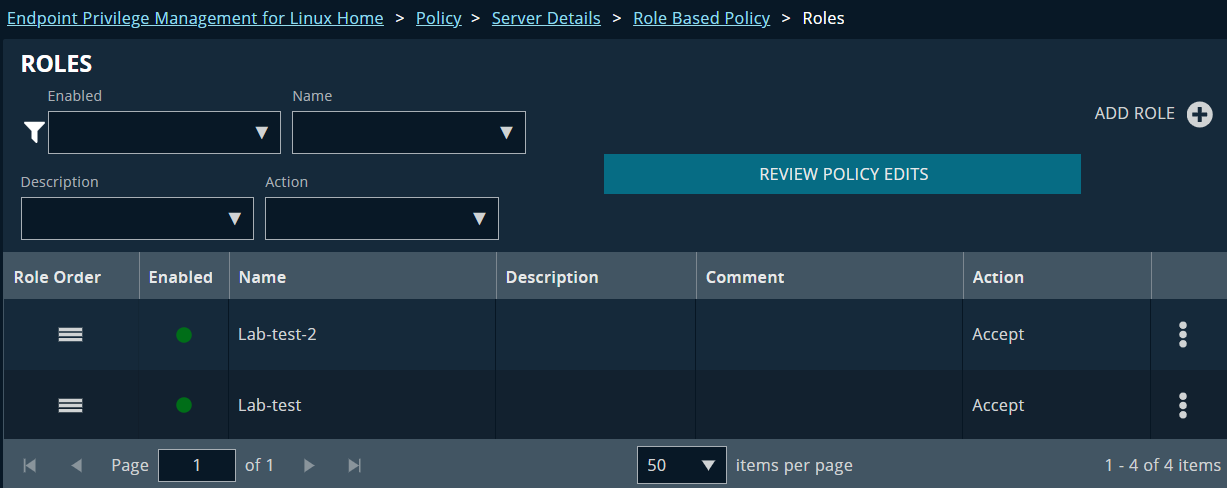
- Changes are not saved to the live database but to a temporary, private "shadow table" on the server unique to your transaction.
- Other administrators and end-users will not see your changes until you finalize the transaction. You can take your time to make multiple changes across different policy sections (e.g., users, roles, and schedule groups) without affecting the live environment.
- EPM-L is designed to handle this temporary state robustly, ensuring that even if a service restart occurs, your uncommitted changes remain safely in your shadow table.
Finalize the transaction (Commit or Cancel)
- Click Review Policy Edits.
A Transaction Summary page displays a list of all changes you are about to apply. Review the summary.
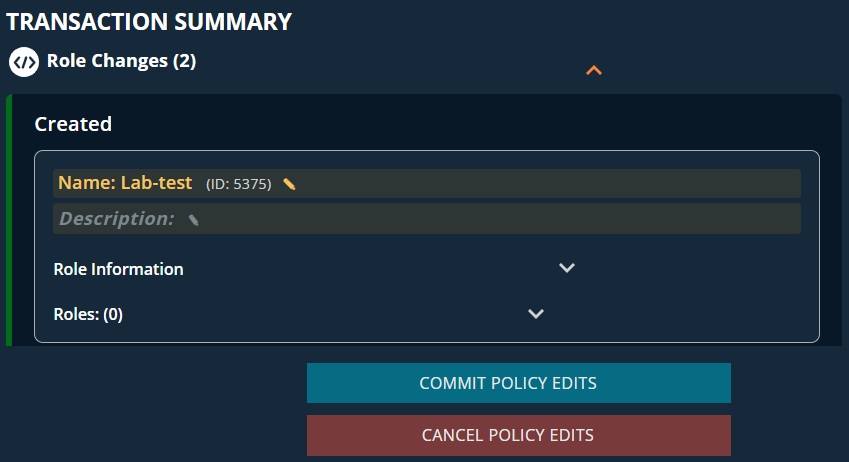
- When your changes are ready, you have two options:
- To save changes, click Commit Policy Edits.
All changes from the shadow table are applied to the live policy database simultaneously. This is a critical step that ensures data consistency and minimizes the risk of service interruptions. After a successful commit, all changes are immediately visible to every user. - To cancel the changes, click Cancel Policy Edits. A confirmation displays warning that all changes made during the transaction will be permanently discarded.
If you confirm, the system reverts to the exact state it was in before you started the transaction. This is a form of rollback that ensures no incomplete or unwanted changes are ever applied. The policy pages return to their default read-only state.
- To save changes, click Commit Policy Edits.
Updated 2 months ago
