
Security providers | RS Pathfinder
What are security providers?
Security providers authenticate users against existing identity sources like LDAP, RADIUS, Kerberos, OpenID Connect, or SAML servers. They can also assign privileges based on the hierarchy and group settings defined in those servers.
How are security providers useful?
Security providers streamline user authentication by leveraging existing directory services with LDAP, enable single sign-on with SAML, OpenID Connect, and Kerberos, and enhance security through two-factor authentication methods like RSA via RADIUS.
How do I access the Security Providers page?
- Sign into app.beyondtrust.io.
The BeyondTrust Home page displays. - From the main menu, click Remote Support > Users & Security.
The User & Security page opens and the Users tab displays by default. - Click the Security Providers tab.
The Security Providers tab displays.
For users moving from Cloud or On-premises
The way authentication providers are managed in Remote Support on Pathfinder differs from Cloud and On-premises. Instead of configuring them directly in the admin interface of Remote Support, authentication providers are created and managed through the Pathfinder Platform.
All tasks related to creating and maintaining security providers must now be performed within Pathfinder configuration. This decreases the amount of administrative overhead and standardizes authentication configuration when configuring users across all BeyondTrust products.
Remote Support connects to the Pathfinder Platform using OpenID Connect (OIDC), which is automatically set up during the provisioning of your Pathfinder tenant.
As a result, all configuration of local and SAML users is managed at the Pathfinder Platform level, not within individual instances of the Remote Support (Remote Support) product.
SAML users and groups defined in Pathfinder are exposed within the Admin interface of Remote Support, where user and groups can be used for individual assignments or group policy configurations.
You do have the ability to add SAML for Public Portals.
The Security Providers page
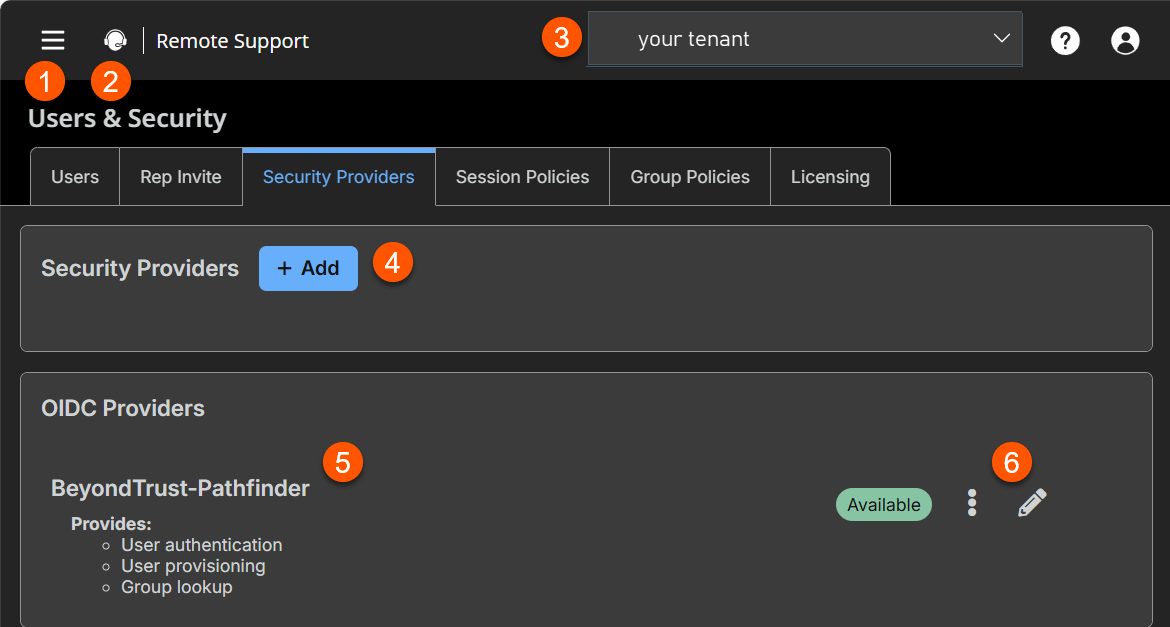
- Security Providers: A list of security providers is located on the Administration > Identity & Authentication Providers page.
- OIDC Provider: A list of OIDC providers.
- Security Providers list options: Edit a OIDC Security Provider.
How to manage security providers
Security providers are configured in the Administration tenant in Pathfinder. To add, edit, or delete a security provider, see Identity providers.
Edit an OIDC provider
- From the Security Providers page, locate the provider from the OIDC Provider section.
- To edit the provider, click
 .
. - Make the necessary changes, then click Save.
To view the security provider log
- From the Security Providers page, locate the provider from the OIDC Provider section.
- Click
 > View Log.
