
Security providers | RS Cloud
What are security providers?
Security providers authenticate users against existing identity sources like LDAP, RADIUS, Kerberos, OpenID Connect, or SAML servers. They can also assign privileges based on the hierarchy and group settings defined in those servers.
How are security providers useful?
Security providers streamline user authentication by leveraging existing directory services with LDAP, enable single sign-on with SAML, OpenID Connect, and Kerberos, and enhance security through two-factor authentication methods like RSA via RADIUS.
How do I access the Security Providers page?
- Use a Chromium-based browser to sign in to your Remote Support URL.
This URL is provided in the BeyondTrust welcome email and includes your site URL followed by /login. - From the left menu, click Users & Security.
The Users page opens and displays by default. - At the top of the page, click Security Providers.
The Security Providers page displays.
Add a security provider
- On the Security providers page, click + Add, and then select the security provider type from the list.
The Add Security Provider page displays. - Configure the security provider based on the security provider type selected.
LDAP
LDAP fields
-
Name: Create a unique name to help identify this provider.
-
Enabled: If checked, your appliance can search this security provider when a user attempts to log in to the representative console or /login. If unchecked, this provider will not be searched.
-
User authentication: This allows this provider to be used to authenticate users. If deactivated, this provider may be used only to look up groups for user permissions.
-
Keep user information synchronized with the LDAP server: The display names are set according to the User Schema Settings defined below. If you are planning to sync a user's photo attribute, this option must be checked.
-
Authorization settings
-
Enable LDAP object cache: If checked, LDAP objects visible to the appliance are cached and synchronized nightly, or manually, if desired. When using this option, fewer connections are made to the LDAP server for administrative purposes, thereby potentially increasing speed and efficiency.
If unchecked, changes to the LDAP server are immediately available without the need to synchronize. However, when you make changes on user policies through the administrative interface, several short-lived LDAP connections may occur as necessary.
For providers that have previously had the synchronization setting enabled, disabling the synchronization option will cause all cached records that are currently not in use to be deleted.
-
Lookup groups: Choose to use this security provider only for user authentication, only for group lookups, or for both. User Authentication must be selected if you want to turn group lookup off.
-
Default group policy: (Visible only if user authentication allowed) Each user who authenticates against an external server must be a member of at least one group policy in order to authenticate to your appliance, logging into either the /login interface or the representative console. You can select a default group policy to apply to all users allowed to authenticate against the configured server.
If a default policy is defined, then any allowed user who authenticates against this server will potentially have access at the level of this default policy. Therefore, it is recommended that you set the default to a policy with minimum privileges to prevent users from gaining permissions that you do not wish them to have.
If a user is in a default group policy and is then specifically added to another group policy, the settings for the specific policy will always take precedence over the settings for the default, even if the specific policy is a lower priority than the default, and even if the default policy's settings are set to disallow override.
-
LDAP search: The search method determines how available members are found for this provider in group policies. The prefix method searches only at the beginning of names, while the substring method looks for the pattern anywhere within the name. Note that the substring method can be very slow on some LDAP servers. If you choose substring, please adjust the Paged Search Timeout accordingly.
-
Paged search timeout: (Visible only if substring search selected) Set how long a search should run before timing out.
-
-
Connection settings (Not visible for clusters)
-
Hostname: Enter the hostname of the server that houses your external directory store.
If you will be using LDAPS or LDAP with TLS, the hostname must match the hostname used in your LDAP server's public SSL certificate's subject name or the DNS component of its alternate subject name.
-
Port: Specify the port for your LDAP server. This is typically port 389 for LDAP or port 636 for LDAPS. BeyondTrust also supports global catalog over port 3268 for LDAP or 3269 for LDAPS.
-
Encryption: Select the type of encryption to use when communicating with the LDAP server. For security purposes, LDAPS or LDAP with TLS is recommended.
Regular LDAP sends and receives data in clear text from the LDAP server, potentially exposing sensitive user account information to packet sniffing. Both LDAPS and LDAP with TLS encrypt user data as it is transferred, making these methods recommended over regular LDAP. LDAP with TLS uses the StartTLS function to initiate a connection over clear text LDAP but then elevates this to an encrypted connection. LDAPS initiates the connection over an encrypted connection without sending any data in clear text whatsoever.
If you select LDAPS or LDAP with TLS, you must upload the Root SSL Certificate used by your LDAP server. This is necessary to ensure the validity of the server and the security of the data. The Root Certificate must be in PEM format. A certificate chain cannot be used.
If the LDAP server's public SSL certificate's subject name or the DNS component of its alternate subject name does not match the value in the Hostname field, the provider will be treated as unreachable. You can, however, use a wildcard certificate to certify multiple subdomains of the same site. For example, a certificate for *.example.com would certify both support.example.com and remote.example.com.
-
Bind credentials: Specify a username and password with which your appliance can bind to and search the LDAP directory store.
Binding credentials require a specific notation. Enter the username in the following format:
- DOMAIN\Username
- If your version of Active Directory does not support this notation use, USERNAME@DOMAIN
If your server supports anonymous binds, you may choose to bind without specifying a username and password. Anonymous binding is considered insecure and is turned off by default on most LDAP servers.
-
Connection method: The Win32 connection agent enables your directory server and your appliance to communicate via an SSL-encrypted, outbound connection, with no firewall configuration. The connection agent can be downloaded to either the directory server or a separate server on the same network as your directory server (recommended).
Create a Connection Agent Password for use in the connection agent installation process. Then click Download Connection Agent, run the installer, and follow the installation wizard. During installation, you will be prompted to enter the security provider name and the connection agent password you created above.
-
-
Cluster settings (Visible only for clusters)
-
Member selection algorithm: Select the method to search the nodes in this cluster.
-
Top-to-bottom first attempts the server with the highest priority in the cluster. If that server is unavailable or the account is not found, the next highest priority server is attempted. The search moves down through the list of clustered servers until either the account is found or it is determined that the account does not exist on any of the specified and available servers.
-
Round-robin is designed to balance the load between multiple servers. The algorithm chooses at random which server to attempt first. If that server is unavailable or the account is not found, another random server is attempted. The search continues at random through the remaining servers in the cluster until either the account is found or it is determined that the account does not exist on any of the specified and available servers.
-
-
Retry delay: Set how long to wait after a cluster member becomes unavailable before trying that cluster member again.
-
-
Directory type: (Not visible for clusters) To aid in configuring the network connection between your appliance and your security provider, you can select a directory type as a template. This pre-populates the configuration fields below with standard data but must be modified to match your security provider's specific configuration. Active Directory LDAP is the most common server type, though you can configure BeyondTrust to communicate with most types of security providers.
-
User schema settings
-
Override cluster values: (Visible only for cluster nodes) If this option is unchecked, this cluster node will use the same schema settings as the cluster. If checked, you may modify the schema settings below.
-
Search base DN: Determine the level in your directory hierarchy, specified by a distinguished name, at which the appliance should begin searching for users. Depending on the size of your directory store and the users who require BeyondTrust accounts, you may improve performance by designating the specific organizational unit within your directory store that requires access. If you are not sure or if users span multiple organizational units, you may want to specify the root distinguished name of your directory store.
Examples
Example Explanation dc=example,dc=local This will search the entire directory structure of the company domain. ou=users,dc=example,dc=local This will search just the users organizational unit within the directory hierarchy, ignoring other organizational units such as computers or groups. ou=Atlanta,dc=example,dc=local This will search users and groups with a location of Atlanta. -
User query: Specify the query information that the appliance should use to locate an LDAP user when the user attempts to log in. The User Query field accepts a standard LDAP query (RFC 2254 - String Representation of LDAP Search Filters). You can modify the query string to customize how your users log in and what methods of usernames are accepted. To specify the value within the string that should act as the username, replace that value with *.
Examples
Example Explanation (&(sAMAccountName=*)(objectClass=user)↵
(objectClass=person)))When jsmith logs into his account, the appliance will search the LDAP server for an object where the sAMAccountName is equal to jsmith. (&(|(sAMAccountName=)(specialVendorAttribute=))↵
(objectClass=person)(objectClass=user))This will search for an object where either the sAMAccountName or specialVendorAttribute contains jsmith and has an object class of either person or user. -
Browse query: The browse query affects how results are displayed when browsing via group policies. This filters results so that only certain results display in the member selection dropdown when adding members to a group policy.
Examples
Example Explanation (objectClass=*) Default. Displays all objects returned by a query. (|(objectClass=user)(objectClass=organizationUnit)) Displays all user or organizationUnit object classes, filtering out any other objects. -
Object classes: Specify valid object classes for a user within your directory store. Only users who posses one or more of these object classes will be permitted to authenticate. These object classes are also used with the attribute names below to indicate to your appliance the schema the LDAP server uses to identify users. You can enter multiple object classes, one per line.
Examples
Example Explanation user Users must have an object class of user. user
personUsers must have an object class of user or person. -
Attribute names: Specify which fields should be used for a user's unique ID and display names.
-
Unique ID: This field requests a unique identifier for the object. While the distinguished name can serve as this ID, a user's distinguished name may change frequently over the life of the user, such as with a name or location change or with the renaming of the LDAP store. Therefore, most LDAP servers incorporate some field that is unique per object and does not change for the lifetime of the user. If you do use the distinguished name as the unique ID and a user's distinguished name changes, that user will be seen as a new user, and any changes made specifically to the individual's BeyondTrust user account will not be carried over to the new user. If your LDAP server does not incorporate a unique identifier, use a field that is least likely to have an identical entry for another user.
Examples
The syntax for this field is in the form of [object]:[attribute].
[object] Specifies the user object class, which must be in the form of a descriptor or the wildcard *, indicating all valid user classes. [attribute] Specifies the attribute that contains the unique user ID. This must be in the form of a descriptor or the special value ?, indicating the distinguished name of that user object.
Example Explanation *:objectGUID All classes have an objectGUID attribute which is a unique identifier. user:userGUID
person:personGUIDA user object has a userGUID attribute, a person object has a personGUID attribute, and both are unique. user:userGUID
*:objectGUIDA user object has a userGUID attribute which should be used, but all other classes have an objectGUID attribute. user:?
person:objectGUIDA user object has no unique identifier other than its distinguished name, but the person class has an objectGUID attribute which should be used.
You can mix and match specific definitions, entering each definition on a separate line. However, only one *:[attribute] definition is supported. If multiple wildcard definitions are entered, only the last one will be used.
-
E-mail: The email attribute synchronizes the user’s email address from LDAP. Note that the special ? and ! characters cannot be used.
-
Photo: This field allows you to configure LDAP providers to synchronize representative photos from LDAP. By default, the settings template for Active Directory, Novell eDirectory, and OpenLDAP all use the *:jpegPhoto attribute. Administrators can modify the attribute as necessary. If no attribute is specified, then no photos are retrieved from LDAP.
Photos in LDAP must be stored as a JPEG images, either as raw binary data or as Base64-encoded data. BeyondTrust Remote Support automatically detects the encoding and decodes it as needed.
Examples
The syntax for this field is in the form of [object]:[attribute].
[object] Specifies the user object class, which must be in the form of a descriptor or the wildcard *, indicating all valid user classes. [attribute] Specifies the attribute that contains the photo.
Example Explanation *:jpegPhoto All classes have a jpegPhoto attribute which stores the photo. user:jpegPhoto person:thumbnailPhoto A user object has a jpegPhoto attribute that stores the photo, and a person object has a thumbnailPhoto attribute that stores the photo. user:jpegPhoto *:thumbnailPhoto A user object has a jpegPhoto attribute which should be used, but all other classes should use a thumbnailPhoto attribute.
The ? and ! special characters are not supported for the photo attribute.
-
Use the same attribute for public and private display names: If this option is checked, you may specify separate values for the user's private and public display names.
-
Display names: These values determine which fields should be used as the user's private and public display names.
Examples
[object] Specifies the user object class, which must be in the form of a descriptor or the wildcard *, indicating all valid user classes. [attribute] Specifies the attribute that contains the desired display name. This must be in the form of either a descriptor or the special value ? or !. The special value ? uses the fully qualified distinguished name, while ! returns the value of the leftmost element of the distinguished name.
Example Explanation *:displayName All classes have a displayName attribute. user:! A user object should use the leftmost element of its distinguished name. user:displayName
person:fullNameA user object has a displayName attribute, and a person object has a fullName attribute. *:! For all classes, the leftmost element of the distinguished name should be used. user:displayName
*:!A user has a displayName attribute which should be used, but all other classes should use the value of the leftmost element of the distinguished name. user:?
*:!A user object should use the full distinguished name, but all other classes should use the value of the leftmost element of the distinguished name.
-
-
-
Group schema settings (Visible only if user authentication is deactivated)
-
Search base DN: Determine the level in your directory hierarchy, specified by a distinguished name, at which the appliance should begin searching for groups. Depending on the size of your directory store and the groups that require access to the appliance, you may improve performance by designating the specific organizational unit within your directory store that requires access. If you are not sure or if groups span multiple organizational units, you may want to specify the root distinguished name of your directory store.
Examples
Example Explanation dc=example,dc=local This will search the entire directory structure of the company domain. ou=groups,dc=example,dc=local This will search just the groups organizational unit within the directory hierarchy, ignoring other organizational units such as computers or users. ou=Atlanta,dc=example,dc=local This will search users and groups with a location of Atlanta. -
Browse query: The browse query affects how results are displayed when browsing via group policies. This filters results so that only certain results display in the member selection dropdown when adding members to a group policy.
Examples
Example Explanation (objectClass=*) Default. Displays all objects returned by a query. (|(objectClass=user)(objectClass=organizationUnit)) Displays all user or organizationUnit object classes, filtering out any other objects. -
Object classes: Specify valid object classes for a group within your directory store. Only groups that posses one or more of these object classes will be returned. These object classes are also used with the attribute names below to indicate to your appliance the schema the LDAP server uses to identify groups. You can enter multiple group object classes, one per line.
Examples
Example Explanation group Groups must have an object class of group. group
groupOfUniqueNamesGroups must have an object class of group or groupOfUniqueNames. -
Attribute names: Specify which fields should be used for a group's unique ID and display name.
-
Unique ID: This field requests a unique identifier for the object. While the distinguished name can serve as this ID, a group's distinguished name may change frequently over the life of a group, such as with a location change or with the renaming of the LDAP store. Therefore, most LDAP servers incorporate some field that is unique per object and does not change for the lifetime of the group. If you do use the distinguished name as the unique ID and a group's distinguished name changes, that group will be seen as a new group, and any group policies defined for that group will not be carried over to the new group. If your LDAP server does not incorporate a unique identifier, use a field that is least likely to have an identical entry for another group.
Examples
The syntax for this field is in the form of [object]:[attribute].
[object] Specifies the group object class, which must be in the form of a descriptor or the wildcard *, indicating all valid group classes. [attribute] Specifies the attribute that contains the unique group ID. This must be in the form of a descriptor or the special value ?, indicating the distinguished name of that group object.
Example Explanation *:objectGUID All classes have an objectGUID attribute which is a unique identifier. group:groupGUID
*:objectGUIDA group object has a groupGUID attribute which should be used, but all other classes have an objectGUID attribute. group:?
*:objectGUIDA group object has no unique identifier other than its distinguished name, but all other classes have an objectGUID attribute which should be used.
You can mix and match specific definitions, entering each definition on a separate line. However, only one *:[attribute] definition is supported. If multiple wildcard definitions are entered, only the last one will be used.
-
Display name: This value determines which field should be used as the group's display name.
Examples
The syntax for this field is in the form of [object]:[attribute].
[object] Specifies the user or group object class, which must be in the form of a descriptor or the wildcard *, indicating all valid user or group classes. [attribute] Specifies the attribute that contains the desired display name. This must be in the form of either a descriptor or the special value ? or !. The special value ? uses the fully qualified distinguished name, while ! returns the value of the leftmost element of the distinguished name.
Example Explanation *:displayName All classes have a displayName attribute. user:! A user object should use the leftmost element of its distinguished name. user:displayName
person:fullNameA user object has a displayName attribute, and a person object has a fullName attribute. *:! For all classes, the leftmost element of the distinguished name should be used. user:displayName
*:!A user has a displayName attribute which should be used, but all other classes should use the value of the leftmost element of the distinguished name. user:?
*:!A user object should use the full distinguished name, but all other classes should use the value of the leftmost element of the distinguished name.
-
-
User to group relationships
-
Relationships: This field requests a query to determine which users belong to which groups or, conversely, which groups contain which users.
Examples
The syntax for this field is in the form of [user_object]:[user_attribute]=[group_object]:[group_attribute].
[user_object] Specifies the user object class, which must be in the form of a valid object class or the wildcard *, indicating all valid user classes. [user_attribute] Specifies the attribute that contains the unique user ID. This must be in the form of a valid object class or the special value ?, indicating the distinguished name of that user object. [group_object] Specifies the group object class, which must be in the form of a valid object class or the wildcard *, indicating all valid group classes. [group_attribute] Specifies the attribute that contains the unique group ID. This must be in the form of a valid object class or the special value ?, indicating the distinguished name of that group object.
There are several ways that a user-to-group relationship may be stored in an LDAP store. One way is to store the groups to which a user belongs as a property of the user. This typically is seen in an attribute called memberOf, which may have multiple values, each value being the distinguished name of a group to which the user belongs.
Example Explanation :memberOf=:? All valid users have a memberOf attribute which stores the distinguished name of all valid groups to which that user belongs.
Another way is to store which users belong to a group as a property of the group. This is typically seen in an attribute called member, which may have multiple values, each value being the distinguished name of a user who belongs to that group.
Example Explanation :?=:member All valid groups have a member attribute which stores the distinguished name of all valid users who belong to that group.
Finally, some servers have optimized the process by including a special attribute on the user, listing all groups to which that user belongs, all groups to which those groups belong, and so forth, all in one field. The values may be distinguished names or a special attribute.
Example Explanation :tokenGroups=:objectSID All valid users have a tokenGroups attribute which stores the objectSID property of all valid groups to which that user belongs and to which those groups, in turn, belong. -
Perform recursive search for groups: You can choose to perform a recursive search for groups. This will run a query for a user, then queries for all of the groups to which that user belongs, then queries for all groups to which those groups belong, and so forth, until all possible groups associated with that user have been found.
Running a recursive search can have a significant impact on performance, as the server will continue to issue queries until it has found information about all groups. If it takes too long, the user may be unable to log in.
A non-recursive search will issue only one query per user. If your LDAP server has a special field containing all of the groups to which the user belongs, recursive search is unnecessary. Recursive search is also unnecessary if your directory design does not handle group members of groups.
Examples
Example Explanation :?=:member
(with recursive search on)LDAP searches for all groups of which the user is a member. It then searches for all groups that contain members by the distinguished names of the previously returned groups. It will repeat this process until no new results are found.
-
-
-
Test settings
-
Username and password: Enter a username and password for an account that exists on the server you are testing. This account must match the criteria for login specified in the configuration above.
-
Try to obtain user attributes and group memberships if the credentials are accepted: If this option is checked, your successful credential test will also attempt to check user attributes and group lookup.
For these features to be successfully tested they must be supported and configured in your security provider.
- Test: If your server is properly configured and you have entered a valid test username and password, you will receive a success message. Otherwise, you will see an error message and a log that will help in debugging the problem.
-
See Additional setup and tips to:
- Add LDAP users to your Remote Support instance
- Configure for Active Directory 2000/2003
- Troubleshoot the integration
RADIUS
RADIUS fields
-
Name: Create a unique name to help identify this provider.
-
Enabled: If checked, your appliance can search this security provider when a user attempts to log in to the representative console or /login. If unchecked, this provider will not be searched.
-
Keep display name synchronized with remote system: These values determine which fields should be used as the user's private and public display names.
-
Authorization settings
-
Only allow the following users: You can choose to allow access only to specified users on your RADIUS server. Enter each username separated by a line break. Once entered, these users will be available from the Add Policy Member dialog when editing group policies on the /login > Users & Security > Group Policies page.
If you leave this field blank, all users who authenticate against your RADIUS server will be allowed; if you allow all, you must also specify a default group policy.
-
Default group policy: Each user who authenticates against an external server must be a member of at least one group policy in order to authenticate to your appliance, logging into either the /login interface or the representative console. You can select a default group policy to apply to all users allowed to authenticate against the configured server.
-
LDAP group lookup If you want users on this security provider to be associated with their groups on a separate LDAP server, choose one or more LDAP group servers to use for group lookup.
-
-
Connection settings
-
Hostname: Enter the hostname of the server that houses your external directory store.
-
Port: Specify the authentication port for your RADIUS server. This is typically port 1812.
-
Timeout (seconds): Set the length of time to wait for a response from the server. Note that if the response is Response-Accept or Response-Challenge, then RADIUS will wait the entire time specified here before authenticating the account. Therefore, it is encouraged to keep this value as low as reasonably possible given your network settings. An ideal value is 3-5 seconds, with the maximum value at three minutes.
-
Connection method: The Win32 connection agent enables your directory server and your appliance to communicate via an SSL-encrypted, outbound connection, with no firewall configuration. The connection agent can be downloaded to either the directory server or a separate server on the same network as your directory server (recommended).
Create a Connection Agent Password for use in the connection agent installation process. Then click Download Connection Agent, run the installer, and follow the installation wizard. During installation, you will be prompted to enter the security provider name and the connection agent password you created above.
-
Shared secret: Provide a new shared secret so your appliance and your RADIUS server can communicate.
-
-
Cluster settings (Visible only for clusters)
-
Member selection algorithm: Select the method to search the nodes in this cluster.
-
Top-to-bottom first attempts the server with the highest priority in the cluster. If that server is unavailable or the account is not found, the next highest priority server is attempted. The search moves down through the list of clustered servers until either the account is found or it is determined that the account does not exist on any of the specified and available servers.
-
Round-robin is designed to balance the load between multiple servers. The algorithm chooses at random which server to attempt first. If that server is unavailable or the account is not found, another random server is attempted. The search continues at random through the remaining servers in the cluster until either the account is found or it is determined that the account does not exist on any of the specified and available servers.
-
-
Retry delay: Set how long to wait after a cluster member becomes unavailable before trying that cluster member again.
-
-
Test settings
-
Username and password: Enter a username and password for an account that exists on the server you are testing. This account must match the criteria for login specified in the configuration above.
-
Try to obtain user attributes and group memberships if the credentials are accepted If this option is checked, your successful credential test will also attempt to check user attributes and group lookup.
For these features to be successfully tested, they must be supported and configured in your security provider.
- Test If your server is properly configured and you have entered a valid test username and password, you will receive a success message. Otherwise, you will see an error message and a log that will help in debugging the problem.
-
See Additional setup and tips to:
- Authenticate using on-time passwords (OTP)
- Configure for Windows 2000/2003 IAS
- Troubleshoot the integration
Kerberos
Kerberos fields
Prerequisites
- Ensure you have a working Kerberos Key Distribution Center (KDC).
- Synchronize clocks across all clients, the KDC, and the appliance (Network Time Protocol is recommended).
- Create a service principal on the KDC for your appliance.
-
Name: Create a unique name to help identify this provider.
-
Enabled: If checked, your appliance can search this security provider when a user attempts to log in to the representative console or /login. If unchecked, this provider will not be searched.
-
Keep display name synchronized with remote system: If selected, a Kerberos-authenticated user's display name will be their User Principal Name. If deselected, display names can be edited locally on the appliance.
-
Strip realm from principal names: Select this option to remove the REALM portion from the User Principal Name when constructing the BeyondTrust username.
-
Authorization settings
-
User handling mode: Select which users can authenticate to your appliance.
-
Allow all users: Allows anyone who currently authenticates via your Key Distribution Center (KDC).
-
Allow only user principals specified in the list: Allows only specifically designated user principles.
-
Allow only user principals that match the regex: Allows only users principals who match a Perl-compatible regular expression (PCRE).
-
-
Default group policy: Each user who authenticates against an external server must be a member of at least one group policy in order to authenticate to your appliance, logging into either the /login interface or the representative console. You can select a default group policy to apply to all users allowed to authenticate against the configured server.
-
SPN handling mode
-
Allow only SPNs specified in the list: Allows only specific SPNs selected from a list of currently configured SPNs.
If unchecked, allows all configured service principal names (SPNs) for this security provider.
-
-
LDAP group lookup: If you want users on this security provider to be associated with their groups on a separate LDAP server, choose one or more LDAP group servers to use for group lookup.
-
See Additional setup and tips to:
- Understand SPN usage in Remote Support
- Review network setup examples
- Troubleshoot the integration
OpenID Connect
OpenID Connect fields
-
Name: Enter a unique name to help identify your provider.
-
Enabled: If checked, your appliance can search this security provider when a user attempts to log in to the representative console or /login. If unchecked, this provider will not be searched.
-
Associated email domains: This setting applies only when more than one OIDC provider is active. Otherwise, it is ignored.
Enter the email domains you want to associate with this OIDC provider, one per line. During authentication, users enter their email address, and the domain is checked against this list. If it matches, they are redirected to the corresponding identity provider for authentication.
If multiple OIDC providers are configured and the user’s email domain does not match any provider’s associated domains, the user will not be allowed to authenticate.
-
Server certificate: This is the certificate used for validating the response's signature. The certificate is usually provided by the metadata.
-
Provider settings
-
OIDC endpoint: The root address where the OIDC metadata can be found with
/.well-known/openid-configurationappended. Any http protocol and trailing slashes will be removed. -
Client ID: The unique identifier for the identity provider you are using.
-
Client secret: Provide a new shared secret so your appliance and your OIDC server can communicate.
-
-
User attribute settings
- Username: The OIDC attribute that contains the user's unique username or login ID.
- E-mail: The SAML attribute that contains the user's email address.
- Display name: The SAML attribute that contains the user's display name.
-
Authorization settings
-
Lookup groups using this provider: Enabling this feature allows faster provisioning by automatically looking up groups for this user, using Group lookup attribute name and Delimiter. We recommend enabling this feature. If not used, OIDC users must be manually assigned to group policies after their first successful authentication.
-
Group lookup attribute name: Enter the name of the OIDC attribute that contains the names of groups to which users should belong. If the attribute value contains multiple group names, then specify the Delimiter used to separate their names. If left blank, OIDC users must be manually assigned to group policies after their first successful authentication.
-
Delimiter: If this field is left blank, then the attribute value may contain multiple XML nodes, with each one containing a different name.
-
Available groups: This is an optional list of OIDC groups always available to be manually assigned to group policies. If left blank, a given OIDC group is made available only after the first successful authentication of a user member of such group. Enter one group name per line.
-
Default group policy: Each user who authenticates against an external server must be a member of at least one group policy in order to authenticate to your appliance, logging into either the /login interface or the representative console. You can select a default group policy to apply to all users allowed to authenticate against the configured server.
If a default policy is defined, any allowed user who authenticates against this server might have access at the level of this default policy. Therefore, we recommend you set the default to a policy with minimum privileges to prevent users from gaining permissions you do not wish them to have.
If a user is in a default group policy and is then specifically added to another group policy, the settings for the specific policy always take precedence over the settings for the default, even if the specific policy is a lower priority than the default, and even if the default policy's settings are set to disallow override.
-
SAML for representatives
SAML fields
-
Name: Enter a unique name to help identify your provider.
-
Enabled: If checked, your appliance can search this security provider when a user attempts to log in to the representative console or /login. If unchecked, this provider will not be searched.
-
Associated email domains: This setting applies only when more than one SAML provider is active. Otherwise, it is ignored.
Enter the email domains you want to associate with this SAML provider, one per line. During authentication, users enter their email address, and the domain is checked against this list. If it matches, they are redirected to the corresponding identity provider for authentication.
If multiple SAML providers are configured and the user’s email domain does not match any provider’s associated domains, the user will not be allowed to authenticate.
-
Identity provider settings
-
Metadata: The metadata file contains all the information needed for the initial setup of your SAML provider and must be downloaded from your identity provider. Save the XML file, and then click Upload Identity Provider Metadata to select and upload the selected file.
-
Entity ID: The unique identifier for the identity provider you are using.
-
Server certificate: This certificate will be used to verify the signature of the assertion sent from the identity provider.
The fields for Entity ID, Single sign-on service URL, and Certificate are automatically populated from the identity provider's metadata file. If you cannot get a metadata file from your provider, this information can be entered manually. For metadata files with multiple identity providers, enter the Entity ID of the desired Identity Provider in the field below before uploading the metadata.
-
Single sign-on service URL: When you want to log in to BeyondTrust using SAML, this is the URL where you are automatically redirected so you can log in.
-
SSO URL protocol binding: Determines whether a user posts or is redirected to the sign on URL. This should be left defaulted to redirect unless otherwise required by the identity provider. If request signing is enabled (under Service Provider settings), protocol binding is limited to redirect only.
-
-
Service provider settings
-
Download service provider metadata: Download the BeyondTrust metadata, which must then be uploaded to your identity provider.
-
Entity ID: This is your BeyondTrust URL. It uniquely identifies the service provider.
-
Private key: If necessary, you can decrypt messages sent by the identity provider, if they support and require encryption. Click Choose File to upload the private key necessary to decrypt the messages sent from the identity provider.
-
AuthnRequest signing certificate: This is the certificate used for signing AuthnRequests. The following formats are accepted: .cert, .cer, .crt, .der, .pem, .x-x509-ca-cert, .x-x509-user-cert, .x-pem-file.
-
Signed AuthnRequest: Check to enable request signing. If enabled, SSO URL protocol binding is limited to redirect only. The SSO URL protocol binding field is updated automatically, if necessary. A private key and signing certificate is required for request signing.
-
-
User attribute settings: SAML attributes are used to provision users within BeyondTrust. The default values match BeyondTrust-certified applications with various identity providers. If you are creating your own SAML connector, you may need to modify the attributes to match what is being sent by your identity provider.
-
Username: The SAML attribute that contains the user’s unique username or login ID.
-
E-mail: The SAML attribute that contains the user’s email address.
-
Use case-insensitive comparison for NameIDs: If your identity provider requires case-insensitivity for the NameID attribute, select this option.
-
Display names: The SAML attribute that contains the user's display name.
-
Use the same attribute for public and private display names: If this option is checked, you may specify separate values for the user's private and public display names.
-
-
Authorization settings
-
Lookup groups using this provider: Enabling this feature allows faster provisioning by automatically looking up groups for this user, using Group Lookup Attribute Name and Delimiter. We recommend enabling this feature.
If not used, SAML users must be manually assigned to group policies after their first successful authentication.
-
Group lookup attribute name: Enter the name of the SAML attribute that contains the names of groups to which users should belong. If the attribute value contains multiple group names, then specify the Delimiter used to separate their names.
If left blank, SAML users must be manually assigned to group policies after their first successful authentication.
-
Delimiter: If this field is left blank, then the attribute value may contain multiple XML nodes with each one containing a different name.
-
Available groups: This is an optional list of SAML groups always available to be manually assigned to group policies. If left blank, a given SAML group is made available only after the first successful authentication of a user member of such group. Enter one group name per line.
-
Default group policy: Each user who authenticates against an external server must be a member of at least one group policy in order to authenticate to your appliance, logging into either the /login interface or the representative console. You can select a default group policy to apply to all users allowed to authenticate against the configured server.
If a default policy is defined, any allowed user who authenticates against this server might have access at the level of this default policy. Therefore, we recommend you set the default to a policy with minimum privileges to prevent users from gaining permissions you do not wish them to have.If a user is in a default group policy and is then specifically added to another group policy, the settings for the specific policy always take precedence over the settings for the default, even if the specific policy is a lower priority than the default, and even if the default policy's settings are set to disallow override.
-
-
Test settings: You can test the SAML configuration from this page. The provider must be saved before it can be tested. Click Save at upper left area of the screen, then scroll down and click Test. The configuration is tested against the identity provider, and a test results page shows the SAML response and a formatted version of the assertion XML. The responses can be copied to other tools if further review is required.
See Additional setup and tips to learn how to:
- Sign in to the representative console
- Sign in to the admin interface
- Sign in to the public portal
- Sign in to Remote Support from the identity provider side
- Sign in directly to the web rep console
- Integrate SAML with third-party apps
SAML for public portals
SAML fields
-
Name: The name for your SAML provider is auto-generated and cannot be edited at this time.
-
Enabled: If checked, your appliance can search this security provider when a user attempts to log in to the public portal. If unchecked, this provider is not searched.
-
Identity provider settings
-
Metadata: The metadata file contains all the information needed for the initial setup of your SAML provider and must be downloaded from your identity provider. Save the XML file, and then click Upload Identity Provider Metadata to select and upload the selected file.
The fields for Entity ID, Single sign-on service URL, and Server certificate are automatically populated from the identity provider's metadata file. If you cannot get a metadata file from your provider, this information can be entered manually. For metadata files with multiple identity providers, enter the Entity ID of the desired Identity Provider in the field below before uploading the metadata.
-
Entity ID: The unique identifier for the identity provider you are using.
-
Single sign-on service URL: When you want to log in to BeyondTrust using SAML, this is the URL where you are automatically redirected so you can log in.
-
SSO URL protocol binding: Determines whether a user posts or is redirected to the sign on URL. This should be left defaulted to redirect unless otherwise required by the identity provider. If request signing is enabled (under Service Provider settings), protocol binding is limited to redirect only.
-
Server certificate: This certificate is used to verify the signature of the assertion sent from the identity provider.
-
-
Service provider settings
-
Download service provider metadata: Download the BeyondTrust metadata, which must then be uploaded to your identity provider.
-
Entity ID: This is your BeyondTrust URL. It uniquely identifies the service provider.
-
Private key: If necessary, you can decrypt messages sent by the identity provider, if they support and require encryption. Click Choose file to upload the private key necessary to decrypt the messages sent from the identity provider.
-
AuthnRequest signing certificate: This is the certificate used for signing AuthnRequests. The following formats are accepted: .cert, .cer, .crt, .der, .pem, .x-x509-ca-cert, .x-x509-user-cert, .x-pem-file.
-
Signed AuthnRequest: Check to enable request signing. If enabled, SSO URL protocol binding is limited to redirect only. The SSO URL protocol binding field is updated automatically, if necessary. A private key and signing certificate is required for request signing.
-
-
User attribute settings: SAML attributes are used to provision users within BeyondTrust. The default values match BeyondTrust-certified applications with various identity providers. If you are creating your own SAML connector, you may need to modify the attributes to match what is being sent by your identity provider.
-
Username: The SAML attribute that contains the user’s unique username or login ID.
-
E-mail: The SAML attribute that contains the user’s email address.
-
Display names: The SAML attribute that contains the user's display name.
-
See Additional setup and tips to learn how to:
- Enable authentication on a public site
- Integrate SAML with third-party apps
- Click Save at the top of the page.
Change priority order of security providers
- At the top of the Security providers page, click Change Order.
- Drag and drop security providers to set their priority. You can drag and drop servers within a cluster; clusters can be dragged and dropped as a whole.
- Click Save Order for prioritization changes to take effect.
Disable a security provider
Disable this security provider connection. This is useful for scheduled maintenance, when you want a server to be offline but not deleted.
- On the Security providers page, locate the security provider you want to disable.
- Click
 > Disable.
To re-enable the security provider, click > Enable.
Sync a security provider
Synchronize the users and groups associated with an external security provider. Synchronization occurs automatically once a day. This option forces a manual synchronization.
- On the Security providers page, locate the security provider you want to sync.
- Click > Sync.
View the log for a security provider
View the status history for a security provider connection.
- On the Security providers page, locate the security provider you want to view.
- Click > View Log.
Upgrade to cluster
Upgrade a security provider to a security provider cluster. To add more security providers to this cluster, copy an existing node.
- On the Security providers page, locate the security provider you want to upgrade to a security provider cluster.
- Click > Upgrade to cluster.
Duplicate node
Create a copy of an existing clustered security provider configuration. This will be added as a new node in the same cluster.
- On the Security providers page, locate the security provider.
- Click > Duplicate node.
Copy a security provider
Create a copy of an existing security provider configuration. This will be added as a top-level security provider and not as part of a cluster.
- On the Security providers page, locate the security provider you want to copy.
- Click > Copy.
Edit a security provider
If you edit the local security provider and select a default policy that does not have administrator permissions, a warning message appears. Ensure other users have administrator permissions before proceeding.
- On the Security providers page, locate the security provider you want to edit from the list.
- Click
 .
.
The Edit security provider page displays. - Edit the security provider details. The details available are the same as the Add security provider page details.
- Click Save at the top of the page.
Delete a security provider
- On the Security providers page, locate the security provider you want to delete.
- Click
 to delete the security provider.
Additional setup and tips
LDAP: Add users to Remote Support
After setting up a functional security provider, follow these steps to add LDAP users to the appliance for authentication:
-
Log in to your Remote Support site as an administrator.
-
Go to Users and Security > Group Policies, select the policy to update, and click
. -
Under Available Members, choose your LDAP security provider from the dropdown.
-
Select the user or group to add, then click Add > to move it to Policy members.
-
Click Save at the top of the page when finished.
-
The user can now authenticate to the representative console and admin interface.
-
After authenticating, the user appears on the Users & Security > Users page.
LDAP: Active Directory on Windows 2000/2003
By default, Active Directory requires that a bind username and password be used to search the LDAP directory store. This user account must have permission to read the attributes you specified in the User Query for all users you want to be able to authenticate against this LDAP server.
Although a Domain Admin account has this read permission by default, using such an account is highly discouraged. While BeyondTrust takes every measure to protect the security of your information, there may still be security risks from having these credentials frequently transmitted.
The recommended configuration is to create a specific account for the appliance to use for browsing the Active Directory server. Once this account is created, you can specifically grant the limited set of permissions necessary for this account to allow users to log in to the BeyondTrust web interface or representative consoles without compromising your organization's security.
To expressly grant the permission to read a particular attribute to a specific user or group, the Active Directory Access Control List (ACL) must be modified. To do this, the following command must be executed by a user who has schema modification permissions (e.g., a member of the Domain Admins built-in group):
dsacls [distinguished name of domain] /I:T /G "User or Group":rp;tokenGroups| dsacls | Tool to modify the ACL of Active Directory. |
|---|---|
| [distinguished name of domain] | The distinguished name of the domain object to begin modifying the permission. |
| /I:T | Specifies that the ACL applies to this object and all sub-objects. |
| /G | Indicates that this is a grant permission. |
| "User or Group" | The user or group in the domain to which to grant permission. |
| rp | Indicates that the permission is a special permission to read a property. |
| tokenGroups | The property to which read permission is granted. |
An example of this tool is as follows:
dsacls "DC=example,DC=local" /I:T /G "BeyondTrustAppliance":rp;tokenGroupsThis grants the account BeyondTrustAppliance the permission to read the property tokenGroups on any object in the domain DC=example,DC=local.
LDAP: Troubleshoot the integration
Failed logins
Most LDAP problems will result in a single Failed to Authenticate message when trying to log in.
The best way to troubleshoot a failed login is to test the settings in the security provider's configuration page. The section below helps you to understand the messages you may receive.
If testing a username and password from the Security Providers page provides no errors but the user cannot log in to BeyondTrust using those same credentials, check that at least one of the following sets of criteria is met.
- The user has been expressly added to an existing group policy.
- A default group policy has been set for the security provider configuration created to access the server against which the user is authenticating.
- The user is a member of a group that has been expressly added to an existing group policy, and both user authentication and group lookup are configured and linked.
Message 1: authentication failed
- The username and password that you are testing do not match.
- Reenter the credentials or attempt another username and password.
Message 10: server unavailable
-
Your DNS information may be incorrect. You can test if your DNS server resolves by using the tools on the Support > Utilities page in your BeyondTrust /appliance interface.
-
Port 389 for LDAP or port 636 for LDAPS must be open on any firewall that may be between your server and your appliance or between your server and a connection agent you may have installed. BeyondTrust also supports global catalog over port 3268 for LDAP or 3269 for LDAPS.
-
If using LDAPS or LDAP with TLS, the hostname you entered must match the hostname used in your LDAP server's public SSL certificate's subject name or the DNS component of its alternate subject name.
- For example, if the certificate is issued to support.example.com and the hostname you entered is remote.example.com, the connection will fail because the server does not know that remote.example.com is the same site as support.example.com.
- In this case, you must change the hostname entered on the configuration page.
- You can use a wildcard certificate to certify multiple subdomains of the same site. For example, *.example.com would certify both support.example.com and remote.example.com.
-
Your server and your appliance must be able to communicate.
- For example, if your server is behind your company firewall but the appliance is in the demilitarized zone (DMZ), they will not be able to communicate directly.
- In this case, install a connection agent to enable communication.
-
Logging can help to identify if there is a problem with the connection agent. To enable connection agent logging, follow the steps below.
- Browse to the directory in which your connection agent is installed and open the bomgar.ini file.
- At the end of the [General] section, append the line agent_log_filename="[path]\[provider]_Con_Agnt.log" where [path] is the filepath to your connection agent and [provider] is the configured name of your security provider. Save and close the file.
- To activate the connection agent change, open your services management console by typing Services.msc in your Run dialog. Select and restart the BeyondTrust connection agent.
- The log will be created in the directory that holds your connection agent files.
-
Ensure that the connection agent is online and able to connect outbound to the appliance.
- It is recommended that you install the agent on a system with high availability.
- The best way to prevent failed authentication if the connection agent's host system should go down is to use BeyondTrust to cluster two or more security providers in top-to-bottom (failover) mode. This will allow a single domain controller to have some redundancy.
- One way to verify if the connection agent has lost connection to the server is to open a configured group policy. If the Group Policy Members field displays @@@ in front of a random string of characters, the connection agent has likely gone offline or lost communication.
- If a connection agent loses communication, the connection agent logs should indicate that it could not make a secure outbound connection to the appliance.
-
The security provider name and password you entered when installing a connection agent must be exactly the same as those you entered when you set up the security provider configuration.
- It is a common mistake to use the controller's name and administrative password when setting up the connection agent rather than the name and password you set in the security provider configuration.
- Verify the value defined as the server name by opening the bomgar.ini file in the connection agent directory and checking the ldap_agent_name value.
- To change the server name or password referenced by the connection agent, first uninstall the existing connection agent and then install a new copy of the connection agent.
- When prompted for the security provider name and password, be sure to enter the values you defined in the security provider configuration on the BeyondTrust /login interface. Complete the installation.
Message 11: user not found
- The bind credentials and search base DN must all be in the correct format on the security provider's configuration page.
- If using Active Directory, the account specified by the bind credentials must have permission to read other users' group memberships in the Active Directory store.
- The search query must be correct for your specific configuration. Refer to your security provider's documentation for further help with this configuration.
Error 6ca and slow logins
- A 6ca error is a default response signifying that the appliance has not heard back from the DNS server. It may occur when attempting to log in to the representative console.
- If users are experiencing extremely slow logins or are receiving the 6ca error, verify that DNS is configured in your /appliance interface.
Troubleshooting individual providers
When configuring an authentication method tied to group lookup, it is important to configure user authentication first, then group lookup, and finally group policy memberships. When troubleshooting, you will want to work in reverse.
- Verify that the group policy is looking up valid data for a given provider and that you do not have any @@@ characters in the Policy Members field.
- If a group provider is configured, verify that its connection settings are valid and that its group Search Base DN is in the proper format.
- If you want to use group lookup, verify that the security provider is set to look up group memberships of authenticated users.
- To test the user provider, set a default policy and see if your users are able to log in.
RADIUS: Authenticate using one-time passwords (OTP)
When using the RADIUS security provider, you can enable one-time password (OTP) support from providers like RSA SecurID. An OTP is a time-sensitive, randomized password generated by a third-party token or app that adds an extra layer of login security.
Within your OTP provider’s interface, you can configure a prompt to appear on the BeyondTrust representative console and admin interface. After entering their BeyondTrust username and password, users must enter the OTP when prompted.
If the OTP is entered correctly, access is granted. However, if the OTP is entered incorrectly, a new prompt appears, asking for the password to be re-entered.
RADIUS: Windows 2000/2003 IAS
Each user who will be authenticating with your IAS server must have remote access permission. The remote access permission can be defined via the Active Directory Users and Computer snap-in. View the properties for the appropriate user. On the tab Dial-in, grant the Allow Access to Remote Access permission.
You can also configure this permission through the remote access policy. Consult your Windows documentation for the proper steps.
Important informationThe policy must allow for authentication via PAP, as this is the only RADIUS method currently supported by BeyondTrust. Review your IAS policy and ensure this method is supported as a means of authenticating via your appliance.
RADIUS: Troubleshoot the integration
Failed logins
The best way to troubleshoot a failed login is to test the settings in the security provider's configuration page. The section below helps you to understand the messages you may receive.
If testing a username and password from the Security Providers page provides no errors but the user cannot log in to BeyondTrust using those same credentials, check that at least one of the following sets of criteria is met.
- The user has been expressly added to an existing group policy.
- A default group policy has been set for the security provider configuration created to access the server against which the user is authenticating.
- The user is a member of a group that has been expressly added to an existing group policy, and both user authentication and group lookup are configured and linked.
Message 1: authentication failed
- The username and password that you are testing do not match.
- Reenter the credentials or attempt another username and password.
Message 10: server unavailable
-
Your DNS information may be incorrect. You can test if your DNS server resolves by using the tools on the Support > Utilities page in your BeyondTrust /appliance interface.
-
You must use the correct shared secret between RADIUS and your appliance.
-
If a user who can normally authenticate cannot connect, check if the user's hours are restricted on the RADIUS server.
-
If you are using an IAS server, the user authenticating must have remote access permission enabled.
-
Authentication via PAP must be enabled. This is the only RADIUS method currently supported by BeyondTrust. Edit your IAS policy and ensure this method is supported as a means of authenticating via the appliance.
Error 6ca and slow logins
- A 6ca error is a default response signifying that the appliance has not heard back from the DNS server. It may occur when attempting to log in to the representative console.
- If users are experiencing extremely slow logins or are receiving the 6ca error, verify that DNS is configured in your /appliance interface.
Troubleshooting individual providers
When configuring an authentication method tied to group lookup, it is important to configure user authentication first, then group lookup, and finally group policy memberships. When troubleshooting, you will want to work in reverse.
- Verify that the group policy is looking up valid data for a given provider and that you do not have any @@@ characters in the Policy Members field.
- If a group provider is configured, verify that its connection settings are valid and that its group Search Base DN is in the proper format.
- If you want to use group lookup, verify that the security provider is set to look up group memberships of authenticated users.
- To test the user provider, set a default policy and see if your users are able to log in.
Kerberos: Service principal name use in BeyondTrust software
Browsers may use different methods to canonicalize the hostname for a site, including performing a reverse lookup of the IP of the hostname specified in the URL. The service principal name (SPN) canonicalization of this address may cause the browser to request an SPN based on an internal hostname rather than the appliance hostname.
For example, a BeyondTrust site built as hostname support.example.com may ultimately resolve to the hostname internal.example.com.
support.example.com → 10.0.0.1 → 1.0.0.10.in-addr.arpa → internal.example.com
The BeyondTrust software expects the SPN in the form of HTTP/ followed by the hostname configured in the BeyondTrust software during purchases or upgrade (HTTP/support.example.com). If the browser canonicalizes the hostname to an internal hostname and uses that hostname for the SPN (HTTP/internal.example.com), authentication will fail unless you have registered SPNs for both HTTP/internal.example.com and HTTP/support.example.com, and installed them on your appliance.
If SPNs for multiple hostnames are imported, the BeyondTrust software will use the site hostname to which it was previously able to connect as a client. Therefore, if you are experiencing Kerberos authentication issues, it is advised to import a keytab for each hostname to which the site might canonicalize.
Kerberos: Network setup examples
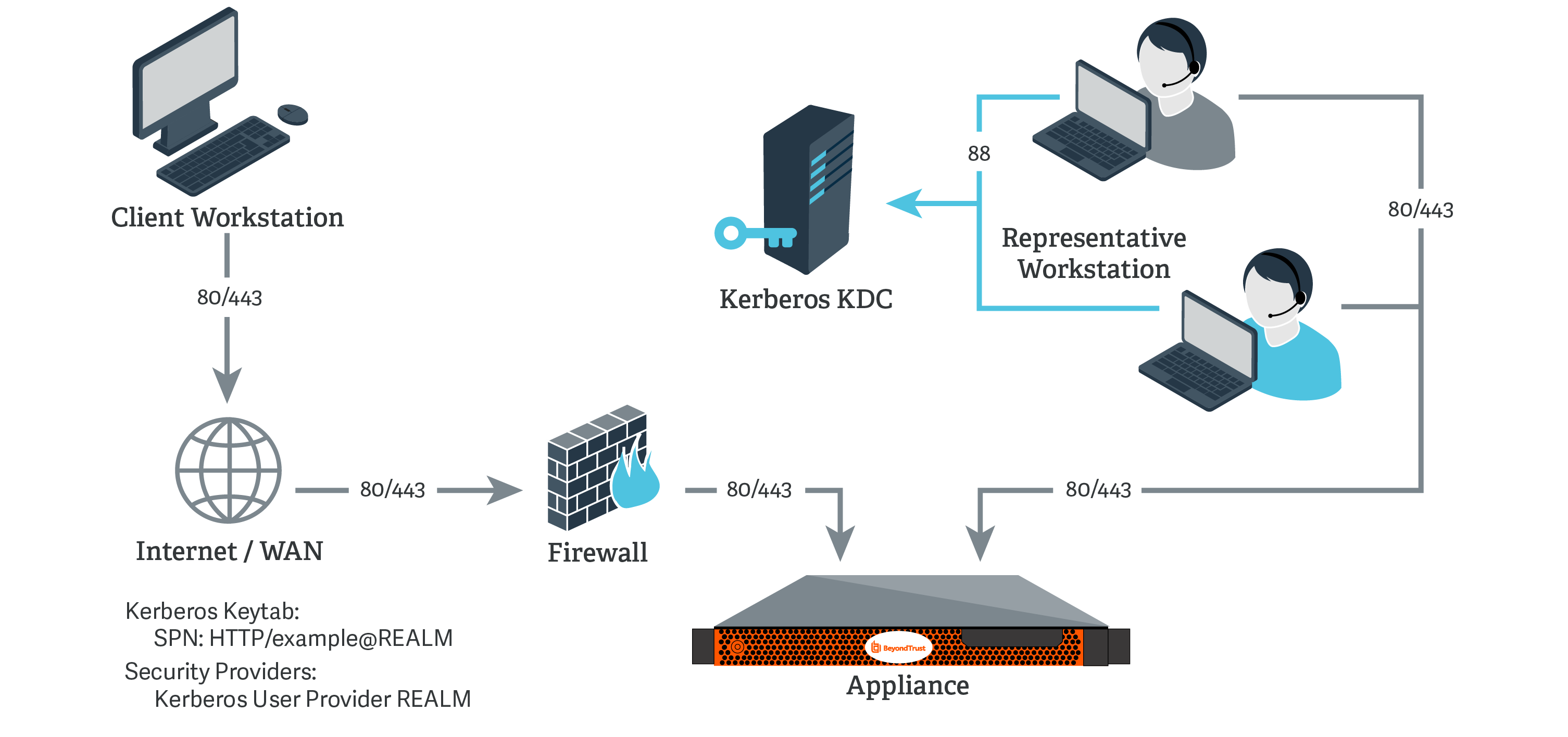
Kerberos KDC
For this example:
- The appliance may or may not be located behind a corporate firewall.
- Representatives may or may not be on the same network as the appliance.
- Representatives belong as members to a Kerberos realm.
- Representatives can communicate with their KDC (typically over port 88 UDP).
-
On the Kerberos KDC, register an SPN for your appliance hostname and then export the keytab for this SPN from your KDC.
-
Log in to your admin interface.
-
Go to Users & Security > Kerberos Keytab.
-
Under Import Keytab, click Choose File, and then select the exported keytab to upload. You should now see this SPN under the list of Configured Principals.
-
Go to Users & Security > Security Providers. Click Add. From the dropdown, select Kerberos.
-
Create a unique name to help identify this provider.
-
Be sure to check the Enabled box.
-
Choose if you want to synchronize display names.
-
Optionally, select to remove the REALM portion from the User Principal Name when constructing the BeyondTrust username.
-
For User Handling Mode, select Allow all users.
-
For SPN Handling Mode, leave the box unchecked in order to allow all SPNs.
-
You may also select a default group policy for users who authenticate against this Kerberos server.
-
Click Save to save this security provider configuration.
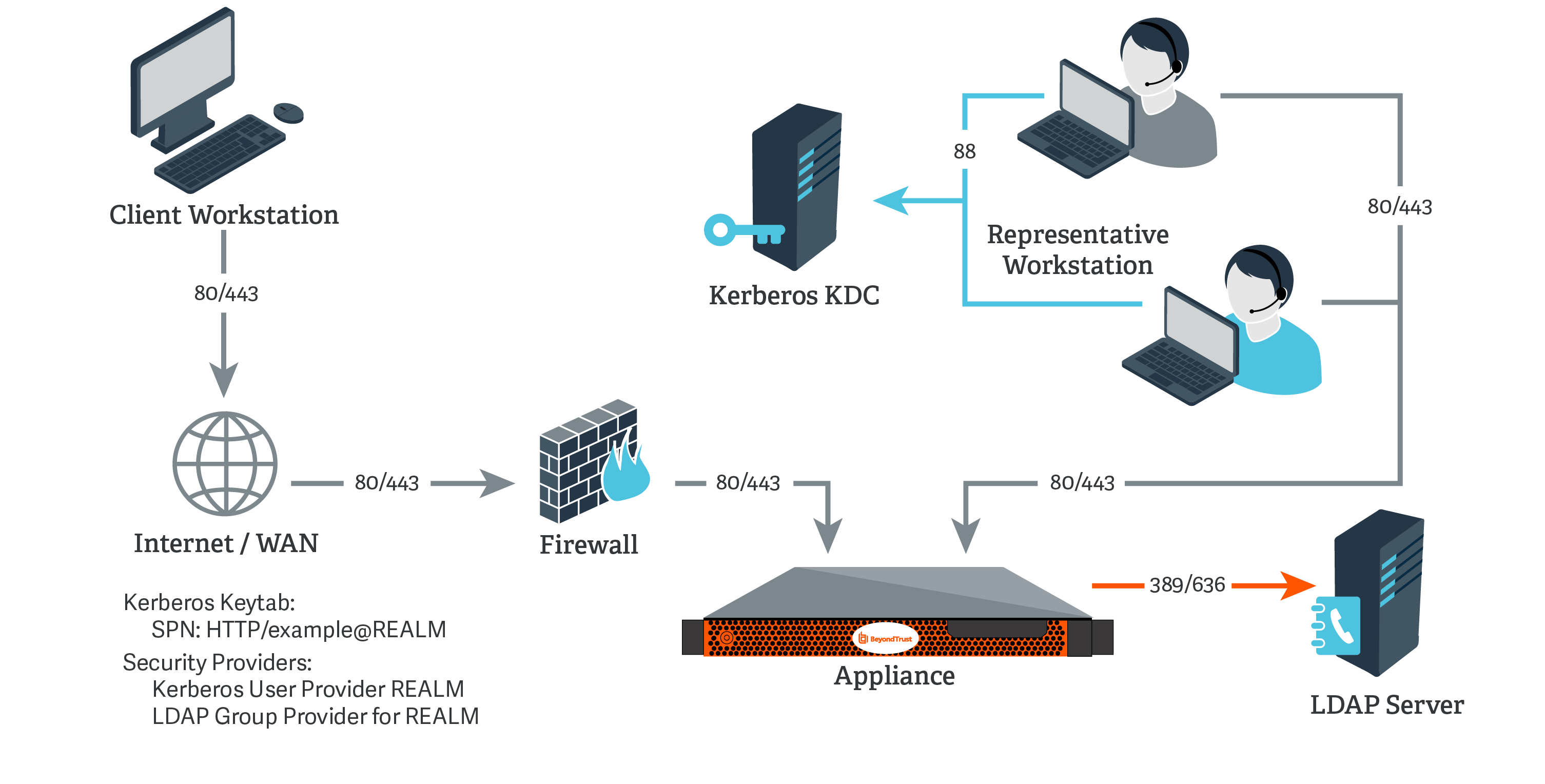
Kerberos KDC and LDAP Server on the Same Network
For this example:
- The appliance may or may not be located behind a corporate firewall.
- Representatives may or may not be on the same network as the appliance.
- Representatives belong as members to a Kerberos realm.
- Representatives can communicate with their KDC (typically over port 88 UDP).
- An LDAP server exists (which may or may not be the same machine as the KDC) that maps user principal names to groups to which the users may belong.
- Your appliance can directly communicate with the LDAP server.
-
On the Kerberos KDC, register an SPN for your appliance hostname and then export the keytab for this SPN from your KDC.
-
Log in to your admin interface.
-
Go to Users & Security > Security Providers. Click Add. From the dropdown, select LDAP.
-
Create a unique name to help identify this provider.
-
Be sure to check the Enabled box.
-
Choose if you want to synchronize display names.
-
For Lookup Groups, select either Only perform group lookups or Allow user authentication and perform group lookups.
-
Continue to configure the settings for this LDAP server.
-
For the User Query, enter a query that can tie the User Principal Name as supplied in the user's Kerberos ticket to a single entry within your LDAP directory store.
-
Click Save to save this security provider configuration.
-
Go to Users & Security > Kerberos Keytab.
-
Under Import Keytab, click Choose File, and then select the exported keytab to upload. You should now see this SPN under the list of Configured Principals.
-
Go to Users & Security > Security Providers. Click Add. From the dropdown, select Kerberos.
-
Create a unique name to help identify this provider.
-
Be sure to check the Enabled box.
-
Choose if you want to synchronize display names.
-
Optionally, select to remove the REALM portion from the User Principal Name when constructing the BeyondTrust username.
-
For User Handling Mode, select Allow all users.
-
For SPN Handling Mode, leave the box unchecked in order to allow all SPNs.
-
In LDAP Group Lookup, select the server configured in this process and add it to the Group Providers In Use list.
-
You may also select a default group policy for users who authenticate against this Kerberos server.
-
Click Save to save this security provider configuration.
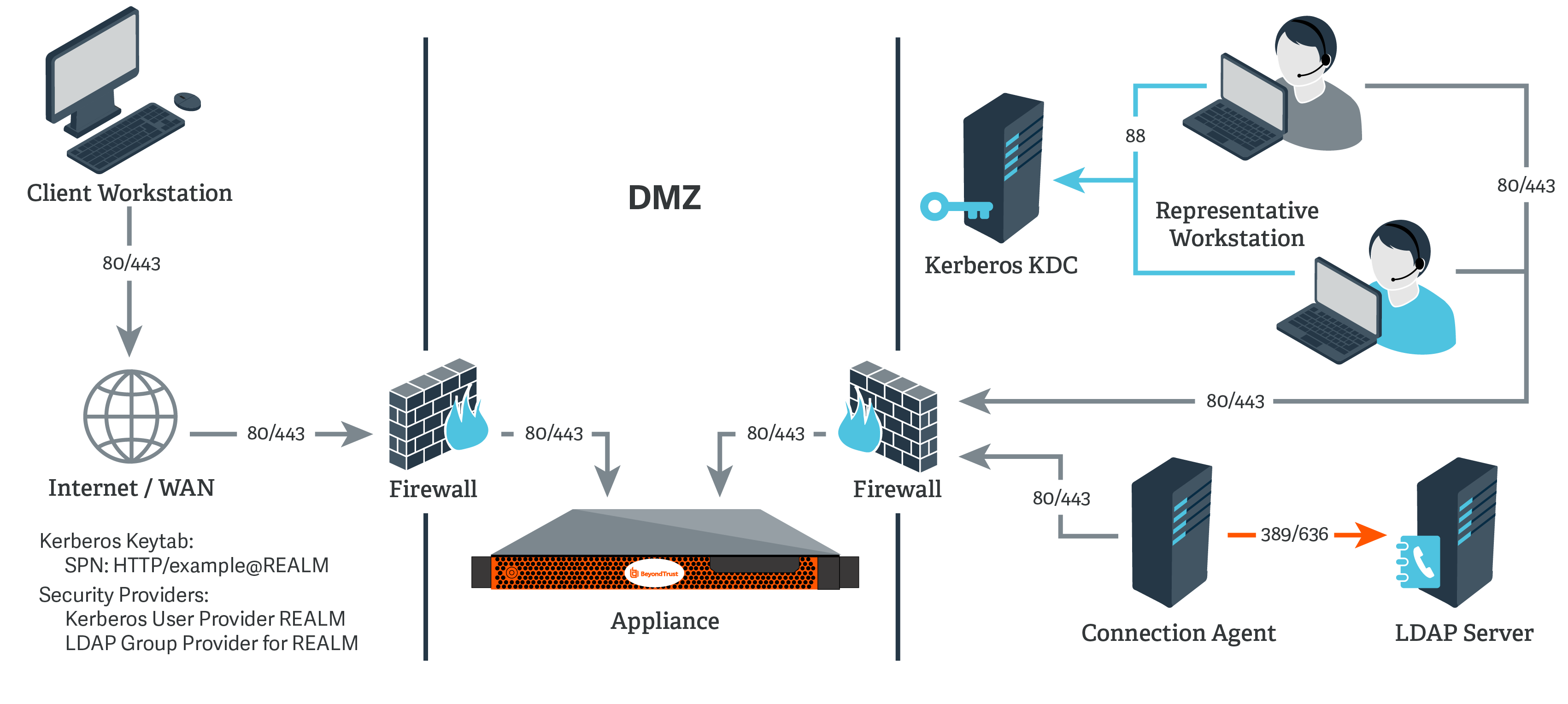
Kerberos KDC and LDAP Server on Separate Networks
For this example:
- The appliance may or may not be located behind a corporate firewall.
- Representatives may or may not be on the same network as the appliance.
- Representatives belong as members to a Kerberos realm.
- Representatives can communicate with their KDC (typically over port 88 UDP).
- An LDAP server exists (which may or may not be the same machine as the KDC) that maps user principal names to groups to which the users may belong.
- Your appliance cannot directly communicate with the LDAP server.
-
On the Kerberos KDC, register an SPN for your appliance hostname and then export the keytab for this SPN from your KDC.
-
Log in to your admin interface.
-
Go to Users & Security > Security Providers. Click Add. From the dropdown, select LDAP.
-
Create a unique name to help identify this provider.
-
Be sure to check the Enabled box.
-
Choose if you want to synchronize display names.
-
For Lookup Groups, select either Only perform group lookups or Allow user authentication and perform group lookups.
-
Continue to configure the settings for this LDAP server.
-
Because the LDAP server does not have direct communication with the appliance, check the option Proxy from appliance through the Connection Agent.
-
Create a password for the connection agent.
-
Click Download Connection Agent to install the agent on a system behind your firewall. When installing the connection agent, provide the name and password you created for this LDAP server.
-
For the User Query, enter a query that can tie the User Principal Name as supplied in the user's Kerberos ticket to a single entry within your LDAP directory store.
-
Click Save to save this security provider configuration.
-
Go to Users & Security > Kerberos Keytab.
-
Under Import Keytab, click Choose File, and then select the exported keytab to upload. You should now see this SPN under the list of Configured Principals.
-
Go to Users & Security > Security Providers. Click Add. From the dropdown, select Kerberos.
-
Create a unique name to help identify this provider.
-
Be sure to check the Enabled box.
-
Choose if you want to synchronize display names.
-
Optionally, select to remove the REALM portion from the User Principal Name when constructing the BeyondTrust username.
-
For User Handling Mode, select Allow all users.
-
For SPN Handling Mode, leave the box unchecked in order to allow all SPNs.
-
In LDAP Group Lookup, select the server configured in this process and add it to the Group Providers In Use list.
-
You may also select a default group policy for users who authenticate against this Kerberos server.
-
Click Save to save this security provider configuration.
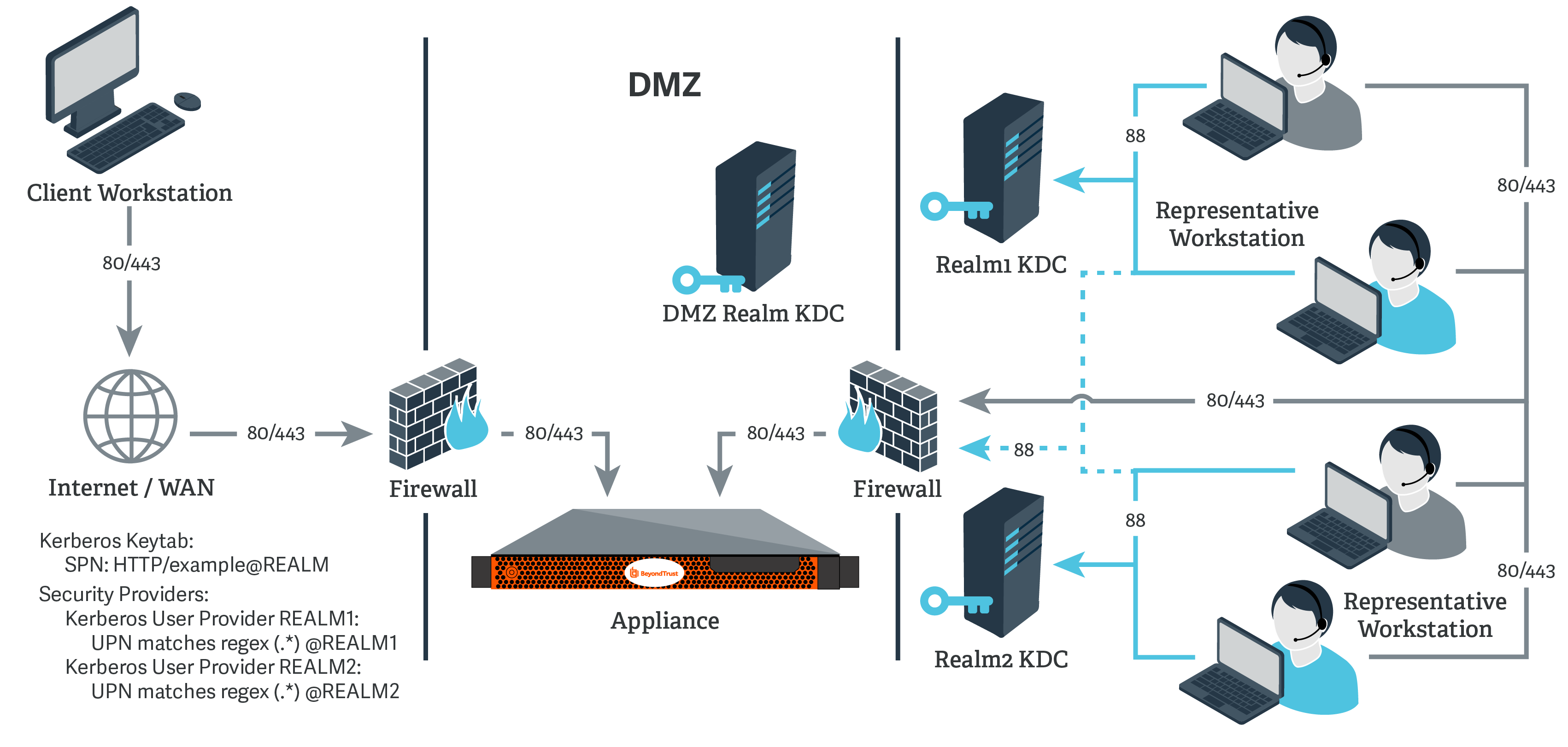
Kerberos KDC in multiple realms
For this example:
- The appliance may or may not be located behind a corporate firewall.
- Representatives may or may not be on the same network as the appliance.
- Representatives may belong as members of multiple Kerberos realms existing in the corporate infrastructure (traditionally, a multi-domain hierarchy in Windows).
- If a DMZ realm exists, the representatives' realms may have inbound trusts with that DMZ realm, allowing principals in the trusted realms to obtain tickets for services in the DMZ realm.
-
Register one or more of the SPNs according to the following rules:
- If a DMZ Kerberos realm is involved, register a unique SPN within the DMZ realm.
- If no DMZ Kerberos realm is involved and no trust exists between the two realms, register a unique SPN in each realm.
- If no DMZ Kerberos realm is involved and trust exists between the two realms, register a unique SPN in a realm of your choosing.
-
Export all registered SPNs.
-
Log in to your admin interface.
-
Go to Users & Security > Kerberos Keytab.
-
Under Import Keytab, click Choose File, and then select the exported keytab to upload. You should now see this SPN under the list of Configured Principals.
-
Repeat the previous step for each exported keytab.
-
Go to Users & Security > Security Providers. Click Add. From the dropdown, select Kerberos.
-
Create a unique name to help identify this provider.
-
Be sure to check the Enabled box.
-
Choose if you want to synchronize display names.
-
Optionally, select to remove the REALM portion from the User Principal Name when constructing the BeyondTrust username.
-
If using a DMZ realm or using the same SPN for multiple realms, you will want to match on user principle name to identify users from the first realm.
-
If you registered multiple SPNs, choose the SPN that users from the first realm will use.
-
You may also select a default group policy for users who authenticate against this Kerberos server.
-
Click Save to save this security provider configuration.
-
Repeat steps 7 through 15 for each realm from which users will authenticate, substituting the UPN or SPN rule for each realm as appropriate.
Kerberos: Troubleshoot the integration
Failed logins
If a user cannot log in to BeyondTrust using valid credentials, please check that at least one of the following sets of criteria is met.
- The user has been expressly added to an existing group policy.
- A default group policy has been set for the security provider configuration created to access the server against which the user is authenticating.
- The user is a member of a group that has been expressly added to an existing group policy, and both user authentication and group lookup are configured and linked.
Error 6ca and slow logins
- A 6ca error is a default response signifying that the appliance has not heard back from the DNS server. It may occur when attempting to log in to the representative console.
- If users are experiencing extremely slow logins or are receiving the 6ca error, verify that DNS is configured in your /appliance interface.
Troubleshooting individual providers
When configuring an authentication method tied to group lookup, it is important to configure user authentication first, then group lookup, and finally group policy memberships. When troubleshooting, you will want to work in reverse.
- Verify that the group policy is looking up valid data for a given provider and that you do not have any @@@ characters in the Policy Members field.
- If a group provider is configured, verify that its connection settings are valid and that its group Search Base DN is in the proper format.
- If you want to use group lookup, verify that the security provider is set to look up group memberships of authenticated users.
- To test the user provider, set a default policy and see if your users are able to log in.
SAML: Sign in to the representative console
- Select SAML Credentials from the dropdown menu.
- If you have not yet signed in to your identity provider, you will be redirected using the default browser.
Representatives can access the mobile representative console using SAML for mobile.
SAML: Sign in to the admin interface
If you are already signed into your identity provider when you click Use SAML Authentication, you are taken directly to the /login interface.
- From the /login interface, select Use SAML Authentication. If you have not yet signed in to your identity provider, you will be redirected to their site to enter your credentials.
- Click Sign In. You are taken to the /login interface.
SAML: Sign in to the public portal
A customer can access the public support portal using the URL provided by a representative. If SAML authentication is configured and enabled for the public site, the customer is presented with the Portal Login window. The customer must click Login and then provide credentials to authenticate with the identity provider.
The customer is then taken to the support portal page where they can submit their request for support. The customer's name and any custom fields that are configured, such as email, are automatically populated and are not editable.
A green check mark displays next to the customer's name in the representative console chat window to indicate the user is public portal authenticated.
SAML: Sign in to Remote Support from the identity provider side
Depending on your identity provider, you can opt to sign in to your BeyondTrust representative console, public portal, or /login interface from the provider's web site. In this example, the provider has icons for BeyondTrust applications. Simply sign in to your provider's site, and then click on the application you want to use.
SAML: Sign in directly to the web rep console
It is possible to configure an application or tile in a SAML identity provider (IdP), (like the tiles used to sign in to Okta and similar applications) that takes you directly to the web rep console rather than to /login.
To configure this, you must:
- Set up application in the IdP as you would for /login
- Change the RelayState parameter. To obtain the correct parameter, copy the entire string shown for RelayState in the SAML request in SP-initiated login into the /console page, and paste this value into the SAML SP provider configuration for RelayState on the IdP side. This enables IdP-initiated login to be to the /console page instead of to the default /login page.
There are two parts to the SAML configuration: the IdP and service provider (SP). In this instance you are the SP, and the SAML service is the IdP (OneLogin, Okta, and similar). Currently, you can export metadata from the SAML security provider on /login (in the Service Provider section), which you can then import into the IdP to help configure the SAML side. If, as part of this configuration, you set the RelayState parameter to console, then any login initiated from the IdP (for example, clicking the tile in Okta) sends you to the web rep console rather than to /login.
SAML: Enable authentication on a public site
Once SAML for Public Portals settings have been configured, you can enable SAML authentication on a public site in /login as follows:
- Go to Public Portals > Public Sites.
- Click Edit next to the desired public site.
- Select Require SAML Authentication.
- Click Save.
SAML: Integrate with third-party applications
Each third-party product has its own configuration requirements for SAML authentication. To assist with integration, product-specific guides provide detailed instructions.
