
Customer client | RS Pathfinder
What is the customer client?
The customer client is the software or interface used by customers to interact with support representatives during a session. It allows customers to initiate and participate in remote support, chat, and other assistance features.
How is the customer client useful?
The customer client facilitates direct communication between customers and support representatives, enabling efficient issue resolution through remote control, chat, and other support tools.
How do I access the Customer Client page?
- Sign into app.beyondtrust.io.
The BeyondTrust Home page displays. - From the left menu, click Remote Support > Public Portals.
The Public Sites page opens and the Public Sites tab displays by default. - At the top of the page, click Customer Client.
The Customer Client page displays.
The Customer Client page
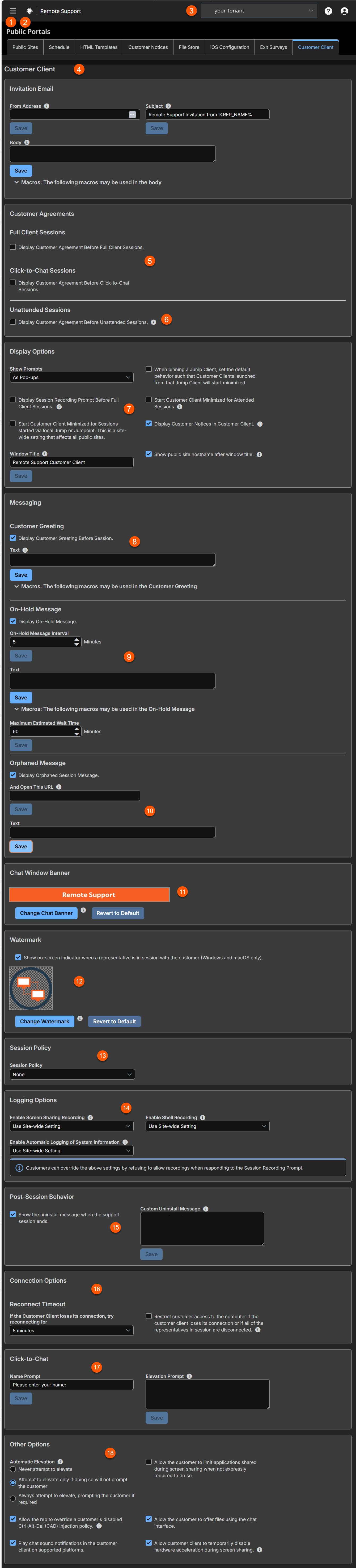
- Invitation Email: Create a custom email message with support session instructions.
- Customer Agreements:
- Unattended Sessions: You have the option to display the customer agreement. The Unattended Customer Agreement only applies to Jump Clients and sessions started through Remote Jump and Local Jump.
- Display Options: Display settings for the session.
- Messaging: A tailored message to the user of the session.
- On-Hold Message: Enables on-hold message if Display On-Hold Message checkbox is selected.
- Orphaned Message: Enables an orphaned message if Display Orphaned Session Message checkbox is selected.
- Chat Window Banner: Uploads an image banner.
- Watermark: Shows an on-screen indicator when a representative is in a session.
- Session Policy: Assigns a session policy to sessions associated with the public site.
- Logging Options: Session settings.
- Post-Session Behavior: Settings for the post-session.
- Connection Option: Settings for the session connection.
- Click-to-Chat: Specific settings for click-to-chat.
- Other Options: Miscellaneous settings for the session.
How to configure the customer client
Select a public site to edit
From the dropdown, select the public site for which you want to configure settings.
Default invitation email, customer agreement, and messaging is provided in all supported languages. Users can update this text. However, once new text is saved to the database, the default text is overwritten and cannot be retrieved.
Invitation email
Create a custom email message with unique support session instructions for each public site.
From address
As an option, you can use the From Address field to set up system-generated email invitations instead of an invitation that uses the representative's local email client. If configured in this manner, session invitations are sent from a centralized, system-wide address (e.g., [email protected]). This may be particularly useful if your representatives have enterprise email restrictions due to safety or privacy concerns. If the From Address field is left blank, the emails will use the from address as configured on the Email Configuration page.
To enable system-wide emails, make sure that Enable server-side emails for support invitations is checked on the /login > Configuration > Options page.
For more information, see Email configuration.
Subject
Customize the subject of this email. You can localize this text for any languages you have enabled.
Body
Customize the body of this email. Use any of the macros listed below this field in the /login page to customize the text for your purposes. You can localize this text for any languages you have enabled.
Customer agreements
For more information, please see Customer client in a session.
Full client sessions
Display customer agreement before full client sessions
Customize the text of this agreement. You can localize this text for any languages you have enabled.
Title
Customize the title of the agreement. The end-user sees this in the title bar of the prompt. You can localize this text for any languages you have enabled.
Acceptance timeout
If the customer does not accept the agreement within the set Acceptance Timeout, the session will end. This applies to unattended sessions only.
Text
Provide the text for the full-client customer agreement. You can localize this text for any languages you have enabled.
Click-to-chat sessions
Display customer agreement before click-to-chat sessions
Enable an agreement that the customer must accept before entering a click-to-chat session.
Unattended sessions
Display customer agreement before unattended sessions
Enable an agreement which must be acknowledged before entering an unattended session.
Title
Customize the title of the agreement. The end-user sees this in the title bar of the prompt. You can localize this text for any languages you have enabled.
Acceptance timeout
If the customer does not accept the agreement within the set Acceptance Timeout, the session ends. This applies to both full-client and click-to-chat sessions.
Automatic behavior
Choose whether unattended endpoints automatically accept or reject sessions started through a Jump Client, Remote Jump, and Jump Items.
Text
Provide the text for the full-client customer agreement. You can localize this text for any languages you have enabled.
Display options
Show prompts
To set how prompts appear to your customers during a support session, choose to show prompts as text links in the chat window or as pop-ups above the chat window. The pop-up option does not apply to mobile clients or click-to-chat sessions.
Start customer client minimized for attended sessions
Choose to unobtrusively start the customer client minimized and without taking focus in customer-initiated sessions.
Window title
Enter your desired window title for the public site. By default, this is Remote Support Customer Client.
When pinning a Jump Client, set the default behavior such that customer clients launched from that Jump Client will start minimized
Choose to unobtrusively start the customer client minimized and without taking focus in Jump Client sessions.
Show public site hostname after window title
Click to display the hostname of your public site in the title bar of the window, after the window title.
Start customer client minimized for sessions started via local Jump or Jumpoint
Choose to unobtrusively start the customer client minimized and without taking focus in local Jump or Jumpoint sessions.
Display session recording prompt before full client sessions
If this option is checked, then at the beginning of a session, the customer will be prompted to allow session recordings. If the customer allows recordings, then the session will be recorded as configured for this public portal. If the customer refuses recordings, then the session will continue, but no recordings will be made. This applies to screen sharing recordings, command shell recordings, and system information logging.
Display customer notices in customer client
If this option is checked, then until the session is accepted, the customer client will display both customer notices already active when the session was requested as well as customer notices created and sent. Following each notice will be a link to end the session if the notice addresses a known problem for which the customer was requesting support.
Messaging
Customer greeting
Display customer greeting before session
The customer greeting appears within the chat window once the session is in queue. You can localize this text for any languages you have enabled.
Let customers know their session status by providing them with feedback regarding their position in queue and estimated wait time. Providing customers with this information creates a better chance they will stay in the queue and get the service they need.
Wait time and position are calculated per queue. A customer's position in queue is determined by the age of the session on a first come, first served basis. The wait time is estimated using the most recent sample of sessions that came through the queue and were answered by a representative. A minimum of five sessions is needed to provide enough data for a reliable wait time calculation.
Messages are configured using macros. Copy the %POSITION_IN_QUEUE% and %ESTIMATED_WAIT_TIME% macros into the text box.
The macros expand into full sentences describing the customer's position in the queue, as well as the estimated amount of time the customer has to wait.
On-hold message
Display on-hold message
The on-hold message displays at intervals until a representative accepts the session. You can localize this text for any languages you have enabled.
Let customers know their session status by providing them with feedback regarding their position in queue and estimated wait time. Providing customers with this information creates a better chance they will stay in the queue and get the service they need.
Wait time and position are calculated per queue. A customer's position in queue is determined by the age of the session on a first come, first served basis. The wait time is estimated using the most recent sample of sessions that came through the queue and were answered by a representative. A minimum of five sessions is needed to provide enough data for a reliable wait time calculation.
Messages are configured using macros. Copy the %POSITION_IN_QUEUE% and %ESTIMATED_WAIT_TIME% macros into the text box.
The macros expand into full sentences describing the customer's position in the queue, as well as the estimated amount of time the customer has to wait.
On hold message interval
Set the number of minutes to wait between sending each on-hold message.
Text
Provide the text for the on-hold message.
Maximum estimated wait time
Provide the longest time to show customers they may have to wait.
Orphaned message
Display orphaned session message
If a customer requests a session when no representatives are available, an orphaned session message can be displayed. You can localize this text for any languages you have enabled.
And open this URL
If a session is orphaned, the customer's web browser can be automatically opened to a specified URL, such as a knowledge base or contact page.
Text
Provide the text for the orphaned message.
Chat window banner
Change chat banner
Upload an image banner for the client window. This image must be a 256-color (8-bit) Windows Bitmap file (BMP) and must be 480 pixels wide. The recommended image height is 40 pixels. As soon as you upload a new banner, all new sessions use that image. Currently running sessions are not affected.
Revert to default
Revert to the default banner. As soon as you revert to the default, all new sessions use that image. Currently running sessions are not affected.
Watermark
Show on-screen indicator when a representative is in session with the customer (Windows and macOS only).
Check the box to add a watermark to the screen during a session.
Change Watermark
Upload a custom watermark image to display on the client desktop. This custom image replaces the default BeyondTrust watermark. The image must be a .png or .bmp file between 32 x 32 and 256 x 256 pixels wide. For best results, the recommended image size is 128 x 128 pixels. You can resize the selected image by using the slider or by clicking on the Fit in Box or the Fill Entire Box buttons. Click Save Watermark to save the changes, or Discard Changes if you do not wish to keep the image you just selected.
When the watermark is rendered on the customer's screen, a 40% transparency is applied, allowing you to upload a fully opaque image without concern that it will obstruct the customer's desktop view.
If you upload an image that is already partially transparent, a further 40% transparency is applied, which may cause the image to be more transparent than desired.
For more information, see Customer client appearance.
Revert to default
Revert to the default image. As soon as you revert to the default, all new sessions use that image. Currently running sessions are not affected.
Session policy
Session policy
Assign a session policy to sessions associated with the public site selected at the top of this page. This session policy may affect the permissions allowed in sessions started through this site.
Logging options
Enable screen sharing recording
For the public site selected at the top of this page, choose if you want to record screen sharing sessions. You can enable or disable recordings, or you can use the site-wide setting configured on the Configuration > Options page. This setting may be overridden by customer preference as configured above by the setting Display Session Recording Prompt Before Full Client Sessions.
Enable command shell recording
For the public site selected at the top of this page, choose if you want to record command shell sessions. You can enable or disable recordings, or you can use the site-wide setting configured on the Configuration > Options page. This setting may be overridden by customer preference as configured above by the setting Display Session Recording Prompt Before Full Client Sessions.
Enable automatic logging of system information
For the public site selected at the top of this page, choose if you want to automatically log system information at the beginning of a session. You can enable or disable recordings, or you can use the site-wide setting configured on the Configuration > Options page. This setting may be overridden by customer preference as configured above by the setting Display Session Recording Prompt Before Full Client Sessions.
Post-session behavior
Show the uninstall message when the support session ends
After a session is complete and if a Jump Client is not installed, customers can be notified that the BeyondTrust software has been uninstalled.
Custom uninstall message
Set the text of the uninstall message. You can localize this text for any languages you have enabled.
For more information, see Uninstall message and exit surveys.
Connection options
Reconnect timeout
Determine how long a disconnected customer client should attempt to reconnect.
Restrict customer access to the computer if the customer client loses its connection or if all of the representatives in a session are disconnected
If the session connection is lost, the remote system's mouse and keyboard input can be temporarily disabled, resuming either when the connection is restored or when the session is terminated.
Allow reps to override this setting per session
You can allow a user to override the session termination setting from the Summary tab in the console during a session.
Click-to-chat
Name prompt
Customize the name prompt to display a specific question or statement when a user starts a click-to-chat session. The default text is "Please enter your name".
Elevation prompt
Customize the text you wish to appear to the user when requesting to elevate a click-to-chat session. The default text is "%REP_NAME% is requesting to elevate to full remote support which will allow more features like screen sharing and file transfer. You will be required to run an application that will be sent to you. Do you wish to continue?"
The %REP_NAME% macro is replaced with the public display name of the representative sending the elevation request.
Other options
Automatic elevation
Select how to handle elevation of the customer client on a remote Windows system. If Never attempt to elevate is selected, the customer client will never attempt to run with administrative rights unless the representative expressly requests elevation. If you have selected Attempt to elevate only if doing so will not prompt the customer, then the customer client will attempt to run as an administrator, but only if doing so will not prompt the remote user for permission. If Always attempt to elevate is selected, then the customer client will always attempt to run as an administrator; at the beginning of a session, the remote customer may receive a prompt to allow elevation.
Allow the customer to limit applications shared during screen sharing when not expressly required to do so
If you choose to allow the customer to limit applications shared, your customer will have the option to define which applications you can or cannot view during a screen sharing session. If this option is deselected, customers will receive this option only if the representative specifically requests or is only allowed to request limited control.
Allow the rep to override a customer's disabled Ctrl-Alt-Del (CAD) injection policy (only Windows Vista® and above)
When supporting Windows Vista or above, the representative may attempt to override a customer’s disabled Secure Attention Sequence injection policy in order to send a Ctrl-Alt-Del command
Allow the customer to offer files using the chat interface
If you need to prevent file transfers from customer to representative, you can disable the customer's ability to offer files during chat sessions.
Play chat sound notifications in the customer client on supported platforms
You may set the customer client to play a notification sound when a new message is displayed.
Allow customer client to temporarily disable hardware acceleration during screen sharing
You may permit the customer client to detect when a video card driver is causing very high CPU usage on the remote computer; if so detected, the customer client may temporarily disable hardware acceleration during screen sharing to speed the remote support connection.
