
Reports | RS Pathfinder
What are reports?
Reports allow administrators and privileged users to generate comprehensive documentation on system activities, with the ability to apply filters for customized insights tailored to specific needs.
How are reports useful?
Reports help track and analyze system usage, performance, and security metrics, providing valuable information for compliance, auditing, and decision-making within the organization.
How do I access the Reports page?
- Sign into app.beyondtrust.io.
The BeyondTrust Home page displays. - From the left menu, click Remote Support > Reports.
The Reports page opens and the Support tab displays by default.
The Reports page
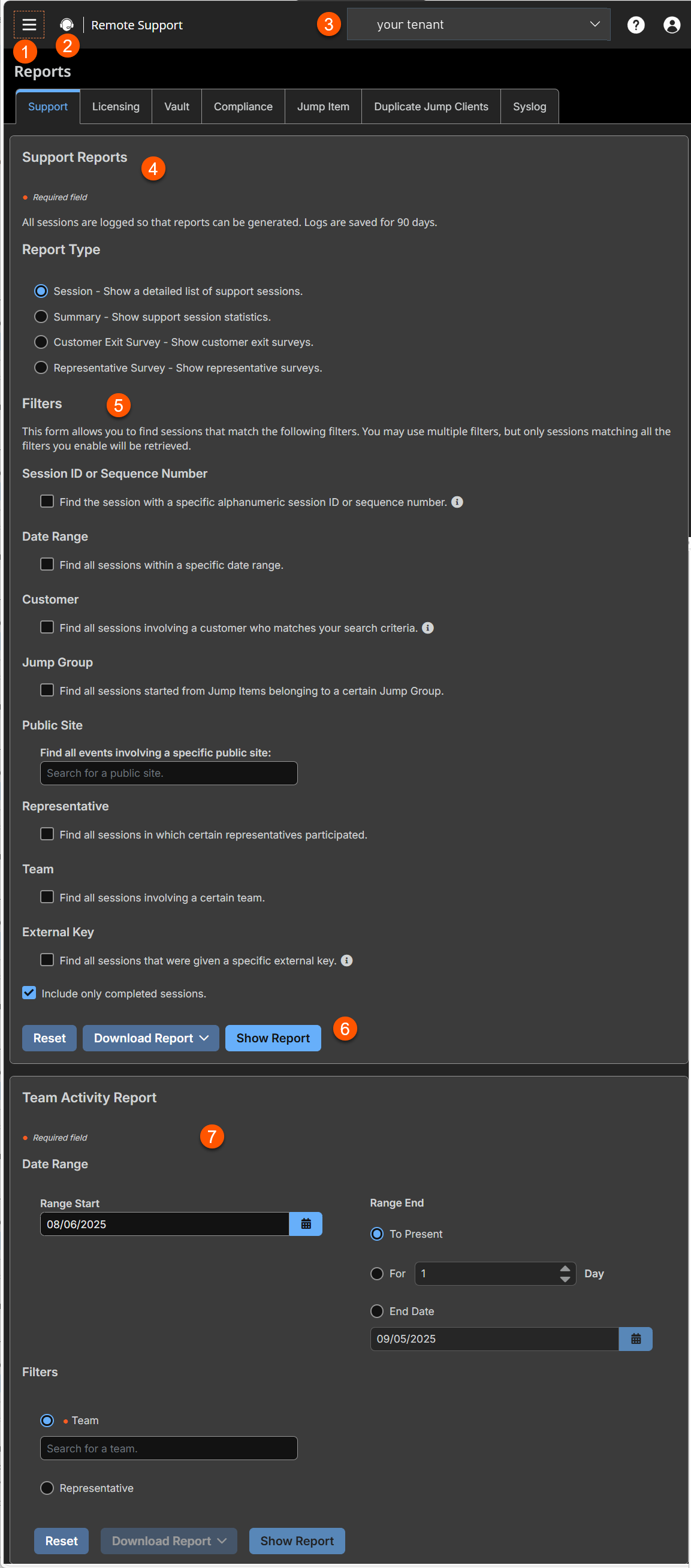
- Report Type: Select the type of report you want. The choices are Session , Summary, Customer Exit Survey, Session Forensics, or Representative Survey.
- Filters: Select the filters for the report.
- Download/Show Report: Option to download or show report results.
- Team Activity Report: Displays team activity based on specific criteria.
How to generate a support report
Report type
There four separate report types:
- Session
- Summary
- Customer Exit Survey
- Session Forensics (if enabled).
- Representative Survey
Filters
Apply filtering options as needed to derive more customized reports from the basic report types. Enable one or more filters as you wish, but only sessions that match all filters selected will be shown.
Session ID or sequence number
This unique identifier requires that you specify the ID (LSID) or sequence number for the single session you seek. This is often helpful if you have an external ticketing system or CRM integration. You cannot combine this filter with others.
Date range
Select a start date for which to pull reporting data. Then select either the number of days for which to pull your report or an end date.
Customer
Filter sessions by customer name, company name, computer name, public IP, or private IP.
Public site
Filter to focus your reporting on a specific public site.
Representative
Use the dropdown to choose the type of representative participation you want to include. Choose sessions where any representative joined, no representative joined, or a specific representative participated, or where any representative within a team participated, including sessions that were never associated with the specified team.
Team
Use the dropdown to choose the type of team participation you want to include. Choose sessions that were assigned to at least one team, sessions that were never assigned to a team, or sessions that were assigned to a specific team.
External key
Filter to report sessions that used the same specific external key.
Include only completed sessions
Filter to include only sessions that have been completed. This excludes sessions that are still running.
Group by (Visible Only for Summary Reports)
Choose to group summary report data by representative, by team, or by public site.
Support session report results
View all sessions that match the criteria specified on the previous page. Session reports include basic session information along with links to session details, chat transcripts, and video recordings of screen sharing, Show My Screen, and command shells. Click Select Visible Columns to choose which information to view.
Support session detail
Session reports detail a record of the full chat transcript, the number of files transferred (and details on failed file transfers), and the permissions requested and granted. Specific command information relevant to Run As commands, including credentials, is also provided, but this reporting can be disabled in Security. Other information includes the public site through which the session was run, session duration, local and remote computer names and IP addresses, and remote system information (if enabled). Reports can be viewed online or downloaded to your local system.
If session recording is enabled, view a video playback of individual sessions, including captions of who was in control of the mouse and keyboard at any given point during the session. Similarly, if Show My Screen recording is enabled, view and download videos of the representative's system during a Show My Screen session. If command prompt recording is enabled, you can also view recordings of all command shells run during the session. All recordings are stored on the B Series Appliance in a raw format and are converted to compressed format when viewed or downloaded.
Summary report
Summary reports provide an overview of activity over time, categorized by representative, team, or public site. Statistics include the total number of sessions run, the average number of sessions per weekday, and the average duration of sessions.
Customer exit survey or representative survey report
View reports of answers to your custom surveys, delimited by public site. A column will be added for each question you include on your surveys and will be titled according to the name designated in the Report Header field. For multiple-choice questions, the Logged Value will be displayed as the answer. If representatives are also given access to the representative survey during the session, and the administrator has used it to create a detailed workflow, those questions and/or fields, along with the representative's responses, are also displayed on the report.
Team activity report
View all team activity that matches the criteria specified on the previous page. Team activity reports include information about users as they log in or out of the representative console, chat messages sent between team members, representative status changes, rep-to-rep screen sharing actions as logged in chat, and files shared and downloaded.
Date range
Select a start date for which to pull reporting data. Then select either the number of days for which to pull your report or an end date.
Filters
Select either Team or User to view all activity that matches the provided criteria. Team and User activity reports include information about users as they log in or out of the representative console, chat messages sent between team members, user-to-user screen sharing actions as logged in chat, and files shared and downloaded.
All items listed within Remote Support reports are ordered from newest to oldest.
