
Jump | RS On-prem
What are Jump Clients?
Jump Clients are software agents installed on remote systems, enabling secure, unattended access to those systems for support or administrative tasks.
How are Jump Clients useful to my organization?
Jump Clients provide reliable, always-available access to remote systems, improving efficiency by allowing support teams to resolve issues without requiring user intervention. They enhance security through encrypted connections and customizable access controls.
How do I access the Jump Clients page?
- Use a Chromium-based browser to sign in to your Remote Support URL.
This URL is provided in the BeyondTrust welcome email and includes your site URL followed by /login. - From the left menu, click Remote Support > Jump.
The Jump Clients page opens.
The Jump Clients page
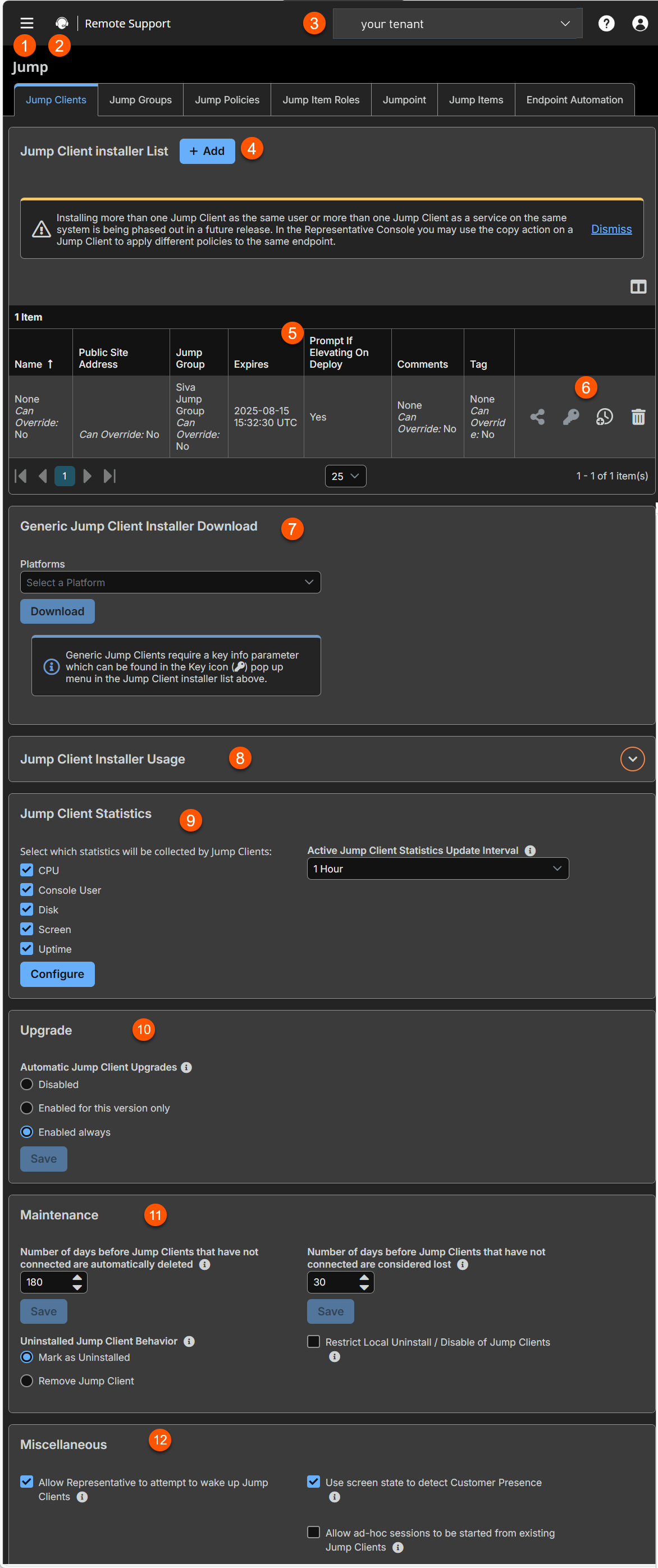
-
Add: Adds a Jump Client installer.
-
Jump Clients columns: List of Jump Clients columns.
Jump Clients columns
- Name: Unique name of the Jump Client.
- Public Site Address: The DNS name of the site.
- Jump Group: Select what Jump Group you want the client to participate in.
- Expires: Defines how long the installer is valid. This is determined by the This Installer Is Valid For setting.
- **Prompt If Elevating On Deploy:**Prompts the user to enter administrative credentials.
- Comments: Add a note about the Jump Client.
- Tag: Add a tag for organizational purposes.
-
List options: Edit or delete an installer.
-
Generic Jump Client Installer: Download an installer that is not tied to a specific Jump Client.
-
Jump Client usage: Table that displays the command line parameters.
-
Jump Client Statistics: Displays statistics of the Jump Clients.
-
Upgrade: Settings to control automatic upgrade of Jump Clients.
-
Maintenance: Settings to control maintenance of Jump Clients.
-
Miscellaneous: Setting to wake up Jump Clients via Wake on LAN (WOL).
How to deploy a Jump Client
There are two ways to install a Jump Client:
- During a support session, a Jump Client can be installed as required by the representative.
- Alternatively, an administrator can mass-deploy Jump Clients for a larger rollout.
These two methods of installation are outlined below.
During a support session
A Jump Client can be installed during a support session. This allows the support representative to access this computer at a later time, even if the computer is unattended. This method of installation is also known as session pinning and is achieved by clicking the Pin as Jump Client button.
User mode Jump Clients have been deprecated. You cannot pin a Jump Client unless the end user is running the full customer client in elevated an elevated session.
-
From within an elevated support session, click the Pin as Jump Client button in the session toolbar at the top right corner of the representative console.
-
From the dropdown, you can select to customize the Jump Client before deploying it.
-
Enter a Name for the Jump Item. This name identifies the item in the session tabs. This string has a maximum of 128 characters.
-
If Starts Quietly is checked, the customer client does not take focus and remains minimized in the taskbar or dock when a session is started.
-
You also have the option to set when the Jump Client expires. This can be never, at a specific time and date, or after a certain length of time. An expired Jump Client automatically uninstalls from the remote system and is removed from the list in the Jump Client interface.
-
Move Jump Items from one Jump Group to another using the Jump Group dropdown. The ability to move Jump Items to or from different Jump Groups depends upon your account permissions.
-
Further organize Jump Items by entering the name of a new or existing Tag. Even though the selected Jump Items are grouped together under the tag, they are still listed under the Jump Group in which each is pinned. To move a Jump Item back into its top-level Jump Group, leave this field blank.
-
Select the Public Portal through which this Jump Item should connect. If a session policy is assigned to this public portal, that policy may affect the permissions allowed in sessions started through this Jump Item. The ability to set the public portal depends on your account permissions.
-
Jump Items include a Comments field for a name or description, which makes sorting, searching, and identifying Jump Items faster and easier.
-
To set when users are allowed to access this Jump Item, choose a Jump Policy. These policies are configured by your administrator in the /login interface.
Choose session policies to assign to this Jump Item. Session policies assigned to this Jump Item have the highest priority when setting session permissions. The Customer Present Session Policy applies when the end user is determined to be present. Otherwise, the Customer Not Present Session Policy applies. The way customer presence is determined is set by the Use screen state to detect Customer Presence Jump Item setting in the Admin (/login) interface. When enabled, a customer is considered present only if a user is logged in, the system is not locked, and a screen saver is not running. When disabled, a customer is considered present if a user is logged in, regardless of the screen state. Customer presence is detected when the Jump Item session starts. The session policy used for the session does not change throughout the session, regardless of any changes in the customer's presence while the session is in progress. The ability to set a session policy depends on your account permissions.
-
-
Alternatively, you can select a Jump Group to which to pin the Jump Client, not setting any properties. From the Jump Group dropdown, select whether to pin the Jump Client to your personal list of Jump Items or to a Jump Group shared by other users. Pinning to your personal list of Jump Items means that only you (and higher ranking roles on your team, such as Team Lead and Team Manager if you are a Team Member, and Team Manager if you are a Team Lead) can access this remote computer through this Jump Client. Pinning to a shared Jump Group makes this Jump Client available to all members of that Jump Group.
-
Depending on the session permissions, the customer could receive a message that you are requesting to install a Jump Client. The customer is asked to allow or refuse the request.
-
Once the Jump Client is installed, the remote computer appears in the Jump interface of the representative console. You might have to refresh the interface to see the new Jump Client.
Support representatives can access unattended Android devices through session pinning.
Prior to support
Jump Clients can be installed on remote computers in anticipation of the need for remote access. This method of installation can be applied to one system or multiple systems simultaneously. You can easily automate the mass deployment of your Jump Client network by allowing customization during installation. The Jump Client command line installer has switches that allow a script to modify a variety of Jump Client parameters when executed. This enables you to create custom mass deployment scripts to pull in variables from other sources and use the variables to modify the Jump Client parameters at install time.
You can easily manage active installers from the Jump Client Installer list.
Jump Client installer list
The Jump Client installer list shows existing Jump Client installers and the ability to add a new Jump Client. To add a new Jump Client, see Jump Client Mass Deployment Wizard.
A warning appears at the top of the list:
Installing more than one Jump Client as the same user or more than one Jump Client as a service on the same system is being phased out in a future release. In the Access Console you may use the copy action on a Jump Client to apply different policies to the same endpoint.
Click Dismiss to hide the message.
- Click
 and then select a platform to either download the installer, email the direct download link to recipients, or copy the direct download link to your clipboard.
 - Click
 and then select a platform to view the key info to be used with the generic Jump Client installer.
 - Click
 to change how long the installer will be valid.
 - Click
 to delete the Jump Client installer. This does not delete any Jump Clients that used this installer.
Jump Client Mass Deployment Wizard
To create a new Jump Client installer, click Add at the top of the Jump Client Installer List.
The Mass Deployment Wizard enables administrators and privileged users to deploy Jump Clients to one or more remote computers for later unattended access.
The only field that is required is Jump Group. After all fields have been completed, click Create.
Jump Client Mass Deployment Wizard fields
Allow override during installation: Some Mass Deployment Wizard settings allow override, enabling you to use the command line to set parameters that are specific to your deployment, prior to installation.
| Field Name | Description |
|---|---|
| Jump Group | From the Jump Group dropdown box, select whether to pin the Jump Client to your personal list of Jump Items or to a Jump Group shared by other users. Pinning to your personal list of Jump Items means that only you (and higher ranking roles on your team, such as Team Lead and Team Manager if you are a Team Member, and Team Manager if you are a Team Lead) can access this remote computer through this Jump Client. Pinning to a shared Jump Group makes this Jump Client available to all members of that Jump Group. |
| This installer is Valid For | The installer remains usable only as long as specified by the This Installer is Valid For dropdown. Be sure to leave adequate time for installation. If someone should attempt to run the Jump Client installer after this time, installation fails, and a new Jump Client installer must be created. Additionally, if the installer is run within the allotted time but the Jump Client is unable to connect to the Appliance within that time, the Jump Client uninstalls, and a new installer must be deployed. The validity time can be set for anywhere from 10 minutes to 1 year. This time does not affect how long the Jump Client remains active. Once a Jump Client has been installed, it remains online and active until it is uninstalled from the local system either by a logged-in admin user with appropriate permissions, by a user from the Jump interface, or by an uninstall script. It can also be uninstalled, or extended, from the Jump Client Installer List. A user cannot remove a Jump Client unless the user is given appropriate permissions by their Remote Support admin. |
| Public Portal | Select the public portal through which you want this Jump Client to connect. If a session policy is assigned to this public portal, that policy may affect the permissions allowed in sessions started through this Jump Client. |
| Name | Enter a name for the Jump Item. This name identifies the item in the session tabs. This string has a maximum of 128 characters. |
| Comments | Add comments, which can be helpful in searching for and identifying remote computers. |
| Tag | Adding a tag helps to organize your Jump Clients into categories within the representative console. |
| Jump Policy | You can apply a Jump Policy to this Jump Client. Jump Policies are configured on the Jump > Jump Policies page and determine the times during which a user can access this Jump Client. If no Jump Policy is applied, this Jump Client can be accessed at any time. |
| Customer Present Session Policy | Choose a session policy to assign to this Jump Client when the customer is present at the endpoint. The session policy assigned to this Jump Client has the highest priority when setting session permissions. |
| Customer Not Present Session Policy | Choose a session policy to assign to this Jump Client when the customer is not present at the endpoint. The session policy assigned to this Jump Client has the highest priority when setting session permissions. |
| Connection Type | An Active Jump Client can be used to initiate an unattended session. A Standby Jump Client cannot initiate an unattended session and is intended for use with the Support Button Profile. ℹ️ For more information about Standby Jump Clients, seeStandby Jump Clients. |
| Jumpoint Proxy | When a Jump Client is first deployed, if it cannot connect to the Appliance, it searches the local network for a Jumpoint or Jumpoint cluster serving as a Jump Zone Proxy. This allows a Jump Client installed on a system without a native internet connection to use the Jumpoint to connect back to the Appliance. In the special case where the Jump Client and Jumpoint are not on the same local network or where a firewall blocks the Jump Client's attempt to connect to the Jumpoint, the Jumpoint Proxy setting allows you to set which Jumpoint the Jump Client should try to use as a proxy. This setting is used by Jump Clients that cannot use multicast DNS to retrieve proxy information from a Jumpoint. |
| Maximum Offline Minutes Before Deletion | The maximum number of minutes a Jump Client will be offline before it is deleted from the system. This setting will override the global setting if specified. |
| Customer Client Start Mode | Select Minimized to start the customer client minimized. It does not take the focus, and appears only in the taskbar or dock when a session is started through this Jump Client. Select Hidden to start the customer client hidden. It does not take the focus, and appears only as an icon in the system tray when a session is started through this Jump Client. ℹ️ This option does not apply to Headless LInux or Raspberry Pi Jump Clients. |
| Support Button Profile | Select a Support Button Profile you previously create on the Configuration > Support Buttons page. This defines the appearance and some of a Support Button’s behavior. |
| Support Button Direct Queue | Specify the queue where users can initiate a session. For this option to work, the selected Support Button Profile must have Allow Direct Access to Queue enabled. |
| Attempt an Elevated Install If the Client Supports It | If this is selected, the installer attempts to run with administrative rights, installing the Jump Client as a system service. If the elevated installation attempt is unsuccessful, or if this option is deselected, the installer runs in user mode, installing the Jump Client in user mode. ℹ️ |
| Prompt for Elevation Credentials If Needed | If this is selected, the installer prompts the user to enter administrative credentials if the system requires that these credentials be independently provided; otherwise, it installs the Jump Client with user rights. This applies only if an elevated install is being attempted. ℹ️ User mode Jump Clients are deprecated and will be removed in a future release. This setting applies only to MacOS Desktop deployments. It does not apply to Linux, Windows, or Raspberry Pi deployments. |
For more information about applying a Support Button Profile to a Jump Client, see Support Button Profiles.
Once you click Create, you can download the Jump Client installer immediately, copy the link for later use, or email the installer to remote users. Multiple recipients can install from the same link.
-
The Platform dropdown defaults to your operating system. Select a different platform if you plan to deploy on another OS.
-
Choose an option to download or distribute the Jump Client installer.
-
Download the installer immediately to run locally or distribute with a systems management tool. This option is not available for Android.
-
Copy a direct download link or a cURL/wget/btapi command. This option is not available for Android.
-
Deploy a Jump Client App either manually or through an MDM following the provided steps. This option is for Android only.
-
Email the installer link to one or more recipients.
-
-
Run the installer. The Jump Client attempts to connect to the B Series Appliance.
If successful, it appears in the Jump interface of the representative console. If it cannot connect right away, it keeps retrying until it succeeds.
If it fails to connect within the time set by This Installer Is Valid For, it uninstalls automatically and must be redeployed.
Install on Windows
Windows instructions
Installation parameters can be specified for the MSI installer using a systems administration tool or the command line interface.
When using a command line or system management tool to install, you can override certain installation parameters. For any setting with Allow override during installation checked, you can modify the Jump Client installer with the following parameters for each installation.
If a parameter is passed on the command line but the setting is not marked for override in the administrative interface, the installation fails. View the operating system event log for installation errors.
| Command line parameter | Value | Description |
|---|---|---|
| KEY_INFO= | <jump-client-key> | Optionally, provide the Jump Client key. The key is built into the file name of a standard Jump Client installer but must be provided for a generic Jump Client installer. |
| INSTALLDIR= | <directory_path> | Specifies a new writable directory under which to install the Jump Client. This is supported only on Windows and Linux. When defining a custom install directory, ensure that the directory you are creating does not already exist and is in a location that can be written to. |
| JC_NAME= | <name...> | If override is allowed, this command line parameter sets the Jump Client's name. |
| JC_JUMP_GROUP= | user: <username> jumpgroup: <jumpgroup-code-name> | If override is allowed, this command line parameter overrides the Jump Group specified in the Mass Deployment Wizard. |
| JC_PUBLIC_SITE_ADDRESS= | <public-site-address-host-name> | If override is allowed, this command line parameter associates the Jump Client with the public portal which has the given hostname as a site address. If no public portal has the given hostname as a site address, then the Jump Client reverts to using the default public site. |
| JC_SESSION_POLICY_PRESENT= | <session-policy-code-name> | If override is allowed, this command line parameter sets the Jump Client's session policy that controls the permission policy during a support session if the customer is present at the console. |
| JC_SESSION_POLICY_NOT_PRESENT= | <session-policy-code-name> | If override is allowed, this command line parameter sets the Jump Client's session policy that controls the permission policy during a support session if the customer is not present at the console. |
| JC_SUPPORT_BUTTON_PROFILE= | <code-name> | If override is allowed, this command line parameter sets the Jump Client's Support Button profile that controls the configuration of the Support Button created by the Jump Client. |
| JC_SUPPORT_BUTTON_DIRECT_QUEUE= | team:<code-name> | If override is allowed, this command line parameter sets the Jump Client's Support Button direct queue. |
| JC_JUMP_POLICY= | <jump-policy-code-name> | If override is allowed, this command line parameter sets the Jump Policy that controls how users are allowed to Jump to the Jump Client. |
| JC_TAG= | <tag-name> | If override is allowed, this command line parameter sets the Jump Client's tag. |
| JC_COMMENTS= | <comments…> | If override is allowed, this command line parameter sets the Jump Client's comments. |
| JC_MAX_OFFLINE_MINUTES= | <minutes> | If override is allowed, this command line parameter sets the number of minutes the Jump Client can be offline before being considered lost. |
| JC_EPHEMERAL=1 | If override is allowed on Maximum Offline Minutes, this command line parameter sets the Jump Client to ephemeral mode, marking it as uninstalled if it goes offline for more than 5 minutes. This is the same as setting jc_max_offline_minutes=5. | |
| ONLINE_INSTALL= | Blank or 1 | If set to 1, causes the installation to fail if it cannot immediately reach the appliance. The default is blank. |
| START_SERVICES="" | Prevents the installer from starting services after installation. Useful in IT scenarios where post-install service startup should be skipped. |
If /quiet is selected, Run as Administrator must be used; otherwise, the installation will fail since an installation prompt does not display.
msiexec /i sra-scc-win32.msi jc_jump_group=jumpgroup:general jc_tag=serversNormally, when msiexec runs, no messages display in the command line interface. To wait for the installation to complete and to check for any errors, you can set up your command like this:
$ start /wait msiexec /qn /i sra-pin-21fce94dee1940e.msi ONLINE_INSTALL=1
$ echo %ERRORLEVEL%
The error output will be either 0 to indicate success or a number indicating an error. For more information about error codes, see https://learn.microsoft.com/en-us/windows/win32/msi/error-codes
Modify Windows proxy information
In some cases, the proxy settings of an existing Windows Jump Client must be manually modified to accommodate changes in the proxy environment. The Jump Client has built-in logic to automatically detect updated proxy information within a 24-hour period. However, if the proxy enforces authentication, then the end-user is prompted to enter authentication credentials. If the system is unattended, then credentials and/or other proxy information may need to be manually entered.
The following steps guide you through manually modifying proxy-related sections of the settings.ini file used by the Jump Client.
If a large number of systems must be manually modified, the process can be automated. You can develop a script to do this, or contact BeyondTrust Technical Support to engage the BeyondTrust Professional Services group.
To manually modify the proxy information for a pre-existing Jump Client on a Windows system:
- Go to C:\ProgramData\sra-scc-, where is the Jump Client's unique ID.
- Locate and edit the settings.ini file.
- Within settings.ini, locate the proxy-related section, titled [Proxy]. An example existing proxy section is shown below.
[Proxy]
version=2
detect_failed=0
[Proxy\support.example.com:443\LastGood]
Proxy=DIRECT
[Proxy\support.example.com:443\Detected\1]
Proxy=DIRECT- Remove all of the settings within the [Proxy] section and replace them with the settings as follow. Replace all
text with the appropriate information.
[Proxy]
version=1
ProxyUser=<domain\user>
ProxyPass=<password>
[Proxy\Manual]
ProxyMethod=<numeric value of 0=DIRECT, 100=HTTP CONNECT, 200=SOCKS4>
ProxyHost=<proxy hostname/ip>
ProxyPort=<proxy port>
An example of a manually modified section is below.
[Proxy]
version=1
ProxyUser=myDomain\proxyUser
ProxyPass=MyPassword
[Proxy\Manual]
ProxyMethod=200
ProxyHost=myproxyserver.example.com
ProxyPort=8443- Save and close the settings.ini file.
- Either reboot the system or stop/start the BeyondTrust Jump Client service for the new information to apply.
- The Jump Client now uses the manually defined proxy information.
After making the above changes to the settings.ini file, the defined username and password which were entered in plain text will be hashed into an unreadable format.
Mass deploy on Windows
Avoid deploying duplicates
When mass-deploying the SRA Jump Client MSI with tools such as SCCM or Altiris, it is important to avoid installing duplicate clients, because this can cause multiple deployment failures. BeyondTrust does not provide any utilities for deploying clients, but there are some basic methodologies you can use to script a deployment system that will only install Jump Clients on systems that do not have one installed already. These methods depend on whether you already have Jump Clients installed.
If you have already installed Jump Clients, your script can be modified to prevent duplicates. If you have installed Jump Clients, you can use the INSTALLDIR.MSI variable or a custom file as described below. When you use INSTALLDIR, the MSI installation package itself automatically aborts if it finds the directory you specify already exists. If you choose the custom file option, you must script the install to check for this file prior to running the MSI installation package.
Prevent additional duplicates
If your deployment tool has already deployed duplicate clients, edit your script so that the tool aborts installation if the target system matches either of these conditions:
- The system has any sra-scc.exe processes running.
- The system has any DisplayName registry entries matching BeyondTrust Remote Support Jump Client [support.example.org], where support.example.com matches the hostname of your SRA appliance.
Prevent duplicates before deployment
If your deployment tool has not yet deployed any clients, you can script the tool to use the INSTALLDIR variable or deploy a custom file during the install process.
Use INSTALLDIR
Follow these steps to use the INSTALLDIR variable:
-
From the /login administrative interface, go to Jump > Jump Clients.
-
At the top of the Jump Client Installer List, click Add.
-
Enter the appropriate mass deployment wizard parameters.
-
Click Create.
-
Select Windows (x64) MSI, copy the string after KEY_INFO=, and then click Download/Install.
-
Load the downloaded MSI into your deployment tool and script the tool to install it using the following command:
msiexec /i sra-scc-win64.msi KEY_INFO=<key_info_string> INSTALLDIR=<installDir> /quiet
where <key_info_string> is the KEY_INFO string you copied earlier and <installDir> is the install directory of your choice.
-
Configure the deployment tool to abort installation if it finds the install directory you have chosen is already present.
Use a custom file
You have the option of deploying a custom file during installation and automatically aborting subsequent duplicate installation if this file is found. To do this:
- Save a small text file with a descriptive title such as RSJumpClient.txt to a shared network location accessible from all systems on which Jump Clients will be deployed.
- Follow the above steps for using INSTALLDIR to create and download an MSI installation file.
- Configure the script to abort if the RSJumpClient.txt file already exists, or copy it to the local system and install the MSI file if the text file does not exist.
Manage deployment rate
It is important to consider rate of deployment if mass deploying on a large scale. A large number of simultaneous client installations can cause network traffic delays.
Depending on the deployment method used, the granular control allowed may vary. We recommend deploying no more than 60 clients per minute to avoid installation failures and degraded performance. For reference, 60 clients per minute equates to:
- 1 client install per second
- 60 client installs per minute
- 3,600 client installs per hour
Performance impact may vary with environmental factors, usage patterns, and appliance resources. BeyondTrust recommends starting mass deployment conservatively with smaller scale pushes at slower rates to confirm acceptable performance before gradually scaling up the number and rate of deployment.
Uninstall a Jump Client
To uninstall a Jump Client, remove it from the representative console.
If the client is not connected when it is removed from the console, the files are removed next time the client connects to the appliance.
Jump Clients can be removed from a device using Add/Remove Programsor msiexec /x. This will leave an entry in the representative console interface. The entry is automatically marked uninstalled or deleted, depending on your Jump Client settings.
For information about Jump Client settings, see Jump Client settings.
Install on Linux
Linux instructions
Changes in 25.2+
There are several changes on how you download and install Jump Clients on Linux.
- The biggest change is how you download the Linux installer. The headless and desktop version are now combined as one. The Platform dialog box for the installer displays as Linux (64) instead of Linux (64) and Linux (64) Headless.
- Headless can now be deployed in service and user mode. In previous versions, headless was only available in user mode.
- The are several new parameters for the command line. They are the following:
- Scope
- Startup
- Headless
- Online-install
- Session-user
You can override certain installation parameters specific to your needs. These parameters can be specified using a systems administration tool or the command line interface. When you mark specific installation options for override during installation, you can use the following optional parameters to modify the Jump Client installer for individual installations.
| Command line parameter | Value | Description |
|---|---|---|
| --scope | <system|user> |
|
| --startup | <systemd|xdg|none> |
|
| --headless | Does not involve any functionality requiring a graphical session. | |
| --install-dir | <directory_path> | Specifies a new writable directory under which to install the Jump Client. This is supported only on Windows and Linux. When defining a custom install directory, ensure that the directory you are creating does not already exist and is in a location that can be written to. |
| --key-info | <keyinfo> | Specifies a keyinfo parameter required to install the generic Jump Client installer. |
| -jc-name | <name...> | If override is allowed, this command line parameter sets the Jump Client's name. |
| --jc-jump-group | user: jumpgroup: | If override is allowed, this command line parameter overrides the Jump Group specified in the Mass Deployment Wizard. |
| --jc-public-site-address | <public-site-hostname> | If override is allowed, this command line parameter associates the Jump Client with the public portal which has the given hostname as a site address. If no public portal has the given hostname as a site address, then the Jump Client reverts to using the default public site. |
| --jc-session-policy-present | If override is allowed, this command line parameter sets the Jump Client's session policy during an attended session. | |
| --jc-session-policy-not-present | If override is allowed, this command line parameter sets the Jump Client's session policy during an unattended session. | |
| --jc-support-button-profile | <code-name> | If override is allowed, this command line parameter sets the Jump Client's Support Button profile that controls the configuration of the Support Button created by the Jump Client. |
| --jc-support-button-direct-queue | team:<code-name> | If override is allowed, this command line parameter sets the Jump Client's Support Button direct queue. |
| --jc-jump-policy | If override is allowed, this command line parameter sets the Jump Policy that controls how users are allowed to Jump to the Jump Client. | |
| --jc-tag | If override is allowed, this command line parameter sets the Jump Client's tag. | |
| --jc-comments | <comments…> | If override is allowed, this command line parameter sets the Jump Client's comments. |
| --jc-max-offline-minutes | If override is allowed, this command line parameter sets the number of minutes the Jump Client can be offline before being considered lost. | |
| --jc-ephemeral | None | If override is allowed on Maximum Offline Minutes, this command line parameter sets the Jump Client to ephemeral mode, marking it as uninstalled if it goes offline for more than 5 minutes. This is the same as setting --jc-max-offline-minutes 5. |
| --online-install | The installer only completes if it can successfully connect to the server during installation. If a connection cannot be established, the installation fails immediately. | |
| --session-user | <username> | Causes sessions to run as the specified user. This setting is only applicable if --scope system and --headless are specified. ℹ️If you don't specify this parameter, you get a root based headless session every time you perform a jump. |
| --help | Displays the argument help to the user. |
For more information about applying a Support Button Profile to a Jump Client, see Support Button Profiles.
Wayland support
Wayland is a modern display server protocol used in Linux-based operating systems. It serves as a replacement for the older X11 (X Window System), aiming to provide a simpler, more efficient, and more secure way for graphical applications to communicate with the display hardware. The Wayland to X11 Video Bridge is required for the Jump Client to work. It is preinstalled with Wayland on most Linux distributions.
This feature offers foundational capabilities, with more enhancements planned in upcoming releases.
Supported capabilities
- Mouse and keyboard support
- Ability to screen share
- Ubuntu 24.04 and RHEL 10 support
- Support of English keyboards
Current limitations
- After installing a Jump Client, it is recommended to log out at least once to fully reinitialize the display manager.
- Jump Client thumbnails are not currently supported on Wayland.
- Team Monitoring is not currently supported.
If you try to use a Jump Client, it should connect correctly. However, if you do need to disable Wayland support for troubleshooting purpose, you can disable Wayland in the custom.conf file by following these steps:
- Open a command line terminal, and then edit the /etc/gdm3/custom.conf file to set WaylandEnable=false.
- Type the following syntax:
WaylandEnable=false - Restart the computer.
Install a Linux Jump Client in service mode
To install a Jump Client in service mode on a Linux system, the Jump Client installer must be run by root, but the Jump Client service should not be run under the root user context. A service mode Jump Client allows the user to start a session even if no remote user is logged on, as well as to log off the current remote user and log on with different credentials. A Linux Jump Client installed in user mode cannot be elevated within a session.
Run the installer as the root user using the sudo command:
sudo sh ./Downloads/sra-pin-[uid].binLinux Jump Clients can be installed in service mode. The status of any Jump Client is shown in the info panel that appears when a Jump Client is highlighted in the representative console’s list of Jump Clients. If a Jump Client shows the Install Mode as Service, it is installed as a service; otherwise, this field reads User, indicating it is installed in single-user context.
A service-mode Jump Client allows the user to start a session even if no remote user is logged on, as well as to log off the current remote user and log on with different credentials. A Linux Jump Client installed in user mode cannot do this, nor can it be elevated to service mode within a session.
To install a Jump Client in service mode on a Linux system, the Jump Client installer must be by run by root. This causes the Jump Client to run as a system service. The process for doing this varies slightly depending on the distribution of Linux being used, but what follows is typical.
-
Sign in to the /login admin web interface of the BeyondTrust site and download a Jump Client installer for Linux from the Jump > Jump Clients tab.
-
Execute the installation file as the root user using the sudo command:
sudo sh ./Downloads/sra-pin-[uid].bin
Once the installation is complete, a new entry appears in the list of available Jump Clients displayed in the representative console. To test whether the Jump Client is installed as a service or not, you can Jump to the client and log out the active user. If you can still control the screen after logging out, this proves the client is running as a service.
By default, Jump Clients installed in service mode are found in the /opt/beyondtrust/sra-pin-* folder.
Install a Jump Client on a headless Linux system
To install a Jump Client on a remote Linux system with no graphical user interface, be sure you have downloaded the Linux Jump Client installer, and then follow these additional steps:
- Using your preferred method, transfer the Jump Client installer file to the headless Linux system you wish to access.
- Once the installer file is on the remote system, use a command interface to install the file and specify any desired parameters, but specifically include the -–headless option. See the table above for the various additional command line options, including the –-scope parameter to select system or user mode.
- If the headless Jump Client is installed with system scope, then the service will run as root and started sessions will provide the remote user root access. If root access is not desired, then specify the --session-user argument.
Uninstall a Jump Client installed on a headless Linux system
To uninstall a Jump Client, remove it from the representative console.
- If the client is not connected when it is removed from the console, the files are removed the next time the client authorizes with the server.
- Manual changes made for service mode Jump Client or headless Jump Client to start on boot are not removed.
Jump Clients can be removed from a device by using a script:
/install/folder/uninstallsudo installfolder/uninstallThis leaves an entry in the representative console interface. The entry is automatically marked as uninstalled or deleted, depending on your Jump Client settings. Manual changes made for service mode Jump Client or headless Jump Client to start on boot are not removed by the script.
For information about Jump Client settings, see Jump Client settings.
Install on macOS
macOS instructions
For system administrators who need to push out the Jump Client installer to a large number of systems, the Mac DMG can be used with your systems management tool of choice.
When using a command line or system management tool to install, you can override certain installation parameters. For any setting with Allow override during installation checked, you can modify the Jump Client installer with the following parameters for each installation.
If a parameter is passed on the command line but the setting is not marked for override in the administrative interface, the installation fails. View the operating system event log for installation errors.
| Command line parameter | Value | Description |
|---|---|---|
| --key-info | <keyinfo> | Specifies a keyinfo parameter required to install the generic #PINNED_CLIENT installer. |
| --install-dir | <directory_path> | Specifies a new writable directory under which to install the Jump Client. This is supported only on Windows and Linux. When defining a custom install directory, ensure that the directory you are creating does not already exist and is in a location that can be written to. |
| --jc-name | <name...> | If override is allowed, this command line parameter sets the Jump Client's name. |
| --jc-jump-group | user: <username> jumpgroup: <jumpgroup-code-name> | If override is allowed, this command line parameter overrides the Jump Group specified in the Mass Deployment Wizard. |
| --jc-public-site-address | <public-site-hostname> | If override is allowed, this command line parameter associates the Jump Client with the public portal which has the given hostname as a site address. If no public portal has the given hostname as a site address, then the Jump Client reverts to using the default public site. |
| --jc-session-policy-present | <session-policy-code-name> | If override is allowed, this command line parameter sets the Jump Client's session policy that controls the permission policy during an attended session. |
| --jc-session-policy-not-present | <session-policy-code-name> | If override is allowed, this command line parameter sets the Jump Client's session policy that controls the permission policy during an unattended session. |
| --jc-jump-policy | <jump-policy-code-name> | If override is allowed, this command line parameter sets the Jump Policy that controls how users are allowed to Jump to the Jump Client. |
| --jc-tag | <tag-name> | If override is allowed, this command line parameter sets the Jump Client's tag. |
| --jc-comments | <comments…> | If override is allowed, this command line parameter sets the Jump Client's comments. |
| --jc-max-offline-minutes | <minutes> | If override is allowed, this command line parameter sets the number of minutes the Jump Client can be offline before being considered lost. |
| --jc-ephemeral | None | If override is allowed on Maximum Offline Minutes, this command line parameter sets the Jump Client to ephemeral mode, marking it as uninstalled if it goes offline for more than 5 minutes. This is the same as setting --jc-max-offline-minutes 5. |
Enable a Jump Client on a Mac system
After a Jump Client is installed on a Mac system, it must be enabled by the end user. The exact steps, wording, and screen displays vary depending on the device and software version. Screen images show the Privileged Remote Access endpoint client, installed on a macOS desktop, however the process is similar for the Remote Support customer client and with other devices.
Three types of access are requested: Screen Recording, Accessibility, and Full Disk Access. For the best remote support experience, grant access for all three. Limited support is available if only one or two types of access are granted.
To grant access, the user takes the following steps for each type of access:
-
Click Grant Access...
-
Under Privacy & Security, applications that have requested access for the selected feature are listed. Toggles indicate if access has been granted. The newly installed client is disabled by default. Click the toggle to grant access to the client for this feature.
-
For the feature Full Disk Access, granting access requires stopping and restarting the client application. Click Quit & Reopen to grant access immediately. Jump Client icon disappears and re-appears within a few minutes.
The end user can grant or deny access at any time by clicking Settings > Privacy & Security, selecting the feature, Accessibility, Screen Recordings, or Full Disk Access, and then clicking the toggle.
Mass deploy on macOS
The installer files for access consoles and Jump Clients allow you to mass deploy BeyondTrust software to your macOS devices. This guide provides examples of how to mass-deploy BeyondTrust software using generally accepted deployment concepts. Actual deployment steps may vary.
Set privacy policy preference control
Starting with macOS Mojave (10.14), Apple introduced new privacy controls for end users. These controls require that applications be granted permission to access sensitive data or use macOS accessibility features. As an administrator, you can grant these permissions to an MDM-managed Mac using a Privacy Policy Preference Control (PPPC) profile. To ensure proper functionality of the BeyondTrust Remote Support Customer Client, deploy a PPPC profile targeting the following app bundle:
- Identifier: com.bomgar.bomgar-scc
- Identifier Type: Bundle ID
- Code Requirement: identifier "com.bomgar.bomgar-scc" and anchor apple generic and certificate 1[field.1.2.840.113635.100.6.2.6] / exists / and certificate leaf[field.1.2.840.113635.100.6.1.13] / exists / and certificate leaf[subject.OU] = B65TM49E24
| Service | Purpose | Allowed |
|---|---|---|
| Accessibility | Screen Sharing | true |
| SystemPolicyAllFiles (Full Disk Access) | File Transfer | true |
| ScreenCapture (Screen Recording) | Screen Sharing | AllowStandardUserToSetSystemService |
Screen recording can only be configured via MDM to allow a non-admin user to provide consent. IT administrators cannot grant screen recording permissions on behalf of end users. This preference is applicable for systems running macOS Big Sur (11.0) and later.
Configure managed login items
Starting with macOS Ventura 13, Apple introduced a new framework for managing background tasks such as LaunchAgents, LaunchDaemons, and Login Items. BeyondTrust's Jump Client for Remote Support leverages background tasks to ensure the client is running at all times. Administrators can manage these background tasks using a Managed Login Items payload delivered to managed devices. To ensure proper functionality, deploy a configuration profile targeting the below values:
| Rule Type | Rule Value |
|---|---|
| Label Prefix | Bomgar |
| Team Identifer | B65TM49E24 |
| Label Prefix | com.bomgar |
Configure appliance
When deploying the Jump Client, there are two prerequisites that must be completed in Remote Support:
- A user account with administrative permission to access the /login interface is required. This user can create Jump Clients only for Jump Groups where they have appropriate permissions.
- To ensure that a single Jump Client installer can be used to pin a system to any Jump Group, a service account with Manage permissions on all Jump Groups must be created.
Create a service account user for Jump Client package creation
- Sign in to the Remote Support user interface.
- Click Users & Security.
- Click Add.
- Fill in the basic details for the user account.
- Expand Account Settings.
- Check Account Never Expires, if necessary.
- Expand Access Permissions.
- Ensure Allowed to access endpoints is checked.
- Uncheck all boxes under the Session Management and User-to-User Screen Sharing areas.
- Under Allowed Jump Item Methods, ensure:
*   **Jump Clients** is checked
* All other methods are unchecked- Under Jump Item Roles, ensure:
*   **Default** dropdown is set to **Administrator**
* **System** dropdown is set to **Administrator**- Click Save.
Create a Jump Client installer package
- Sign in to the Remote Support appliance using the new account created above.
- Click Jump.
- Click Add to add a new Jump Client Installer.
- Select a default Jump Group within the Jump Client Mass Deployment Wizard.
- Check Allow Override During Installation for all available options.
- Select your desired validity period from the This Installer is Valid For dropdown .
- Check Start Customer Client Minimized When Session is Started, to ensure a completely silent deployment.
- Click Create.
- From the Platform dropdown, select macOS (for programmatic installation).
- Click Download. A DMG file downloads. This is later imported into your management platform.
Do not rename the downloaded DMG file.
Deploy manually
The BeyondTrust Remote Support Jump Client installer is delivered as a uniquely generated and named DMG file. This file has the format sra-scc-<uid>.dmg_.
For deployment, the sequence of steps includes:
- Stage the DMG file in a temporary location.
- Mount the DMG file.
- Install the Remote Support Jump Client.
- Unmount the disk image.
- Remove the DMG from the temporary location.
Deploy using JAMF Pro
This information is provided for general assistance when using JAMF Pro, however BeyondTrust cannot provide support for third-party products, and their requirements and operations may change.
Upload package to Jamf software server
-
Sign in to your Jamf Software Server (JSS) via a web browser.
-
Click Computers.
-
Click Management Settings.
-
Click the Computer Management tab.
-
Click Packages.
-
Click New.
-
Fill out a display name, and choose a category (if applicable).
-
Click Upload to choose the DMG file.
-
Click Save.
Upload deployment script
-
If necessary, log in to the JSS via a web browser.
-
Click Computers.
-
Click Management Settings.
-
Click the Computer Management tab.
-
Click Scripts.
-
Click New.
-
Copy and paste this sample deployment script on the Script tab (Remote Support versions 23.3.1 and later):
hdiutil attach /Library/Application\ Support/JAMF/Waiting\ Room/sra-scc-<uid>.dmg

sudo /Volumes/sra-scc/Open\ To\ Start\ Support\ Session.app/Contents/MacOS/sdcust --silent

sleep 15
For Remote Support versions before 23.3.1, paste this script:
hdiutil attach /Library/Application\ Support/JAMF/Waiting\ Room/sra-scc-<uid>.dmg

sudo /Volumes/sra-scc/Double-Click\ To\ Start\ Support\ Session.app/Contents/MacOS/sdcust --silent

sleep 15- Update the file name to match the DMG file downloaded from your appliance.
- Click Save.
Some networks or environments may have configurations that prevent endpoints from checking for malicious software. This can addressed by adding
xattr -d com.apple.quarantine sra-scc-[uid].dmgto the script, or by enabling Stapled Mac Notarization. Administrators should evaluate which approach is more appropriate for their environment.
For detailed information on sdcust usage, see Mass Deploy Help located within the /login interface on Jump > Jump Client.
Create deployment policy
-
If necessary, log in to the JSS via a web browser.
-
Click Computers.
-
Click Policies.
-
Click New.
-
Provide a policy name, configure desired policy triggers, and ensure Execution Frequency is Once Per Computer.
-
Click Packages, and then click Configure.
-
Click Add to select the Jump Client package from the list of available packages.
-
Select Cache as the action. This makes the packages available in the JAMF downloads folder for use by the deployment script created earlier.
-
Click Scripts from the left navigation menu.
-
Click Add to select the deployment script created above.
-
Confirm that the Priority is set to After.
-
Click Save.
The created policy now runs based on the defined trigger(s) to install the BeyondTrust Jump Client.
Uninstall a Jump Client
To uninstall a Jump Client, remove it from the representative console.
If the client is not connected when it is removed from the console, the files are removed next time the client authorizes with the server.
For information about Jump Client settings, see Jump Client settings.
Install on Android
Android instructions
A persistent connection can be established with an Android device by pinning a Jump Client to the device. This provides the ability to have unattended support sessions. You can deploy Jump Clients using either of the methods below.
Bandwidth usage and battery life are minimally affected by establishing a persistent connection.
Persistent connections to an unattended Android device can occur only when the devices have both the BeyondTrust Support Client and BeyondTrust Jump Client App installed from the Google Play Store.
For more information about apps, see Download the support client and Jump Client apps.
Pin an Android Jump Client from the representative console
- While in a support session with the Android device, click on the Pin as Jump Client icon.
- After pinning, the Android device appears as a Jump Item in the Jump Item list. If the Pin a Jump Client icon is gray, the Android Jump Client is not installed on the Android device.
- Meanwhile, the BeyondTrust Jump Client app on the device displays the client as pinned, with a date and timestamp.
- The BeyondTrust Jump Client app on the device also has a dropdown list of possible device names. The agent can select the Device Name reported by the device, or another option such as the reported value for the IP Address, Hostname, or Device Model. Values for some options may not be available due to permissions.
Options are available for the Jump Client to be disabled if the device relies on battery power or on data to connect.
Email a link from the /login interface to install and Android Jump Client
-
From the /login interface, navigate to Jump > Jump Clients > Jump Client Mass Deployment Wizard.
-
Complete the information needed for your Jump Client, such as Jump Group, Public Portal, etc.
-
Click Create.
-
From the Download or Install the Client Now section, choose Android as your platform.
-
Verify that the BeyondTrust Jump Client app is installed on the Android device. If not, navigate to the Google Play App store to download the app.
-
To download the Jump Client to the device, open a browser on the Android device and go to the URL provided by the Mass Deployment Wizard.
- You can also email the URL to the Android device by clicking on the Email link located in the Deploy to Email Recipients section.
- Android prevents the application from being fully functional until the user opens the app at least once. This should be done after the application has been installed, and before attempting to pin a session to it.
Uninstall a Jump Client
To uninstall a Jump Client, remove it from the Representative Console. The client remains on the device, but reverts to unpinned. If the client is not connected when it is removed from the console, the client reverts to unpinned the next time the client authorizes with the server.
Jump Clients can be removed from a device using a script. This will leave an entry in the Representative Console interface. The entry is automatically marked uninstalled or deleted, depending on your Jump Client settings.
For information about Jump Client settings, see Jump Client settings.
Install on Raspberry Pi
Raspberry Pi instructions
To access the file system, command shell, and system info of a remote Raspberry Pi system, you can deploy a Jump Client to that system.
- From the /login administrative interface, go to Jump > Jump Clients.
- At the top of the Jump Client Installer List, click Add.
- Follow the steps outlined in Jump Client Mass Deployment Wizard.
It is recommended that you not set a session policy for a headless Jump Client.
- Once you click Create, select the Raspberry Pi OS option and click Download.
- Using your preferred method, push the Jump Client installer file to each headless system you wish to access.
- Once the installer file is on the remote system, install the file in a location to which you have write permission, using --install-dir <path>. You must have permission to write to this location, and the path must not already exist. Any additional parameters must also be specified at this time, as described below.
sh ./sra-scc-{uid}.bin --install-dir /home/pi/<dir> - You can also override certain installation parameters specific to your needs. When you mark specific installation options for override during installation, you can use the following optional parameters to modify the Jump Client installer for individual installations. Note that if a parameter is passed on the command line but not marked for override in the /login administrative interface, the installation fails. If the installation fails, view the operating system event log for installation errors.
| Command line parameter | Value | Description |
|---|---|---|
| --scope | <system|user> |
|
| --startup | <systemd|xdg|none> |
|
| --headless | Does not involve any functionality requiring a graphical session. | |
| --install-dir | <directory_path> | Specifies a new writable directory under which to install the Jump Client. This is supported only on Windows and Linux. When defining a custom install directory, ensure that the directory you are creating does not already exist and is in a location that can be written to. |
| --key-info | <keyinfo> | Specifies a keyinfo parameter required to install the generic Jump Client installer. |
| -jc-name | <name...> | If override is allowed, this command line parameter sets the Jump Client's name. |
| --jc-jump-group | user: jumpgroup: | If override is allowed, this command line parameter overrides the Jump Group specified in the Mass Deployment Wizard. |
| --jc-public-site-address | <public-site-hostname> | If override is allowed, this command line parameter associates the Jump Client with the public portal which has the given hostname as a site address. If no public portal has the given hostname as a site address, then the Jump Client reverts to using the default public site. |
| --jc-session-policy-present | If override is allowed, this command line parameter sets the Jump Client's session policy during an attended session. | |
| --jc-session-policy-not-present | If override is allowed, this command line parameter sets the Jump Client's session policy during an unattended session. | |
| --jc-support-button-profile | <code-name> | If override is allowed, this command line parameter sets the Jump Client's Support Button profile that controls the configuration of the Support Button created by the Jump Client. |
| --jc-support-button-direct-queue | team:<code-name> | If override is allowed, this command line parameter sets the Jump Client's Support Button direct queue. |
| --jc-jump-policy | If override is allowed, this command line parameter sets the Jump Policy that controls how users are allowed to Jump to the Jump Client. | |
| --jc-tag | If override is allowed, this command line parameter sets the Jump Client's tag. | |
| --jc-comments | <comments…> | If override is allowed, this command line parameter sets the Jump Client's comments. |
| --jc-max-offline-minutes | If override is allowed, this command line parameter sets the number of minutes the Jump Client can be offline before being considered lost. | |
| --jc-ephemeral | None | If override is allowed on Maximum Offline Minutes, this command line parameter sets the Jump Client to ephemeral mode, marking it as uninstalled if it goes offline for more than 5 minutes. This is the same as setting --jc-max-offline-minutes 5. |
| --online-install | The installer only completes if it can successfully connect to the server during installation. If a connection cannot be established, the installation fails immediately. | |
| --session-user | <username> | Causes sessions to run as the specified user. This setting is only applicable if --scope system and --headless are specified. ℹ️If you don't specify this parameter, you get a root based headless session every time you perform a jump. |
| --help | Displays the argument help to the user. |
-
After installing the Jump Client, you must start its process. The Jump Client must be started for the first time within the time specified by This Installer Is Valid For.
/home/pi/<dir>/init-script startThis init script also accepts the stop, restart, and status arguments. You can use ./init-script status to make sure the Jump Client is running.
-
You must also arrange for init-script start to run at boot in order for the Jump Client to remain available whenever the system restarts. An example system.d service displays once the Jump Client is installed. Copy this information and create the new service for the Jump Client, filename.service (where filename is any name you choose), following these steps:
- cd /etc/systemd/system
- vi filename.service
- Paste copied information
- run chmod 777 filename.service
- Reload the systemctl daemon
- Enable and start the service file
Uninstall a Jump Client
To uninstall a Jump Client, remove it from the representative console.
- If the client is not connected when it is removed from the console, the files are removed next time the client authorizes with the server.
- Manual changes made for the Jump Client to start on boot are not removed.
Jump Clients can be removed from a device using a script:
/home/pi/<dir>/uninstallThis will leave an entry in the representative console interface. The entry is automatically marked uninstalled or deleted, depending on your Jump Client Settings. Manual changes made for the Jump Client to start on boot are not removed by the script.
For information about Jump Client settings, see Jump Client settings.
Generic Jump Client installer download
The generic installer allows you to download a Jump Client installer package that is not tied to a specific Jump Client installer. Generic installers can be used for automated or ephemeral deployments on Virtual Machine (VM) images and do not require authenticating and downloading the Jump Client-specific installer once deployed.
To use the Generic Jump Client installer, do the following steps:
- Select your desired platform and click Download.
- Copy the provided command into your command line interface (CLI), or click Download to download the .msi installer file.
- From the Jump Client installer list, select an installer and click the download icon to copy the key. If using a CLI, replace the text insert key info here with the key; otherwise, if running the Windows MSI through the user interface, enter the key when prompted.
Jump Client install usage
Details the command line arguments used to deploy a Jump Client.
For more information, see:
Jump Client statistics
An administrator can choose which statistics to view for all Jump Clients on a site-wide basis. These statistics are displayed in the representative console.
- Select which statistics will be collected by Jump Clients:
- CPU
- Console user
- Disk
- Screen
- Uptime
- Active Jump Client Statistics Update Interval: This setting determines how often Jump Clients update their information on this appliance. As the number of deployed Jump Clients increases, this value may need to be increased to save bandwidth.
Upgrade
- Automatic Jump Client upgrades: Use the radio buttons below to control automatic Jump Client upgrades.
- Disabled: Permanently disable Jump Client upgrades.
- Enabled for this version only: Temporarily enable Jump Client upgrades for the current upgrade cycle.
- Enabled always: Permanently enable Jump Client upgrades.
To manually update Jump Clients in the Web Rep Console, you must first disable Automatic Jump Client Upgrades.
Maintenance
| Field Name | Description |
|---|---|
| Number of days before Jump Clients that have not connected are automatically deleted | This setting determines when the system should remove Jump Clients that have failed to connect to the site for the configured number of days. This setting is also shared with the client itself during normal operation so that even if it cannot communicate with the site, it will uninstall itself at the configured time. This setting must be configured for 15 days or more. |
| Number of days before Jump Clients that have not connected are considered lost | This setting determines when a Jump Client is considered lost by the system, which means that it has not connected in the configured number of days. No specific action is taken on that client, but it is labeled as lost for identification purposes. If the Jump Client cannot contact the Appliance at the time it is uninstalled, the affected item remains in its offline state. To identify lost Jump Clients before they are automatically deleted, set this field to a smaller number than the Number of days before Jump Clients that have not connected are automatically deleted field. This setting must be configured for 15 days or more. |
| Uninstalled Jump Client Behavior | If a user uninstalls a Jump Client at the endpoint, the Access Console can either keep the Jump Client in the list and mark it as Uninstalled or remove it from the list entirely. When changed, this setting only affects Jump Clients that will be uninstalled in the future. |
| Restrict Local Uninstall/Disable of Jump Clients | This setting will prevent a customer from disabling a Jump Client from their local machine using the right mouse button context menu on the system tray. On Linux and Mac, this will also prevent a customer from uninstalling a Jump Client on their local machine. To remove the Jump Client, users with the appropriate privileges on the client machine can do so using the standard Windows Add/Remove Programs functionality or on macOS or Linux by using the 'uninstall' script within the deployment directory. If this setting is changed, it will be reapplied to a Jump Client the next time it connects to the appliance. |
Miscellaneous
- Jump Client default connection type: Set the default connection type – Active or Standby – of the Jump Client to be deployed.
- Standby Jump Client check-in interval: Set how often Standby Jump Clients should check in with the appliance.
- Allow representatives to attempt to wake up Jump Clients: This provides a way to wake up a selected Jump Client by broadcasting Wake-on-LAN (WOL) packets through another Jump Client on the same network. Once a WOL is attempted, the option becomes unavailable for 30 seconds before a subsequent attempt can be made.
WOL must be enabled on the target computer and its network for this function to work. The default gateway information of the Jump Client is used to determine if other Jump Clients reside on the same network. When sending a WOL packet, the user has an advanced option to provide a password for WOL environments that require a secure WOL password. - Use screen state to detect customer presence: Sets how customer presence is determined. Customer presence is used when choosing whether to use the Customer Present Session Policy or the Customer Not Present Session Policy. If checked, the customer is determined to be present only if a user is logged in, the screen is not locked, and a screen saver is not running. If unchecked, the customer is considered present if a user is logged in, regardless of screen state.
- Allow ad-hoc sessions to be started from existing Jump Clients: If this option is checked, and there is already a Jump Client installed on the user's system, an elevated session launches from the existing Jump Client. This applies to both the portal and the session generation API.
You can set Jump Clients to allow or disallow simultaneous Jumps either through a Jump Policy on Jump > Jump Policies or by the global setting configured under Jump > Jump Items > Jump Item Settings. If allowed, multiple users can gain access to the same Jump Client without an invitation to join an active session by another user. If disallowed, only one user can Jump to a Jump Client at a time. Only an invitation by the user who originated the session can allow for a second user to access the session.
For more information on simultaneous Jumps, see Jump Policies: Simultaneous Jumps and Jump Items: Simultaneous Jumps.
Standby Jump Clients
Passive Jump Clients have been removed and are replaced with the new Standby Jump Client concept.
- Prior to 25.2, Passive Jump Clients were exclusively an On-premises feature and were not available in Cloud or Pathfinder.
- Standby Jump Clients are now available to all deployment types.
- Unlike Passive Jump Clients, Standby Jump Clients cannot be used to remotely initiate a session from the representative console.
- Standby Jump Clients do not consume a purchased Jump Client license.
- Standby Jump Clients do not maintain a continuous TCP connection to the server. Instead, they check in periodically. The check-in frequency can now be configured at Jump > Jump Clients > Standby Jump Client Check-In Interval.
Important info
- Before an upgrade to 25.2, if you have fewer than 500 Passive Jump Clients, then they are automatically converted to Active. It may take up to 24 hours for the existing Passive Clients to check in and discover this change.
- If you have 500 or more Passive Jump Clients, then you must convert them manually.
- You can either convert your Passive Clients to Active before you upgrade to 25.2, or you may convert your Standby Clients to Active after you upgrade.
- This can be done by editing them in bulk in the representative console by simply changing their Connection Type to Active.
- This change may take up to 24 hours to become effective on the endpoint.
Elevation scenarios
The following table describes different scenario and the result of each one:
| Scenario prior to 25.2 | What happens in 25.2 ? |
|---|---|
| Using Automated Elevation Services (AES) with version 24.1 | Any deployed Passive Jump Clients become Active Jump Clients. New Support Button functionality is used with Standby Jump Clients instead of AES, which is removed after you upgrade to 25.2. |
| Using Support Button with mid-session elevation | Any deployed Passive Jump Clients become Active Jump Clients and provide the option to the new Support Button functionality. There is no longer a need for mid-session elevation. |
| Using Passive Jump Clients to Jump into sessions in elevated state (no end user involvement) | Any Passive Jump Clients become Active Jump Clients. You must use an Active Jump Client to meet the use case. |
| Migrating from an on-premises environment to the Cloud or Pathfinder | Since Cloud never supported Passive Jump Clients, you should convert Passive Jump Clients to Active Jump Clients before you migrate to Cloud or Pathfinder. |
