
Canned scripts | RS Pathfinder
What are canned scripts?
Canned scripts are custom scripts created to be used in screen sharing and command shell sessions. These scripts are displayed in the interface as they are executed, running in the context of the logged-in user or the local system, depending on session elevation.
How are canned scripts useful?
Canned scripts allow representatives to automate tasks during remote sessions, enhancing efficiency and consistency. By running predefined scripts during screen sharing or command shell sessions, users can streamline troubleshooting or configuration tasks, while the scripts maintain proper context based on session elevation.
For more information, see Screen sharing tools and Command shell tools.
How do I access the Canned Scripts page?
- Sign into app.beyondtrust.io.
The BeyondTrust Home page displays. - From the left menu, click Remote Support > Console Settings.
The Rep Console Settings page opens. - At the top of the page, click Canned Scripts.
The Canned Scripts page displays.
The Canned Scripts page
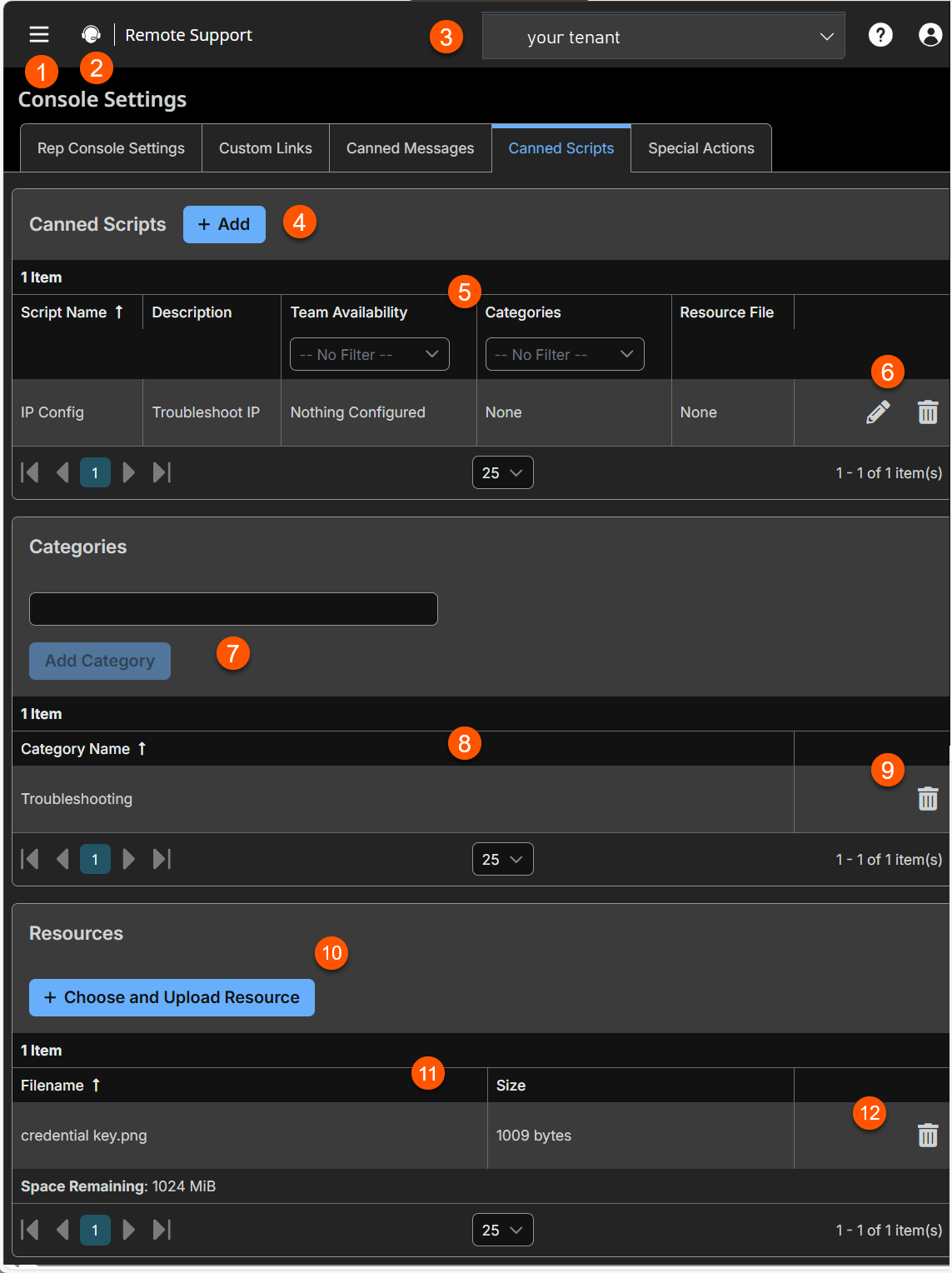
- Add:- Adds a new canned script.
- Script columns: The list of Script columns.
Script columns
- Script Name: Unique name of the account.
- Description: A brief description of the Account Group.
- Team Availability: Set a code name for integration purposes. If you do not set a code name, one is created automatically.
- Categories: Set a code name for integration purposes. If you do not set a code name, one is created automatically.
- Resource File: Set a code name for integration purposes. If you do not set a code name, one is created automatically.
- Script list options: Edit or delete a script.
- Categories: Adds a new category.
- Categories columns: The list of Categories columns.
Categories columns
- Category Name: Unique name of the category.
- Categories options: Deletes a category.
- Resources: Adds a resource file.
- Resources columns: The list of Resources columns.
Resources columns
- Filename: The file name of the resource.
- Size: The size of the resource. The max size of the Resource folder is 100 megabytes (MB).
- Resources options: Deletes a resource file.
Add Scripts
Add a new canned script
- Sign into app.beyondtrust.io.
The BeyondTrust Home page displays. - From the main menu, click Remote Access > Console Settings.
The Rep Console Settings page opens and the Manage Representative Console Settings tab displays by default. - Click the Canned Scripts tab.
The Canned Scripts tab displays. - Click Add.
- For Script Name, create a unique name to help identify this script. This name should help users locate the script they wish to run.
- For Description, add a brief description to summarize the purpose of this script. This description displays on the prompt to confirm that the user wants to run the selected script.
- For Command Sequence, write the command sequence. Scripts are written in command line format, similar to writing a batch file or shell script.
Only the last line of the script may be interactive; you cannot prompt for input in the middle of the script.
- For Team Availability, select which teams should be able to use this item.
- For Categories, select the category under which this item should be listed.
- For Resource File, include a resource with the canned script.
- Within the script, reference an associated resource file using "%RESOURCE_FILE%", making sure to include the quotation marks. The command sequence is case sensitive.
- You can access the resource file's temporary directory using %RESOURCE_DIR%. When you run a script with an associated resource file, that file will be temporarily uploaded to the customer's computer.
Edit a canned script
- Sign into app.beyondtrust.io.
The BeyondTrust Home page displays. - From the main menu, click Remote Access > Console Settings.
The Rep Console Settings page opens and the Manage Representative Console Settings tab displays by default. - Click the Canned Scripts tab.
The Canned Scripts tab displays. - Select a canned script from the list.
- Click the pencil
 to edit the custom link.
 - Make the necessary changes, and click Save.
Delete a canned script
- Sign into app.beyondtrust.io.
The BeyondTrust Home page displays. - From the main menu, click Remote Access > Console Settings.
The Rep Console Settings page opens and the Manage Representative Console Settings tab displays by default. - Click the Canned Scripts tab.
The Canned Scripts page displays. - Select a canned script from the list.
- Click the trash can
 .
. - A confirmation dialog box displays, click Yes.
Categories
Add a category
- Sign into app.beyondtrust.io.
The BeyondTrust Home page displays. - From the main menu, click Remote Access > Console Settings.
The Rep Console Settings page opens and the Manage Representative Console Settings tab displays by default. - Click the Canned Scripts tab.
The Canned Scripts page displays. - From the Categories section, enter a category name.
- Click Add Category.
The confirmation message: Canned Script Category " displays, where <Category Name> is the name of the category you added. The category name displays in the table where you can delete the category name.
Delete a category
- Sign into app.beyondtrust.io.
The BeyondTrust Home page displays. - From the main menu, click Remote Access > Console Settings.
The Rep Console Settings page opens and the Manage Representative Console Settings tab displays by default. - Click the Canned Scripts tab.
The Canned Scripts page displays. - Select a category from the list.
- Click the trash can .
- A confirmation dialog box displays, click Yes.
Resources
Add a resource
- Sign into app.beyondtrust.io.
The BeyondTrust Home page displays. - From the main menu, click Remote Access > Console Settings.
The Rep Console Settings page opens and the Manage Representative Console Settings tab displays by default. - Click the Canned Scripts tab.
The Canned Scripts page displays. - From the Resources section, click Choose and Upload Resource.
- An Open dialog box displays, select a resource file. Add any resource files you want to access from within your scripts. You may upload up to 100 megabytes (MBs) to your resource file folder.
If you upload a resource file with the same name as an existing resource file, there is a prompt to confirm replacing the file.
- If you click Yes, the updated resource file is uploaded and used for all applicable canned scripts.
- If you click No, the file is not uploaded.
- Click Open.
The resource file displays in the resource list table.
Delete a resource
- Sign into app.beyondtrust.io.
The BeyondTrust Home page displays. - From the main menu, click Remote Access > Console Settings.
The Rep Console Settings page opens and the Manage Representative Console Settings tab displays by default. - Click the Canned Scripts tab.
The Canned Scripts page displays. - Select a resource from the resource list table.
- Click the trash can .
- A confirmation dialog box displays, click Yes.
