
Public portals | RS Pathfinder
What are public sites?
Public sites are customer-facing websites configured on your BeyondTrust Appliance B Series. They serve as entry points where customers can initiate support sessions, and all session traffic is routed through these sites.
How are public sites useful?
Public sites enable customers to easily access support by initiating sessions online, while ensuring session traffic is efficiently directed and securely managed through the BeyondTrust Appliance B Series.
How do I access the Public Portals page?
- Sign into app.beyondtrust.io.
The BeyondTrust Home page displays. - From the left menu, click Remote Support > Public Portals.
The Public Sites page opens and the Public Sites tab displays by default.
The Public Portals page
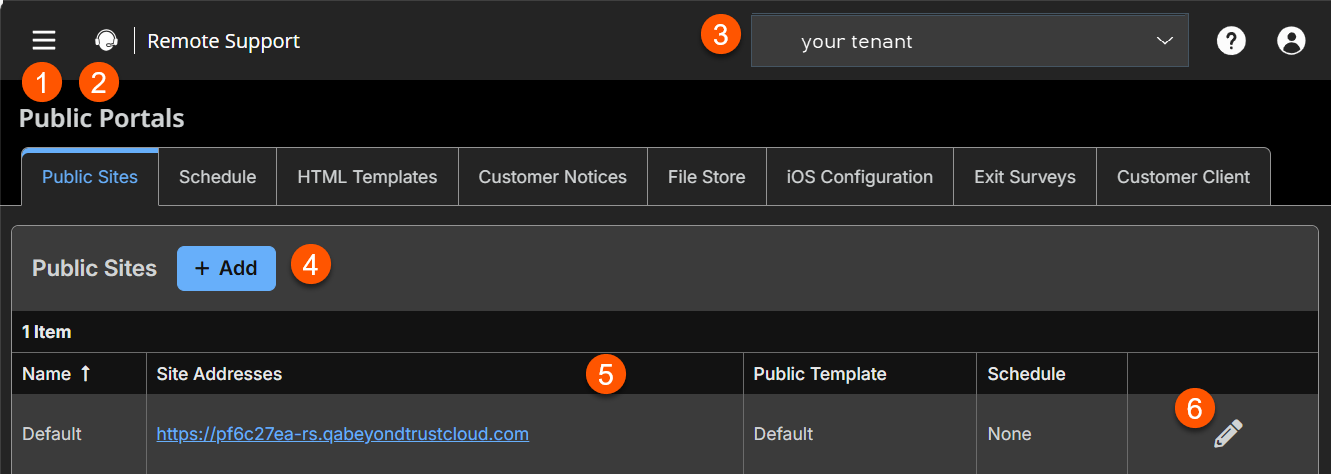
- Add: Addes a new public site.
- Public Sites columns: List the Public Sites columns.
Public Sites columns
- Name: Unique name of the public site.
- Site Addresses: FQDN of the public site.
- Public Templates: Use templates to configure the design layout of the site.
- Schedule: Allows to control when customers can access a public portal.
- Public Sites option: Edits an existing public site.
Add new site
- Sign into app.beyondtrust.io.
The BeyondTrust Home page displays. - From the left menu, click Remote Support > Public Portals.
The Public Sites page opens and the Public Sites tab displays by default. - Click Add.
- For Name, create a unique name to help identify this site. This name helps you determine the public portal through which a customer entered. The default site name cannot be changed.
- For Site Addresses, each site must have at least one DNS that resolves to your BeyondTrust Appliance B Series. Multiple hostnames can direct to one site, but one hostname cannot be used for multiple sites.
- For Default Support Button profile, choose which Support Button profile to use for this public site, either the default profile or a customized profile. The button profiles are configured from the Configuration > Support Buttons page.
- For Public template, configure the page design and layout by selecting a public web template, configured from the Public Portals > HTML Templates page.
For more information, please see Public site HTML template.
- For Require SAML Authentication, If SAML For Public Portals is configured on the Users & Security > Security Providers page, this option is available. If checked, customers must authenticate with an identity provider before a session is initiated using the public support portal.
- For the Display Customer Notices checkbox, if this is selected, then customer notices are displayed on the public site. This way customers may never enter the support queue, thus allowing representatives to dedicate their attention to customers who need assistance. Customer notices are configured on the Public Portals > Customer Notices page.
- The same customer notice can be used across several sites, or on a custom portal. The XML for the public portal contains a section where all current notifications are shown. This ensures that messages are always in sync across several sites.
- For more information, please see Connection options.
- Attempt to launch sessions from installed Jump Clients, if this option is checked, and there is already a Jump Client installed on the user's system, an elevated session launches from the existing Jump Client. This applies to both the portal and the session generation API.
For the elevated session to start, a similar permission must be granted for the Jump Client. Please see Allow ad-hoc sessions to be started from existing Jump Clients.
Edit a site
- Sign into app.beyondtrust.io.
The BeyondTrust Home page displays. - From the left menu, click Remote Support > Public Portals.
The Public Sites page opens and the Public Sites tab displays by default. - From the Public Sites table, select a site.
- Click the pencil to edit the site.
- Make the necessary changes, click Save.
Representative list
Use representative list
The representative list displays the names of all logged-in representatives, sorted according to display number. When a customer clicks a name and runs the customer client, a session immediately appears in that representative’s personal queue.
Choose if this session initiation option should be available for this support portal. Select if this option should be enabled for the public site and the API, enabled for the API but hidden on the public site, or disabled.
Display help text
Choose if you would like to display help text for this option on the public site. You may customize the text displayed. To revert to the default text, delete the text from the field and then save the blank field.
Start session using click-to-chat
Uncheck to start sessions with the full customer client rather than web-based chats. Starting sessions with web-based chats is the recommended way to start sessions.
Display help text
Choose if you would like to display help text for this option on the public site. You may customize the text displayed. To revert to the default text, delete the text from the field and then save the blank field.
Session keys
Use session keys
You can generate a session key for a support session and give it to your customer beforehand, requesting them to submit it on your public site. Running the customer client from a session key places the customer in the queue with the representative who generated the key.
Choose if this session initiation option should be available for this support portal. Select if this option should be enabled for the public site and the API, enabled for the API but hidden on the public site, or disabled.
Display help text
Choose if you would like to display help text for this option on the public site. You may customize the text displayed. To revert to the default text, delete the text from the field and then save the blank field.
Start session using click-to-chat
Uncheck to start sessions with the full customer client rather than web-based chats. Starting sessions with web-based chats is the recommended way to start sessions.
Prompt before downloading the Remote Support customer client
Checking the option to prompt the customer requires the remote user to confirm that they would like to start a support session before beginning the BeyondTrust client download. If this option is unchecked, the client download begins as soon as the customer submits the session key or follows the session key link.
Issue submission survey
Use issue submission survey
Your customer can fill out an issue submission survey to request support.
Choose if this session initiation option should be available for this support portal. Select if this option should be enabled for the public site and the API, enabled for the API but hidden on the public site, or disabled.
Session queue selection
If you set the survey to display common issues, your customer can select the type of problem they are experiencing. Then they will be placed in queue for the team that owns the selected issue.
If you set the survey to list available representatives, your customer will be placed in the selected representative’s personal queue. Note that all representatives are displayed, regardless of team membership.
Display issues for all teams
Select Display Issues for All Teams to list all configured issues, or select the teams whose issues you want to display on this site.
Available/displayed fields
From the available fields, select which information fields should display on this site. Go to Configuration > Custom Fields to create and manage these fields.
Display help text
Choose if you would like to display help text for this option on the public site. You may customize the text displayed. To revert to the default text, delete the text from the field and then save the blank field.
Start session using click-to-chat
Uncheck to start sessions with the full customer client rather than web-based chats. Starting sessions with web-based chats is the recommended way to start sessions.
For more information, please see the API guide.
Post-session landing page
Enable post-session landing page
Choose per site whether to display a customer exit survey on the BeyondTrust landing page, to redirect your customer to an external URL, or not to send your customer to any landing page
For more information, please see Uninstall message and exit surveys.
Available/displayed questions
If you enable the BeyondTrust landing page, select which questions should appear in this site's survey. Questions are configured on the Public Portals > Exit Surveys page.
Enable customers to download chat transcript and/or session recording
If you enable the BeyondTrust landing page, you also may choose to provide the customer with a link to download the chat transcript and/or the video recording of the session.
External landing URL
If you enable a custom landing page, set the external landing URL to which customers should be directed after a support session.
Representative survey
Enable representative survey
You can choose to display a representative survey. The survey will display when a session is completed. It is also possible to allow the representative access to the survey during a session. This option allows administrators to use the survey to create detailed workflows containing external web links with resources, as well as to ensure that representatives record specific information or follow a preset number of support steps. The option to display the survey during a session is configured on the Public Portals > Exit Surveys page.
For more information, please see Representative survey.
