
Manage AD Bridge licenses | AD Bridge
Managing AD Bridge licenses starts with understanding how agents find and acquire keys through the AD hierarchy.
In this article learn more about:
- AD Bridge license types
- How to create and populate license containers
- Manage how licenses are assigned to Linux and Unix agents
License types
Basic and Enterprise
AD Bridge supports two license tiers:
- Basic: Provides core AD Bridge functionality, including up to 5 concurrent AD logins.
- Enterprise: Includes all Basic capabilities, and additionally enables the use of:
- Unlimited concurrent logins
- AD Bridge management tools for Active Directory (ADTool)
- Auditing and reporting
- Autoenrollment of certificates
- Group Policy (GPO application)
- Smart cards (two-factor authentication)
Upgrade a Basic license
Upgrade at any time to an Enterprise license by importing the license file into an Active Directory container in BeyondTrust Bridge.
Single-computer licenses
BeyondTrust offers single-computer licenses for each of its agents. If there are multiple domains, a different license file is required for each domain.
To distribute a set of single-computer licenses across two or more domains, contact BeyondTrust Sales and request that the licenses be split into separate license files.
Manage licenses
There are two ways to assign AD Bridge licenses:
- Globally using the License Management page in the BeyondTrust Bridge.
Requires a Windows administrative workstation connected to Microsoft Active Directory. - Locally using an AD Bridge command-line utility (setkey-cli) on a Unix or Linux computer.
Using the License Management page in BeyondTrust Bridge, you can create a license container and manage the distribution of licenses via Microsoft Active Directory.
Search for a license in AD Bridge
Automatically assign a license
The AD Bridge agent applies a license automatically when you:
- Log on to a client with an AD account
- Restart the AD Bridge authentication service
- Run setkey-cli
Requirements
The setting autoassign=true must be set, and computers must have rights to assign their own license.
How the agent finds a license:
- Searches for a license container in the computer's OU
- If found, applies an assigned key or claims an unassigned one
- If not found, moves up the OU hierarchy and repeats until the domain root
After a license container is found, the agent stops searching even if no valid key is available.
As of 26.1.0, ADBridgeKeys will be searched first before checking LikewiseEnterpriseLicenses
Create an AD Bridge license container
Install AD Bridge licenses manually on each client, or install the licenses in Active Directory and manage them from a central location.
In Active Directory, create a license container before importing an AD Bridge license key file.
Recommendations
-
Create the license container at the highest OU level you have write access to. This simplifies management across multiple OUs.
For example, placing the licensing container in a common location above the Linux computer OUs can simplify license management across separate organizational units.
-
In a Default Cell scenario, create the container at the domain level.
How the agent uses the container
A container can exist in any OU and does not need to be in the same OU as an AD Bridge Cell. The AD Bridge agent searches the OU hierarchy for a license container the same way it searches for a cell.
When a container is found, the agent stops searching (even if the container is empty) and checks whether a license is assigned to the computer. If a license is found in Active Directory, the agent marks it as assigned.
After creating a container
Computers can automatically acquire a license. If you turn off automatic licensing, you must assign a license to each computer manually.
For more information on manually assigning license, see Manage a license key from the command line and Assign a license to a computer in Active Directory.
Import licenses
To create a license container:
-
Log on to BeyondTrust Bridge.
-
Select License management.
The Manage AD Bridge Licenses page displays.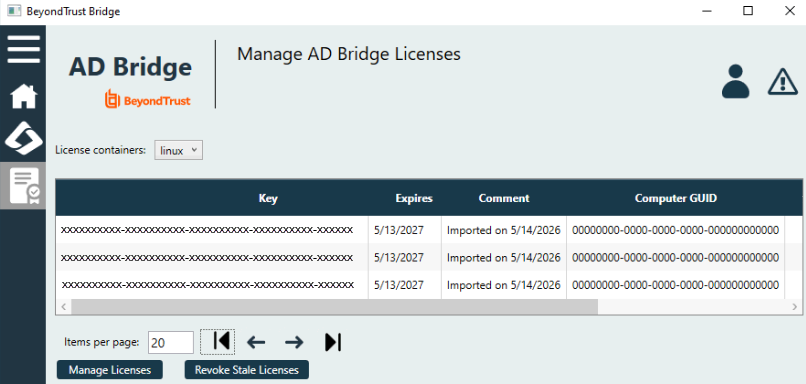
-
Select Manage Licenses.
The Manage License Containers dialog box displays.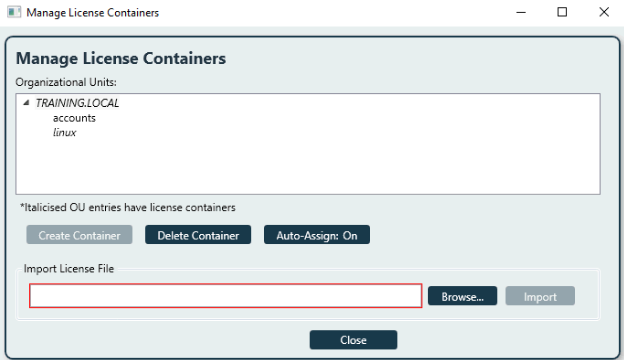
-
Select the location above the agent computer location.
-
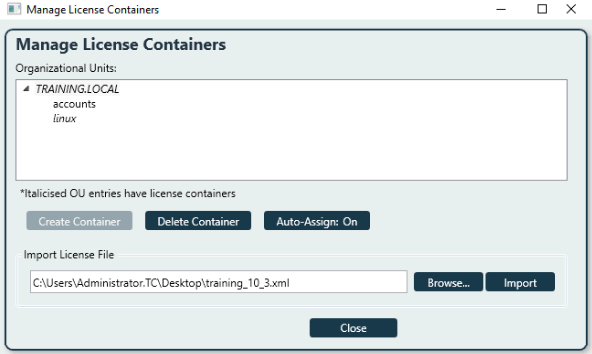
Select Browse to navigate and select the license file.
-
Select Import.
-
Auto-Assign is enabled by default and allows the agent computers to self assign a license. If you want to manage manually via the BeyondTrust Bridge or the agent machine it can be disabled after the import.
-
Click Close.
Parent-level licensing
AD Bridge supports parent-level licensing, where AD Bridge agents running in child domains can obtain license keys from a license container in the root of the domain. This eliminates the need for license containers in child domains. License containers in child domains are still supported and are useful in restricting the number of license keys issued to agents joined to that domain.
AD Bridge agents obtain license keys by first looking for a license container in the organizational unit (OU) the computer is joined to:
-
If the agent finds a license container, the endpoint obtains a license from that container, it assigns it to the agent computer. If the agent does not obtain a license, a Basic license is issued.
As of 26.1.0, ADBridgeKeys is searched first before checking LikewiseEnterpriseLicenses
-
If the agent does not find a license container, the agent moves up through the AD tree, repeating the process until it reaches the domain root. If no container is found in the joined domain, the agent then checks the parent domain root. Once a license container is found, whether or not a license key is obtained from it, the agent stops searching.
For child domains to acquire and delete licenses that are applied to the agent computers, add permissions to licenses in the root of the domain's license container.
- At the root of the domain, right-click the License object in the License Container.
- Add the child/domain computers account and allow Create all child objects and Delete all child objects. This allows the child domain computers group to acquire and delete licenses from the parent domain.
When leaving the domain using --deleteAccount, the credentials used must also be added to each license object to free the associated licenses.
Add license permissions
Add permissions to licenses in the root of the domain's license container for child domains to acquire and delete licenses.
To add permissions for child domains:
- At the root of the domain, right-click the license object in the license container.
- Add the child or domain computer's account.
- Allow Create all child objects and Delete all child objects.
Enabling Create all child objects and Delete all child objects will allow the child domain computers group to acquire and delete licenses from the parent domain.
When leaving the domain using --deleteAccount, the credentials used must also be added to each license object to free the associated licenses.
Manage a license from the command line
While we recommend managing licenses in BeyondTrust Bridge, you can also manage a license locally from the command line on a Linux or Unix computer. The license set must be available in the license container. This approach works best when autoassign is set to false, allowing end users to manage their licenses.
From the command line of an AD Bridge client, check a computer license, set a license key, release a license, and adjust the type of license the computer obtains.
For more information, run the command:
/opt/pbis/bin/setkey-cli --helpVerify a license key
The AD Bridge agent verifies a license in these instances:
- Running the setkey-cli utility
- Starting the AD Bridge authentication service
- Logging on
- Periodically, based on the config option CheckLicenseIntervalMinutes
To verify a license, the setkey-cli utility uses the computer's Active Directory account to search for licenses in the computer's OU hierarchy up to the top of the domain. When the computer's domain controller is down, the utility loads the license from the disk without verifying its assignment in Active Directory.
The AD Bridge Group Policy service also checks for a license when it refreshes the computer's Group Policy Objects (GPOs). If the license is invalid, the service ignores the GPOs. Once the license becomes permanent and valid, the service applies the GPOs when it restarts.
Release a license key
When decommissioning a computer, release a computer's license so it can be used by another computer. Releasing a permanent license key, it is replaced by a temporary evaluation license.
You can also release a license to apply a different permanent license to the computer.
/opt/pbis/bin/setkey-cli --releaseThis can also be done during a domain leave. We recommend a full deleteAccount when decommissioning a system.
/opt/pbis/bin/domainjoin-cli --deleteAccountCommon issues
License management
Invalid computer
If the message "Invalid computer!" is displayed in the Assigned To column, it means that the console can not find the assigned computer objects by GUID. Revoke the license and return it to the pool of available licenses.
Agent machine
ERROR_CTX_LICENSE_NOT_AVAILABLE
You can only use --key to assign available keys from the license container. In this scenario, --key cannot be used to apply an additional license that are not listed in the license container. Check for available licenses from Active Directory.
Updated 10 days ago
