
Delegate permissions to manage license containers | AD Bridge
AD Bridge stores licenses for agents in Active Directory (AD). To store the licenses, one or more license containers need to be created using the BeyondTrust Management Console (BMC). Licenses are then imported into the container from the console.
Agents get licenses from the license container they are immediately subordinate to in the AD hierarchy. In most cases, a single license container placed in the hierarchy superordinate to all agents is sufficient. In some cases, additional licensing containers can be created for organizational or administrative reasons.
Overview of license containers and licenses in AD Bridge
Each license container and each imported license is stored in AD as an object of class container.
- A license administrator requires permissions to create and delete license containers and licenses.
- AD Bridge computer objects must be granted Write all properties permissions to each license object to write to their claimed license object. These rights are automatically granted on each imported license when the license container is created, using the default option Allow Computers to Acquire Licenses Automatically.
- For more information, see Manage AD Bridge Licenses.
- To run the BMC, the user account must be a domain user account and a member of the local Administrators group.
Delegate permissions to a license container
This guide shows how to apply the minimum permissions required to manage licensing. In general, if a user has full rights over an OU structure, they can administer all license functions over that OU. The following procedure shows how to add minimum permissions to a security principal (preferably a group) to manage licensing.
The procedure uses the ASDI Edit configuration tool. ADSI Edit exposes the specific permissions required at the minimum level. Active Directory Users and Computers (ADUC) or a command line tool such as DACLS do not expose the permissions to this level of granularity.
Steps might vary slightly between OS versions. Steps provided here are from Windows Server 2012.
-
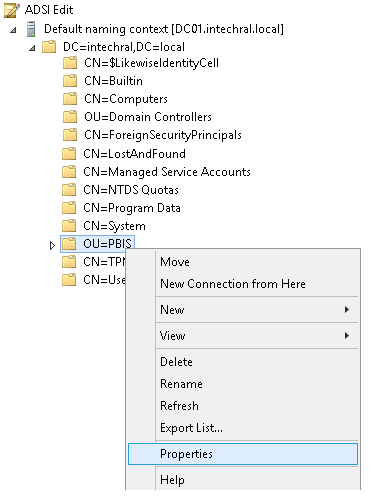
Using ADSI Edit, connect to the default naming context of the domain and browse to the OU where the license containers will be created.
-
Right-click an OU, and then select Properties.
-
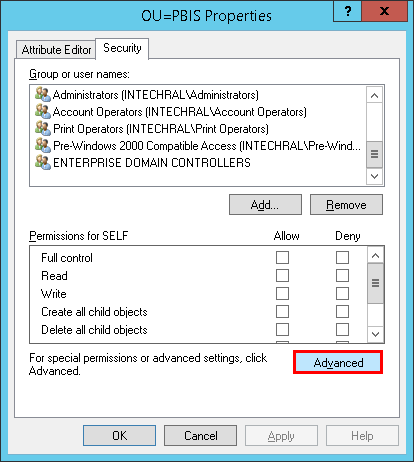
Click the Security tab, and then select Advanced.
-
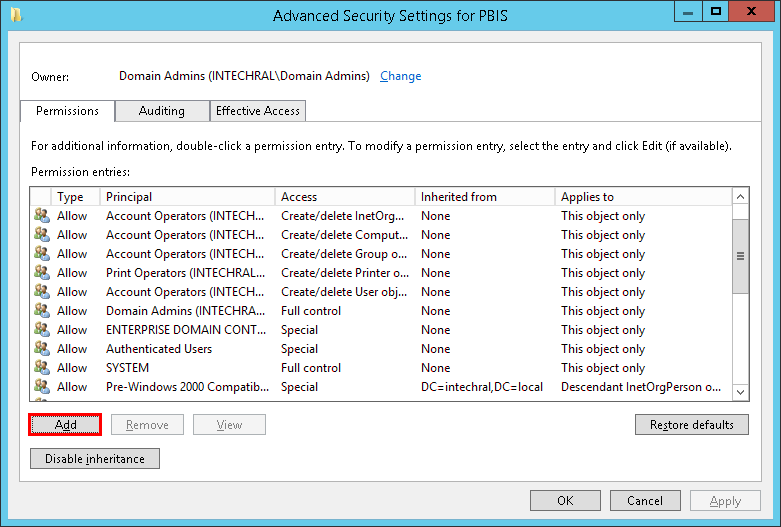
Click Add.
-
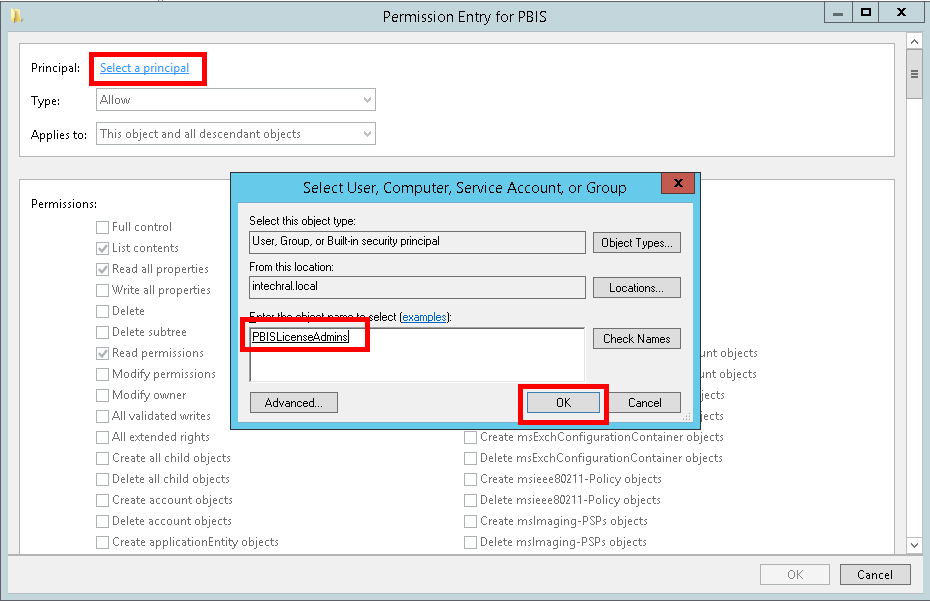
Click Select a principal, enter the name of the group to provide permissions to, and then click OK.
-
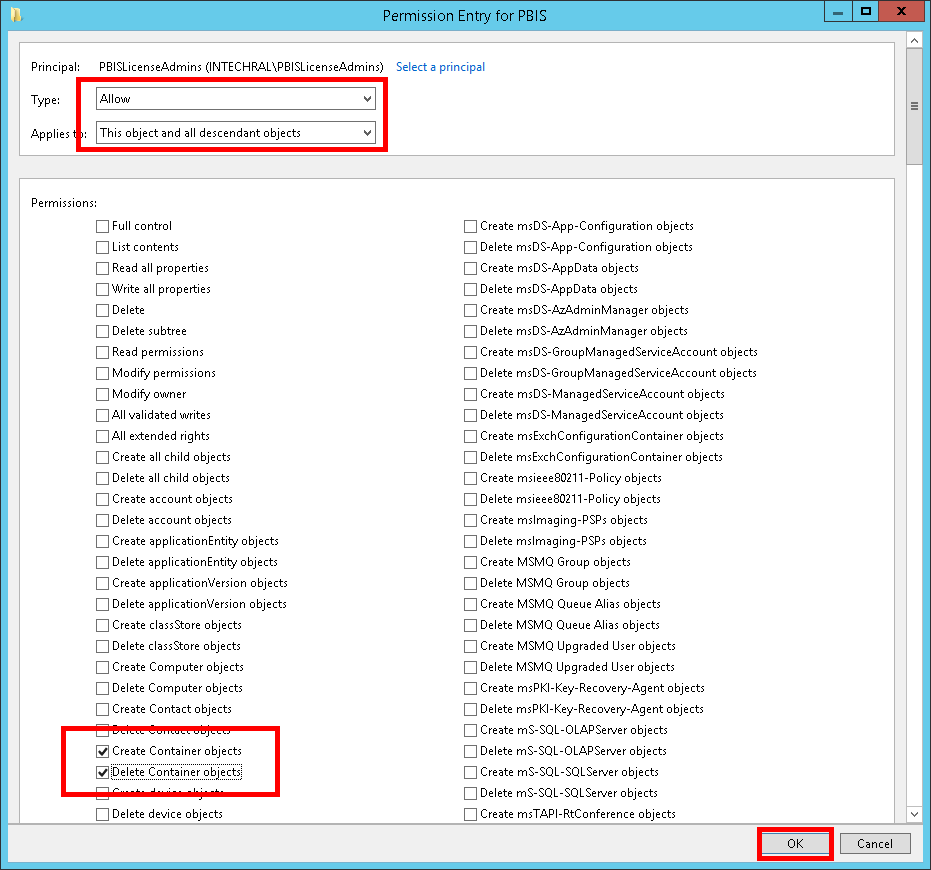
Select Allow, This object and all descendent objects, and then select the following permissions from the list and click OK:
- Create Container objects
- Delete Container objects
-
Repeat steps 4 and 5 to add the group with a new set of permissions.
-
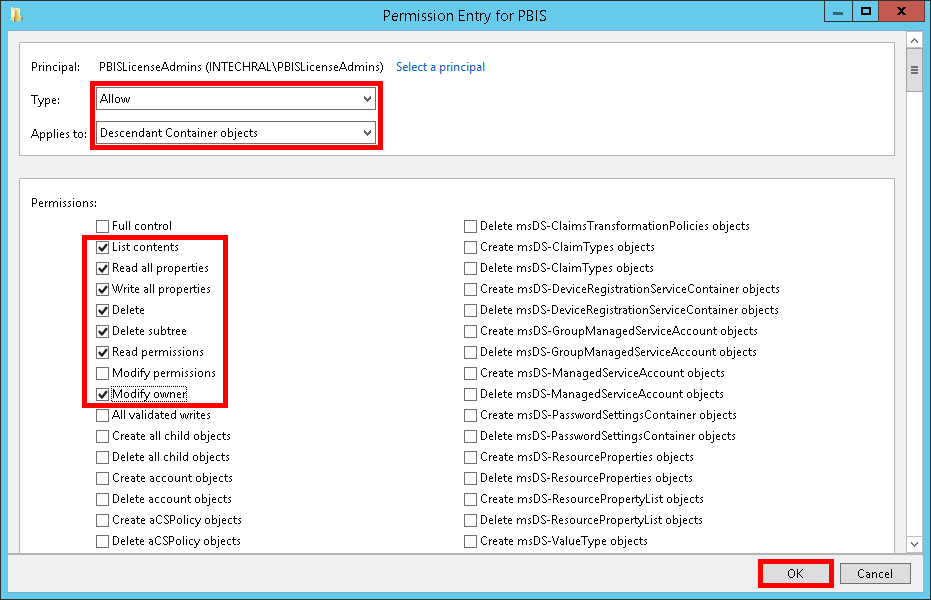
Select Allow, Descendent Container objects, and then select the following permissions from the list and click OK:
- List contents
- Read all properties
- Write all properties
- Delete
- Delete subtree
- Read permissions
- Modify owner
The steps can be performed on an OU or on the domain root. However, when managing a licensing container at the domain root, granting these permissions may not be ideal, as they allow manipulation of all container class objects under the target.
In that case, a Domain Admin can first create the licensing container in the BMC, then follow the steps above., targeting the $LikewiseEnterpriseLicenses container directly rather than the parent OU. To see the container in ADUC, turn on Advanced Features from the View menu.
Updated 3 months ago
