
AWS Identity Center, temporary permission set | Entitle
What is AWS Identity Center (temporary permission set)?
AWS Identity Center is a cloud-based service that enables centralized identity and access management across multiple AWS accounts. It allows organizations to define and assign permission sets to users and groups, streamlining access control for cloud resources. In this integration, Entitle connects to AWS Identity Center using a pod-based identity model, which avoids the need for persistent AWS accounts and aligns with modern security practices.
How is this integration useful?
By integration Entitle with AWS Identity Center using temporary permission sets, your organization can automate Just-In-Time (JIT) access across multiple AWS accounts. When a user requests access, Entitle creates a temporary permission set scoped to the specific resource and account, which is automatically revoked when the access expires. This approach improves security posture by enforcing least privilege access, reducing standing permissions, and simplifying access workflows across distributed environments.
With this integration, Entitle can manage the following resource types in AWS:
- SSO users
- SSO groups
- SSO permission sets
- IAM roles
- IAM policies
- S3 buckets
- EC2 instances
- Secrets Manager vaults
How does it work?
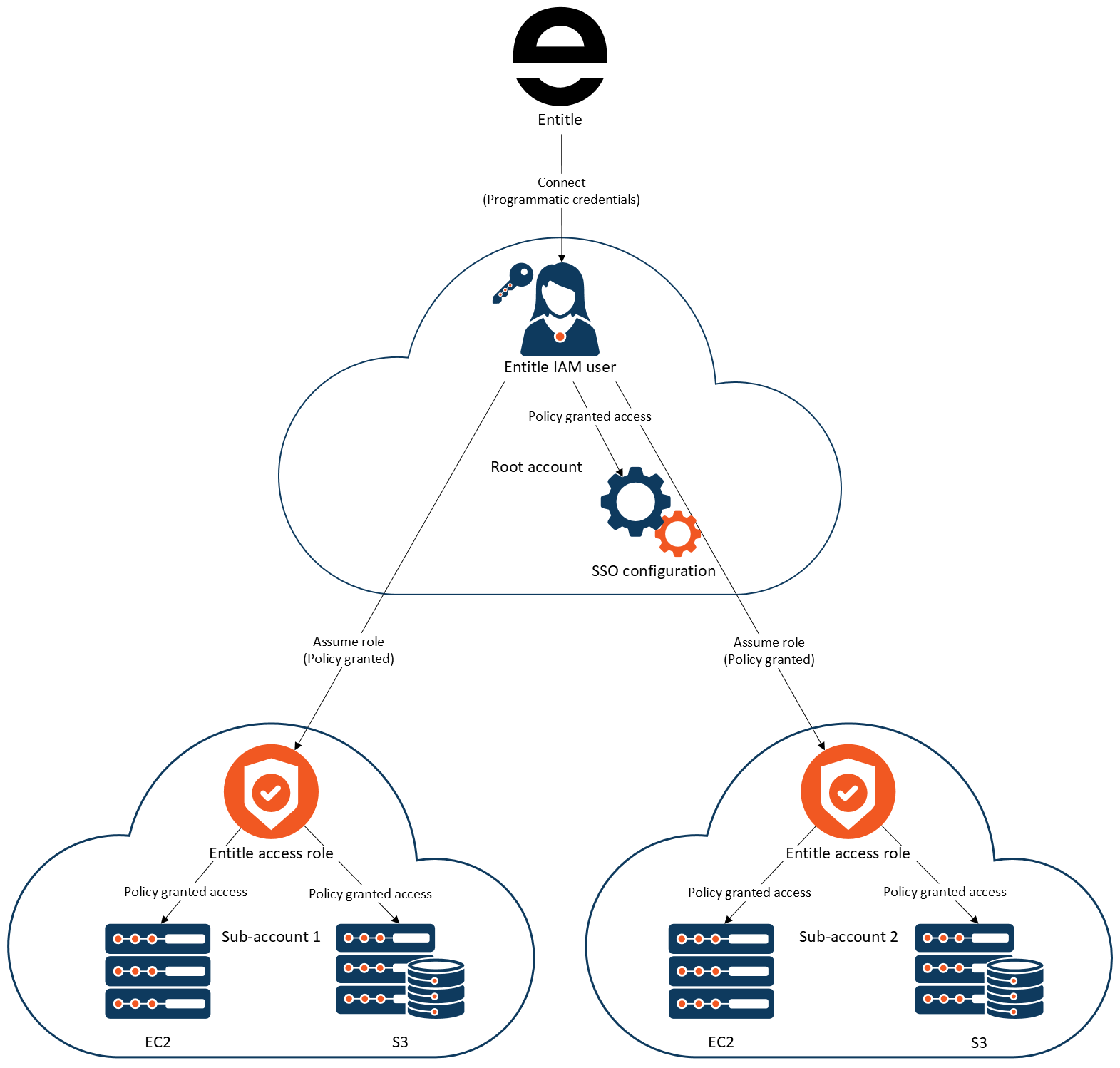
- Entitle connects to the root account of your organization.
- From the root account, Entitle retrieves and manages the SSO users, groups, and permission sets.
- From the root account, Entitle assumes the roles configured for the sub-accounts.
- In the sub-accounts, Entitle collects and manages the resources via the role.
- When permissions are granted, a new temporary permission set is created under the
entitle-<String>format, and attached to the user who requested the access. - When permissions are revoked, the temporary permission set will be deleted.
Integration resource structure in Entitle
When an AWS integration of this type is created, Entitle structures your resources and permission sets as follows:
On the integration page under Resources, you will see:
- Non-permission set resources (e.g., S3 Buckets, IAM Roles, Secrets Manager vaults, etc.)
- Sub-accounts (child AWS accounts tied to the integration).
- Inside a sub-account resource, you will see permission sets tied to that sub-account.
Ensure that every permission set tied to your sub-account only includes roles that are available on that sub-account.
AWS setup
Setting up AWS accounts
For Entitle to connect and manage resource access for SSO users across different accounts in your organization, we will require a few things to be set up:
- For SSO control and initial access to the organization, we will need an IAM user in the root account with SSO management access.
- For each sub-account, we will need a role with management access to all the resources we want to manage from said account.
Root account - set up an IAM user
- Create an IAM User with programmatic credentials and keep the credentials for that user; they will be needed for Entitle to connect.
- Create the SSO Management Policy and the Base Permissions Management Policy policies with the contents below:
{
    "Version": "2012-10-17",
    "Statement": [
        {
            "Sid": "VisualEditor0",
            "Effect": "Allow",
            "Action": [
                "iam:AttachRolePolicy",
                "iam:AttachUserPolicy",
                "iam:CreateRole",
                "iam:CreatePolicy",
                "iam:CreatePolicyVersion",
                "iam:DetachUserPolicy",
                "iam:DeletePolicy",
                "iam:DeletePolicyVersion",
                "iam:GetPolicy",
                "iam:GetPolicyVersion",
                "iam:GetRole",
                "iam:GetSAMLProvider",
                "iam:UpdateSAMLProvider",
                "iam:ListAttachedRolePolicies",
                "iam:ListEntitiesForPolicy",
                "iam:ListPolicies",
                "iam:ListPolicyTags",
                "iam:ListPolicyVersions",
                "iam:ListRolePolicies",
                "iam:ListUserPolicies",
                "iam:ListUsers",
                "identitystore:CreateGroupMembership",
                "identitystore:DeleteGroupMembership",
                "identitystore:DescribeGroup",
                "identitystore:DescribeGroupMembership",
                "identitystore:DescribeUser",
                "identitystore:GetGroupId",
                "identitystore:GetGroupMembershipId",
                "identitystore:GetUserId",
                "identitystore:IsMemberInGroups",
                "identitystore:ListGroupMemberships",
                "identitystore:ListGroupMembershipsForMember",
                "identitystore:ListGroups",
                "identitystore:ListUsers",
                "organizations:ListAccounts",
                "sso-directory:DescribeUsers",
                "sso:AttachCustomerManagedPolicyReferenceToPermissionSet",
                "sso:AttachManagedPolicyToPermissionSet",
                "sso:CreateAccountAssignment",
                "sso:CreatePermissionSet",
                "sso:DeleteAccountAssignment",
                "sso:DeletePermissionSet",
                "sso:DescribeAccountAssignmentCreationStatus",
                "sso:DescribeAccountAssignmentDeletionStatus",
                "sso:DescribePermissionSet",
                "sso:DetachCustomerManagedPolicyReferenceFromPermissionSet",
                "sso:ListAccountAssignments",
                "sso:ListCustomerManagedPolicyReferencesInPermissionSet",
                "sso:ListInstances",
                "sso:ListPermissionSets",
                "sso:ListTagsForResource",
                "sso:TagResource",
                "sso:UntagResource"
            ],
            "Resource": "*"
        }
    ]
}
{
"Version": "2012-10-17",
"Statement": [
{
"Sid": "VisualEditor0",
"Effect": "Allow",
"Action": [
"iam:AttachRolePolicy",
"iam:PutRolePolicy",
"iam:AttachUserPolicy",
"iam:CreateRole",
"iam:CreatePolicy",
"iam:CreatePolicyVersion",
"iam:DetachUserPolicy",
"iam:DetachRolePolicy",
"iam:DeleteRole",
"iam:DeletePolicy",
"iam:DeletePolicyVersion",
"iam:GetPolicy",
"iam:GetPolicyVersion",
"iam:GetRole",
"iam:ListRoles",
"iam:ListAttachedRolePolicies",
"iam:ListEntitiesForPolicy",
"iam:ListPolicies",
"iam:ListPolicyTags",
"iam:ListPolicyVersions",
"iam:ListRolePolicies",
"iam:ListRoleTags",
"iam:ListUserPolicies",
"iam:ListUsers",
"iam:TagPolicy",
"organizations:ListAccounts",
"organizations:DescribeAccount",
"iam:TagRole",
"iam:UnTagRole",
"iam:TagPolicy",
"iam:UntagPolicy"
],
"Resource": "*"
}
]
}- Assign the policies you created to Entitle's user.
You can also choose a pod-based identity instead of setting up a user.
In order to connect Entitle with your AWS app, follow the steps below:
- Create a new role.
- Save that role's ARN aside, it will be used to configure your AWS integration under the field access_role_arn, see Configuration part below.
- Assign the SSO Management Policy above to the role.
- In order to set a secured connection between your AWS instance and Entitle, you are requested to set a trust relationship with Entitle - so Entitle will assume the roles you intend to manage. Add the trust relationship below to the role you created:
{ "Version": "2012-10-17", "Statement": [ { "Effect": "Allow", "Principal": { "AWS": "arn:aws:iam::321183744702:role/entitle-prod-ichilov@entitle" }, "Action": "sts:AssumeRole", "Condition": {} } ] }
Root account - set up permissions to assume role in sub accounts
- Decide on a role name, you will later need to create a role with that name in each sub-account you want Entitle to manage. From now on, we’ll refer to it as "sub-account role name".
- Create a policy using the Root Account Access To Sub Account Policy below:
{
"Version": "2012-10-17",
"Statement": [
{
"Sid": "VisualEditor0",
"Effect": "Allow",
"Action": "sts:AssumeRole",
"Resource": "arn:aws:iam::*:role/<SUBACCOUNT_ROLES_NAME>"
}
]
}- Fill in all the ARNs of the roles created for each of the sub-accounts in the previous section.
Root account - retrieve SSO information
- Go to IAM Identity Center → Settings → Details → ARN and keep the ARN.
This is the SSO instance ARN you will need for the configuration. - Copy and keep the region in which the SSO is set up, it will be required for the integration as well.
The following sections regarding the sub-accounts will need to be executed for each of the sub-accounts you want Entitle to manage
Sub account - creating a role
The role created in this step allows Entitle to access the resources in the sub-account. Repeat this step for each sub-account; the process can be automated.
- Create a new IAM role:
- For Trusted Entity Type choose: AWS Account.
- Click on Another Account and enter the account ID of your root account.
- The IAM role name should be identical to the name you set in the Root Account - Setup Permissions to Assume Role in Sub-Accounts step.
- Create the Base Permissions Management Policy below, which is required to allow Entitle to manage permissions to the account.
-
{ "Version": "2012-10-17", "Statement": [ { "Sid": "VisualEditor0", "Effect": "Allow", "Action": [ "iam:AttachRolePolicy", "iam:PutRolePolicy", "iam:AttachUserPolicy", "iam:CreateRole", "iam:CreatePolicy", "iam:CreatePolicyVersion", "iam:DetachUserPolicy", "iam:DetachRolePolicy", "iam:DeleteRole", "iam:DeletePolicy", "iam:DeletePolicyVersion", "iam:GetPolicy", "iam:GetPolicyVersion", "iam:GetRole", "iam:ListRoles", "iam:ListAttachedRolePolicies", "iam:ListEntitiesForPolicy", "iam:ListPolicies", "iam:ListPolicyTags", "iam:ListPolicyVersions", "iam:ListRolePolicies", "iam:ListRoleTags", "iam:ListUserPolicies", "iam:ListUsers", "iam:TagPolicy", "organizations:ListAccounts", "organizations:DescribeAccount", "iam:TagRole", "iam:UnTagRole", "iam:TagPolicy", "iam:UntagPolicy" ], "Resource": "*" } ] } - Create the policies for the resources you want to manage in that account using the Resource-Specific Policies below:
{
    "Version": "2012-10-17",
    "Statement": [
        {
            "Sid": "VisualEditor0",
            "Effect": "Allow",
            "Action": [
                "iam:ListPolicies",
                "iam:GetPolicyVersion",
                "iam:GetPolicy",
                "iam:TagRole",
                "iam:ListEntitiesForPolicy",
                "iam:AttachUserPolicy",
                "iam:ListUsers",
                "iam:ListUserPolicies",
                "iam:ListPolicyTags",
                "iam:TagPolicy",
                "iam:TagUser"
            ],
            "Resource": "*"
        }
    ]
}
{
    "Version": "2012-10-17",
    "Statement": [
        {
            "Sid": "VisualEditor0",
            "Effect": "Allow",
            "Action": [
                "iam:ListPolicies",
                "iam:GetRole",
                "iam:GetPolicyVersion",
                "s3:GetBucketTagging",
                "ec2:DescribeInstances",
                "iam:GetPolicy",
                "ec2:DescribeTags",
                "ec2:DescribeRegions",
                "iam:ListEntitiesForPolicy",
                "iam:AttachUserPolicy",
                "s3:ListBucket",
                "iam:ListUserPolicies",
                "iam:CreatePolicy",
                "s3:ListAllMyBuckets",
                "iam:ListUsers",
                "iam:ListPolicyTags",
                "iam:DetachUserPolicy"
            ],
            "Resource": "*"
        }
    ]
}
{
"Version": "2012-10-17",
"Statement": [
{
"Sid": "VisualEditor0",
"Effect": "Allow",
"Action": [
"iam:ListPolicies",
"iam:GetRole",
"iam:GetPolicyVersion",
"iam:ListRoleTags",
"iam:GetPolicy",
"iam:AttachUserPolicy",
"iam:ListEntitiesForPolicy",
"iam:ListRoles",
"iam:ListUserPolicies",
"iam:CreatePolicy",
"iam:ListUsers",
"iam:ListPolicyTags",
"iam:DetachUserPolicy"
],
"Resource": "*"
}
]
}{
"Version": "2012-10-17",
"Statement": [
{
"Sid": "VisualEditor0",
"Effect": "Allow",
"Action": [
"iam:ListPolicies",
"iam:GetPolicyVersion",
"iam:GetPolicy",
"iam:ListEntitiesForPolicy",
"iam:AttachUserPolicy",
"iam:ListUserPolicies",
"iam:CreatePolicy",
"iam:ListUsers",
"iam:ListPolicyTags",
"iam:DetachUserPolicy",
"secretsmanager:ListSecrets",
"secretsmanager:DescribeSecret"
],
"Resource": "*"
}
]
}- Assign these policies created in steps 2-4 to the role created in step 1.
Entitle integration setup
- Credentials - refers to the root account.
- Region - refers to the region in which the root account SSO resides.
- SSO instance ARN - refers to the ARN of the SSO connection.
- Sub-accounts - for each sub-account, you'd like different settings than the options provided, fill in the details within its scope.
Sub account Auto-Discovery feature
- This feature addresses the challenge of managing environments with a large number of AWS accounts, where manually listing each account under
sub_accountsbecomes inefficient.- By using the configuration below, the integration automatically discovers all accounts in the AWS Organization and fetches resources from each account using the specified role:
"sub_accounts": [
  {
    "account_id": "*",
    "access_role_arn": "arn:aws:iam::*:role/entitle-access-role"
  }
]
- Tags (Optional) - only resources with the listed tags will be retrieved.
{
    "root_account": {
      "access_key_id": "<ACCESS_KEY_ID>",
      "secret_access_key": "<SECRET_ACCESS_KEY>",
      "region": "<REGION>"
    },
    "sub_accounts": [
      {
        "account_id": "<SUB_ACCOUNT_ID>",
        "access_role_arn": "<SUB_ACCOUNT_ROLE_ARN>",
        "region": "<REGION>",
        "tags": [
          {
            "key": "environment",
            "value": "test"
          }
      ]
      }
    ],
    "options": {
      "sso_instance_arn": "<INSTANCE_ARN_OF_SSO_FEDERATION>",
              "tags": [
          {
            "key": "environment",
            "value": "test"
          }
      ]
    }
  }
{
"root_account": {
"account_id": "<ROOT_ACCOUNT_ID>",
"access_role_arn": "<ROLE_ARN>",
"region": "<REGION>"
},
"options": {
"sso_instance_arn": "<YOUR_SSO_INSTANCE_ARN>",
"resource_types": [],
"tags": []
},
"sub_accounts": [
{
"account_id": "<SUB_ACCOUNT_ID>",
"access_role_arn": "<SUB_ACCOUNT_ROLE_ARN>",
"region": "<REGION>",
"tags": [
{
"key": "environment",
"value": "test"
}
]
}
]
}Updated 7 days ago
