
Requests history | Entitle Pathfinder
Overview
The Request history screen in Entitle provides a comprehensive log of all past access requests.
Request history screen overview
- Sign in to app.beyondtrust.io with your credentials. The BeyondTrust Pathfinder Home displays.
- At the top right of the page, select your site from the drop-down.
- Select the Entitle tile from your list of available applications.
- From the top left menu, select Request history.
This screen has multiple functionalities:
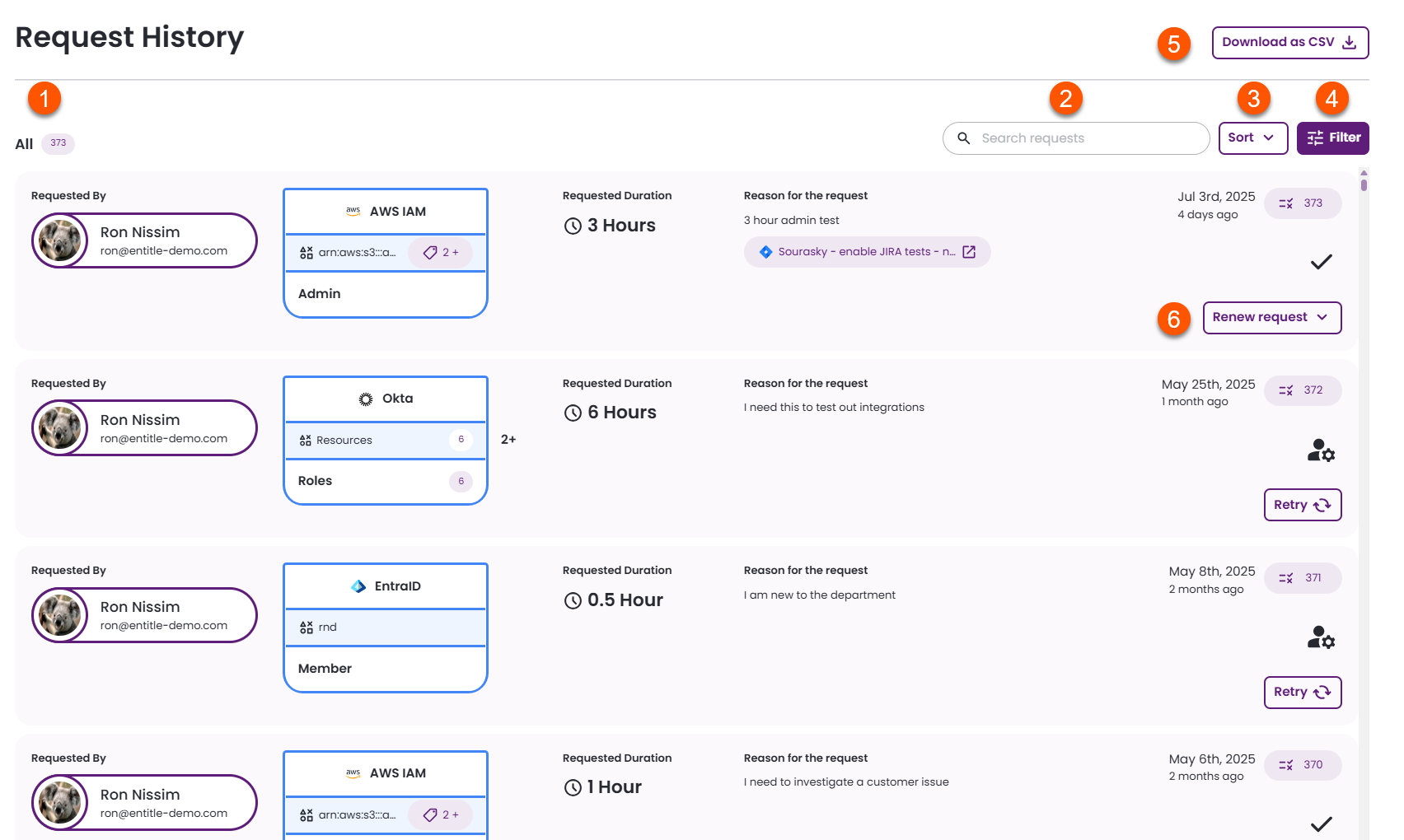
- View detailed information about each past request.
- Search for specific past requests according to the following options:
- Requesters name
- Approvers name
- Justification
- Integration name
- Resource name
- Role name
- Sort past requests according to the following options:
- Request number
- Request duration
- Status
- Request for (which user)
- Created (date of creation)
- Filter past requests to efficiently manage your request history
- Request created by: Filter by the users who created the requests.
- Request created for: Filter by the users on whose behalf the request was created.
- Request status: Filter by the specific status of the requests (e.g., approved, denied, pending).
- Request duration: Filter by the duration requested.
- Created at: Specify a start and end date to filter requests based on their creation time.
- Bundle: Filter by requests that include specific bundles.
- Integration: Select a particular integration to view requests associated with it.
- Resource type: Filter by specific types of resources within an integration.
- Resource: Filter by specific resources within an integration.
- Role: Filter requests that are related to a specific role within an integration resource.
- Request number: Filter requests by whether the request number contains a specified value.
- Download your request history as CSV.
When no filters are applied, the export includes all request history data. When filters are applied, only the filtered results are exported. - Take additional action on certain requests, such as renewing permissions that are expiring or have already expired or retrying failed or pending requests.
View past request details
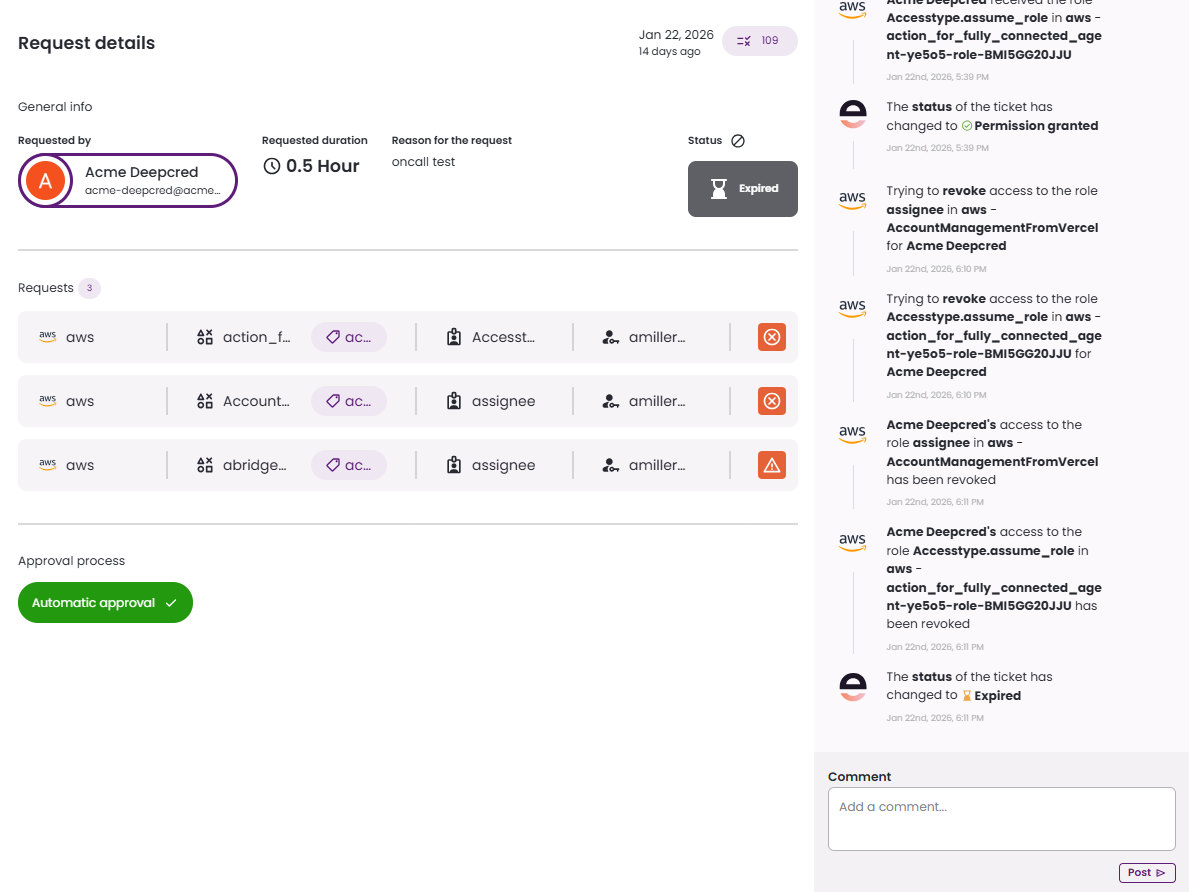
Click a request to view details that are not shown in the Request history list, including:
- Request activity: View the activity log, including approval decisions, provisioning progress, failures, and comments.
- Request details: See details such as the request number, creation time, and status.
- Requests: View individual requested items, including integration, resource, role, and account information, as well as grant status.
- Approval process: See whether the request is pending, automatically approved, manually approved, or denied.
Additional actions
Renew request
Click Renew request next to a past request to create a new request based on the original one. You may renew immediately or edit the request before renewing. The renewed request appears at the top of the Past requests view of the Requests page.
The Renew request option is available only when all of the following conditions are met:
- You are the request creator or the user for whom the request was created.
- The request status is Granted or Expired.
- The requested role or bundle still exists, is not empty, and is managed and requestable.
If any of these conditions are not met, the request cannot be renewed, and you must submit a new request instead.
Retry
Click Retry next to a failed request to attempt the request again using the same configuration. Retry re-runs the provisioning process without creating a new request.
The retried request appears at the top of the Past requests view of the Requests page.
The Retry option is available only when all of the following conditions are met:
- You are an admin user.
- The request status is Failed or Pending manual resolution.
If any of these conditions are not met, retry is not available.
Updated 20 days ago
