
Bitbucket | Entitle
Creating an app password
-
On the upper right side click on your profile picture
→ Personal settings → App passwords → Create app password
Or click here -
Give your app password the following permissions:
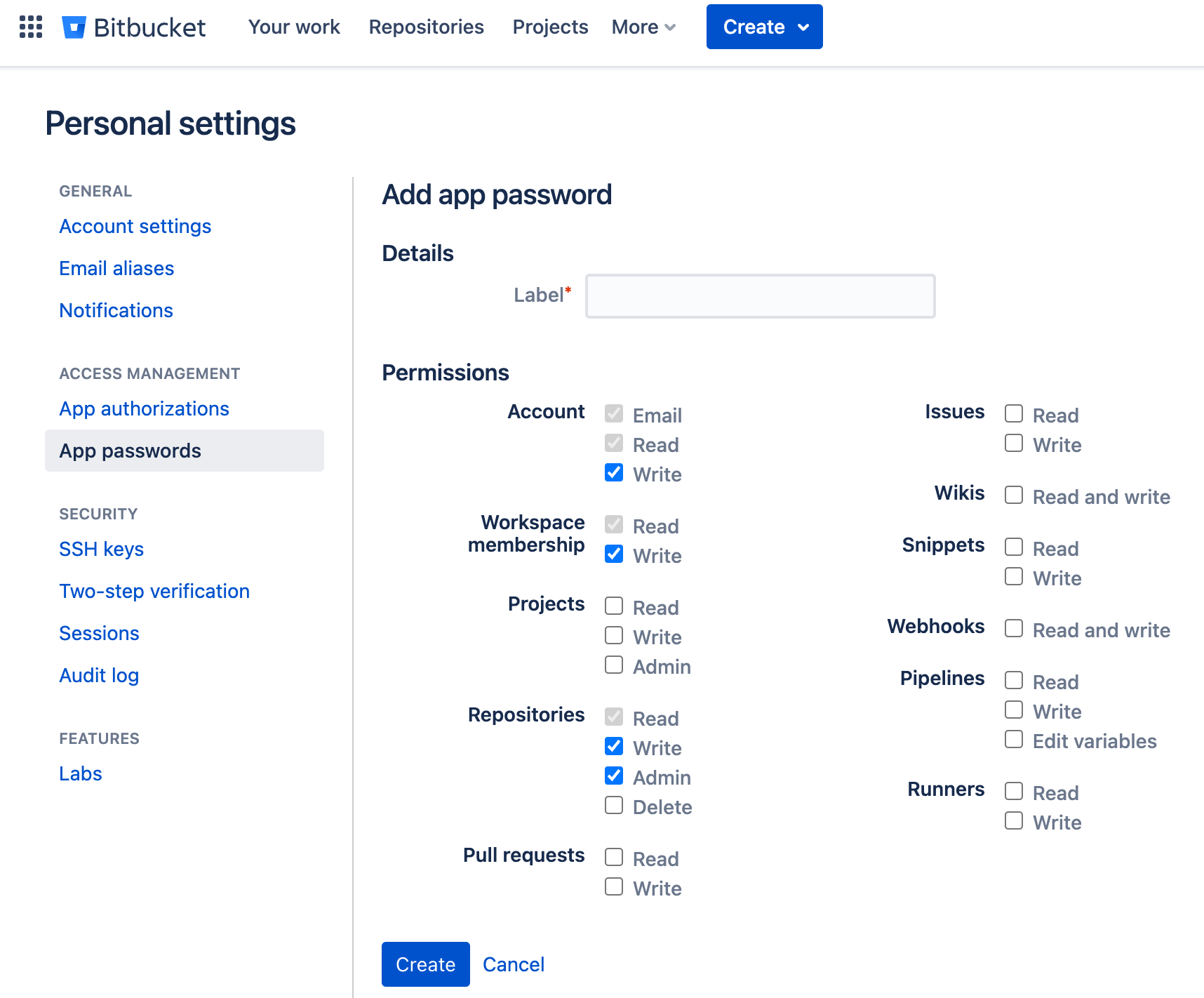
- Click Create and copy the password to the
app_passwordfield. - The
usernamewould be your Bitbucket username (not your email)
Jira credentials for email matching (optional)
- Bitbucket doesn’t allow fetching a user’s email through the API. Users will have to configure their bitbucket account without the emails through Entitle settings. There is a workaround for this by fetching these emails by creating an API token in the Atlassian API Token Management Page.
Eventually, your JSON should look like this:
{
    "user": "jira-user",
    "app_password": "<APP_PASSWORD>",
    "jira_credentials": {
      "url": "https://<YOUR_SUBDOMAIN>.atlassian.net",
      "key": "<API_TOKEN>",
      "user": "[email protected]"
}Should you need to allowlist this integration, these are the IP address ranges from which Entitle's service reaches the integration:
- Entitle EU (Cloud deployment)
- 34.243.199.171
- 54.216.133.226
- Entitle US (Pathfinder deployment)
- 52.45.229.219
- 54.88.235.213
- 3.224.15.134
What's next?Make sure your setup is complete by testing your integration.
Updated 7 days ago
