
Slack | Entitle
Entitle can manage the following resource types in Slack:
- Channels
- User groups
- Workspaces (member/admin/owner roles) - available only for the
Select / EnterpriseGridplans
This page will provide you with instructions on how to integrate Entitle and Slack to manage Slack permissions.
The Slack account which will be setting up the Slack integration will not be able to manage access to itself.
Set up Slack for Entitle's access
- Navigate to this URL: https://api.slack.com/apps
- Click Create app. When asked how you would like to configure your app’s scopes and settings, choose From a manifest.
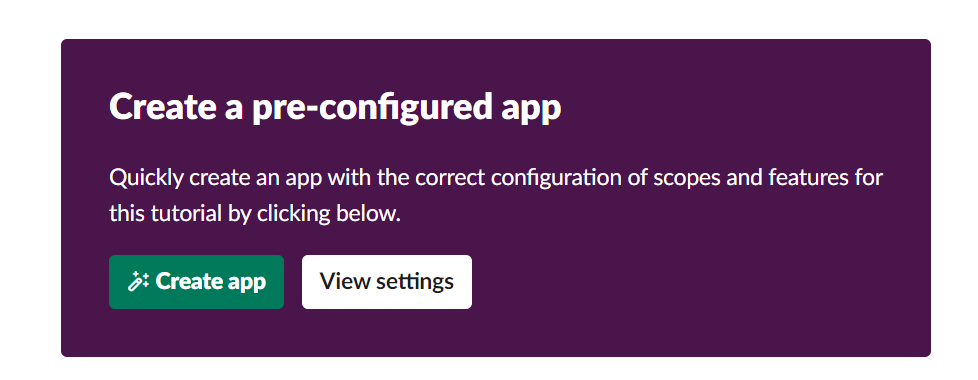
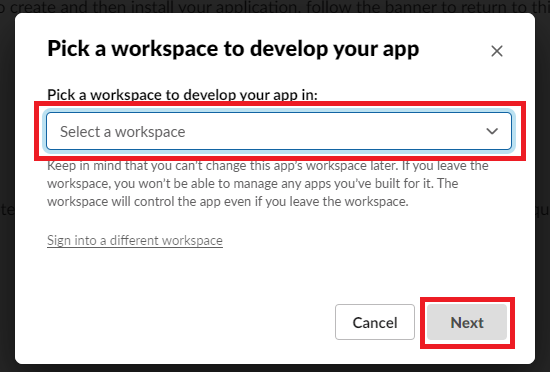
- Pick your workspace and click Next.
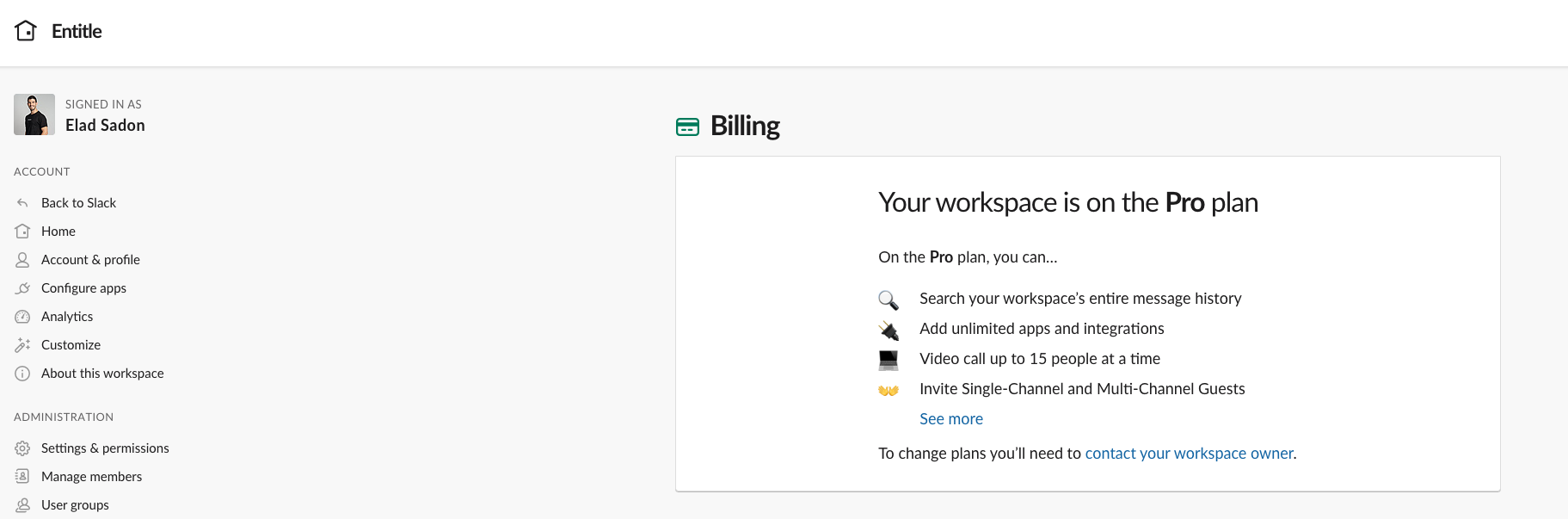
- Before proceeding to the next step, you will need to know the Slack plan you are using – Free, Pro, Business, or Enterprise. If you are unsure which plan you are on, you can find out by going to
https://<YOUR_SLACK_TENANT>.slack.com/admin/billing.
- In the code block below, select the tab for your plan and copy the contents. Then paste it into the YAML field on the page where you are creating your app. Click Next.
display_information:
  name: entitle-access-application
  description: Entitle access application
  background_color: "#d982b5"
features:
  app_home:
    home_tab_enabled: false
    messages_tab_enabled: true
    messages_tab_read_only_enabled: true
  bot_user:
    display_name: Powerful app
    always_online: true
oauth_config:
  scopes:
    user:
      - channels:read
      - channels:write
      - groups:read
      - groups:write
      - im:read
      - im:write
      - mpim:read
      - mpim:write
      - users:read
      - users:read.email
      - usergroups:read
      - usergroups:write
      - admin.conversations:read
      - admin.conversations:write
      - admin.invites:read
      - admin.invites:write
      - admin.roles:read
      - admin.roles:write
      - admin.teams:read
      - admin.teams:write
      - admin.usergroups:read
      - admin.usergroups:write
      - admin.users:read
      - admin.users:write
      - team.billing:read
    bot:
      - app_mentions:read
settings:
  event_subscriptions:
    bot_events:
      - app_mention
  interactivity:
    is_enabled: true
  org_deploy_enabled: true
  socket_mode_enabled: true
  token_rotation_enabled: false
_metadata:
major_version: 1
minor_version: 1
display_information:
name: entitle-access-application
description: Entitle access application
background_color: "#d982b5"
features:
app_home:
home_tab_enabled: false
messages_tab_enabled: true
messages_tab_read_only_enabled: true
bot_user:
display_name: Powerful app
always_online: true
oauth_config:
scopes:
user:
- channels:read
- channels:write
- groups:read
- groups:write
- im:read
- im:write
- mpim:read
- mpim:write
- users:read
- users:read.email
- usergroups:read
- usergroups:write
- team.billing:read
bot:
- app_mentions:read
settings:
event_subscriptions:
bot_events:
- app_mention
interactivity:
is_enabled: true
org_deploy_enabled: false
socket_mode_enabled: true
token_rotation_enabled: falseFor example:
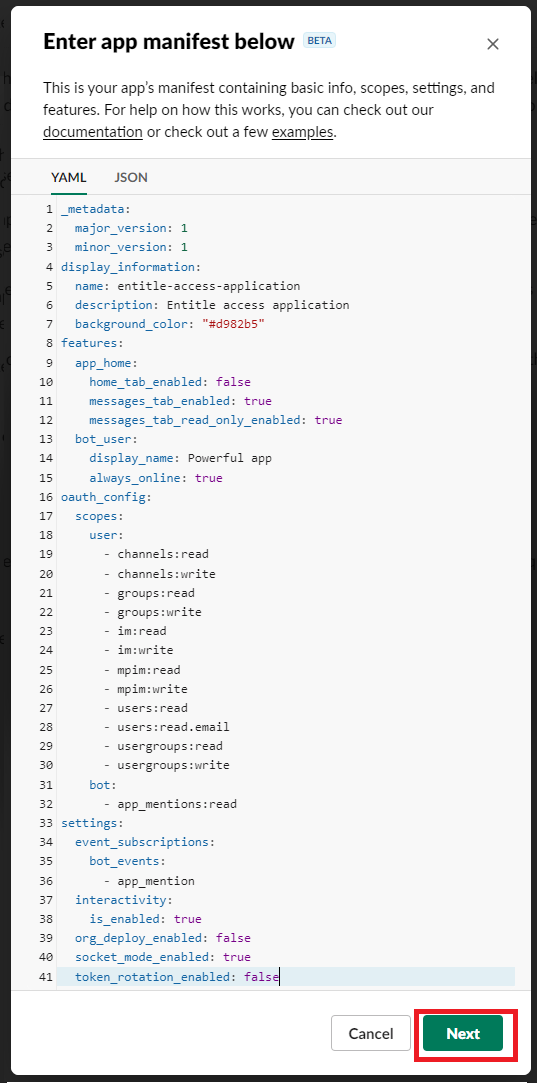
- Click Create.
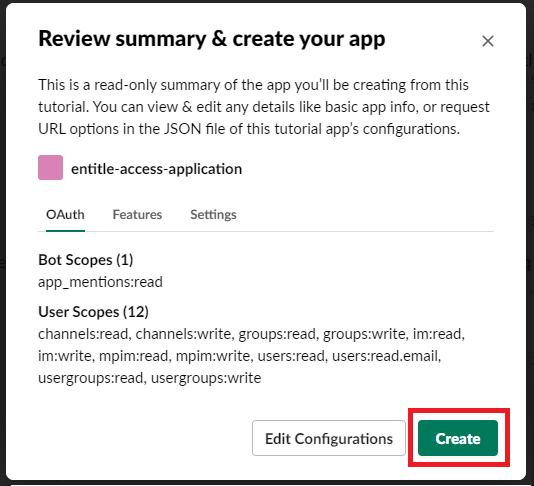
-
Under Install App, click Install to your workspace. Review the app permissions, then click Allow. Copy the generated User OAuth Token. For Enterprise Slack users, click Install to your organization.
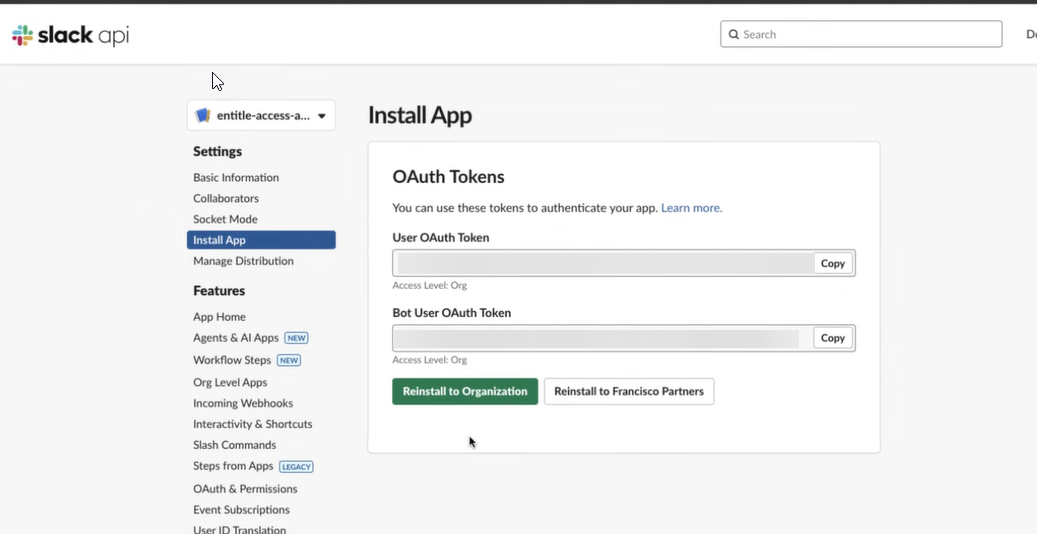
-
Navigate to the installed applications within Slack, locate the
entitle-access-application, and add the relevant Slack workspaces to that application.
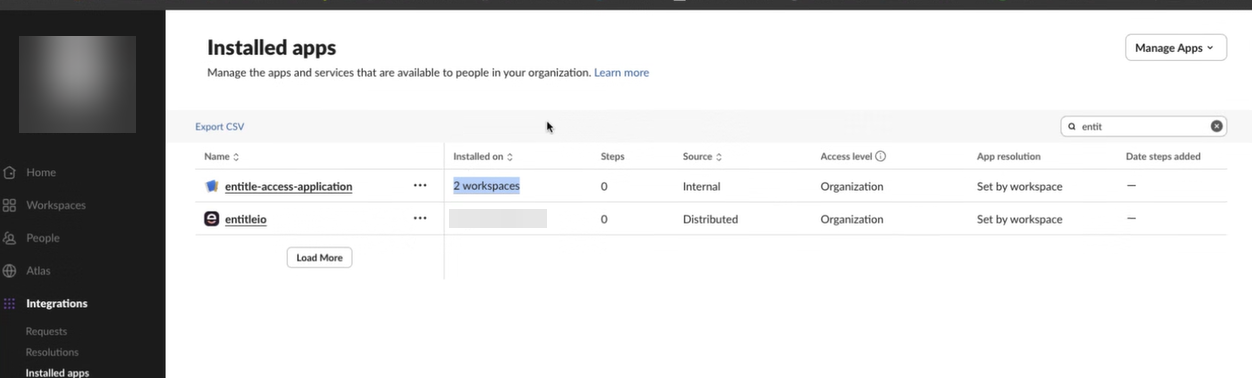
Create the integration in Entitle
- Log in to Entitle and go to the Integrations page.
- Click Add Integration.
- In the Application field, enter Slack.
- In the Save on dropdown, select Cloud or your hosted agent.
- In the Connection field, enter the previously generated User OAuth Token.
Example connection JSON{ "token": "<User OAuth Token>" }
- Click Check configuration. When this has finished, click Save.
Should you need to allowlist this integration, these are the IP address ranges from which Entitle's service reaches the integration:
- Entitle EU (Cloud deployment)
- 34.243.199.171
- 54.216.133.226
- Entitle US (Pathfinder deployment)
- 52.45.229.219
- 54.88.235.213
- 3.224.15.134
What's next?Make sure your setup is complete by testing your integration.
Updated 7 days ago
