
Hashicorp Boundary | Entitle
Overview
HashiCorp Boundary is an open-source solution that provides automated, secure, and identity-based user access to hosts and services across environments. It allows centralized administration and reduces the need for distributed, long-lived credentials by providing just-in-time access.
Entitle can manage roles and groups in HashiCorp Boundary organizations.
This page will provide you with instructions on how to integrate Entitle and HashiCorp Boundary.
General guidelines
In order to integrate HashiCorp Boundary with Entitle, you will need to set the following:
- Provide Entitle with an admin's credentials.
- Provide Entitle with your HashiCorp Boundary cluster URL.
- Generate a password for the project you choose to integrate with Entitle.
Prerequisites
- An admin account for HashiCorp Boundary.
Should you need to allowlist this integration, these are the IP address ranges from which Entitle's service reaches the integration:
- Entitle EU (Cloud deployment)
- 34.243.199.171
- 54.216.133.226
- Entitle US (Pathfinder deployment)
- 52.45.229.219
- 54.88.235.213
- 3.224.15.134
Set up HashiCorp Boundary to work with Entitle
Stage 1: Get the server URL and admin credentials
- Log in to your HashiCorp Boundary cluster with an admin account.
- Copy the admin's username, password, and the cluster URL, as you will use it later.
Stage 2: Generate a password method ID
If you already have configured an authentication method in your Boundary tenant - you can skip this step and use the preconfigured
password ID.The
password IDcan be found in step 4 of this Stage.
- Within the selected org, click on the
Auth Methodsbutton.
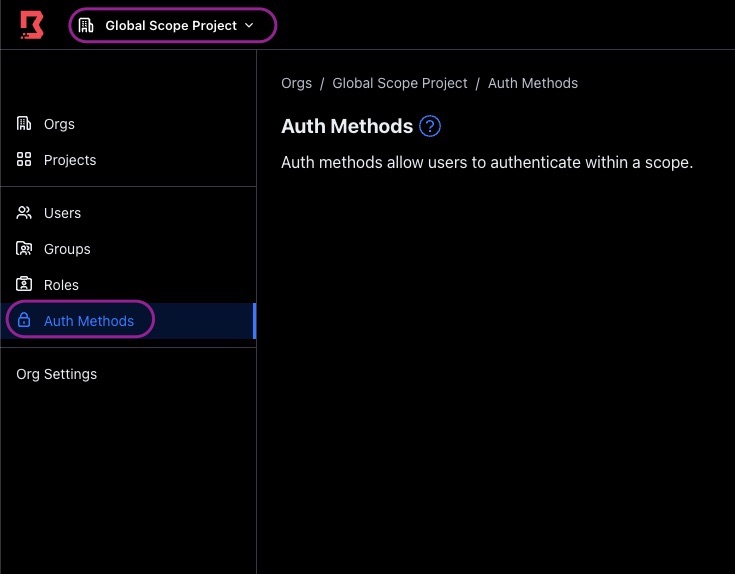
- Click on the
Newbutton to the right, and then choose thePasswordauth method.

- Add an indicative name under the
Namefield, and clickSave.
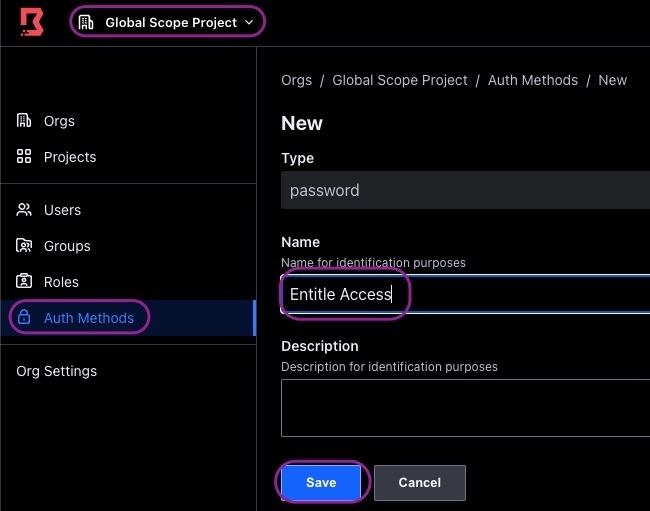
- Click on the newly created auth method, and copy the
password ID, as you will use it later on.

Creating the integration in Entitle
- Log in to Entitle and go to the Integrations page.
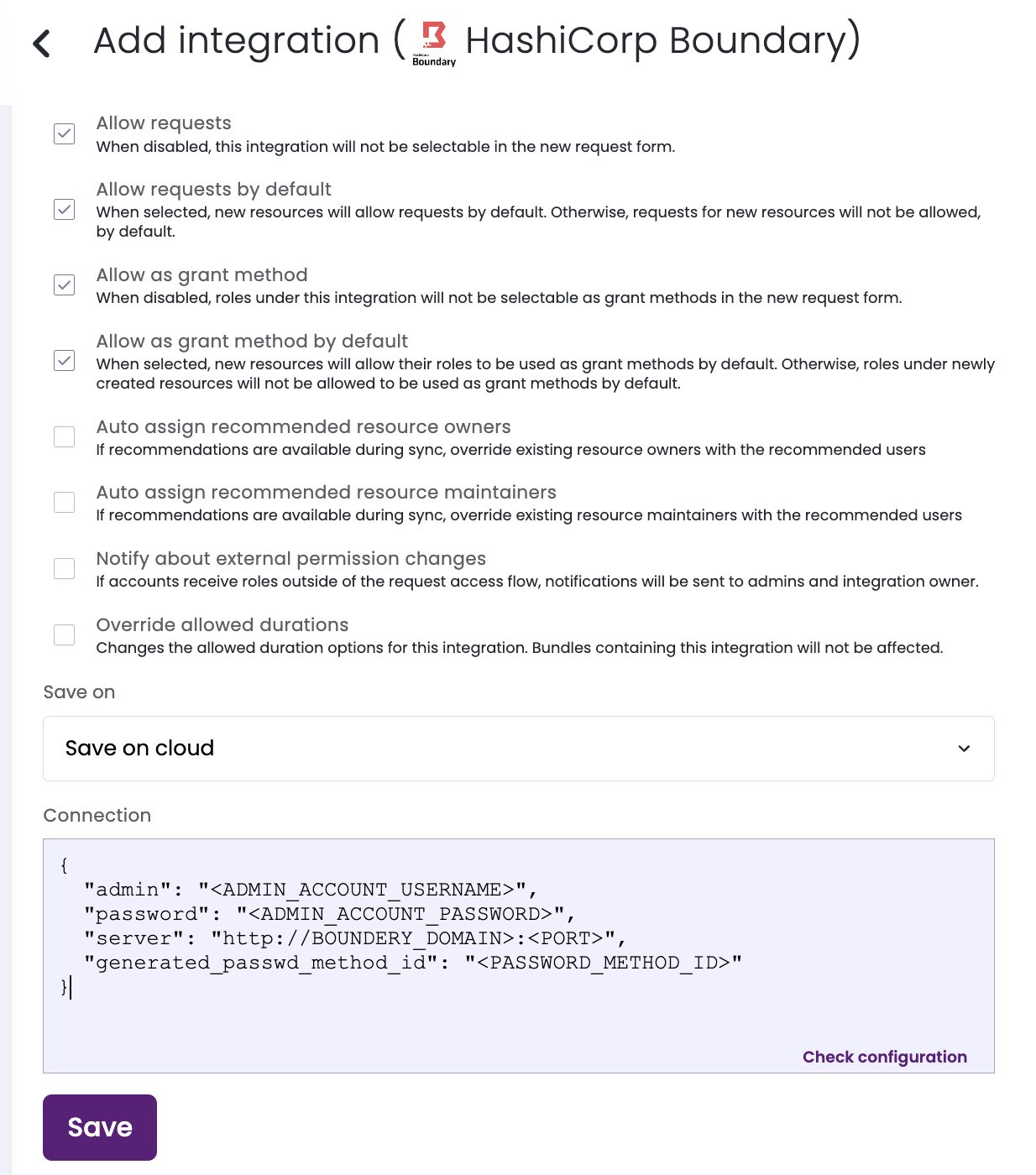
- After clicking the ‘Add Integration’ button, type 'Hashicorp Boundary' in the Application field.
- Don’t forget to set ‘Save on’ correctly on your agent or Entitle’s cloud.
-
Paste the admin's account username copied at Stage 1, step 2 into the
adminfield. -
Paste the admin's account password copied at Stage 1, step 2 into the
passwordfield. -
Paste your Boundary cluster URL copied at Stage 1, step 2 into the
serverfield. -
Paste the password you created at Stage 2, step 4 into the
generated_passed_method_idfield.Example configuration JSON{ "admin": "<ADMIN_ACCOUNT_USERNAME>", "password": "<ADMIN_ACCOUNT_PASSWORD>", "server": "http://BOUNDERY_DOMAIN>:<PORT>", "generated_passwd_method_id": "<PASSWORD_METHOD_ID>" } -
Click Save.
What's next?Make sure your setup is complete by testing your integration.
Updated 7 days ago
